
Purpose
- The purpose of this webpage is to provide applicants with a process for submission of Diesel Refund applications through eFiling.
- It outlines the requirements and application processes for Diesel Refund transactions that are identified with an “E” in the submission channels of SC-CF-19-A01, ensuring that applications are submitted electronically in accordance with SARS requirements.
Scope
- This webpage applies to all applicants submitting Diesel Refund applications through eFiling for application types designated with an “E” in the submission channels of SC-CF-19-A01.
- The scope includes the electronic submission of the following application types:
- Registration of a new Diesel Refund User;
- Registration of a new Diesel Refund Seller;
- Amendment of existing Diesel Refund registration information; and
- Withdrawal of a Diesel Refund registration.
- The webpage further provides the necessary information to assist applicants in completing and submitting these applications through the eFiling platform.
Log in to eFiling
- To access the eFiling platform, the user needs to visit the SARS website, click on the eFiling icon and enter his/her login details.
- They can only use a single username and password (referred to as the primary login) to login to eFiling.
- Once the applicant captures his/her username and clicks on the Next button.
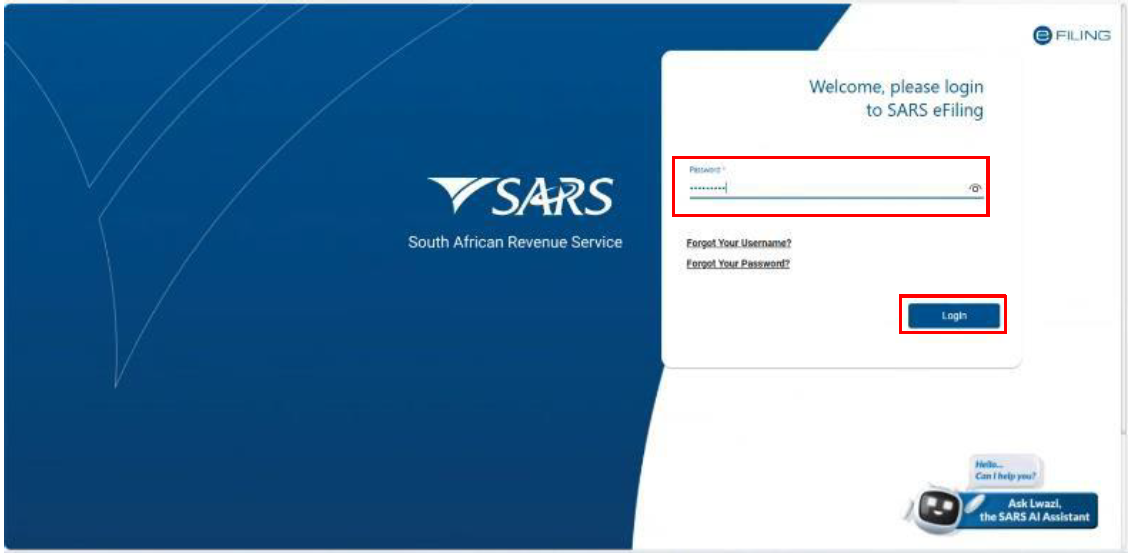
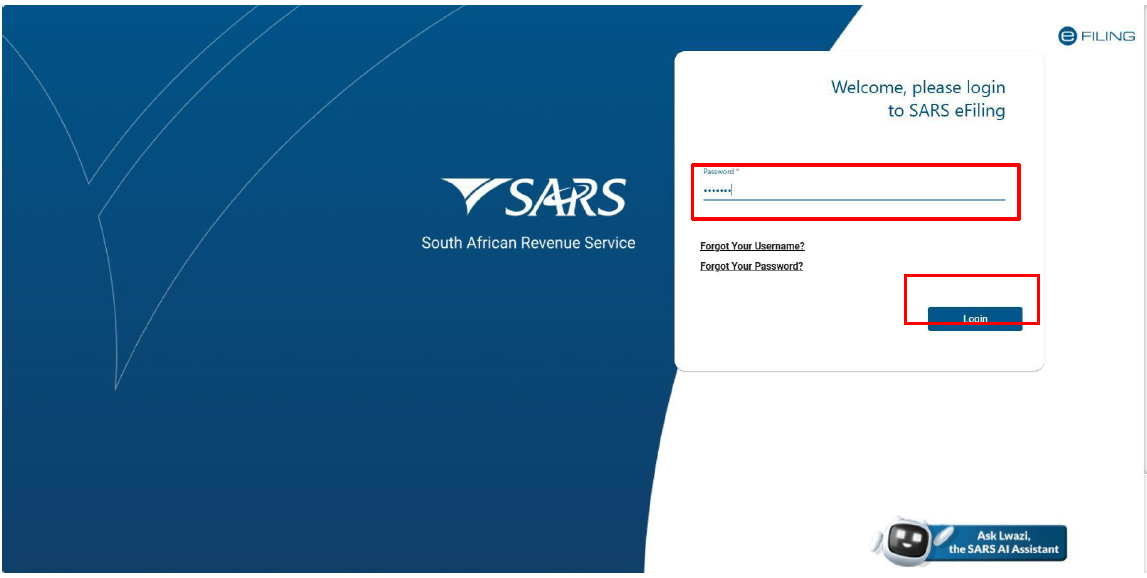
- The applicant captures his/her password and clicks on the Login button. The password requirements are explained in GEN-ELEC-18-G01.
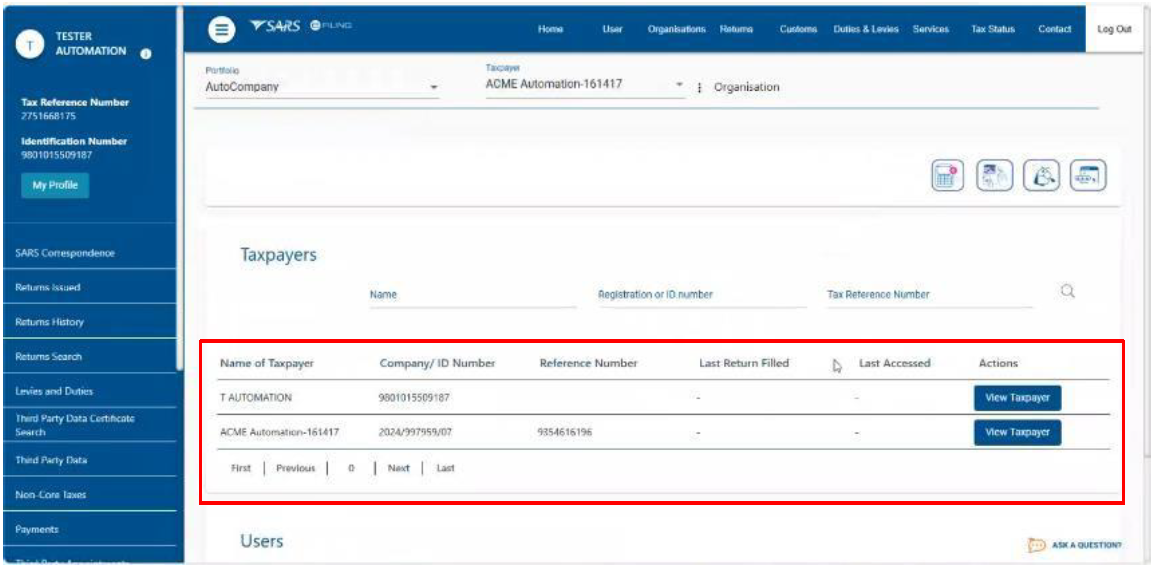
- The system displays the eFiling home page screen with the Client’s details at the bottom.
Change Portfolio Type and Taxpayer Details on eFiling
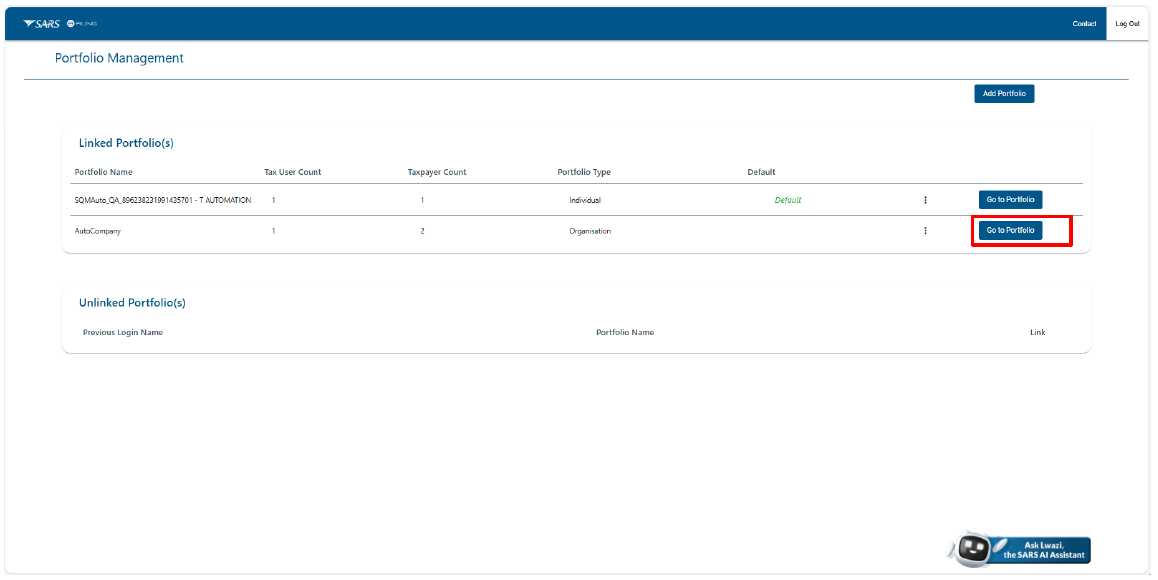
The screen bellow shows a default screen with individual portfolio and the user may change his/her portfolio type from individual to organisation by:
- Clicks on Portfolio Management on the drop-down box;
- Selecting the client’s name if any;
- Clicking on the three (03) dots next to individual;
- Select Organisation;
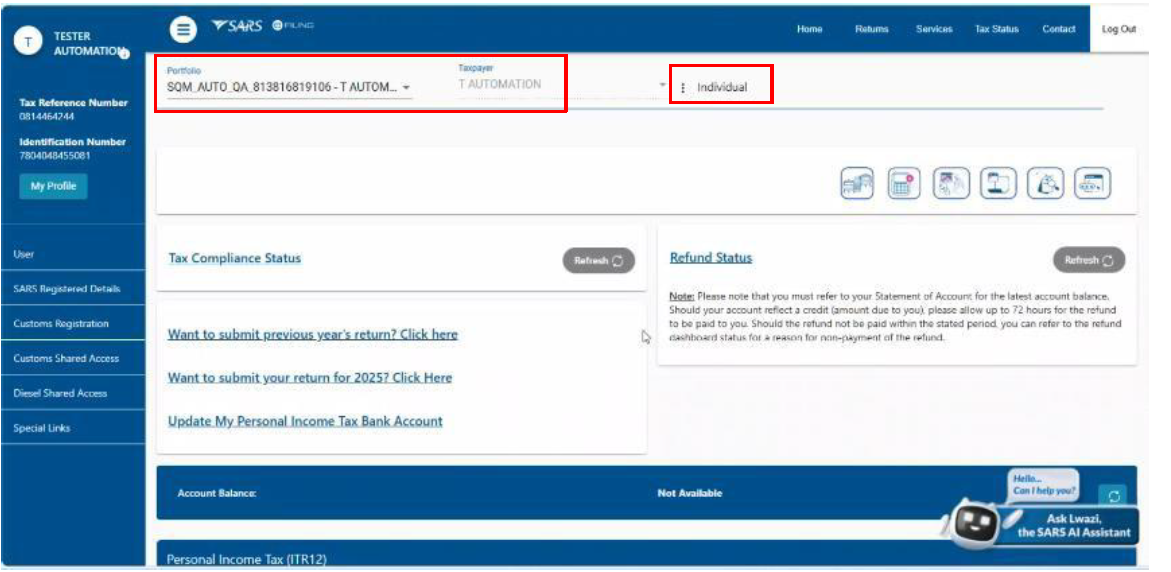
- The system displays the list of Portfolio Type options and the applicant may select Organisation.
- The system displays a screen with the organisation portfolio.
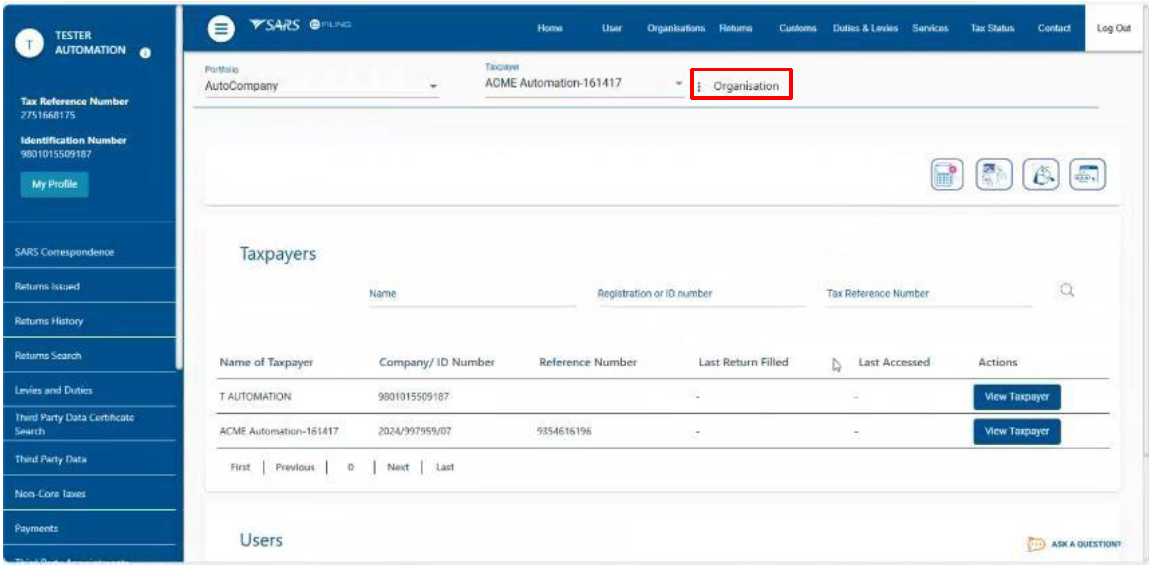
Activation of Public Representative
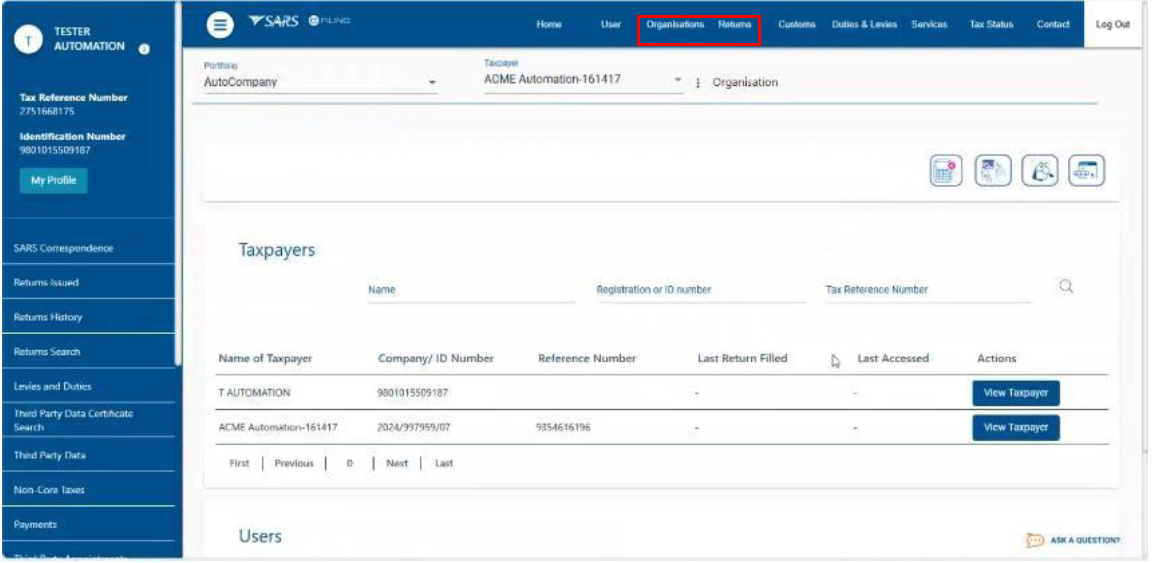
- If the portfolio selected is organisation, the system changes from individual to organisation and the applicant must click organisation on the top menu bar of the above screen.
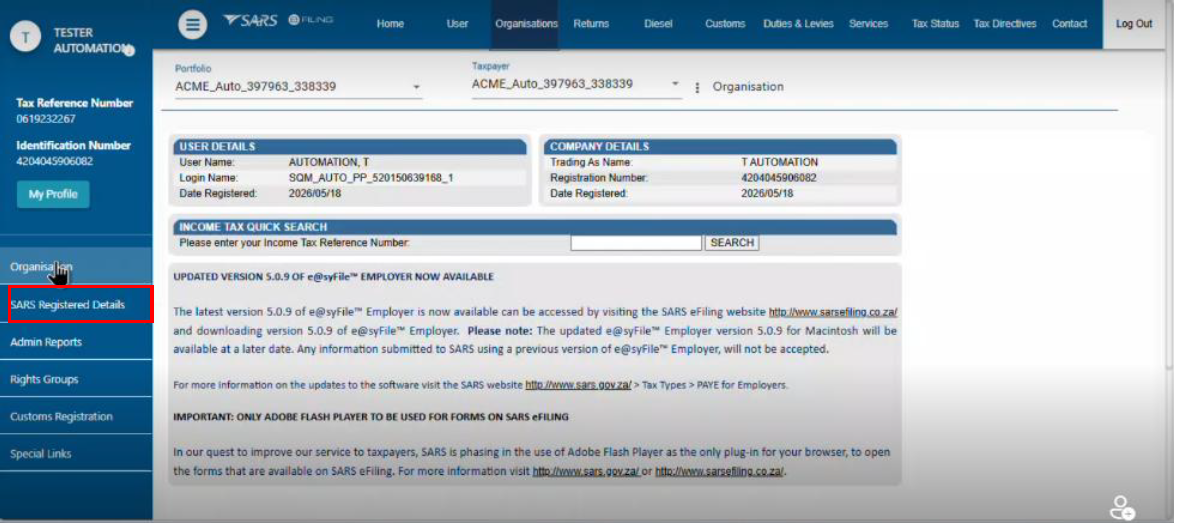
- The applicant must click on SARS registered details.
- The applicant must click on Activate Registered Representative
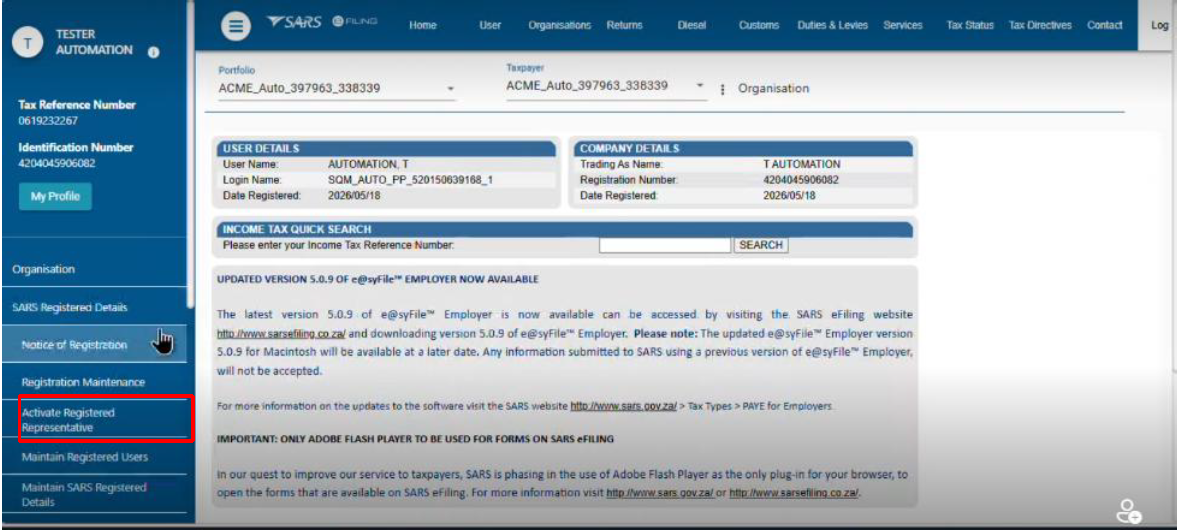
- If necessary, the applicant must click on Activate Registered Representative
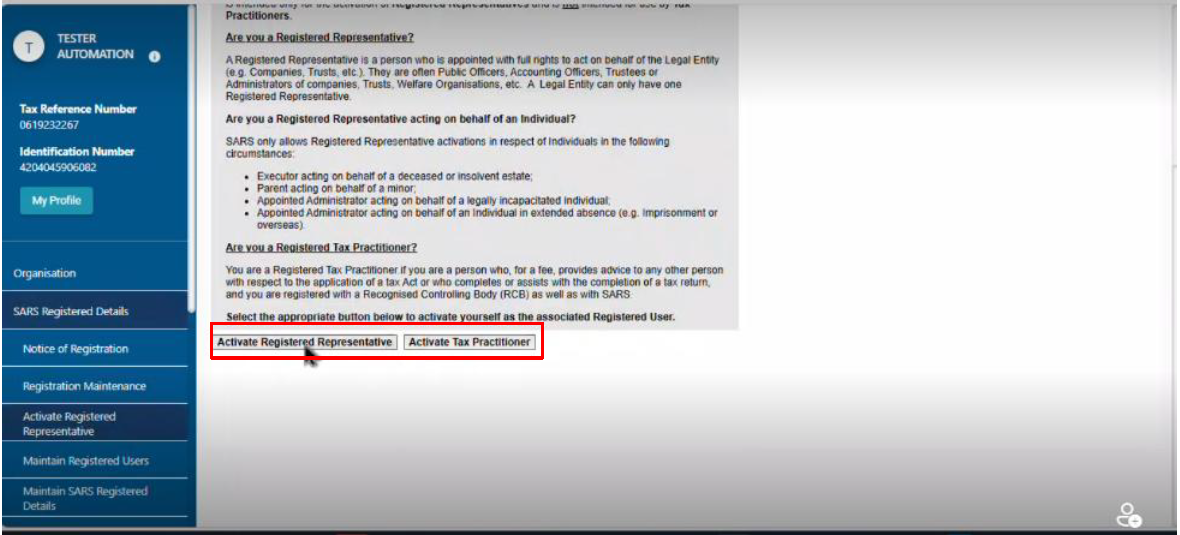
- The applicant must:
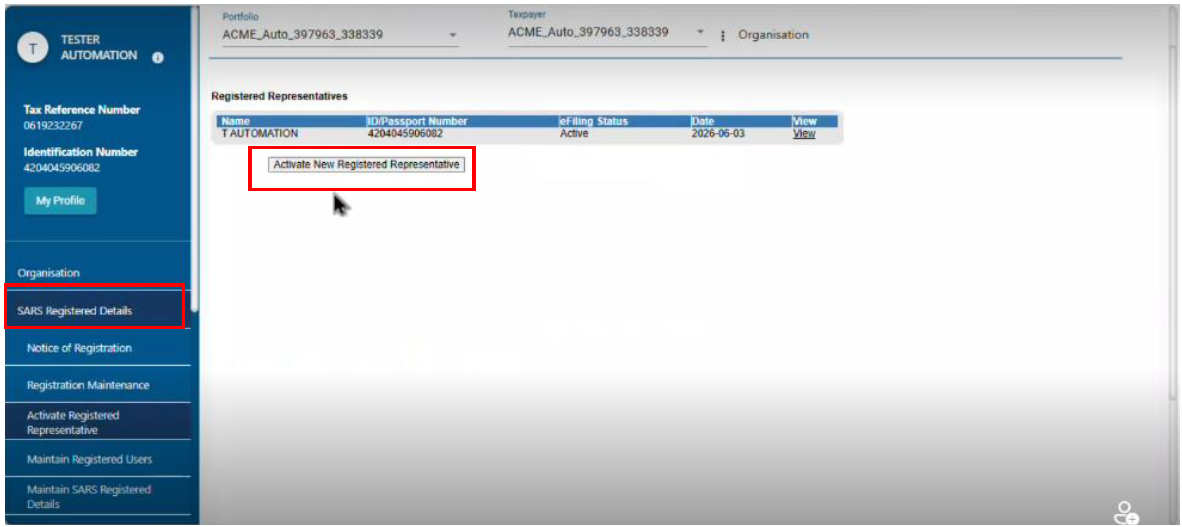
- Click on Activate New Registered Representative, If necessary; or
- Click on SARS Registered Details.
Registration Amendment and Verification Form (RAV01)
- After the details of the registered representative have been captured or verified, the applicant may proceed with verification or amendment of registration details.
- The applicant must click on SARS Registered Details.
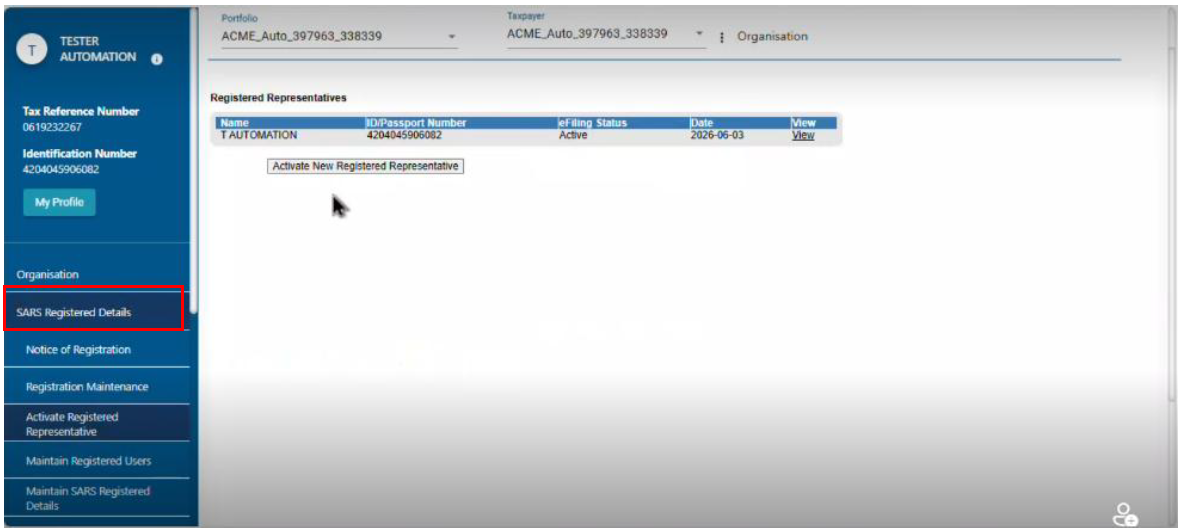
- The applicant must Click on Maintain SARS Registered Details
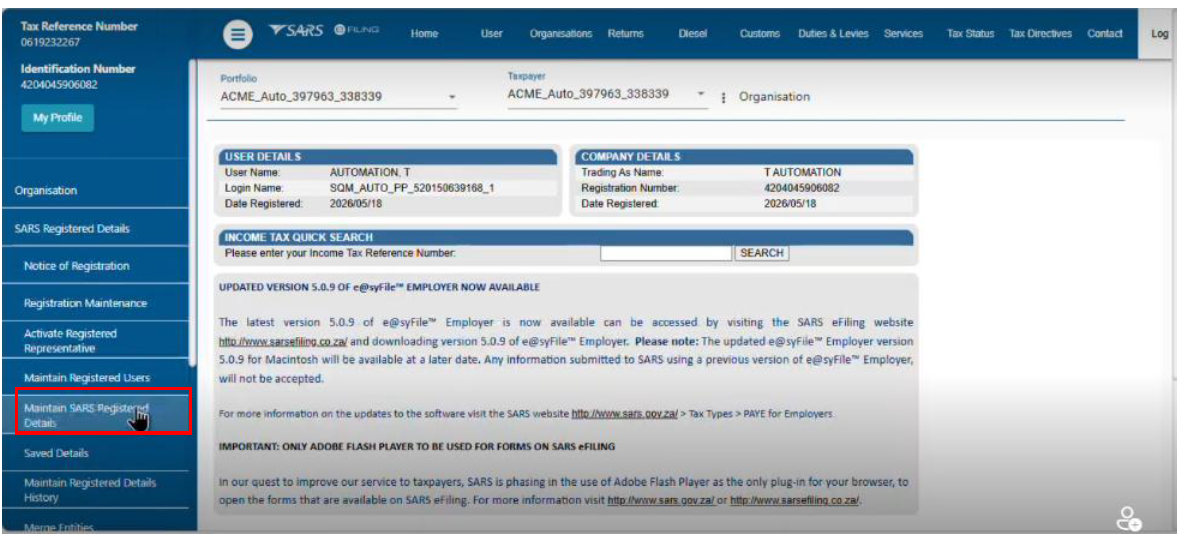
- The applicant must click on:
- Agree; and
- Continue
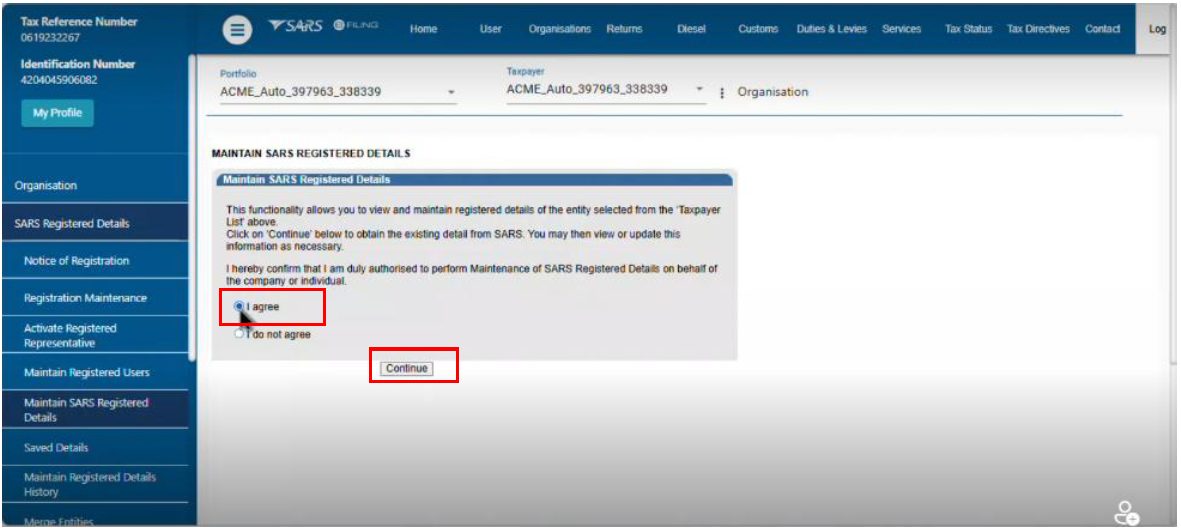
- The system displays the Registration Amendment and Verification (RAV01) Form to be verified, edit and capture the required information.
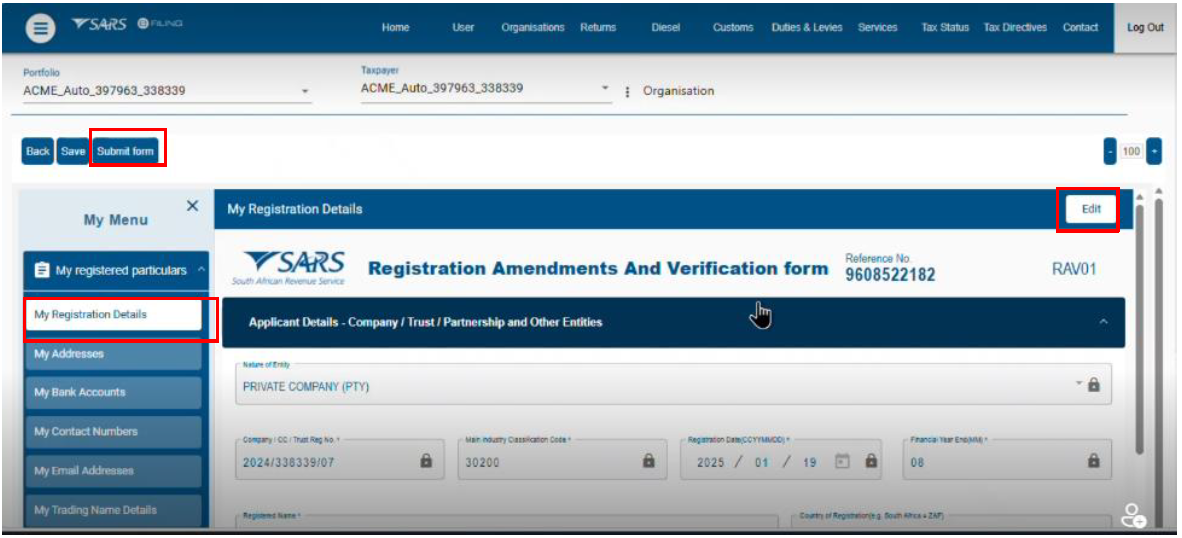
- The applicant must:
- Click on My registration details;
- Scroll down the RAV01 Form; and
- Fill in the required information in coloured containers such as:
- Address details
- Bank Accounts details
- Contact Numbers
- Email Address
- Trading Name Details; or
- Complete applicant’s Details
- After the applicant has made any amendment, verification to the RAV01 Form and satisfied with the information therein, s/he must click on Submit.
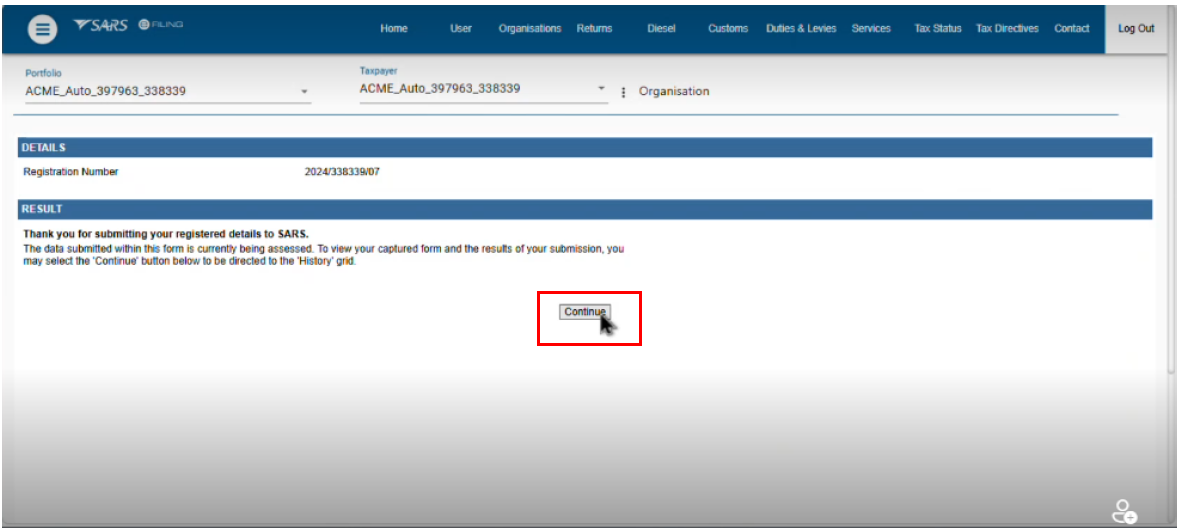
- The applicant must click on Continue
Diesel Refunds Registration
- When all the details required from the client in the RAV01 Form as a legal entity, the applicant proceed to capture diesel refund application details.
- The applicant must click on My Tax Products
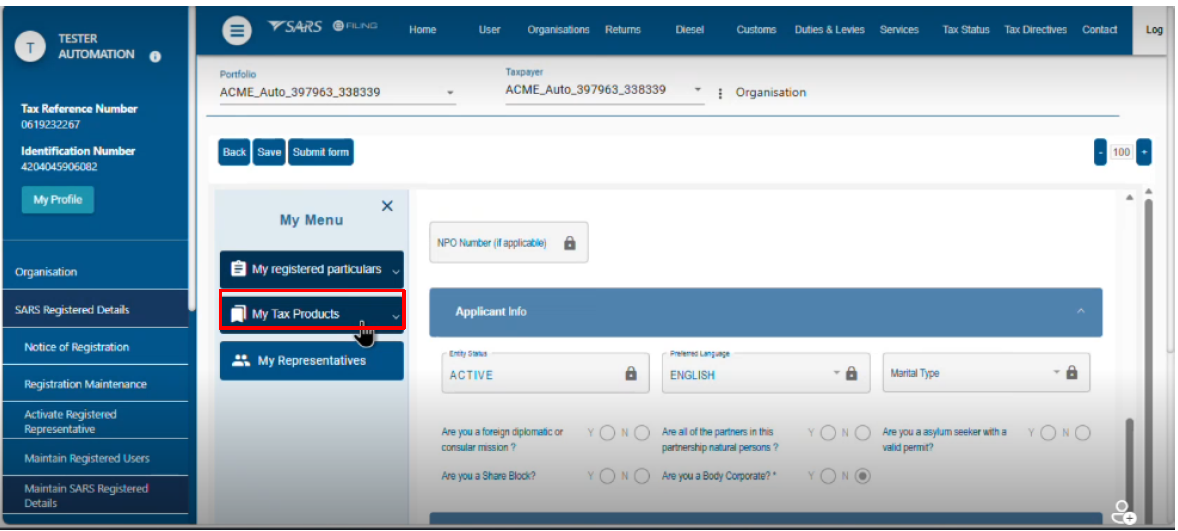
- The applicant must:
- Scroll down the tax product; and
- Click on diesel refunds
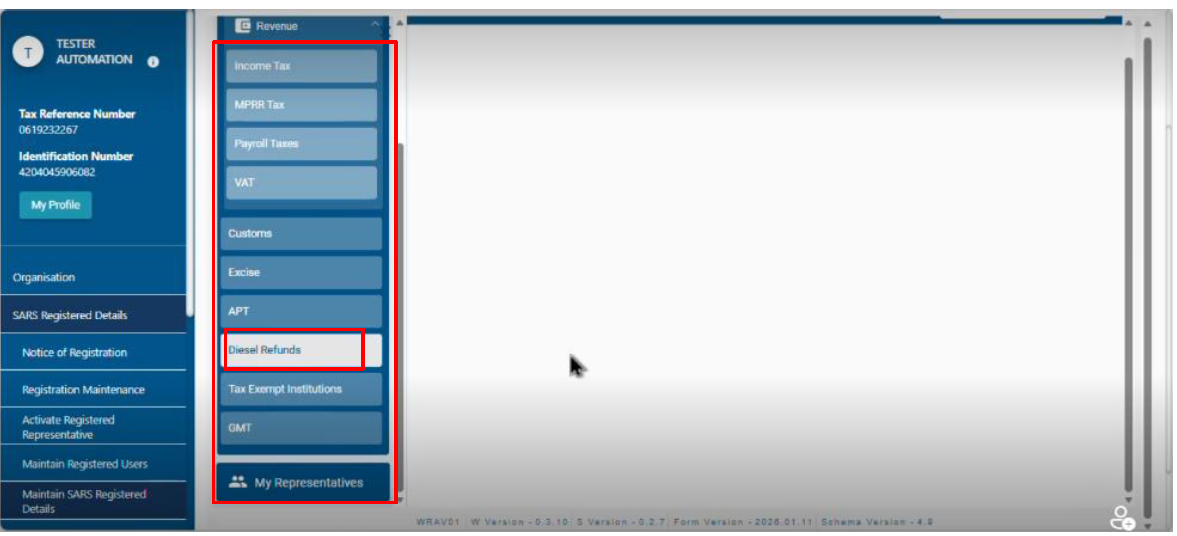
- The applicant must click on Add new product registration
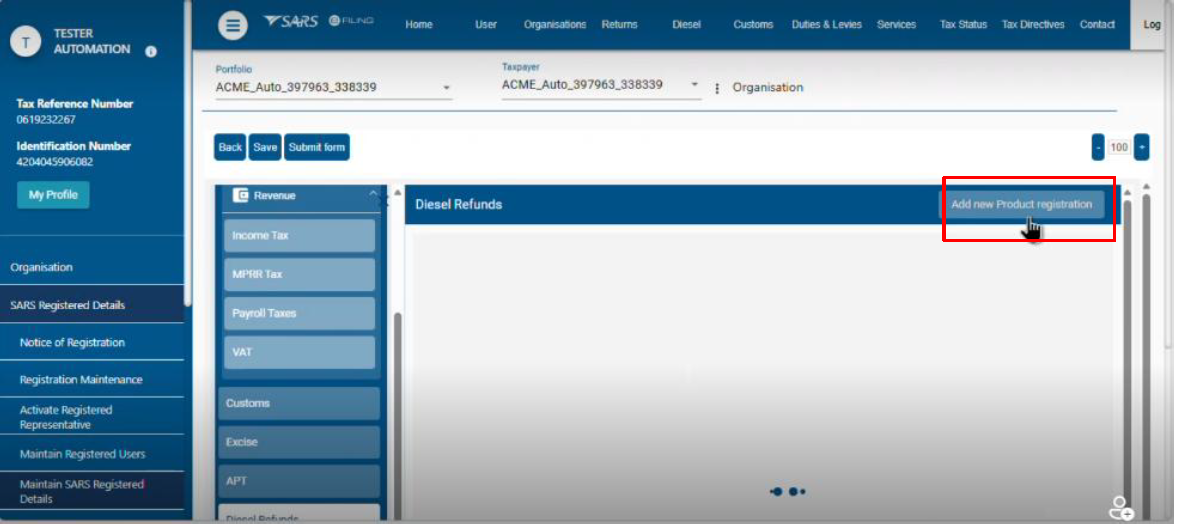
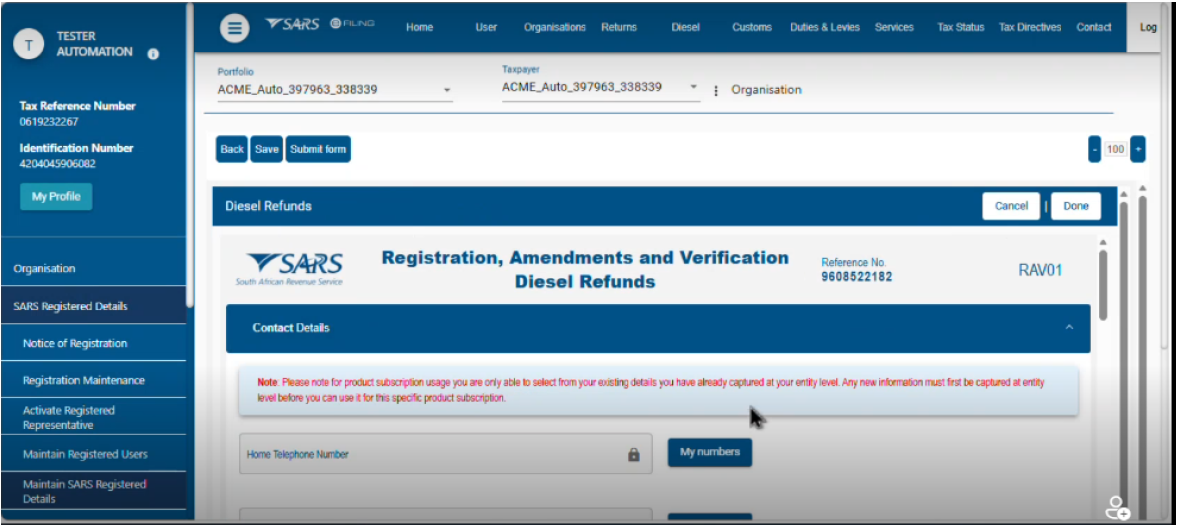
- The applicant must:
- Scroll down to the Diesel Refunds product button on the RAV01 Form; and
- Fill in the required information in coloured containers such as:
- Address details
- Bank Accounts details
- Contact Numbers
- Email Address
- Trading Name Details; or
- Complete applicant’s Details
Registration of New Diesel Refunds user
- When legal entity details are completed or verified in RAV01 Form, the applicant must:
- Select the diesel refunds client type such as:
- Seller of distilled fuel; or
- Diesel refunds User.
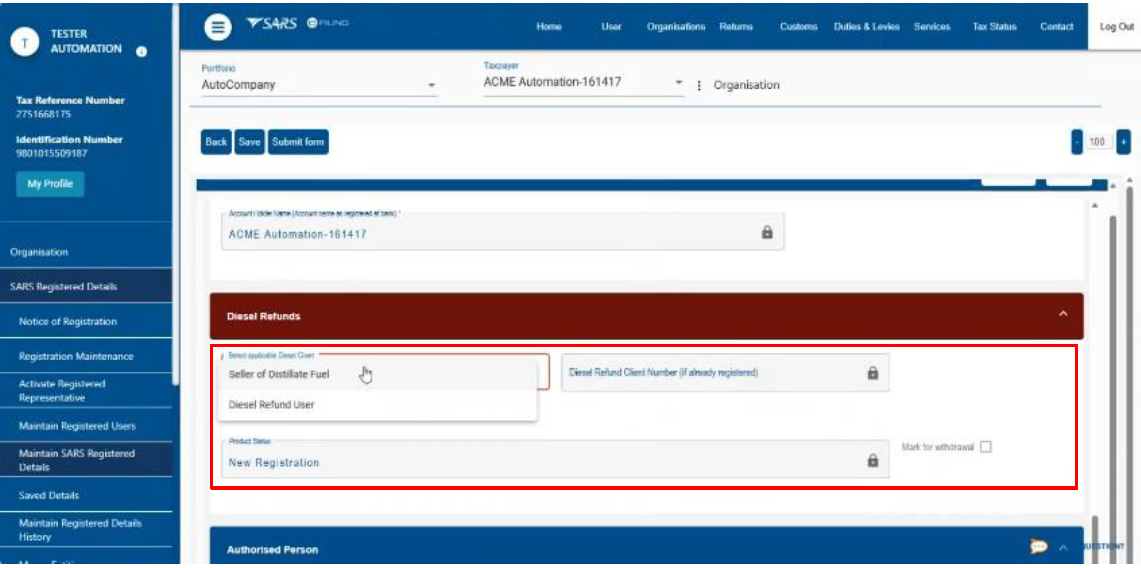
- If the applicant choses diesel refund user client type, eFiling displays the screen below and the applicant must:
- Choose whether s/he is a contractor or not;
- Select the relevant category in which operation take place; and
- Provide additional information required for each selected category.
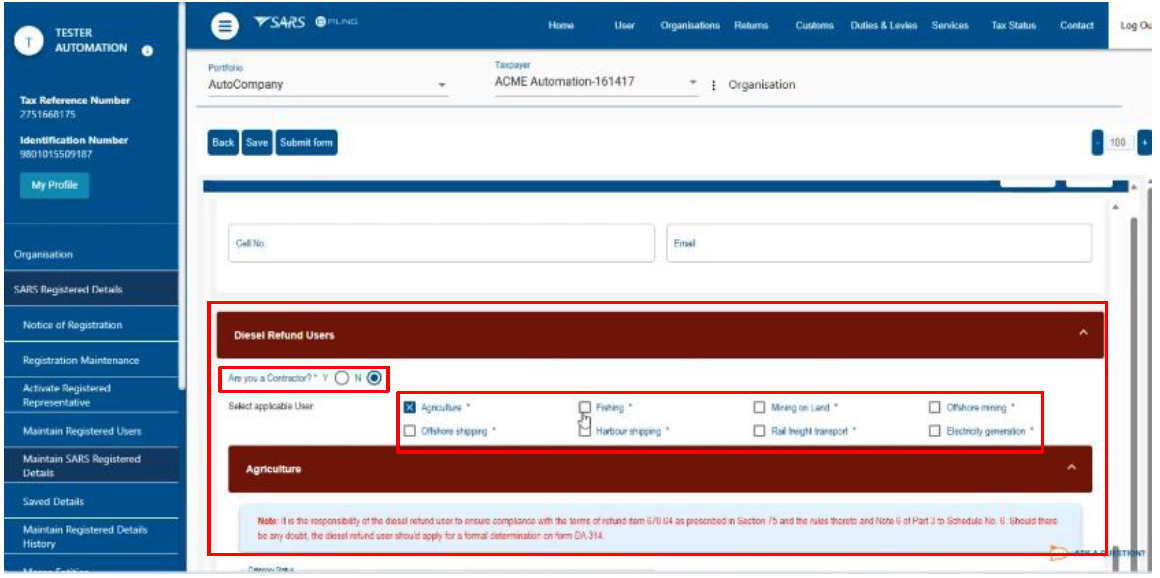
- The applicant must fill in the required information as per the previous selection in all the coloured containers.
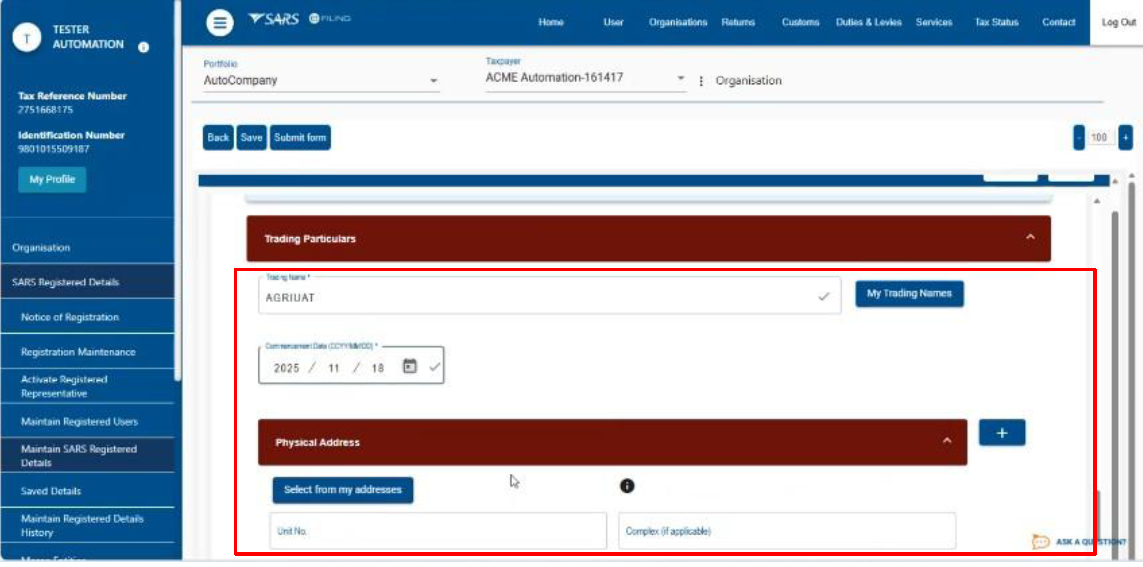
- If the Diesel Refunds registration, amendment and verification form, RAV01 form is fully completed and no longer shows coloured containers, the user must click the Done button.
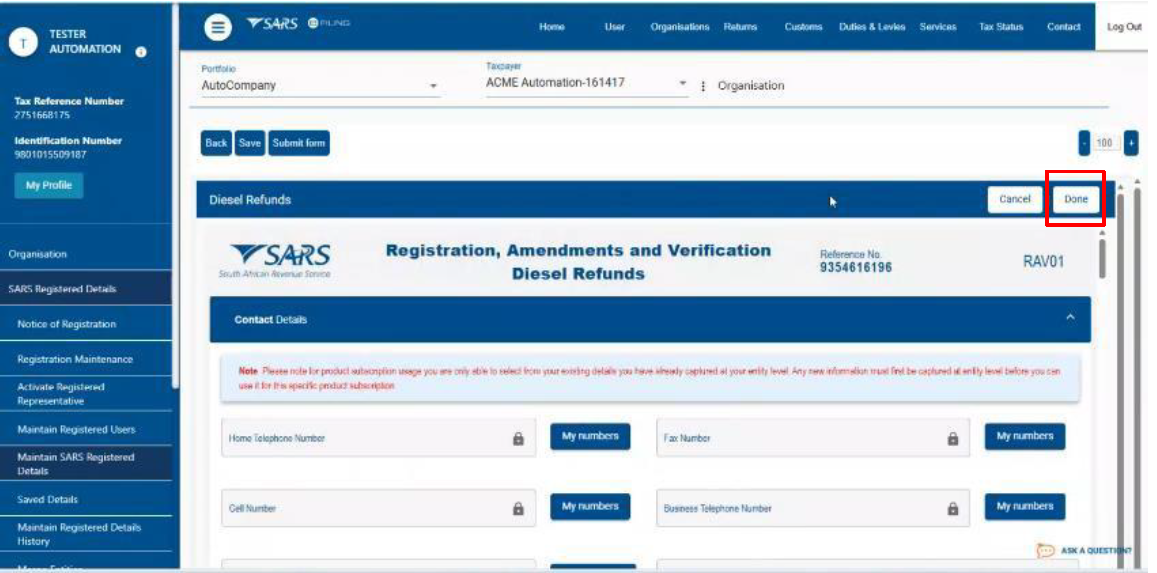
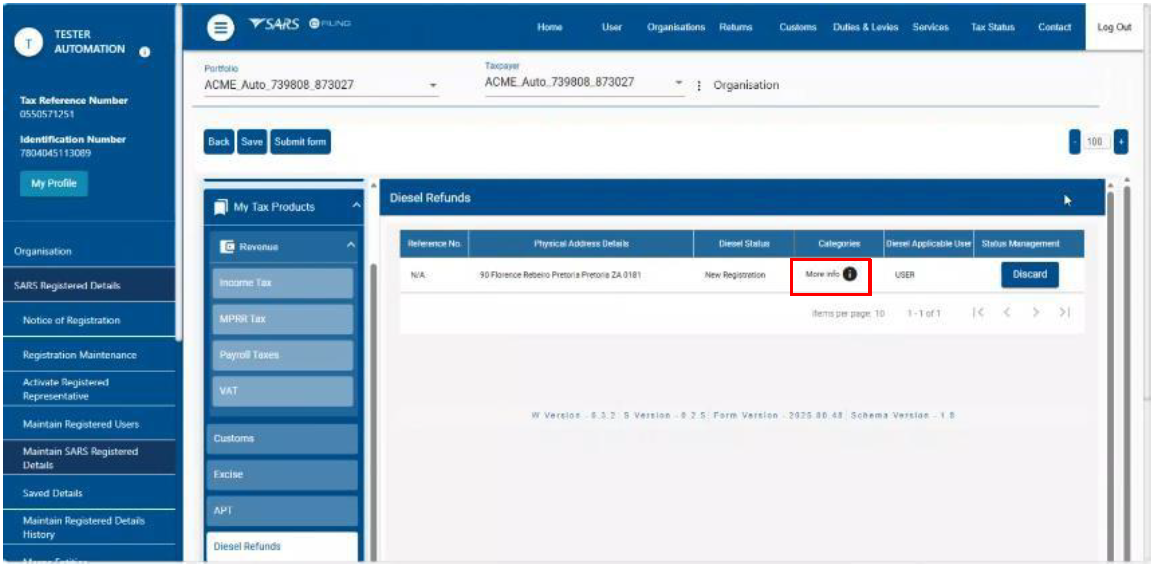
- Efiling displays the screen below and the applicant may click on the More Information button and view the information captured.
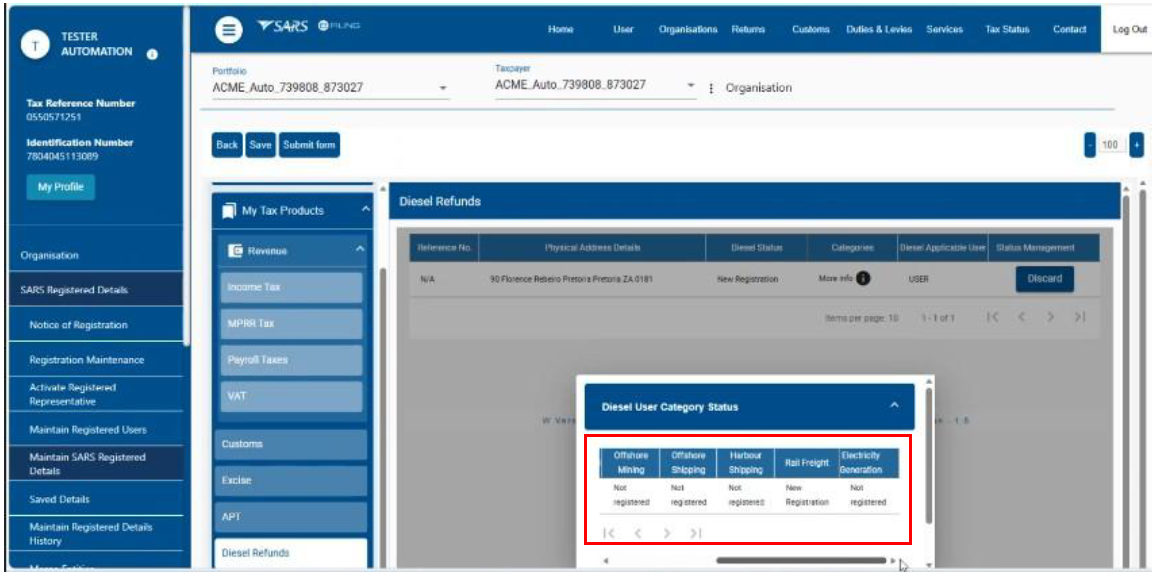
- eFiling displays the dialogue box reflecting the Diesel Refund User category status and the applicant can close the information.
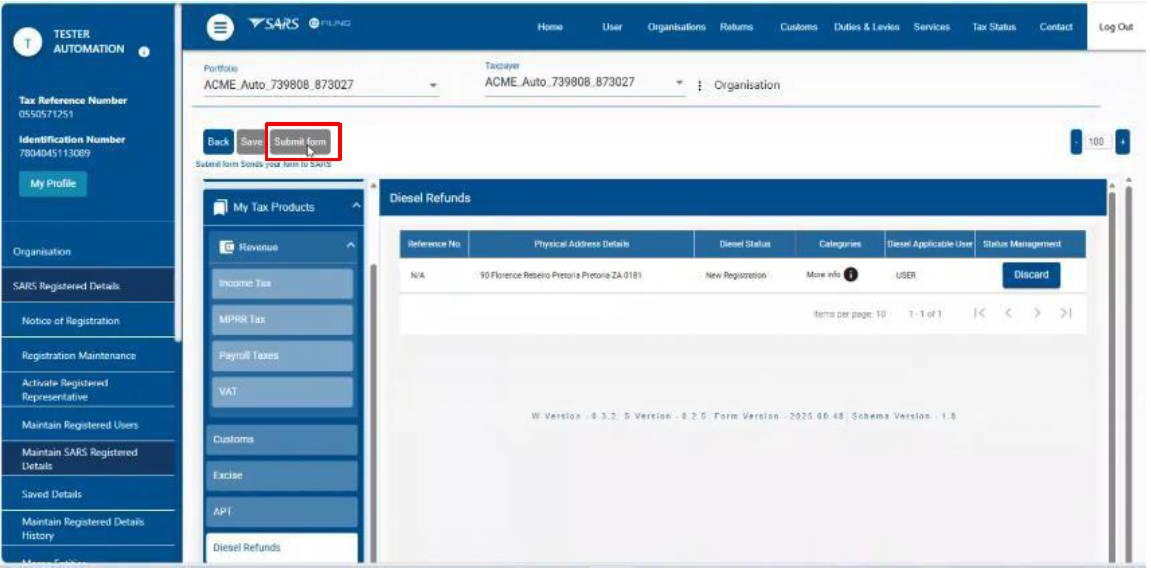
- eFiling displays the summary of captured registration details of the client with an option for the client to discard the details captured and the applicant must click the submit button.
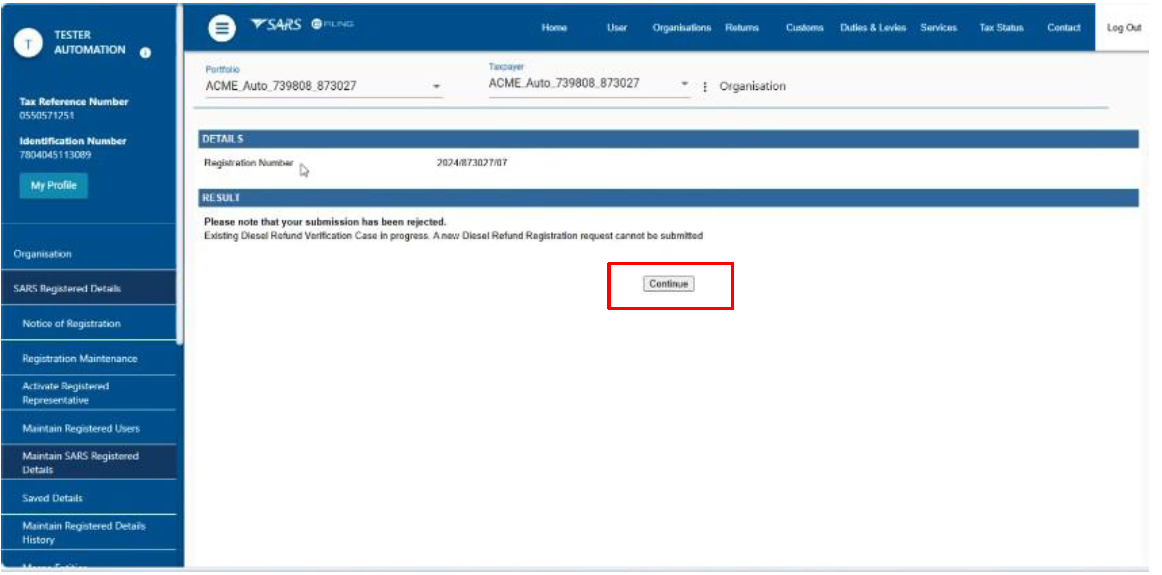
- The system displays the screen below and the applicant must click the Continue button.
New Registration of Diesel Refunds Seller
- After the details of the registered representative have been captured or verified, the applicant may proceed with verification or amendment of registration details.
- The applicant must select Seller of Distilled Fuel.
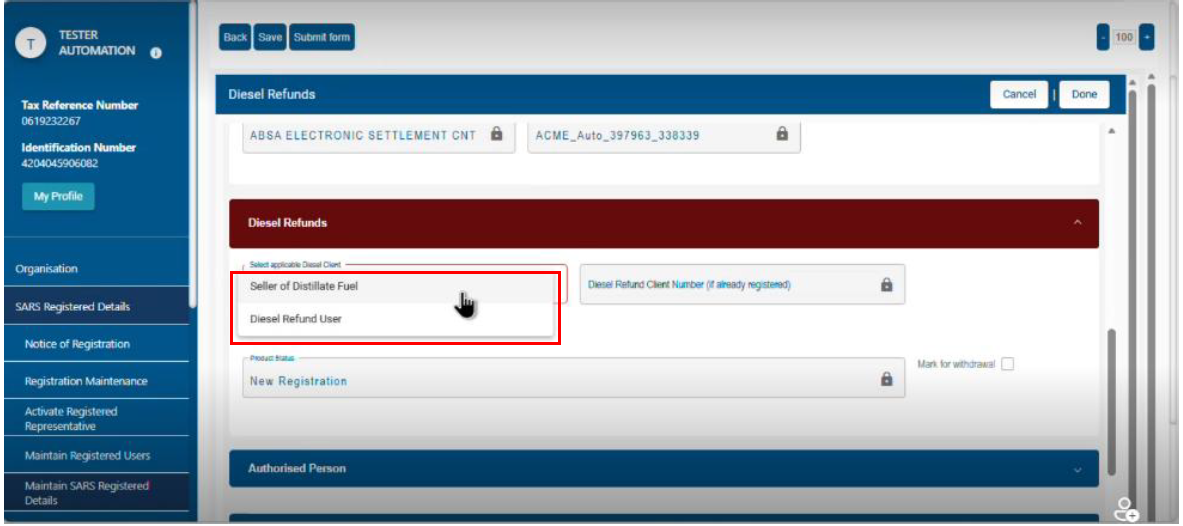
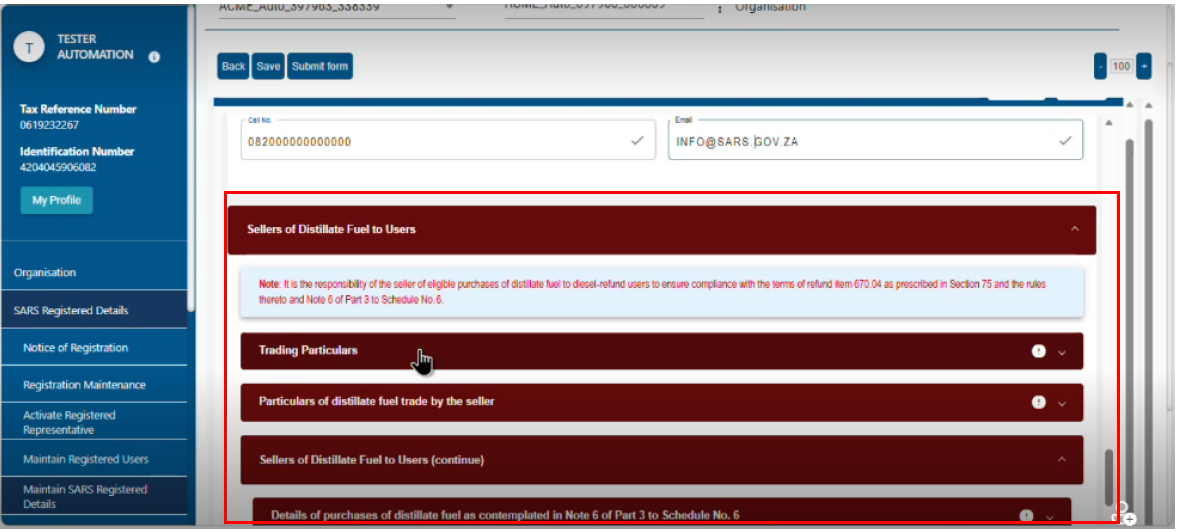
- The applicant must:
- Scroll down the form; and
- Fill in the required information in the coloured containers.
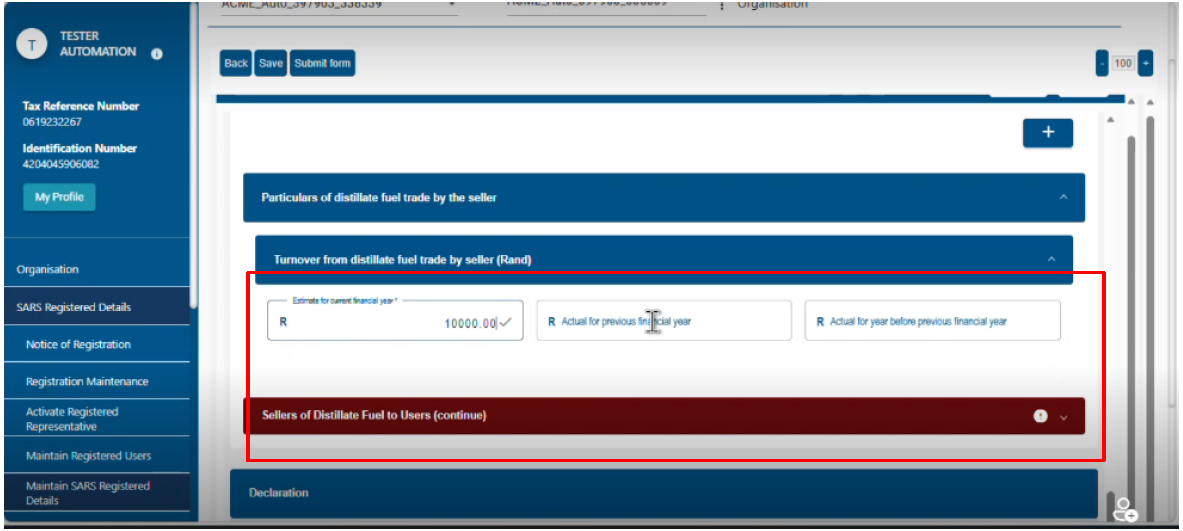
- The applicant must provide the financial turnover.
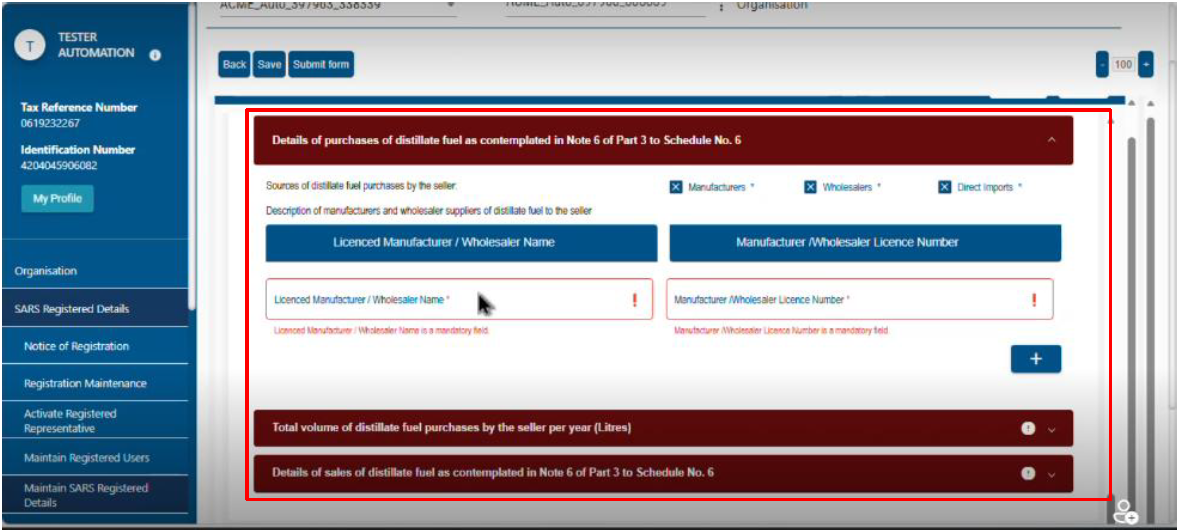
- The applicant must:
- Declare the source of distilled fuel; and
- Describe the manufacturers of the distilled fuel.
- The applicant must declare the volume of distilled fuel that s/he buys from each manufacturer.
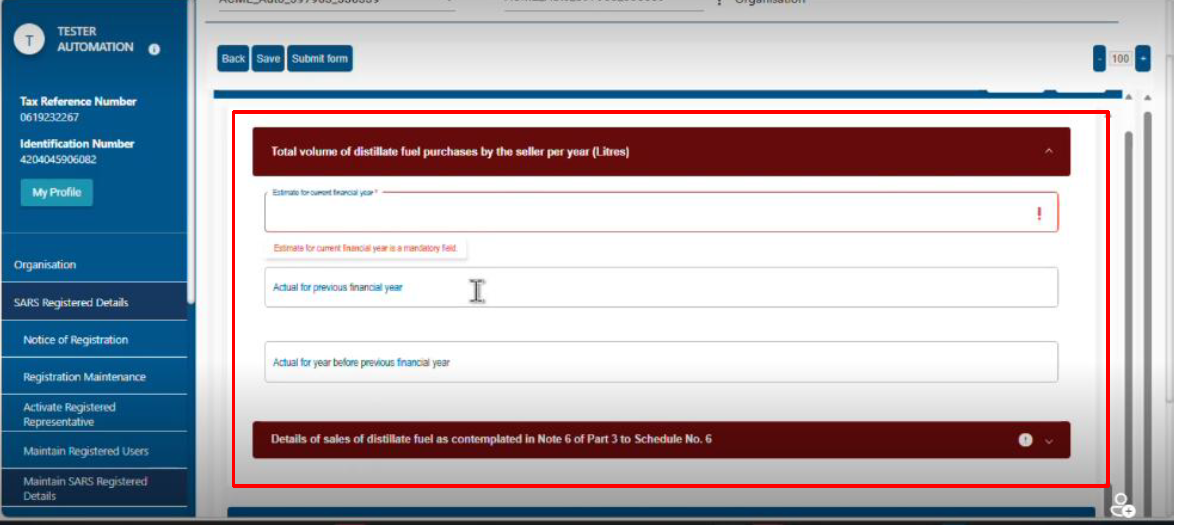
- The applicant must:
- Scroll down the form; and
- Ensure that all the containers are blue; and
- Click on Done.
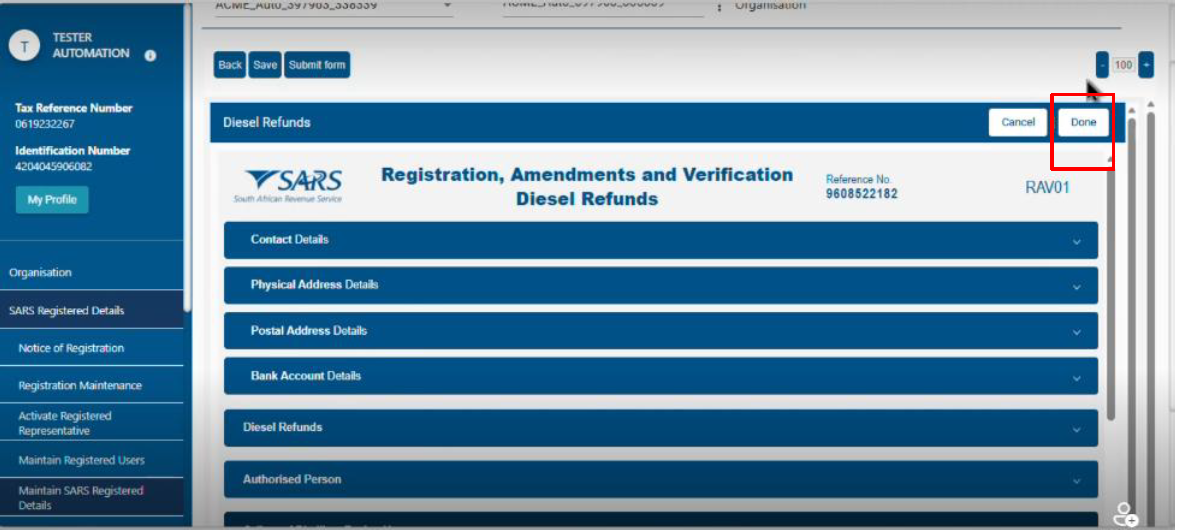
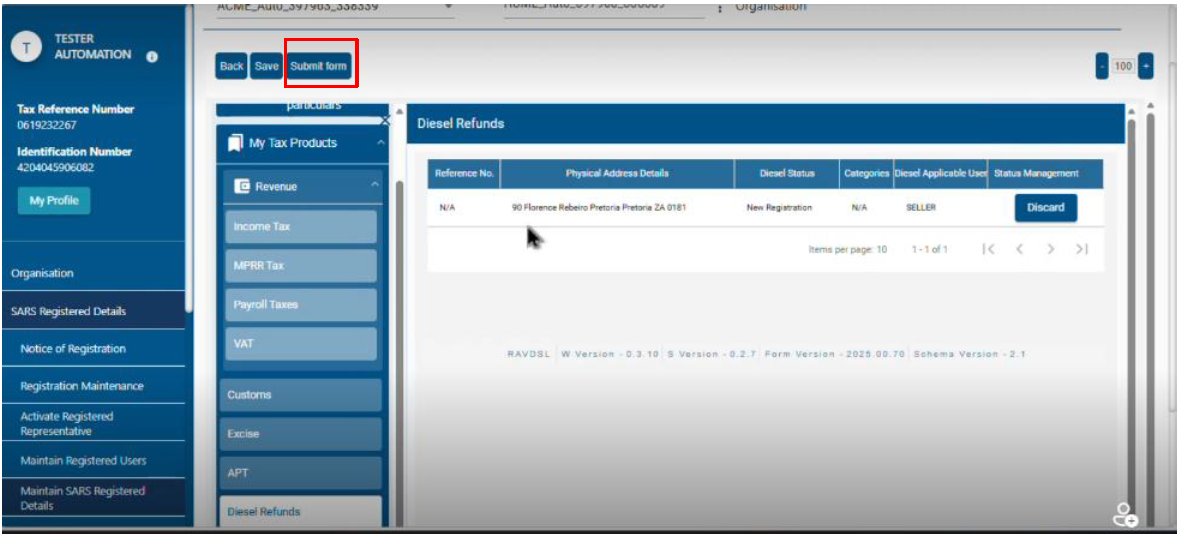
- The applicant has an option to:
- Discard the information captured; or
- Submit, by clicking submit form button.
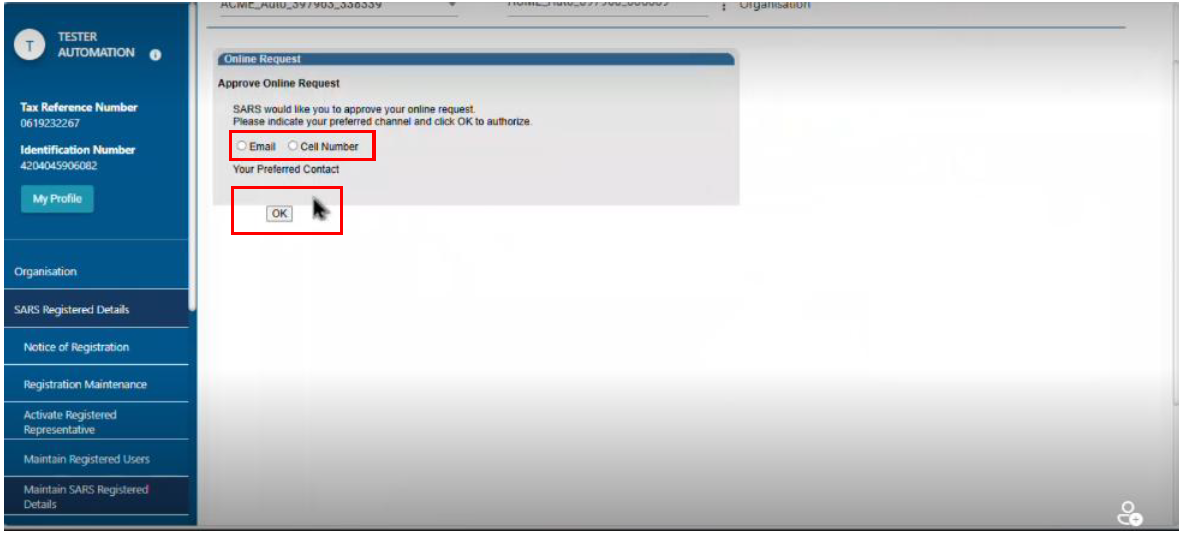
- The applicant will be sent a request to approve the online request. He or she has an option to receive the approval by:
- Cell phone; or
- Email; and
- OK
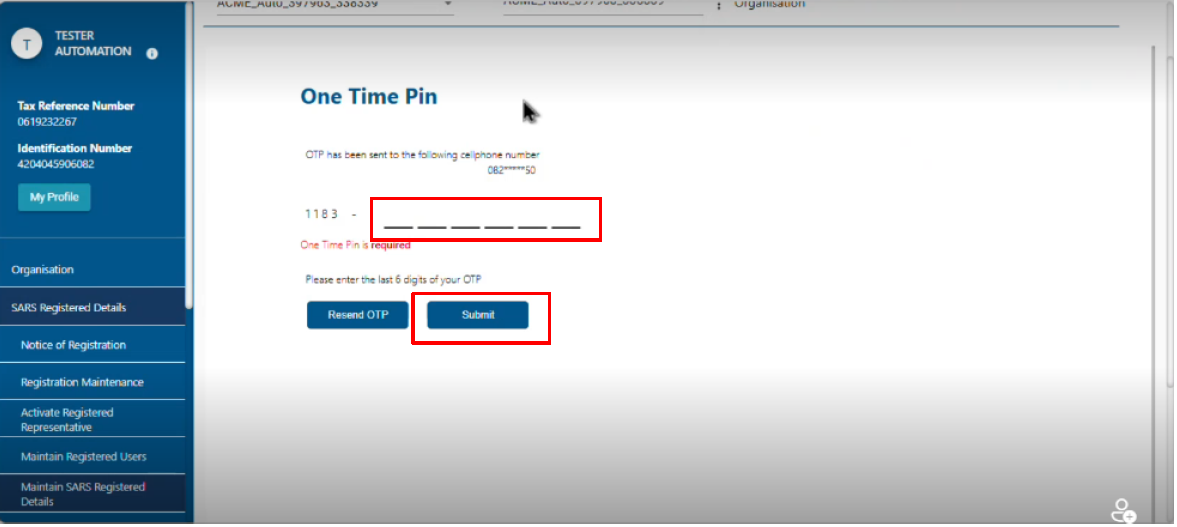
- The applicant will be sent an OTP on the preferred channel and must:
- Insert the OTP Code as directed on the screen; and
- Click Submit.
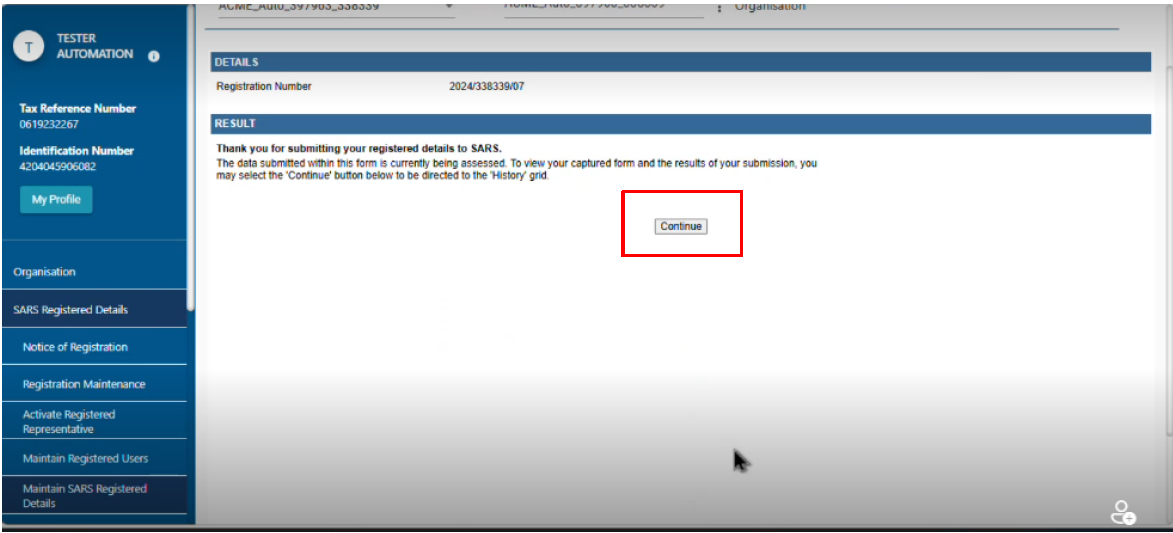
- The applicant must click on continue.
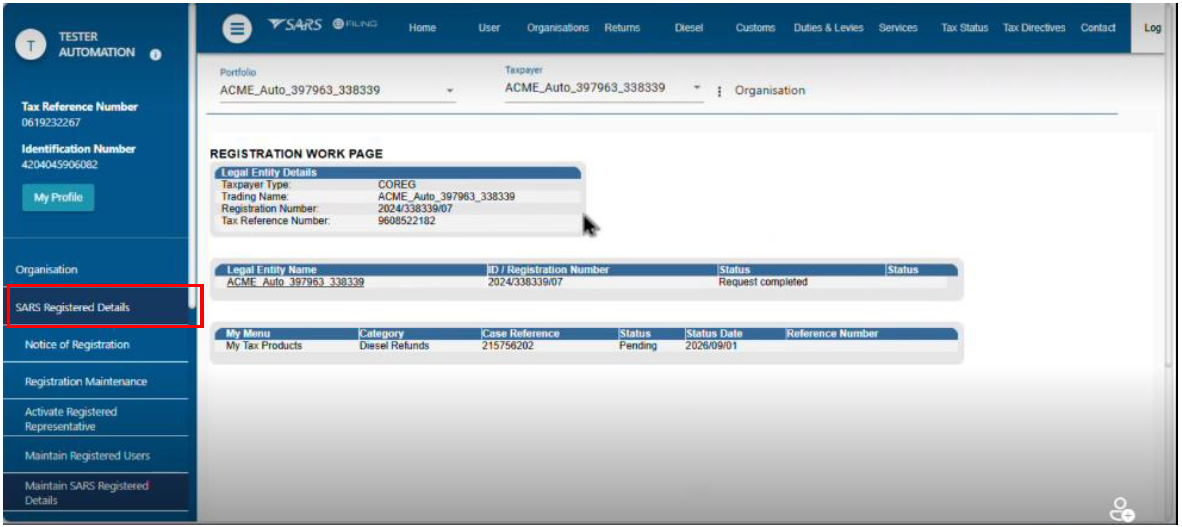
- The applicant must click on SARS Registered details to view the information captured and the registration status.
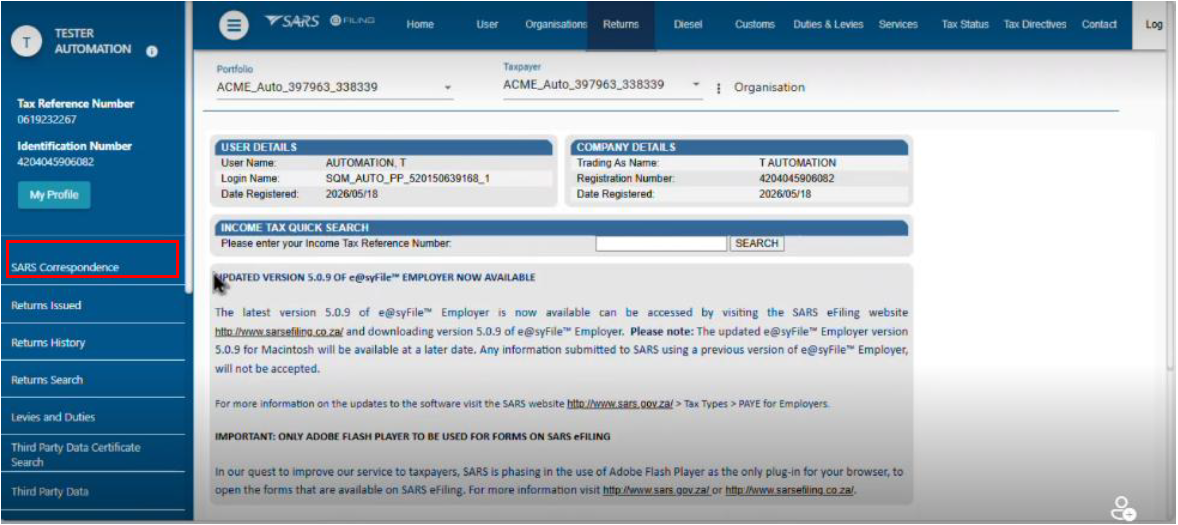
- The applicant must click on SARS Correspondence.
- The applicant must click on Search Correspondence.
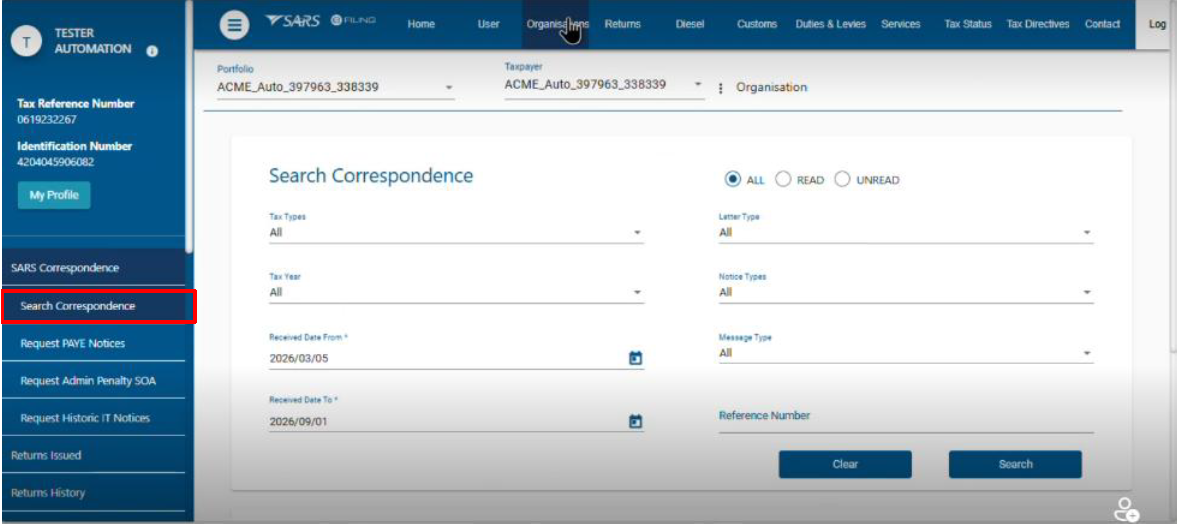
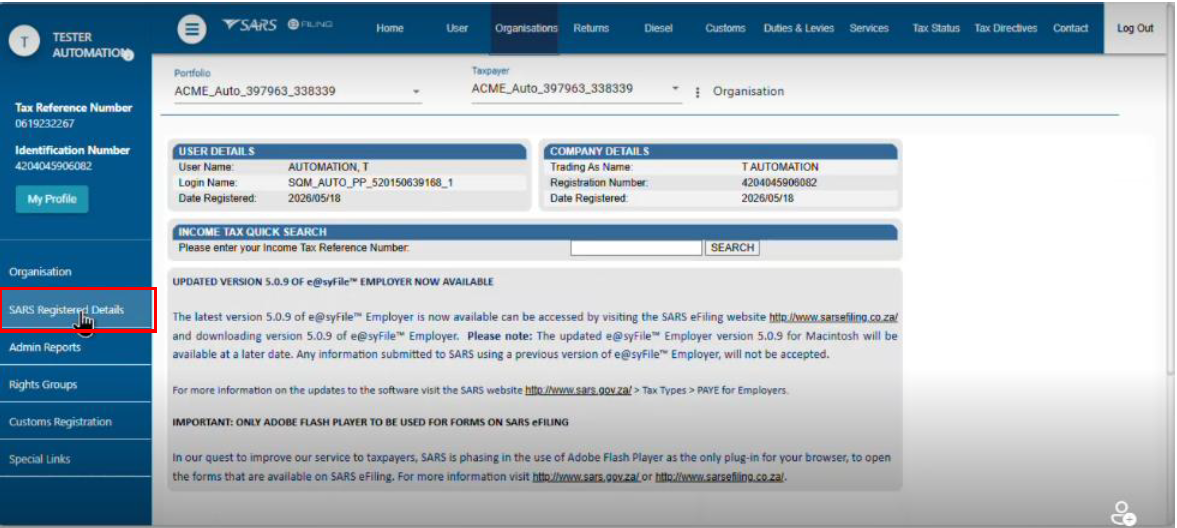
- The applicant must click on SARS registered details.
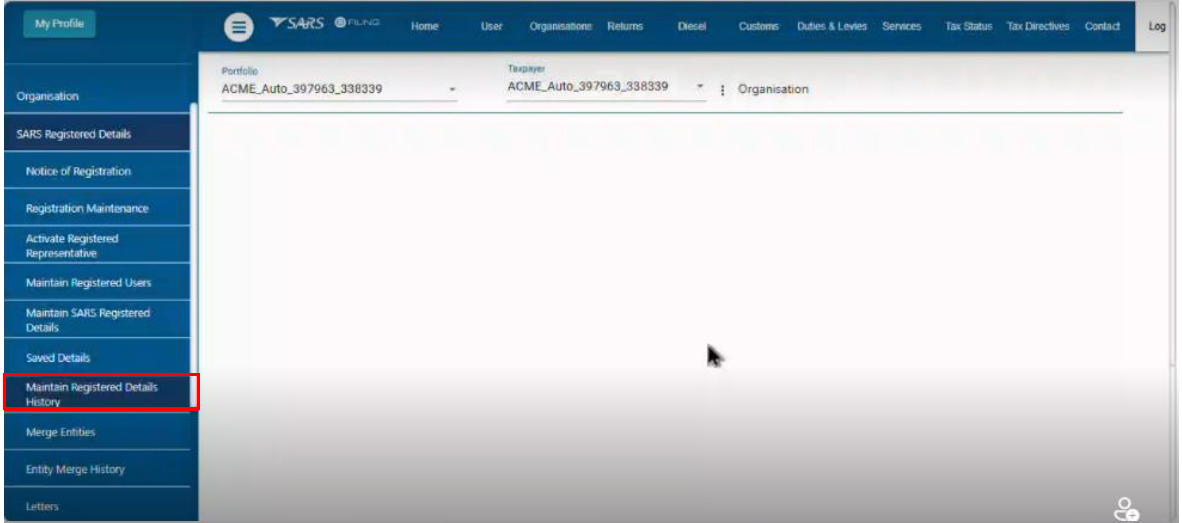
- The applicant must click on Maintain registered details history.
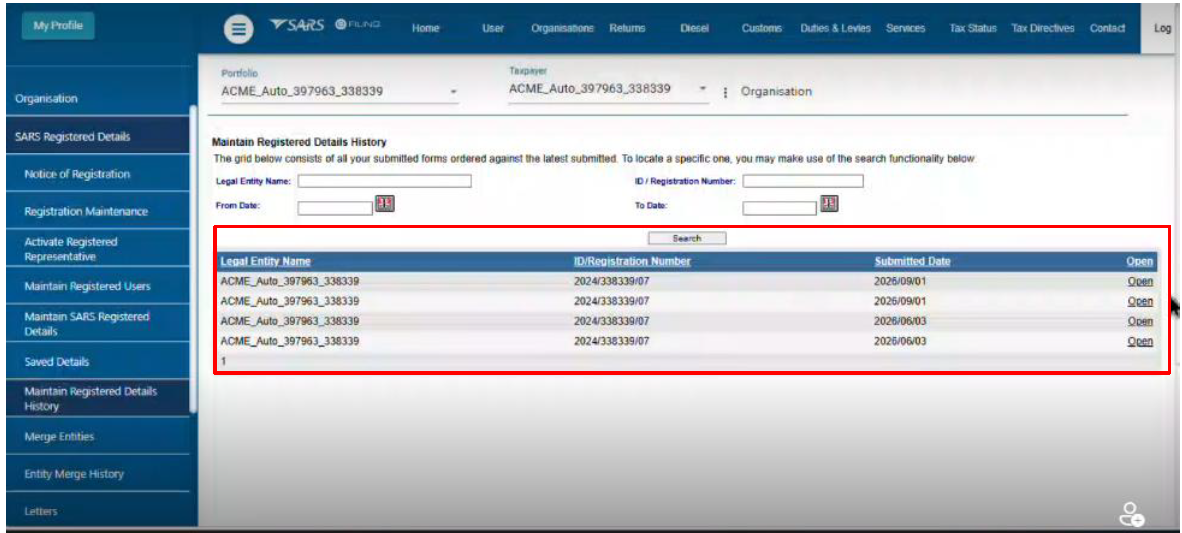
- The system shows the registered details history of the client for the client to select the specific registration details concerned.
Diesel Refunds Registration Withdrawal
- If the Diesel Refunds Tax Product within the Registration Amendments and Verification Form (RAV01) contains some registration details, when the applicant selects the Diesel Refunds Tax Product button, the system displays the screen below and the applicant click on the withdraw button.
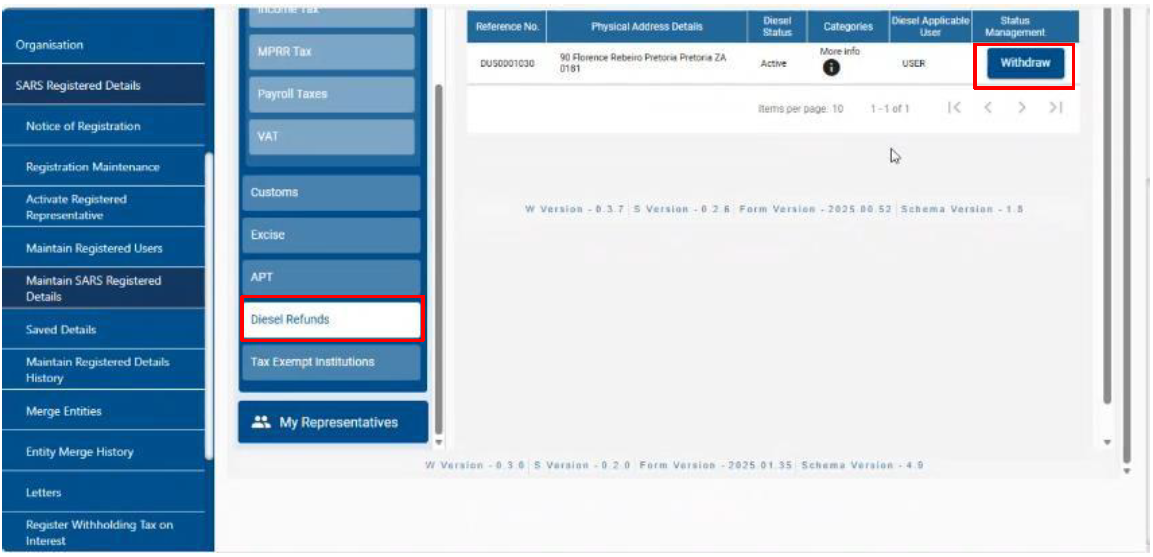
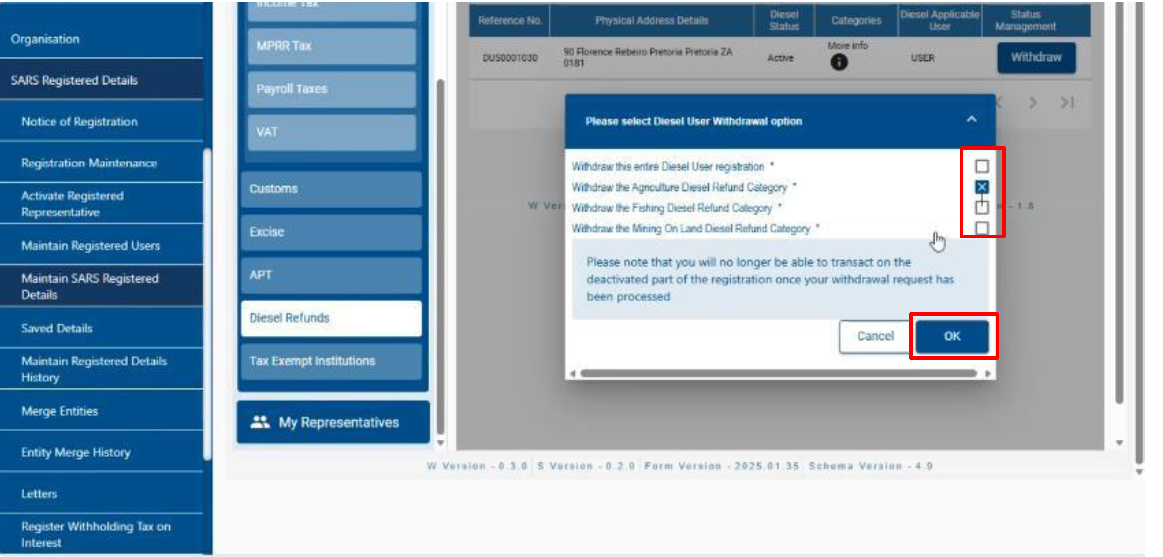
- The screen below is displayed and the applicant must:
- Select the relevant Diesel Refunds Withdrawal option on the dialogue box displayed; and
- Click the Ok button
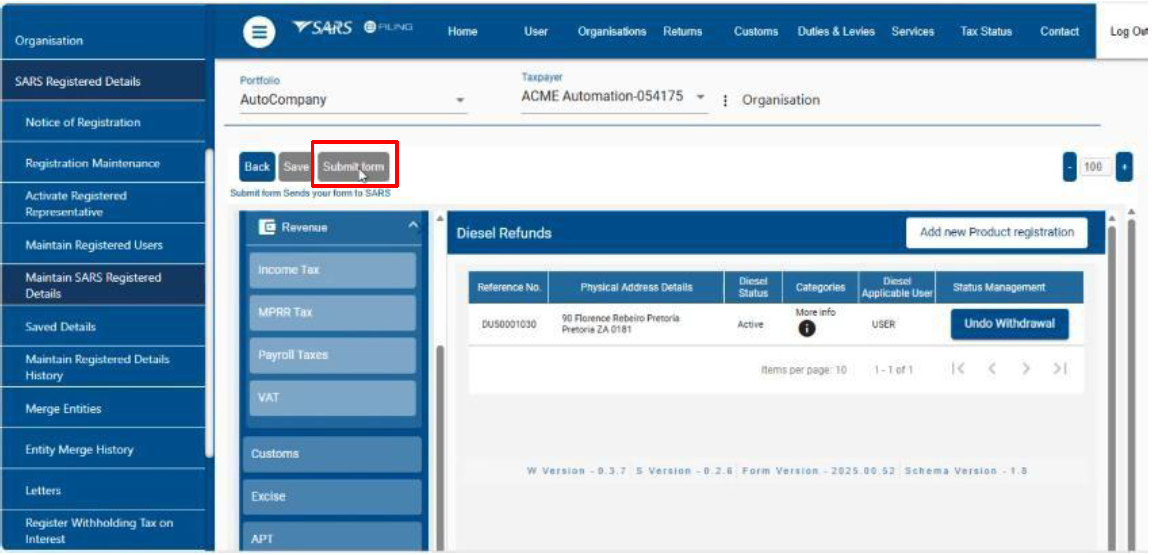
- After the withdrawal option has been selected, Efiling displays the screen below and the applicant must click the submit form button,
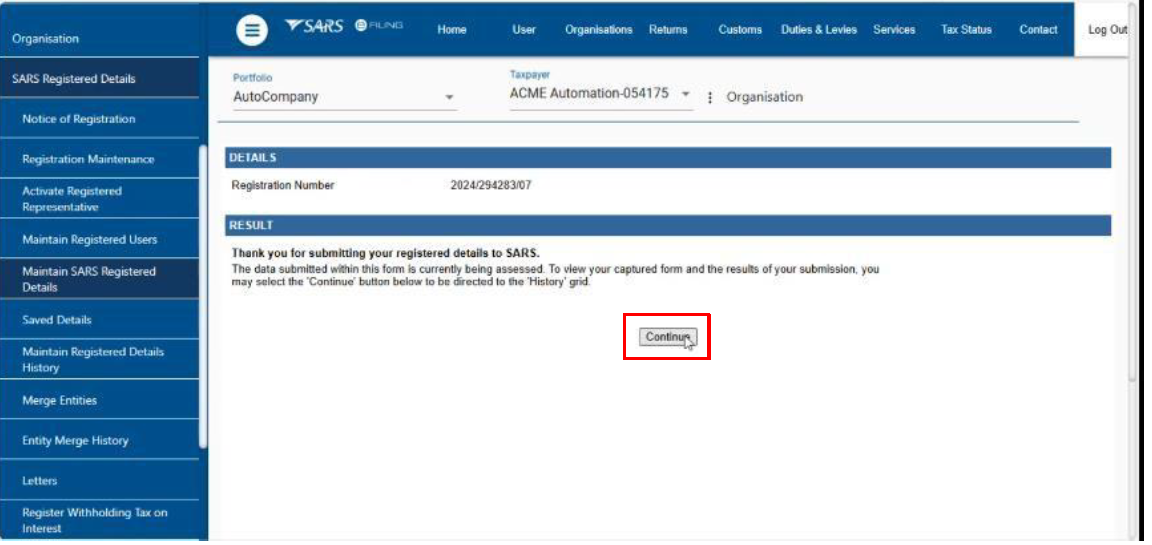
- eFiling displays the confirmation that the registration details updated as being assessed and the applicant must click the continue button.
- eFiling displays a History of captured details and the withdrawal case number
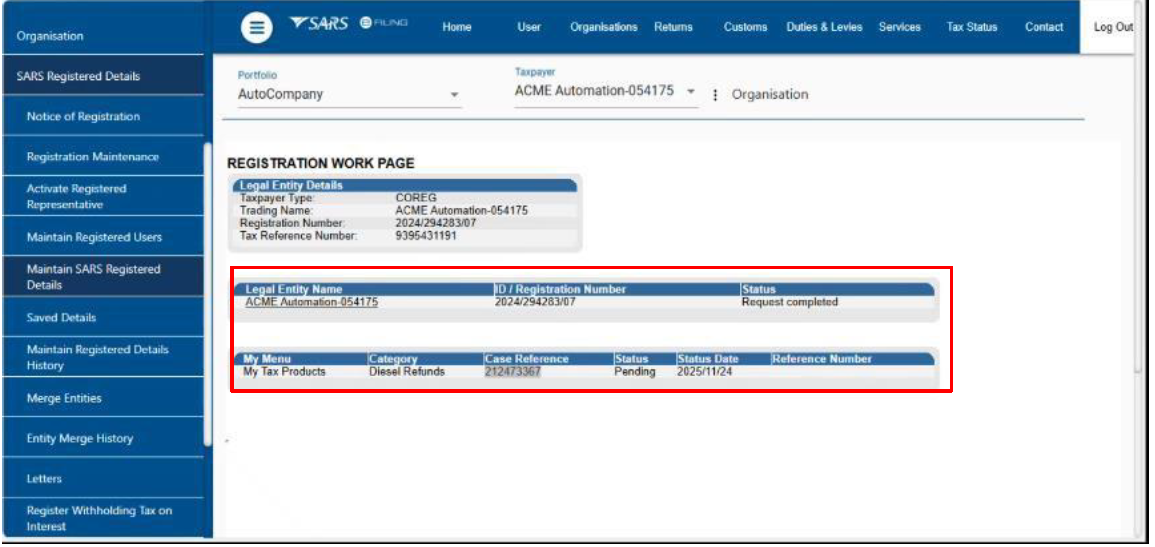
Reviewing Notifications
- Notifications to the client are sent through:
- Short message service (SMS);
- E-mail; and
- Accessible on eFiling.
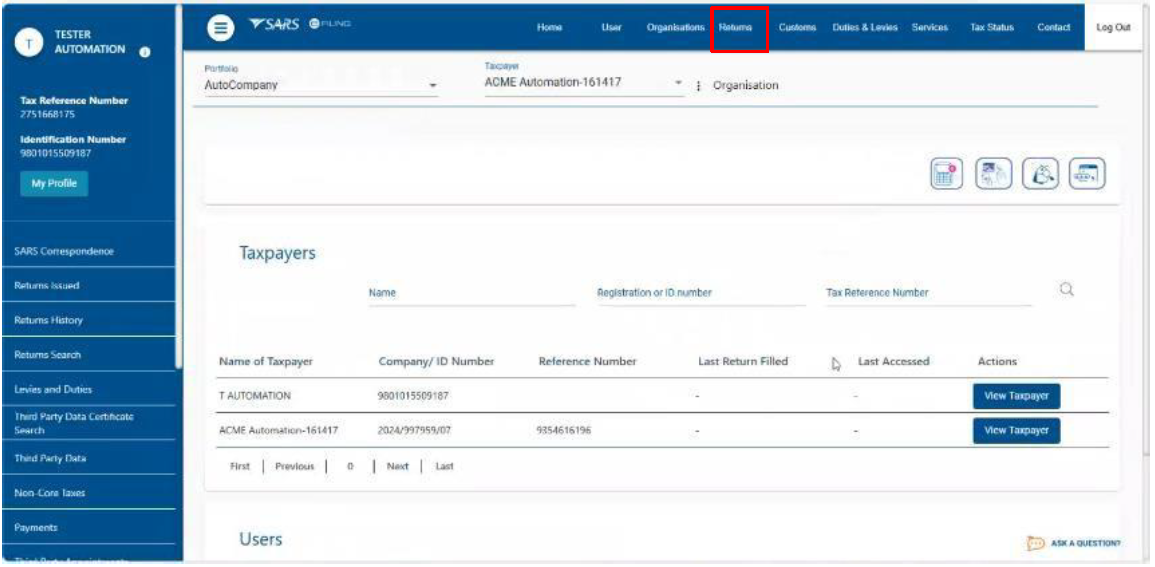
- To view Notification letters, the applicant must go to the eFiling landing page below and click on the Returns button.
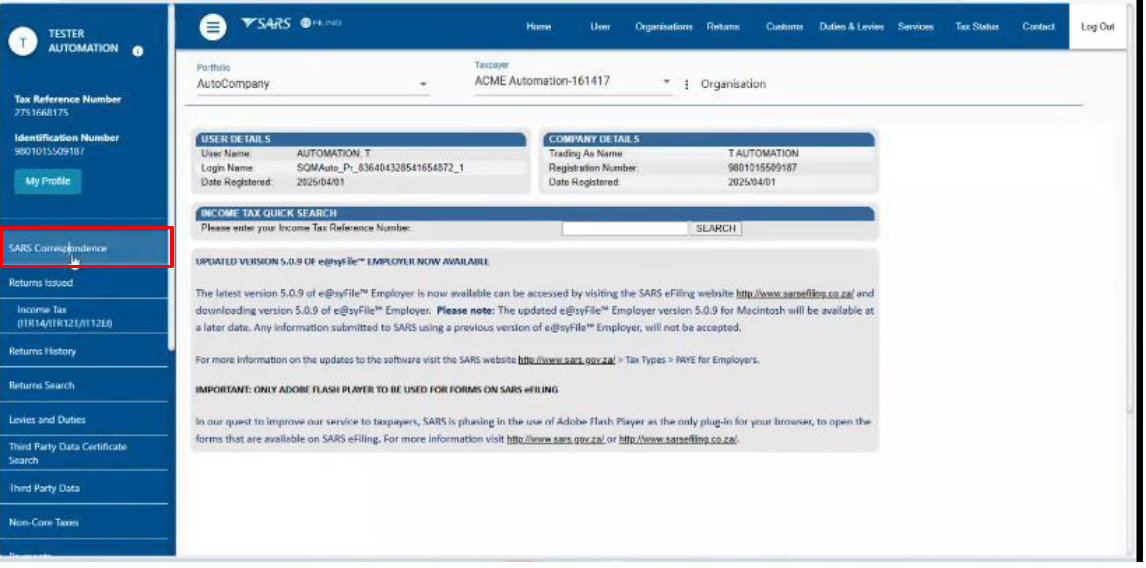
- The system displays the screen below and the applicant must click on SARS correspondence.
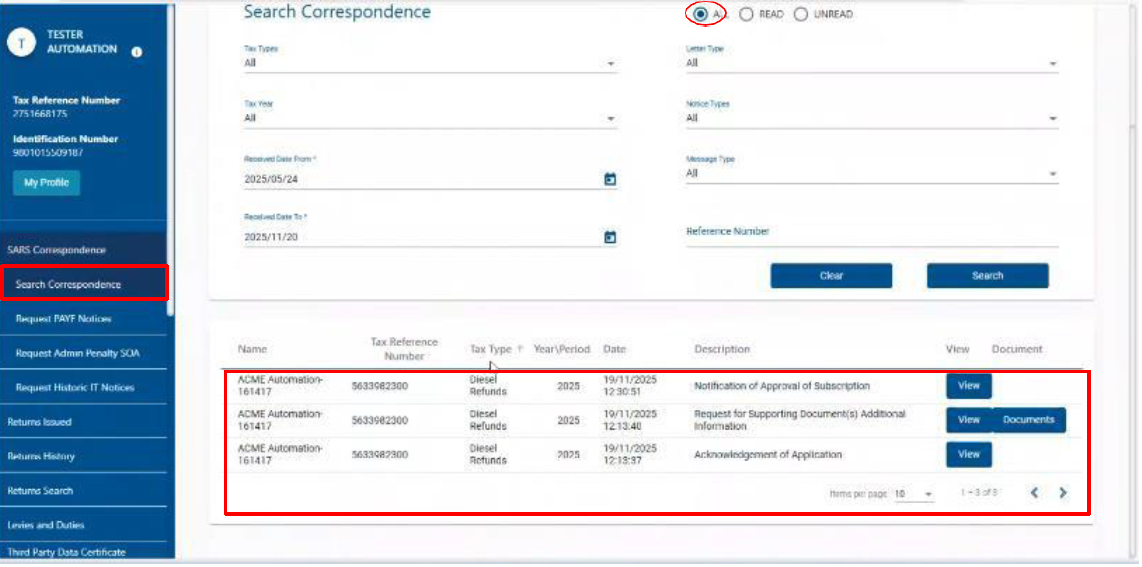
- eFiling displays the screen below showing all the correspondences and the applicant must:
- Click search correspondence;
- Select the All button; and
- Click on View.
- The client has an option to use SARS Query Online System (SOQS) functionality to:
- Track and trace the application
- Upload/ Download supporting documents
- View certificates and letters
- Request Diesel refund Registration number
Definitions, acronyms and abbreviations
The definitions, acronyms and abbreviations can be accessed via the following link: Glossary webpage.
Legal disclaimer: In the event of conflict or inconsistency between this webpage and the PDF version of the guide, the latter shall prevail.