
Purpose
The purpose of this webpage is to assist Diesel Refund clients with step-by-step guidance on how to declare, create, view and cancel relationships linked to their Diesel Refund registration on the Relationship Management function within eFiling.
The webpage explains how relationships are captured between Diesel Refund Users and Diesel Sellers, as well as among Diesel Refund Users to ensure accurate registration information and compliance with the relevant legislative requirements.
Scope
This webpage applies to Diesel Refund clients who use eFiling to declare and manage relationships linked to a Diesel Refund registration. It covers the end-to-end use of the Relationship Management functionality such as;
- Accessing the Diesel menu;
- Opening the Relationship Management dashboard;
- Requesting a new relationship completing via the DR01 form (Managing Diesel Refunds Relationship);
- Capturing and submitting relationship details between Diesel Refund Users and Diesel Sellers,
- Capturing and submitting relationship details between Diesel Refund Users themselves;
- Viewing relationship details and status; and
- Cancelling an existing relationship and viewing the related system messages/notifications.
Only the registered representative of a legal entity may grant access to shared access as prescribed in SC-CF-43.
This webpage does not cover the submission or processing of Diesel Refund applications or claims, or any SARS internal processing steps.
Types of relationships:
- User to Seller.
- User to User.
- Seller to User.
Relationship Management
Relationship request between Diesel User and a Seller
- The Diesel option on the menu bar will only become available once the Diesel registration has been approved and the Diesel number has been activated under the Manage Tax Types option.
- For Diesel clients to declare relationships between themselves on the Relationship Management, the Diesel client:
- Logs into eFiling (as described in SC-CF-42).
- Selects Diesel from the top menu bar.

- The diesel menu will open, the client:
- Selects Relationship Management.
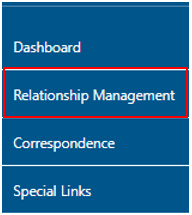
- A request to submit a new Diesel Relationship window will be displayed, the client:
- Clicks on the Request Form button.

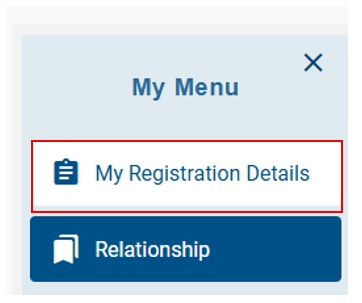
- My menu items will be displayed with the options as displayed below:
- My registration Details, and
- Relationship Management.
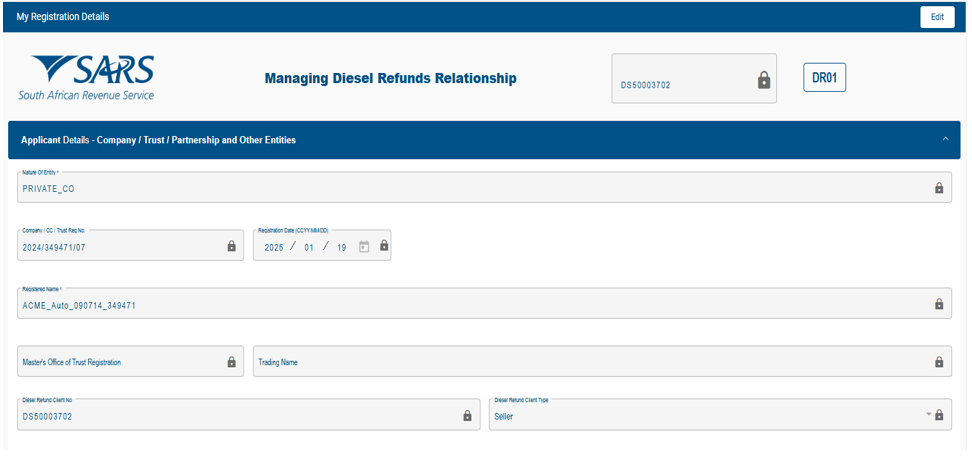
- Click on My Registration Details option,
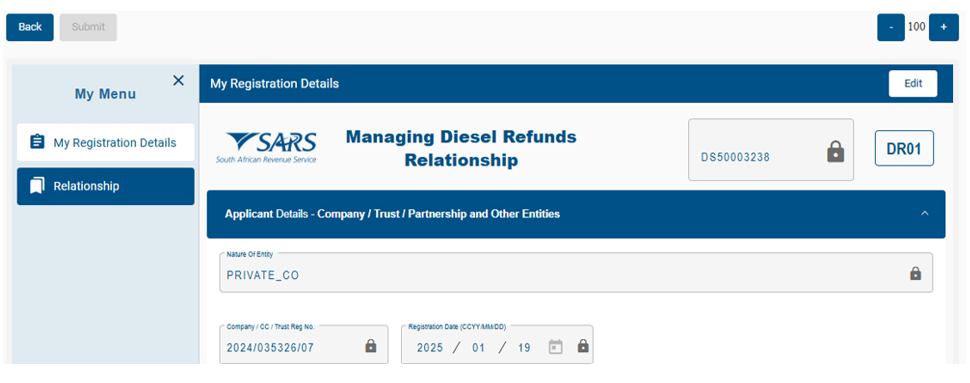
- My Registration Details button will open the form as displayed below that allows to view my registered particulars:
- To capture a relationship, click on the Relationship button on My Menu.
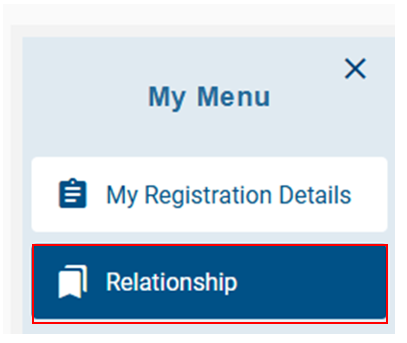
- Functions that can be performed on the Relationship Management are:
- Add a new relationship.
- Cancel an existing captured relationship.
- To add a new relationship, click on Add new Relationship button:

- Select the type of relationship to be captured. Only one selection is permitted. The following relationship types are available for selection:
- Partnership/Joint Venture/Unincorporated body of persons
- Hiring, leasing or chartering any asset to perform any qualifying activity
- Seller of eligible purchases to the diesel refund user
- Contracting or sub-contracting any person to perform any qualifying activity.

- Fill the details of the “other entity you want to be in a relationship with”.
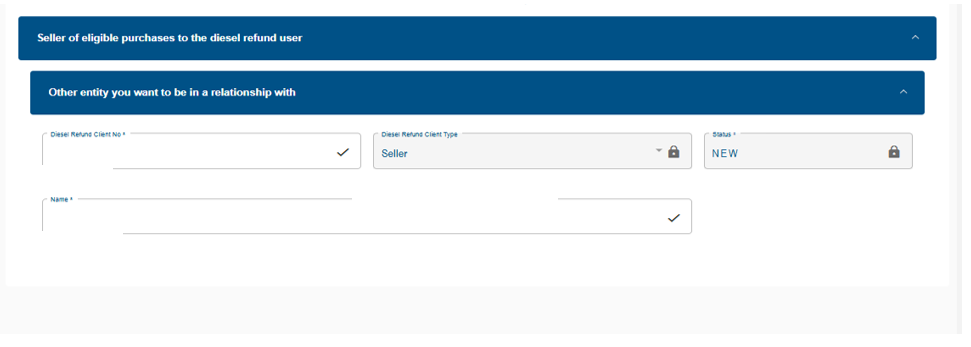
- Once all the details have been captured. Click on Done and then the Submit button.
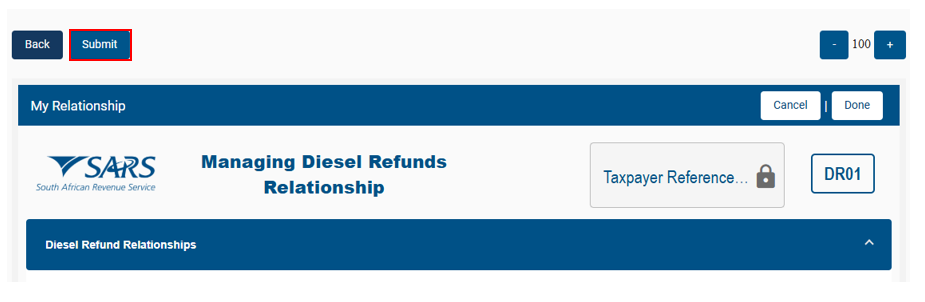
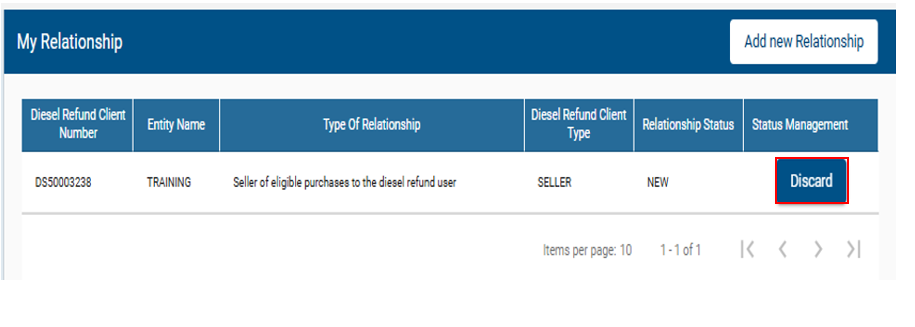
- Click on Discard to cancel the application. The screen displayed below will show the transaction to be discarded.
- A pop-up message will be displayed confirming that a relationship request has been captured.
- Click on OK to proceed.
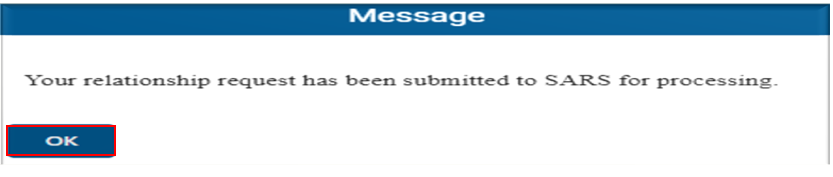
- eFiling will return a confirmation of the Submitted Relationship message, as described below.

Dashboard
- The Dashboard allows Clients to view the relationships captured and the status. The client: selects Diesel from the top menu bar.

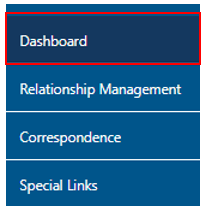
- The Diesel Ribbon menu open then the client clicks on Dashboard.
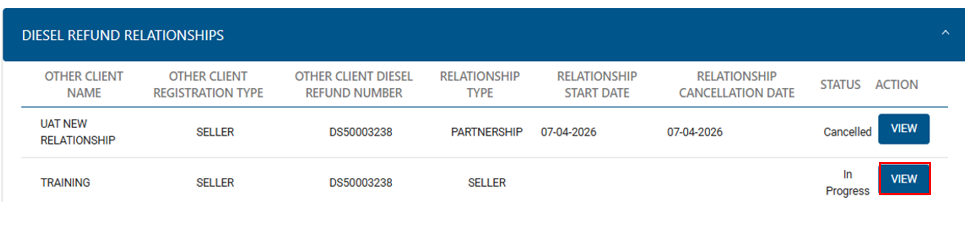
- All the relationships will be revealed on the Dashboard. If there is a pending relationship transaction, it will be identified by the “in-progress” classification on the status field. To view the details of the transaction, click on View button next to the relevant transaction under the action field.
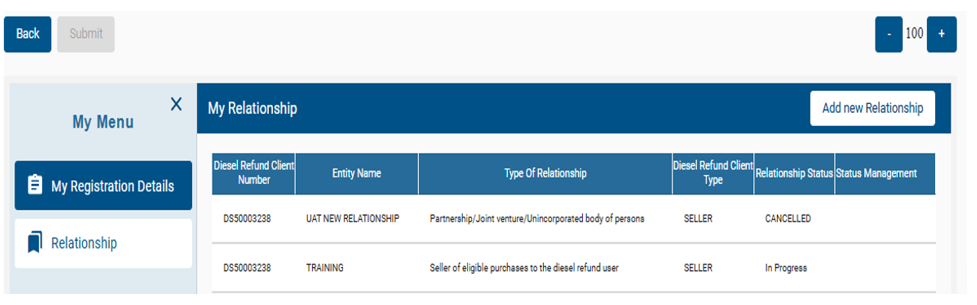
- The My Relationship details screen will be displayed with information captured against a diesel refund client.
Approval of the relationship of Diesel Refund User with a Seller
- The Diesel refund client in their capacity as a User or a Seller will login into efiling. Users can also follow the same steps and screens when capturing the approval of the relationship,
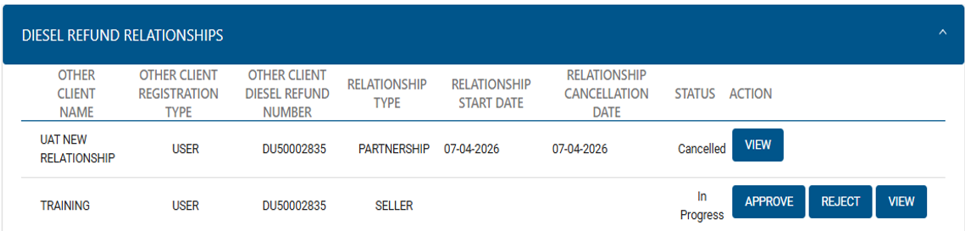
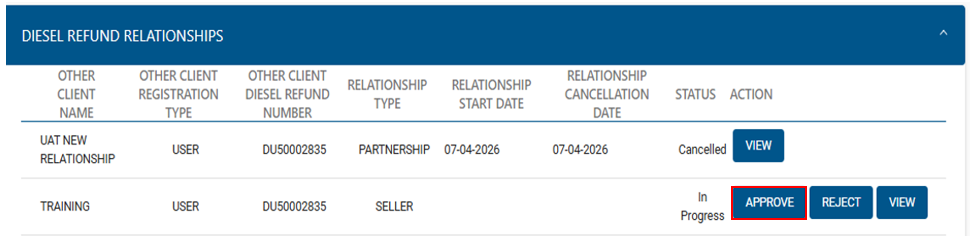
- Open the Diesel Refund Dashboard, to see the relationships that require approval.
- Options available for selections when considering the applications are:
- Approve.
- Reject.
- View.
- To view the details of the relationship captured, under the action field of the relevant relationship transaction the client clicks on the View button;
- The Diesel Refund Relationship form (DR01) will be displayed to view after checking the details, then the can click Back button to approve or reject.
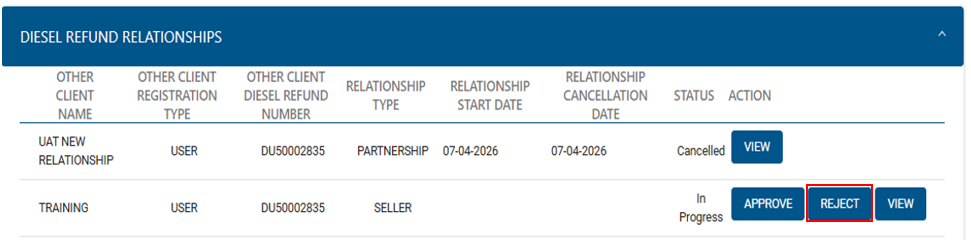
- To reject the application. Click on Reject button under the action fields of the relevant relationship captured.
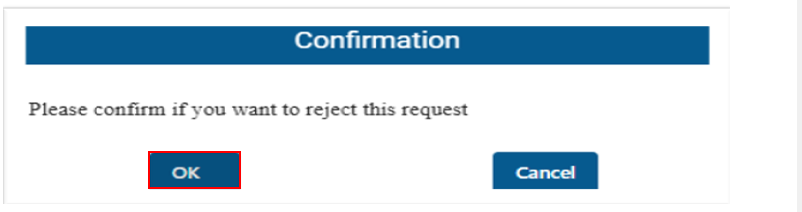
- A pop-up message will be displayed requesting the nominee to accept the rejection of the relationship, and thereafter Click on Ok
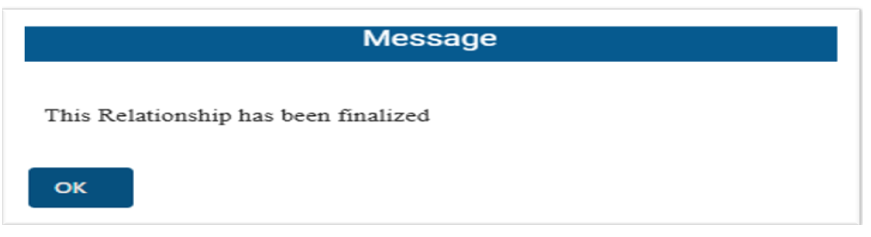
- A pop-up message will be displayed, confirming that the rejection has been finalised.
- To approve the application. Click on Approve.
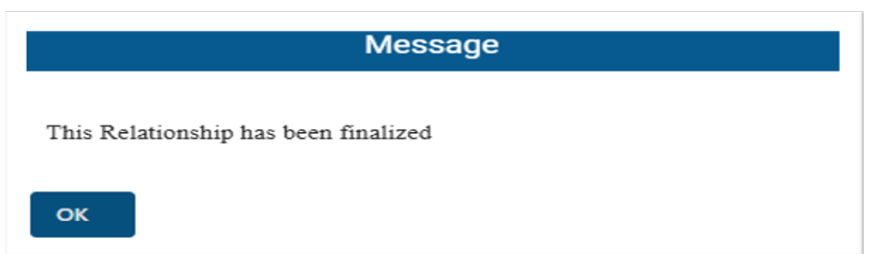
- A pop-up message will be displayed, confirming that the Approval is finalised
- The above steps must also be followed where the relationship management is between a User and another User for all relationship types.
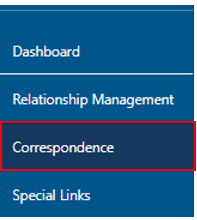
- To view your Relationship correspondence, Click on Correspondence menu.
Definitions, acronyms and abbreviations
The definitions, acronyms and abbreviations can be accessed here – Glossary webpage.
Legal disclaimer: In the event of conflict or inconsistency between this webpage and the PDF version of the guide, the latter shall prevail.