
Purpose
- The purpose of this webpage is to:
- Assist travellers in complying with Section 15 of the Customs and Excise Act by correctly declaring goods and currency when entering or leaving the Republic of South Africa.
- Provide step-by-step guidance on completing all required sections of the electronic traveller declaration; and
- Promote efficient and compliant traveller processing by enabling accurate and timely submission of declarations prior to arrival or departure.
- This webpage further supports the use of digital declaration channels and clarifies the role of the SATMS as the primary method for submitting traveller declarations.
Scope
- This webpage applies to all travellers entering or leaving the Republic of South Africa who are required to submit a traveller declaration through the SATMS via the SARS website.
- The webpage covers:
- Accessing the electronic traveller declaration through the SARS website
- Capturing and submitting traveller details, travel information, goods, and currency declarations.
- The declaration of goods, including commercial goods, goods for temporary importation or exportation, goods for repair or remodelling, samples, and prohibited or restricted goods.
- The declaration of currency, including thresholds, requirements for authorisation, and declaration on behalf of individuals or entities.
- Submission of declarations and confirmation processes, including payment options where duties and/or VAT are payable.
- The responsibilities of travellers to provide accurate and complete information and to follow Customs instructions upon submission.
Accessing the Travel Declaration Through the SARS Website
- To access the electronic Traveller Declaration:
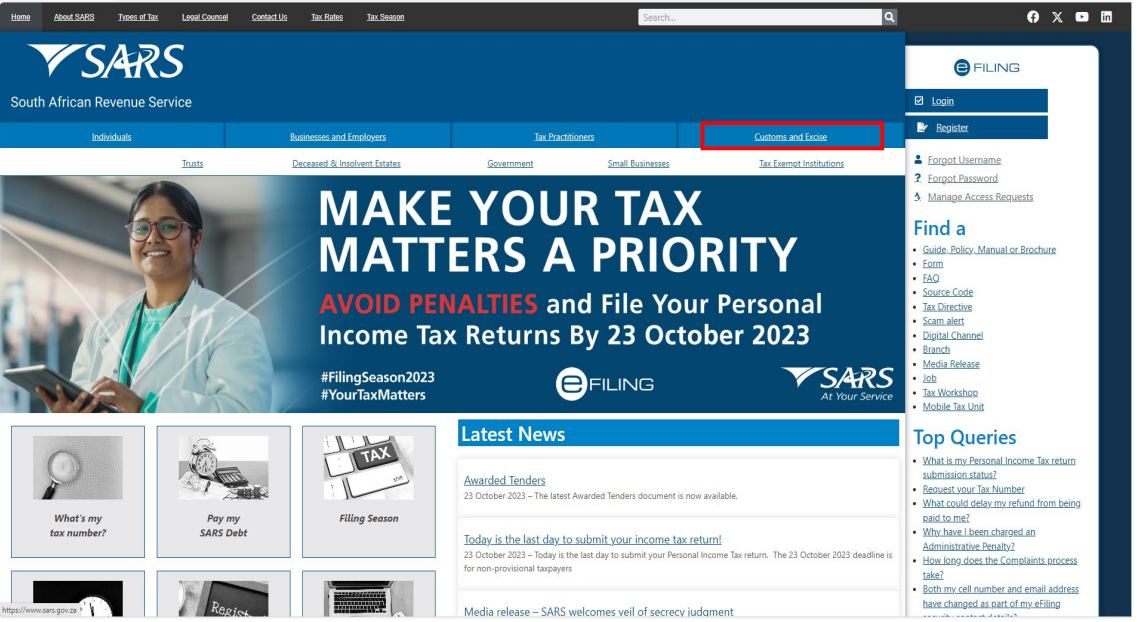
- Click on the Customs and Excise link.
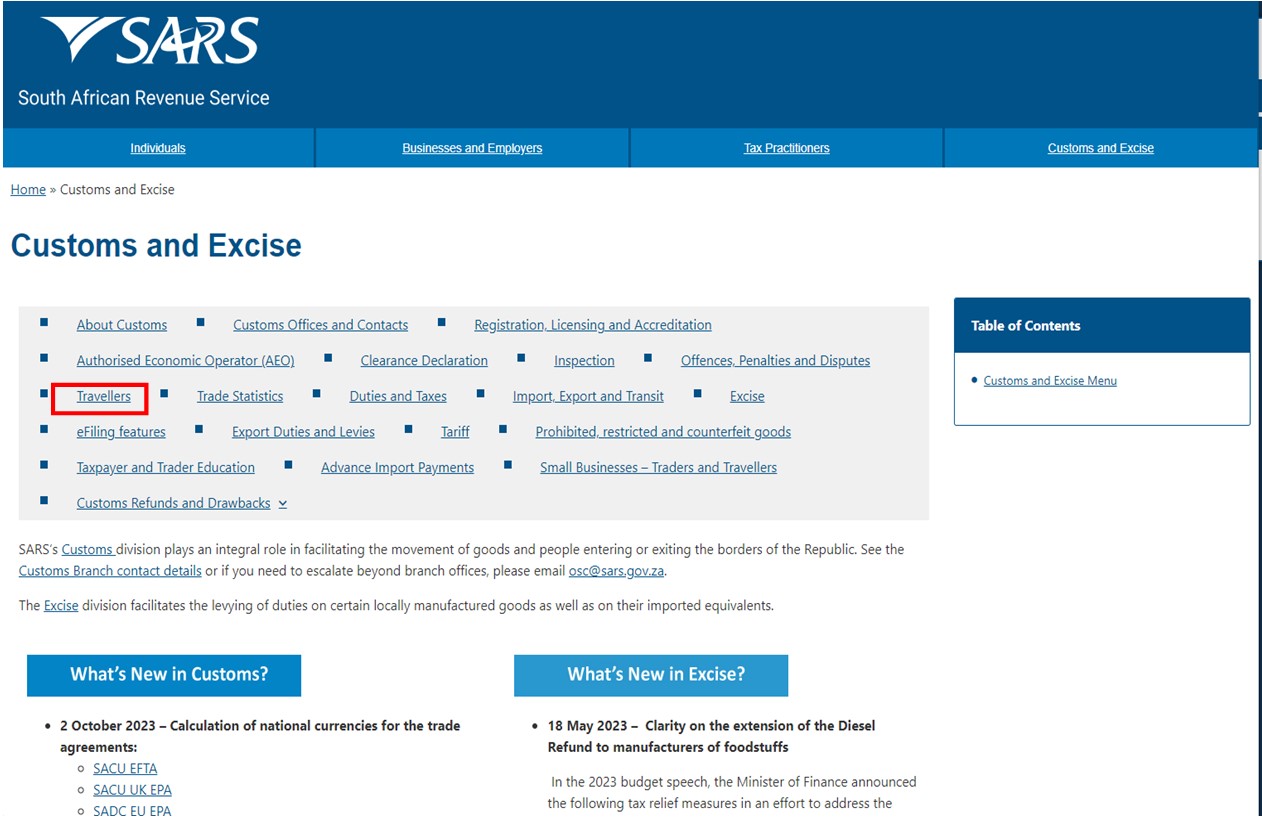
- Click the ’Travellers’ link.
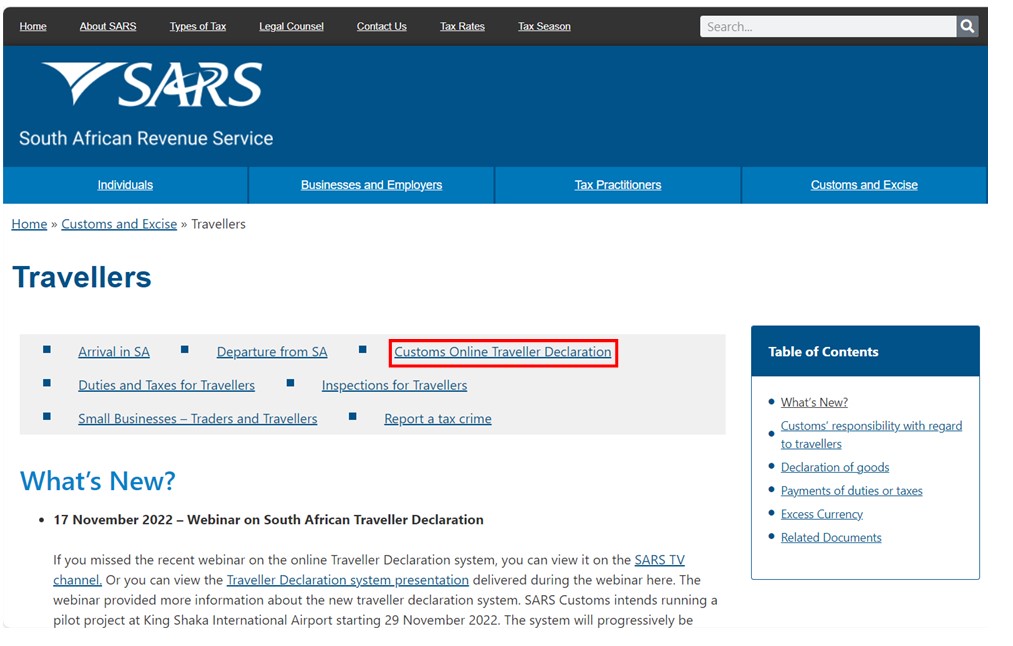
- click the ‘Customs Online Traveller Declaration’ link.
- click the ‘Complete Declaration’ button.
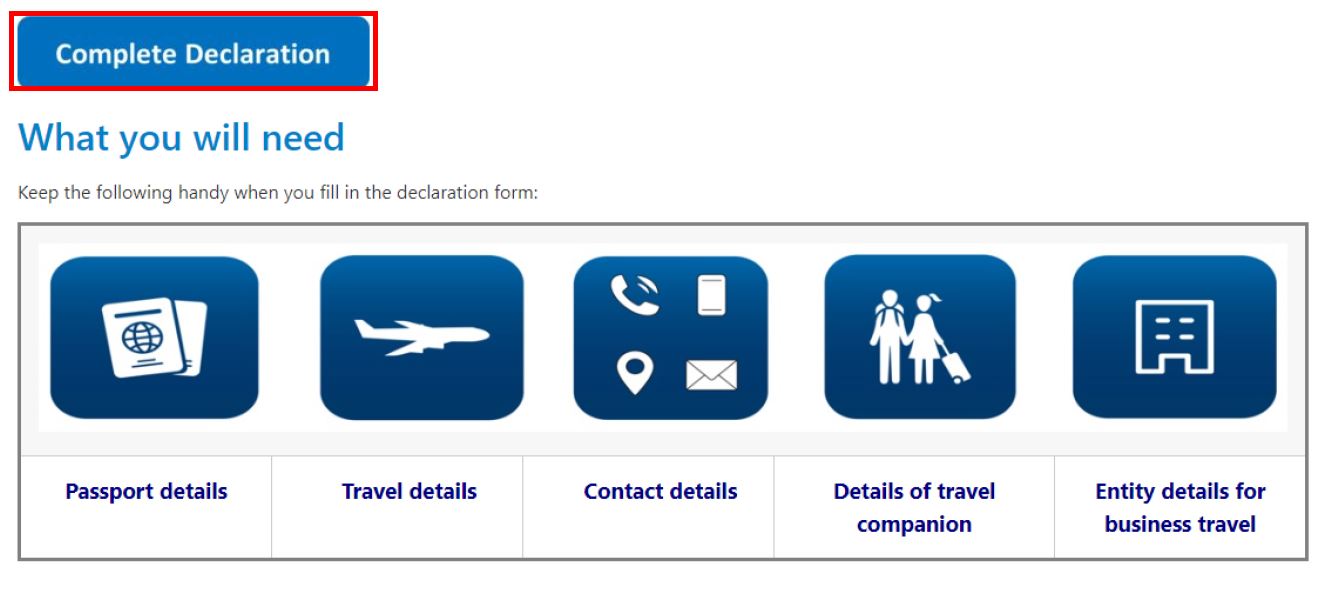
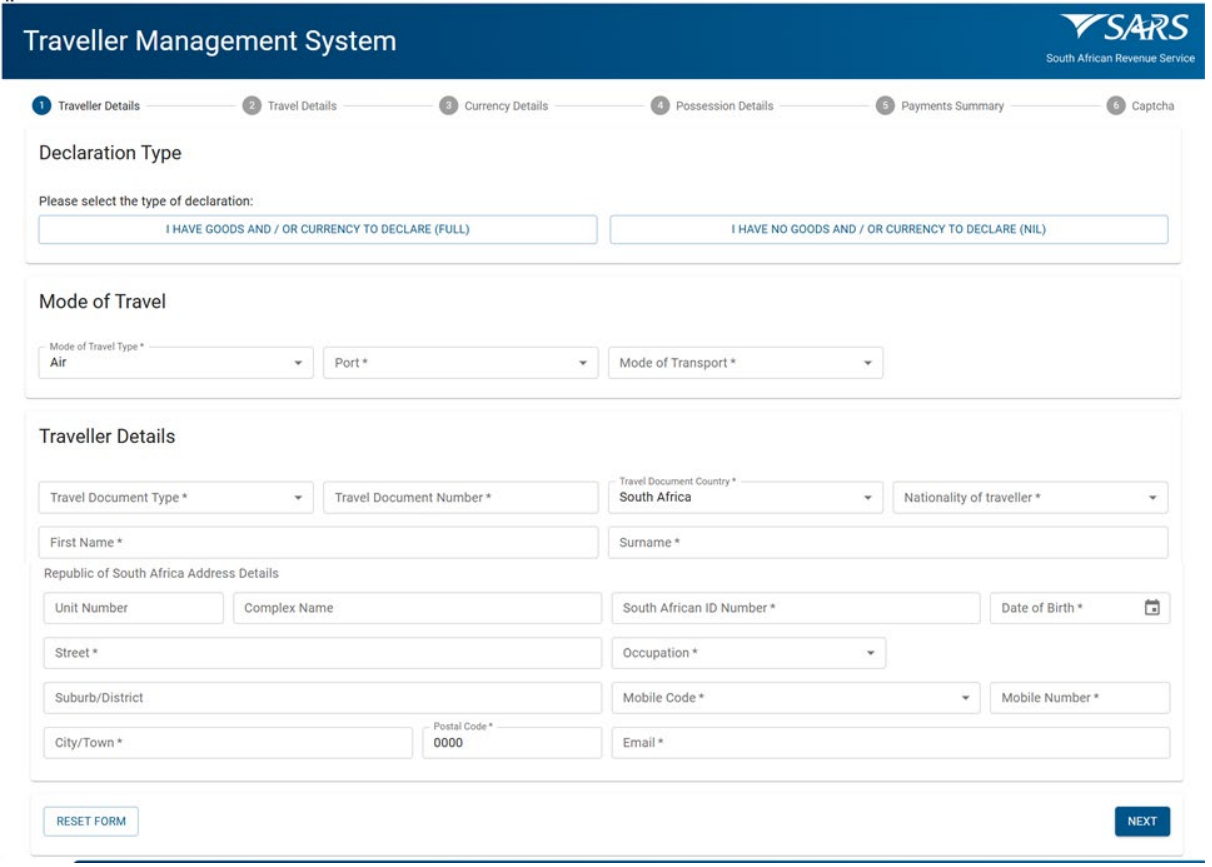
- The accessed link will open the first screen for the electronic Traveller Declaration.
Capturing
Traveller Details
- The ‘Traveller Details’ section is where the traveller must capture personal and identification details.

- Complete the following sections under the Traveller Details tab:
- Declaration Type:
- Determines whether the traveller has goods and / or currency to declare.
- Options:
- ‘I have goods and / or currency to declare (Full Declaration)’ – select if carrying goods or currency that must be declared.
- I have no good and / or currency to declare (Nil Declaration) – select if not carrying any goods or currency requiring declaration.
- Mode of Travel; and
- Traveller details.
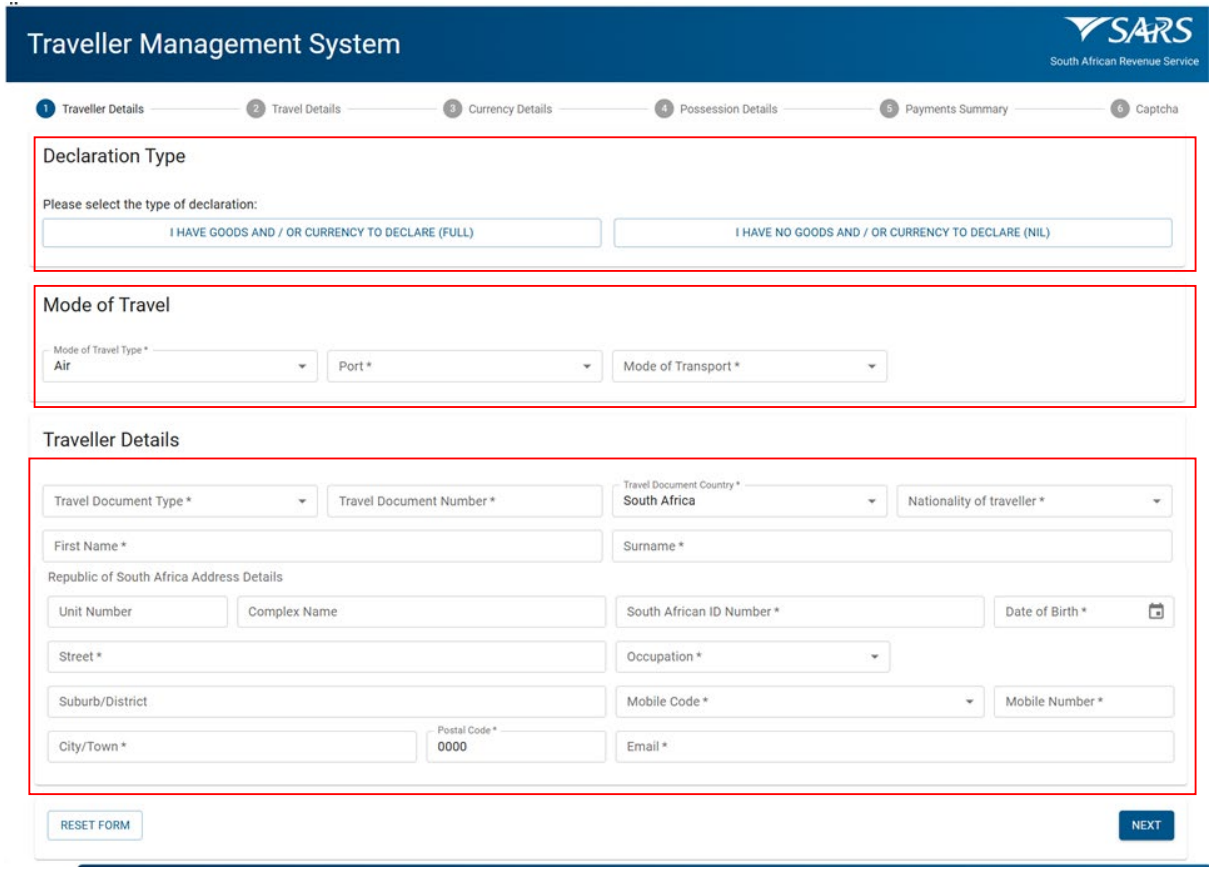
- Declaration Type:
No Goods and / or Currency to Declare
- If the traveller does not have goods and / or currency to declare, they must:
- Select ‘I Have No Goods and / or Currency to Declare (Nil)’.

- Complete the following sections:
- Mode of Travel; and
- Traveller Details.
- Click ‘Next’ to continue
- Complete the following sections:
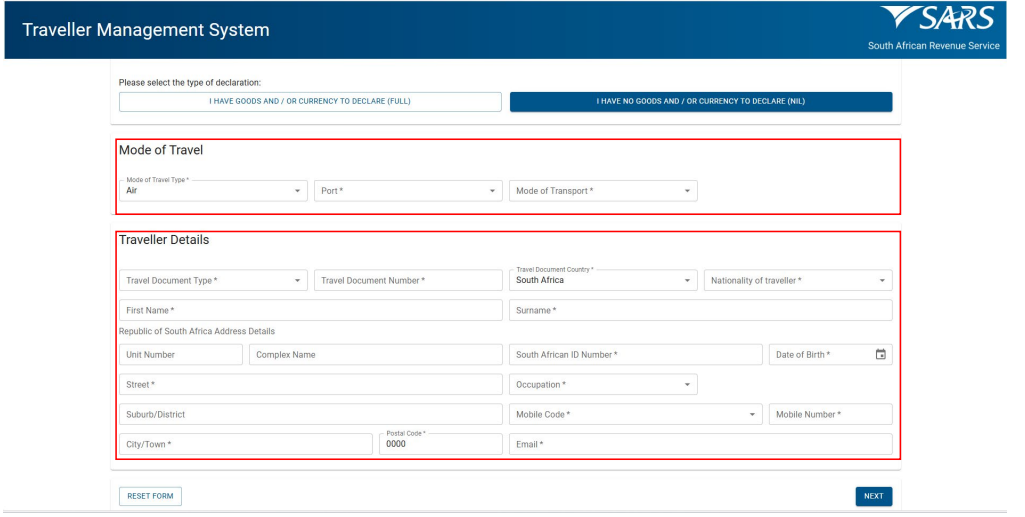
- Complete the following sections:
- Travel Details; and / or
- Travelling Companion (if applicable)
- Click ‘Next’ to continue.
- Complete the following sections:
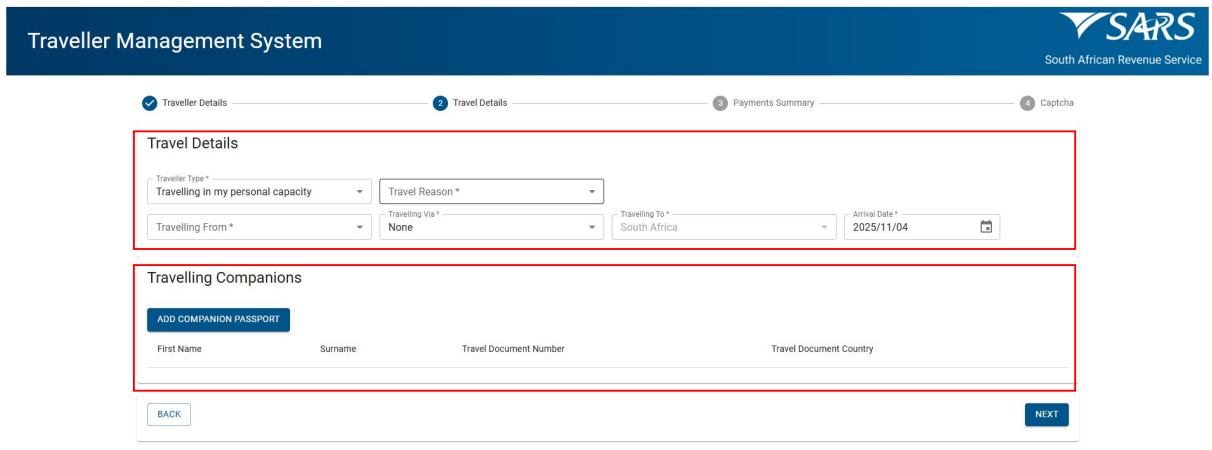
- The summary page will not display any information, as no goods or currency were declared.
- The traveller:
- Click the ‘Declaration’ radio button confirming that the information provided is true and correct.
- Click ‘Next’ to complete the declaration.
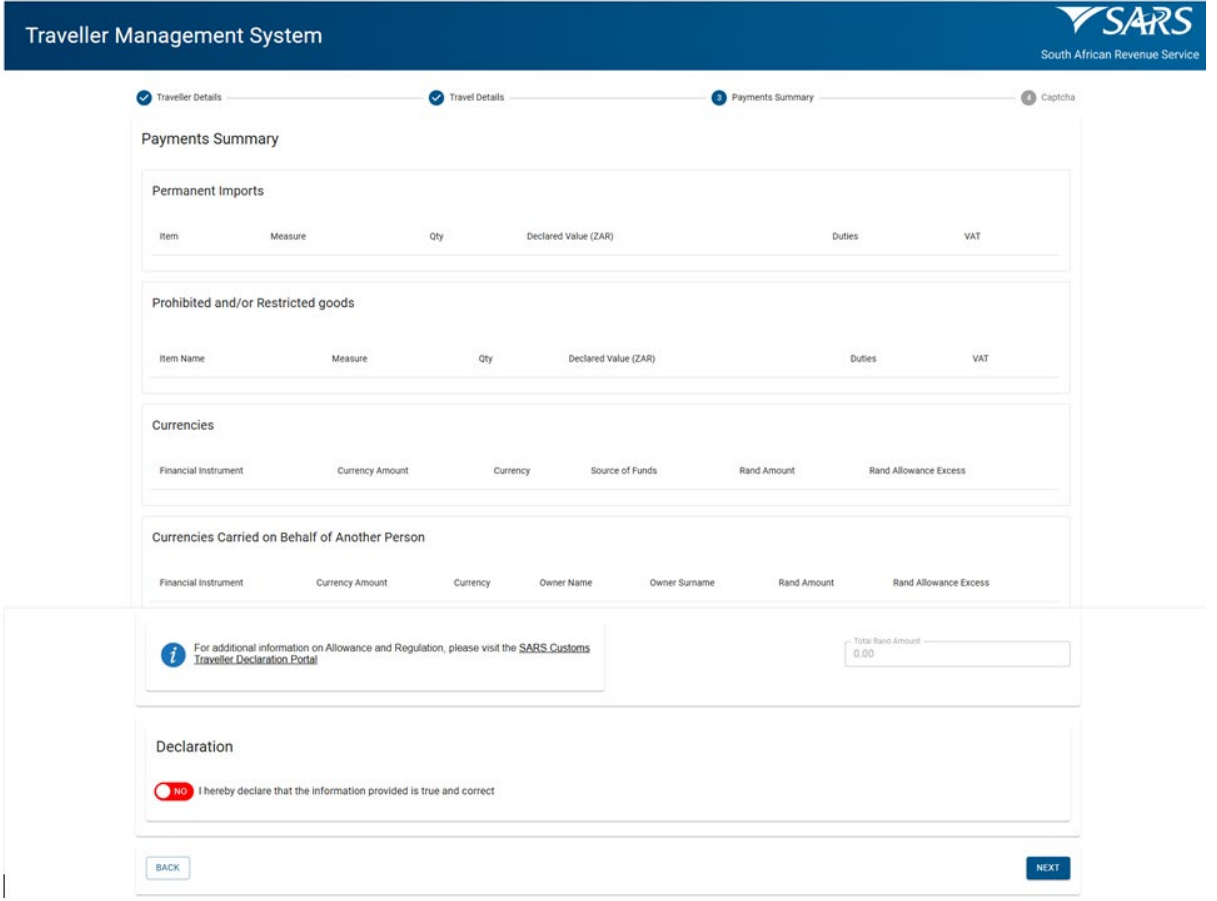
- After submitting, the traveller will receive a message with directions from Customs.
Have Goods and / or Currency to Declare
- If the traveller has goods and / or currency to declare he /she must:
- Select ‘I have goods and / or currency to declare (Full)’.
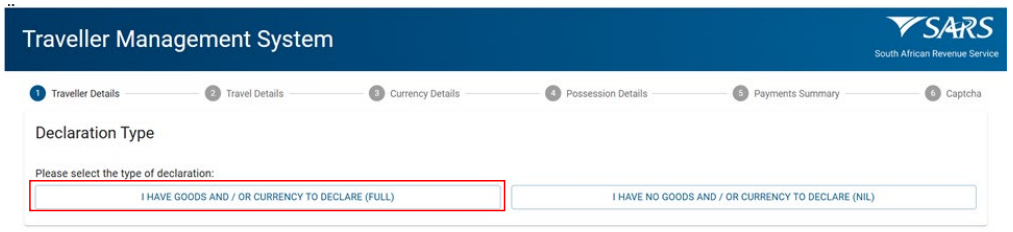
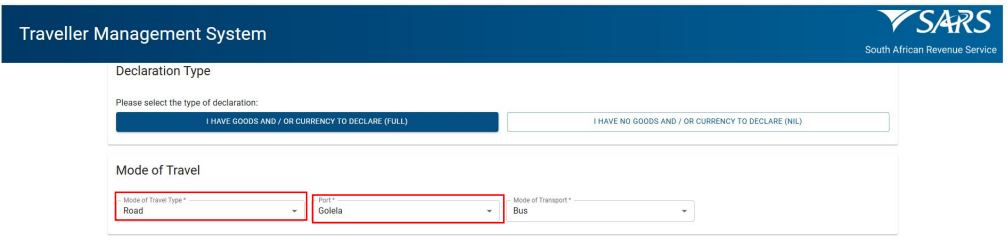
- Select from the drop-down options provided the:
- ‘Mode of Travel Type’ (e.g., Air, Land, Sea) from the drop-down options.
- ‘Port’ (e.g., OR Tambo International Airport, Durban Harbour, Golela).
- Select from the drop-down options provided the:
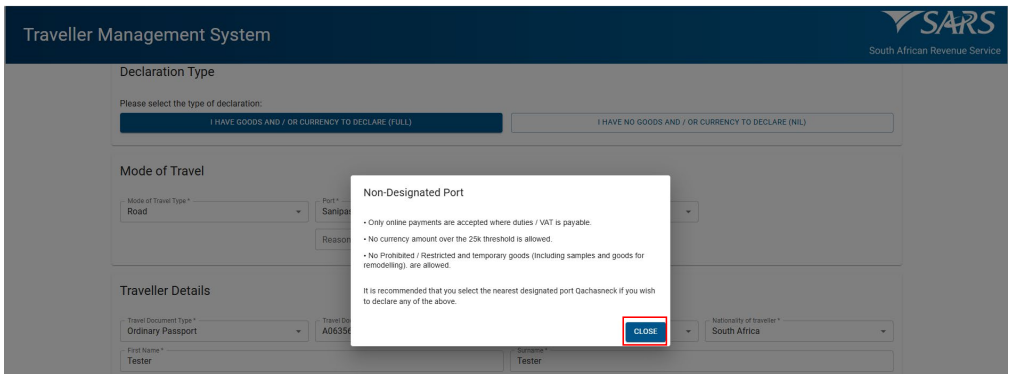
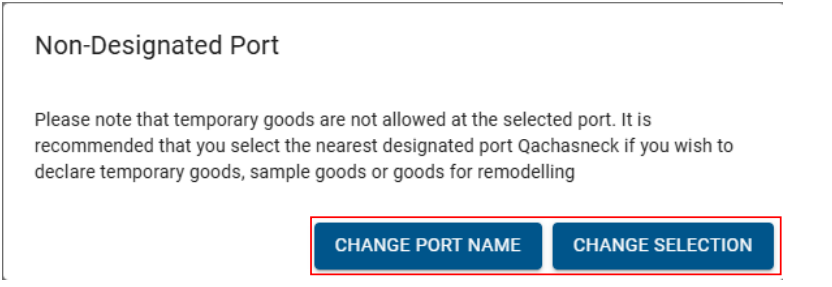
- If the traveller selected a port of entry or exit without Customs presence ( a non-designated port),the system provides the traveller with the following information:
- Only online payments are accepted where duties / VAT is payable.
- No currency amount over the R25 000 threshold is allowed.
- No Prohibited, restricted or temporary goods (including samples and goods for remodelling). are allowed.
- The system will advise the traveller to select the nearest designated port if required.
- To continue click ‘Close’.
- If the traveller selected a port of entry or exit without Customs presence ( a non-designated port),the system provides the traveller with the following information:
- If the traveller wishes to continue with the use of a non-designated port, he /she must enter ‘Reason for Non-designated Port’.
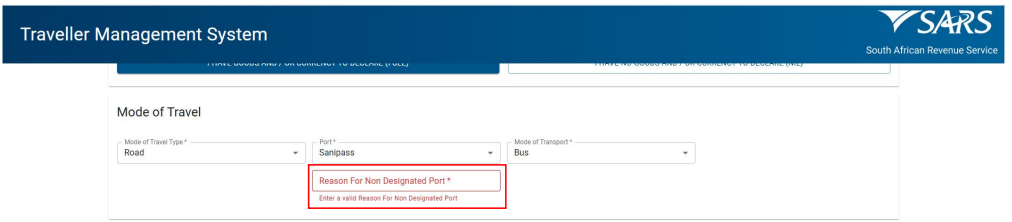
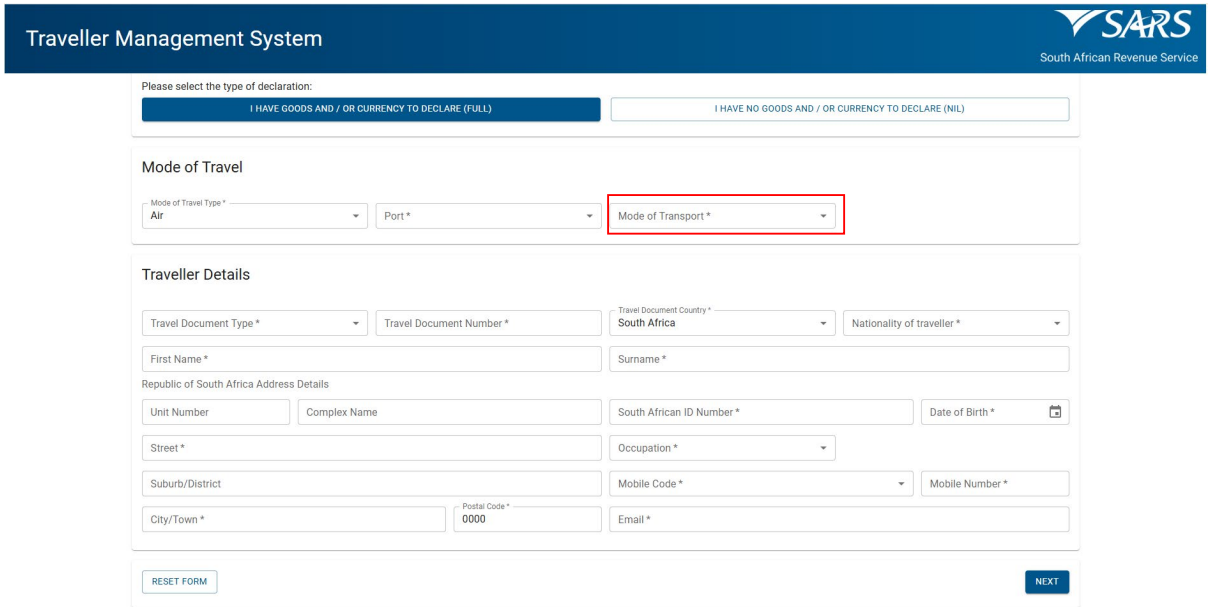
- Select “Mode of Transport” from the drop-down options.
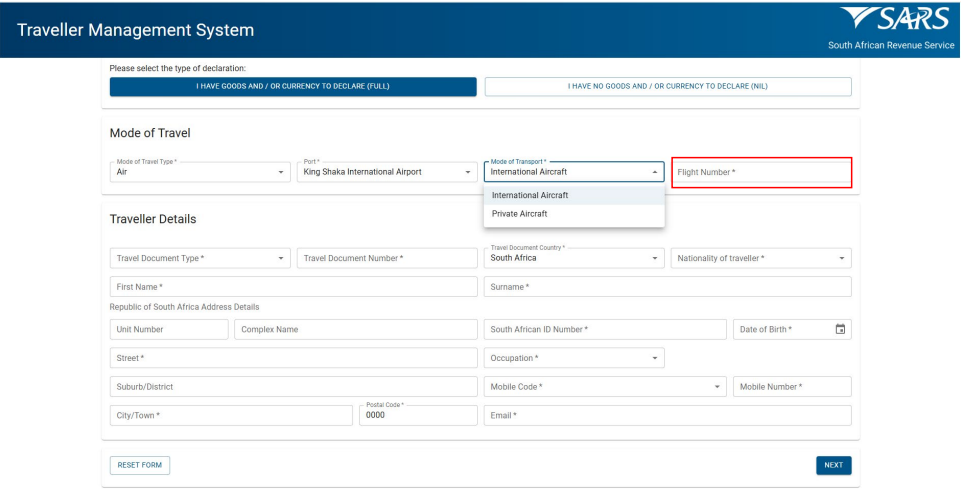
- If “International Aircraft” is selected, enter the “Flight Number”
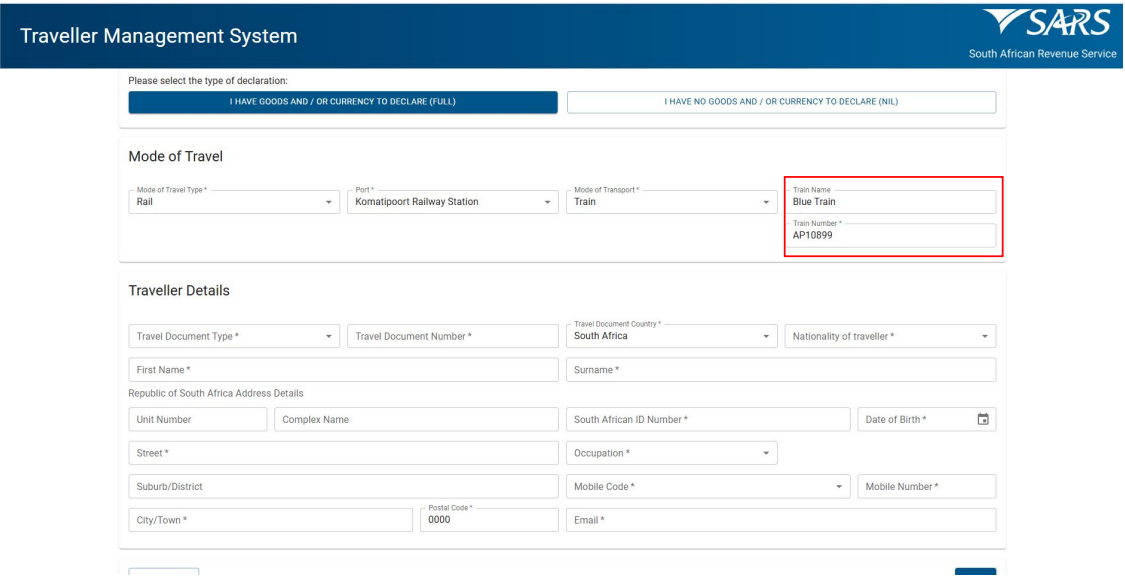
- If “Train” is selected, enter the:
- ‘Train Name’; and
- ‘Train Number’.
- If “Train” is selected, enter the:
- If “Motorbike/Private Vehicle/Mini Truck” is selected, enter the ‘Registration Number’.
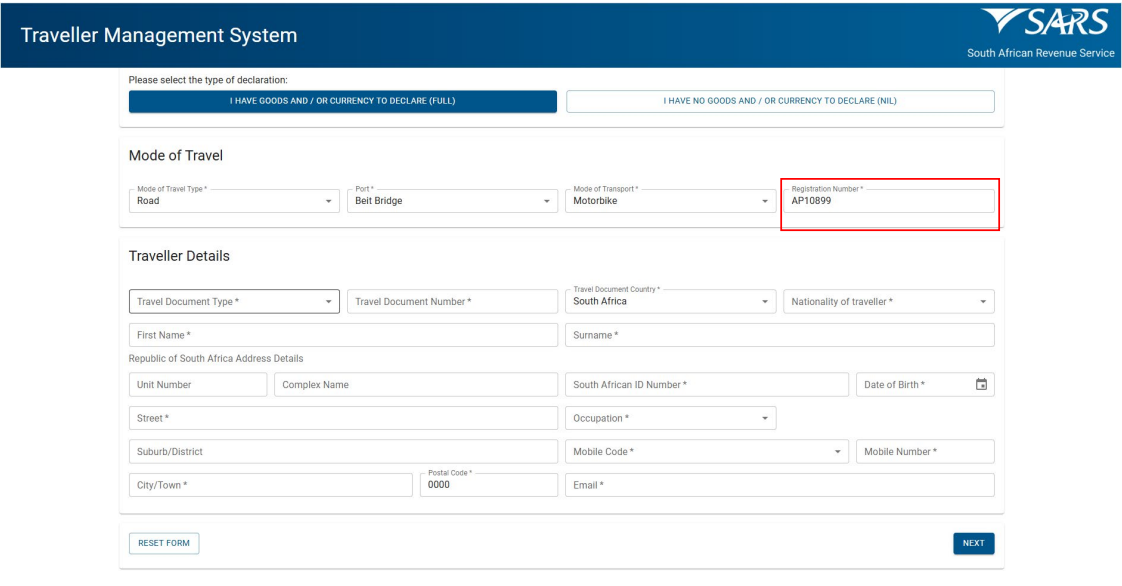
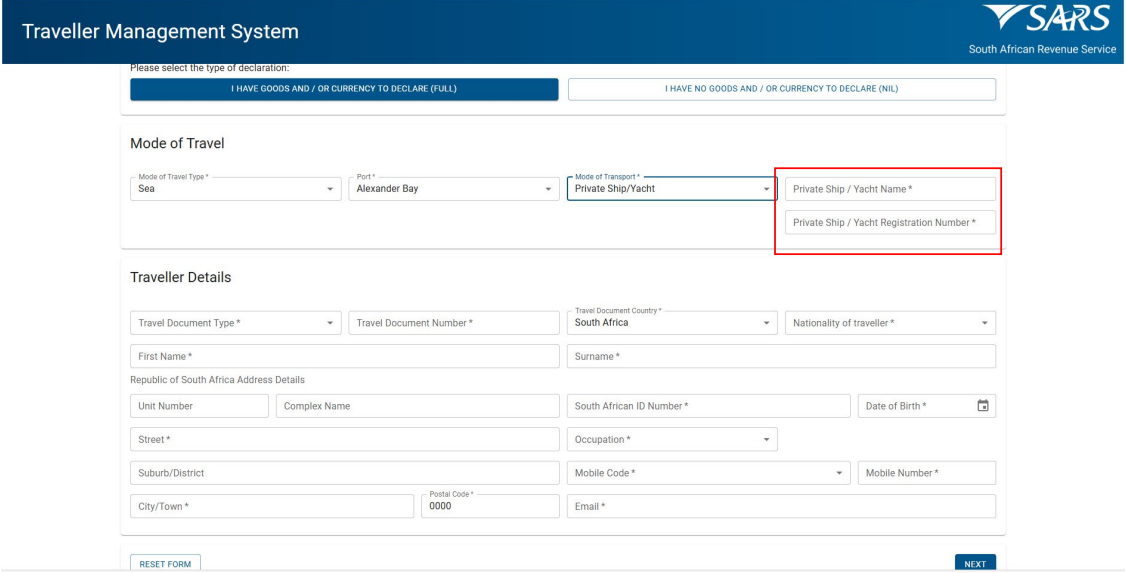
- If “Private Ship/Yacht” is selected, enter the:
- ‘Private Ship / Yacht Name’; and
- ‘Private Ship / Yacht Registration Number’.
- If “Private Ship/Yacht” is selected, enter the:
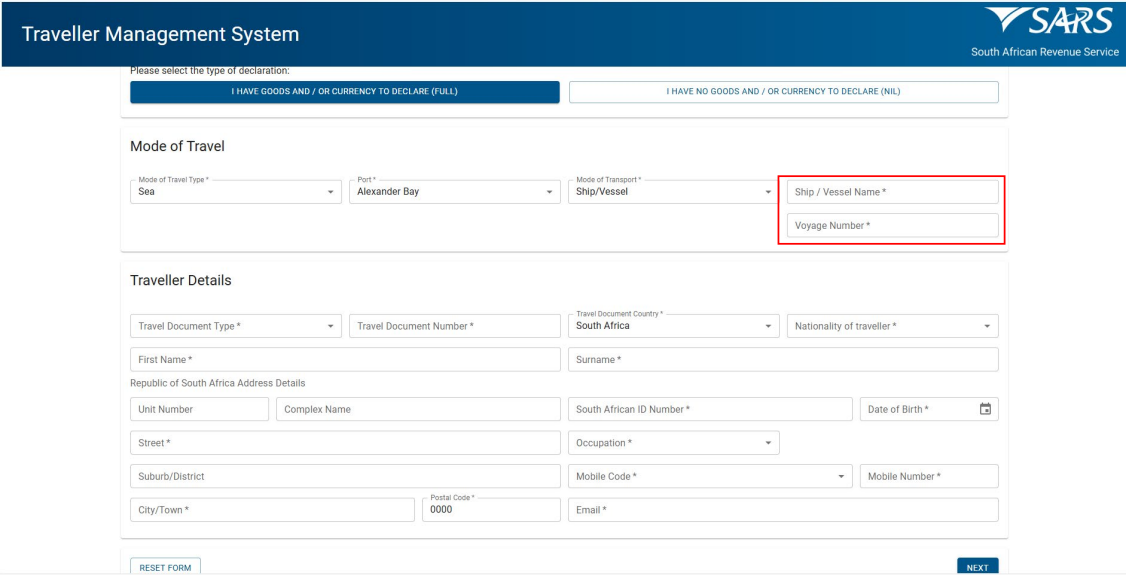
- If ‘Ship/Vessel’ is selected, enter the:
- ‘Ship / Vessel Name’; and
- ‘Voyage Number’.
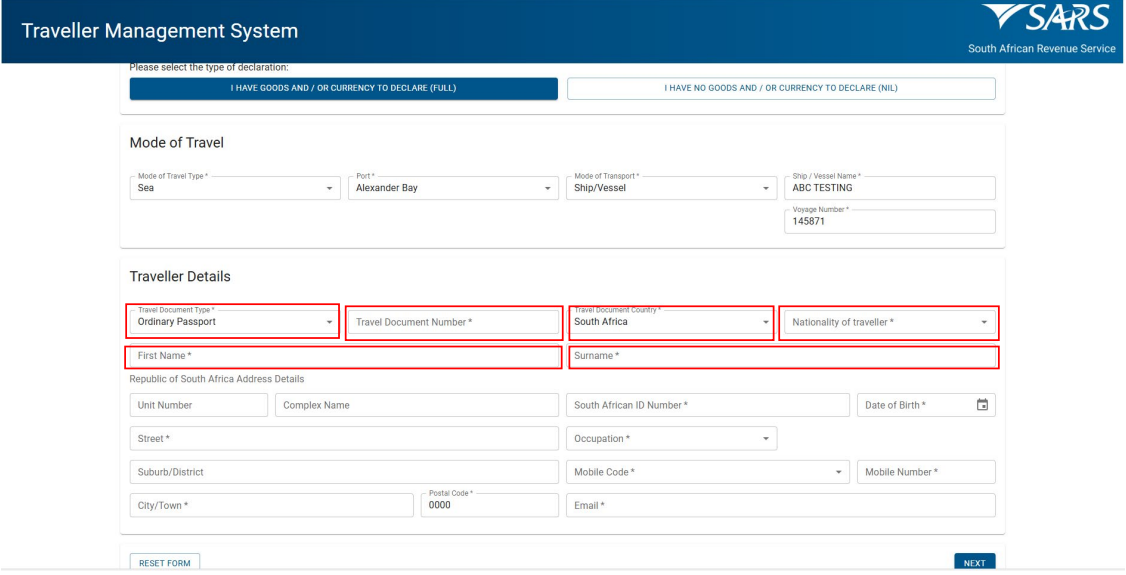
- In the ‘Traveller Details’ section, the traveller must:
- Select the Travel Document Type’ from the drop-down options.
- Enter the ‘Travel Document Number’
- Select from the drop-down options provided the:
- ‘Travel Document Country’; and
- ‘Nationality of Traveller’.
- Enter the ‘First name’ and ‘Surname’.
- In the Republic of South African Address Details section, the traveller enters the:
- Unit number;
- Complex name;
- South African ID Number;
- Date of Birth;
- Street;
- Occupation
- Suburb / District;
- Mobile Code (select from the drop-down);
- Mobile Number;
- City / town; and
- Postal code; and
- Email Address.
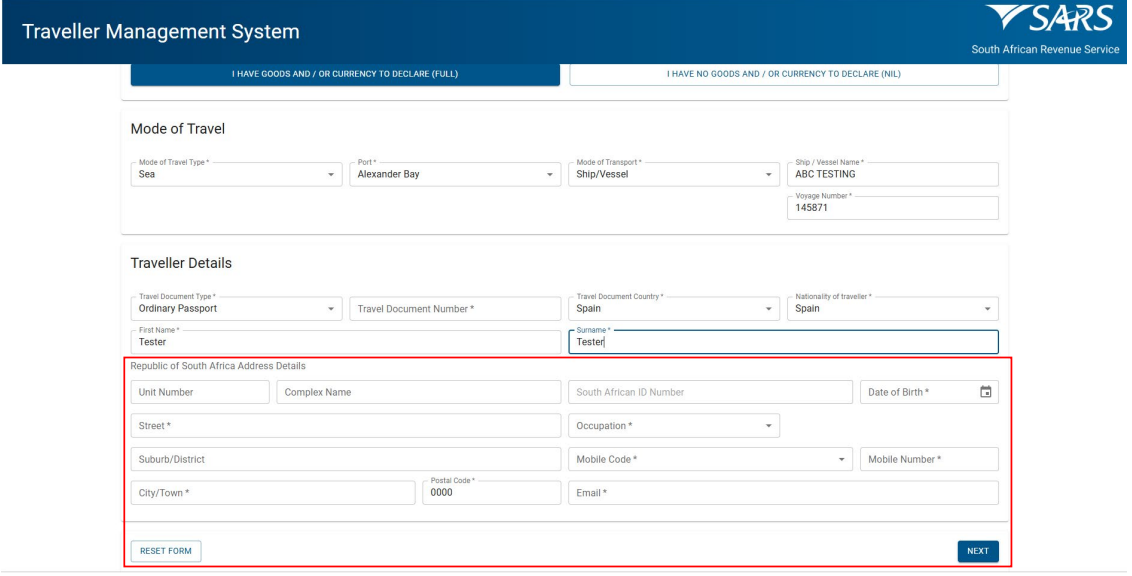
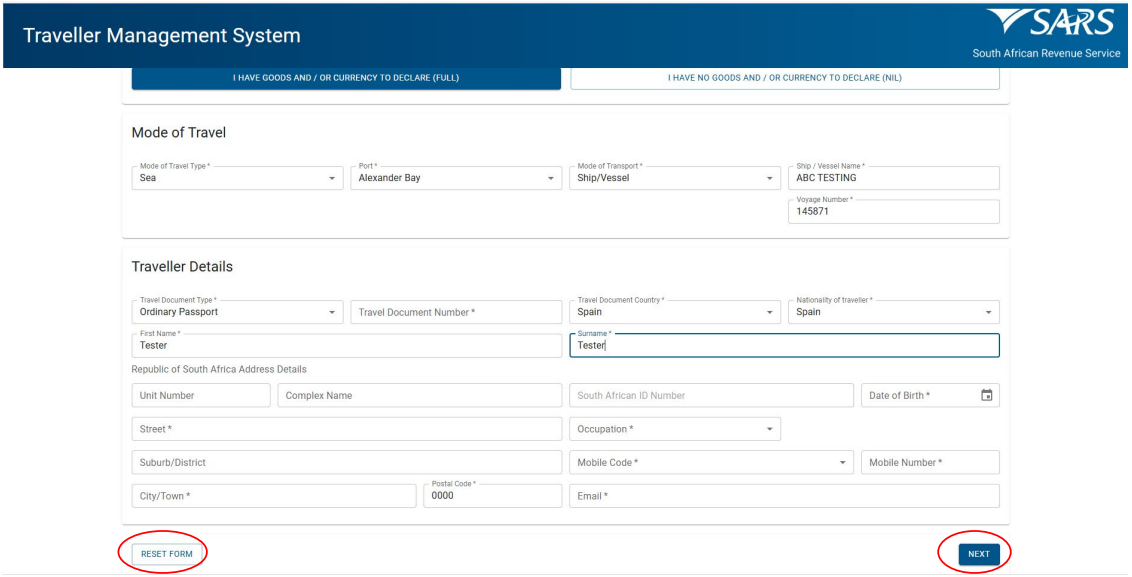
- To correct errors, click “Reset”.
- To continue click ‘Next’.
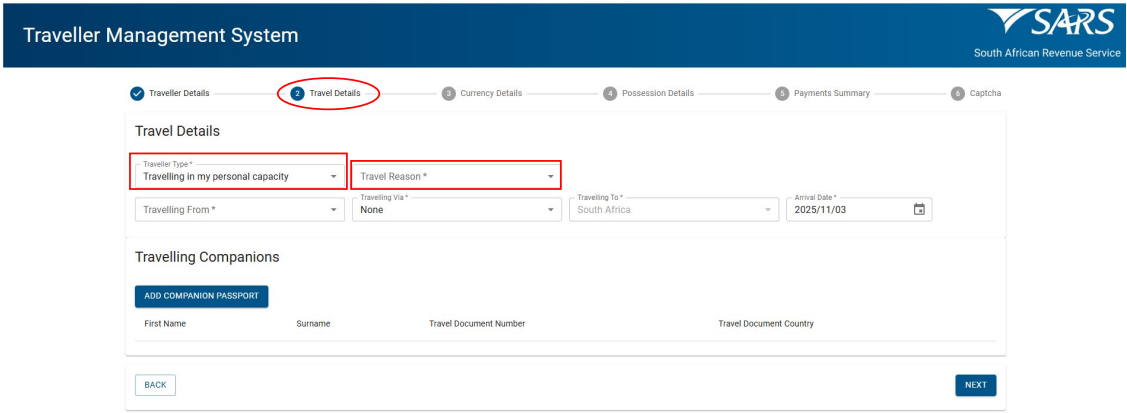
Travel Details
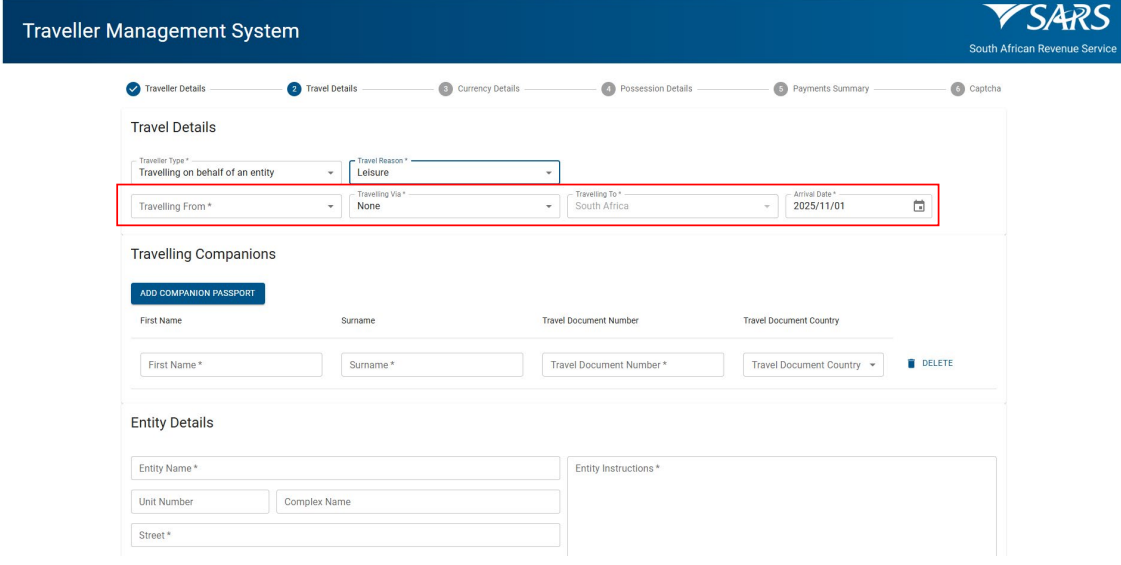
- On the Travel Details screen the traveller must select ‘Travel Type’ which can be either:
- Travelling in personal capacity; or
- Travelling on behalf of an entity.
- Select the ‘Travel Reason’ from the drop-down list.
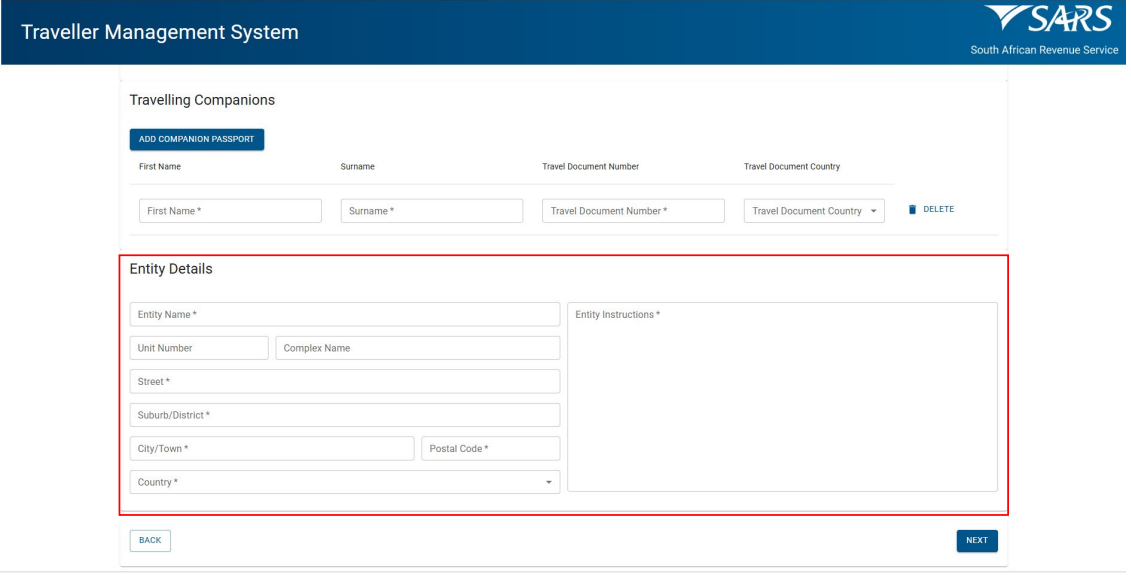
- If travelling on behalf of an entity, complete the following mandatory fields:
- Entity Name;
- Unity Number;
- Complex Name;
- Street;
- Suburb / District;
- City / Town;
- Postal Code;
- Country; and
- Entity instructions.
- The traveller selects from the drop-down options the:
- Travelling From;
- Travelling Via;
- Travelling To; and
- Travel date (from the pop-up calendar).
- To add travelling companions the traveller must for each travelling companion:
- Click ‘Add Companion Passport’
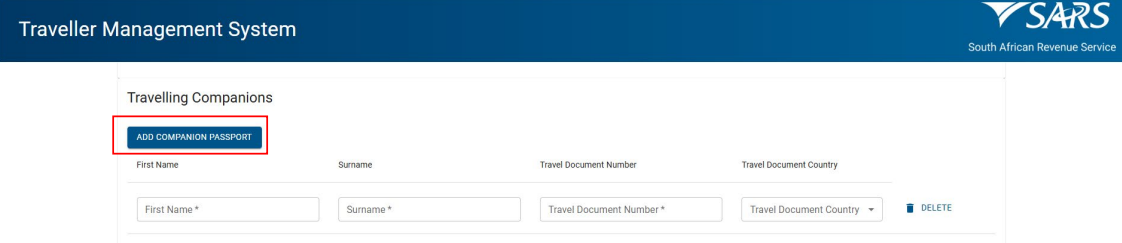
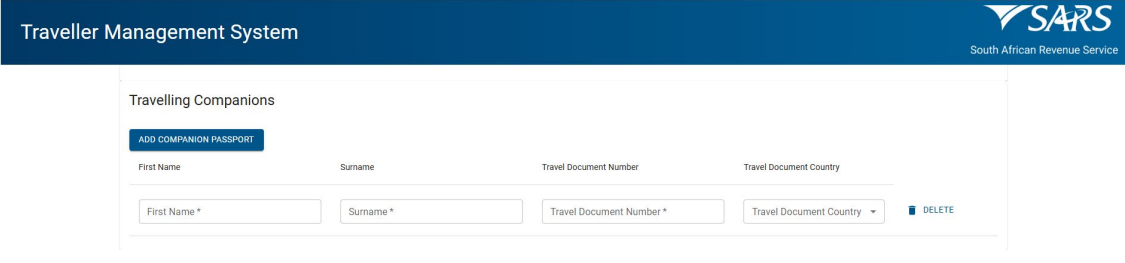
- Enter:
- ‘First Name’;
- ‘Surname’;
- ‘Travel Document Number’; and
- Select ‘Travel Document Country’ from the drop-down options.
- Enter:
- Click ‘Next’ to continue.
Currency Details
- Travellers are permitted to carry a maximum of R 100,000 out of South Africa in foreign or local currency or bearer negotiable instruments without prior approval.
- If a traveller carries more than R 100,000, they must:
- Obtain authorization from the South African Reserve Bank (SARB). Refer to the Excess Currency policy (SC-PA-01-06); and
- Complete a declaration on SATMS accompanied by the permit received from SARB.
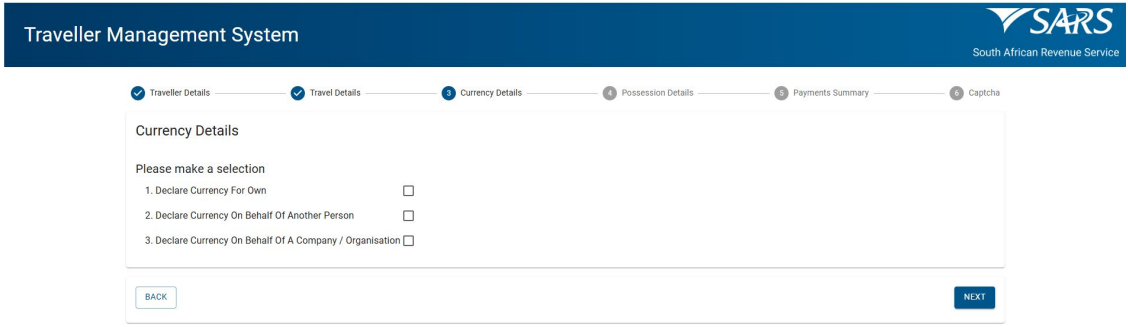
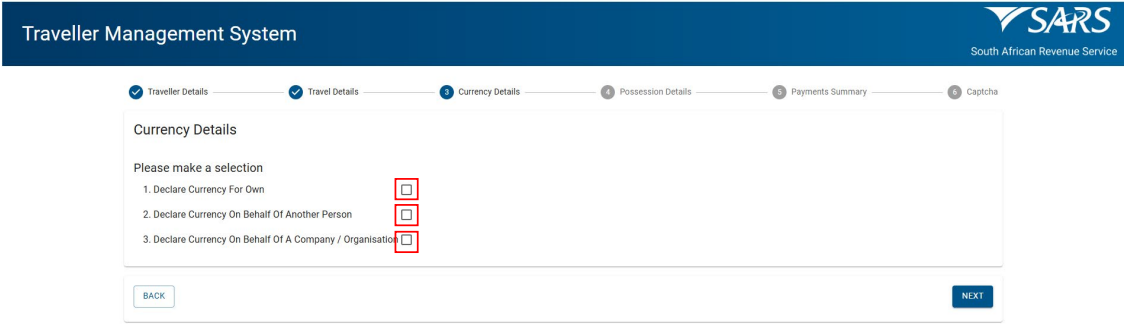
- On the currency details screen, the traveller must select one or more of the following options:
- ‘Declare Currency for Own’;
- ‘Declare Currency On Behalf Of Another Person’; or / and
- ‘Declare Currency On Behalf Of A Company / Organisation’
- Click ‘Next’ to continue.
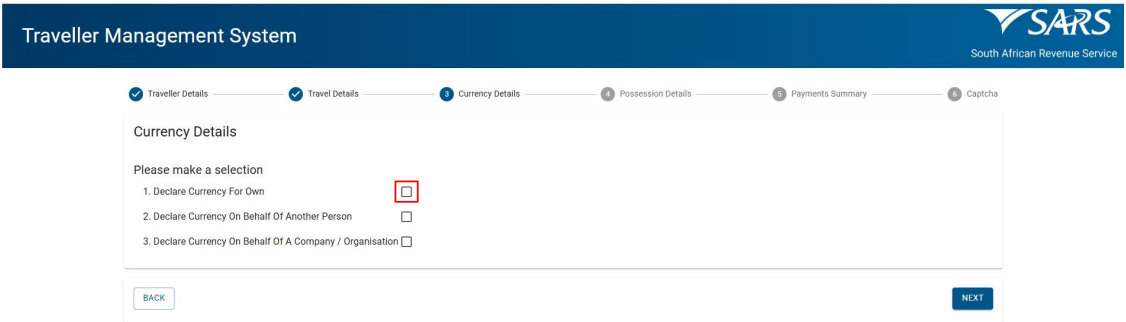
- If ‘Declare Currency For Own’ is selected, the traveller:
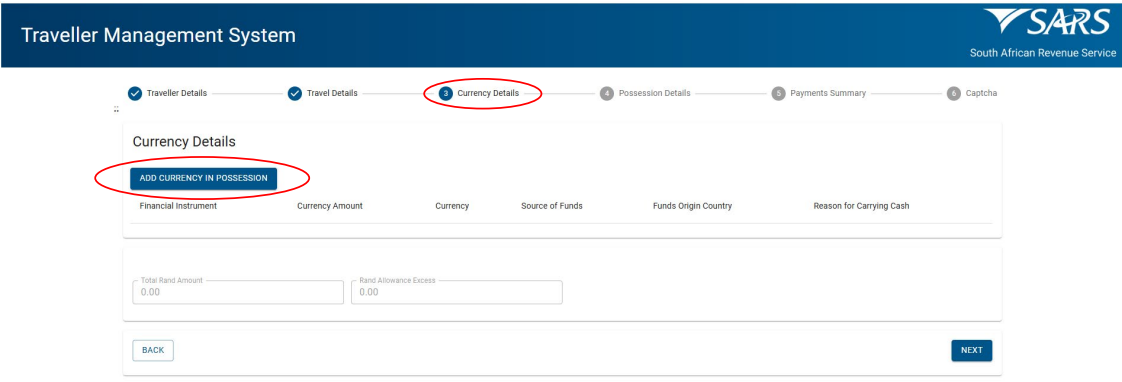
- Clicks ‘Add Currency In Possession’ button.
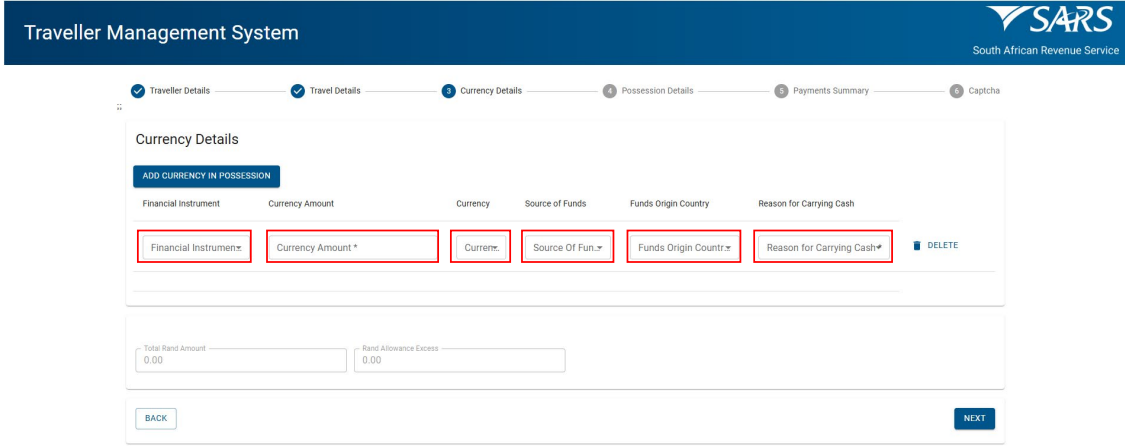
- Selects ‘Financial Instrument’ from the drop-down options.
- Enter ‘Currency Amount’.
- Select from the drop-down options:
- The ‘Currency’.
- The ‘Source of Funds’.
- The ‘Funds Origin Country’
- The ‘Reason for Carrying Cash’
- To capture multiple currency details the traveller must click the ‘Add Currency in Possession Details’ button.
- To delete click ‘Delete’ next to the entry.
- Click ‘Next’ to continue.
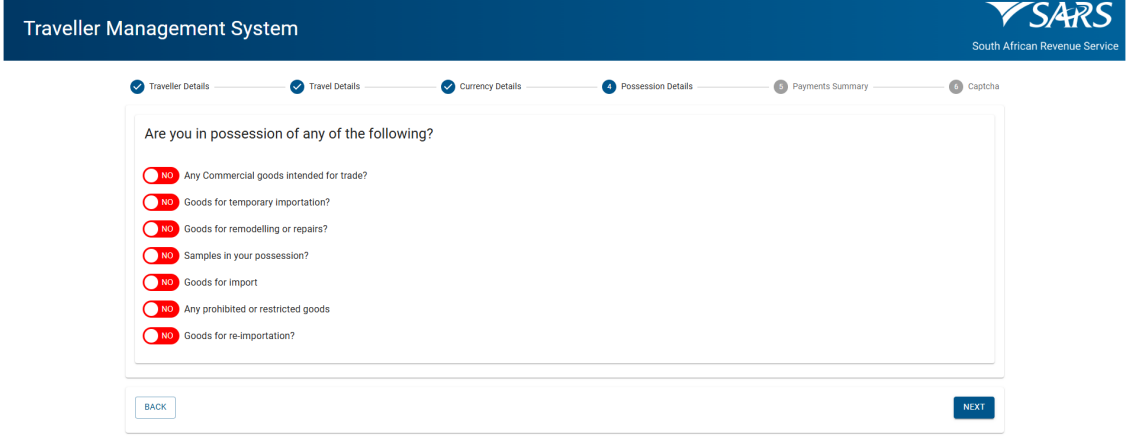
- If the ‘Declare on Behalf of Another Person’ is selected the traveller must:
- Click ‘Add Currency In Possession’ check box.
- Click the ‘Next’ button.
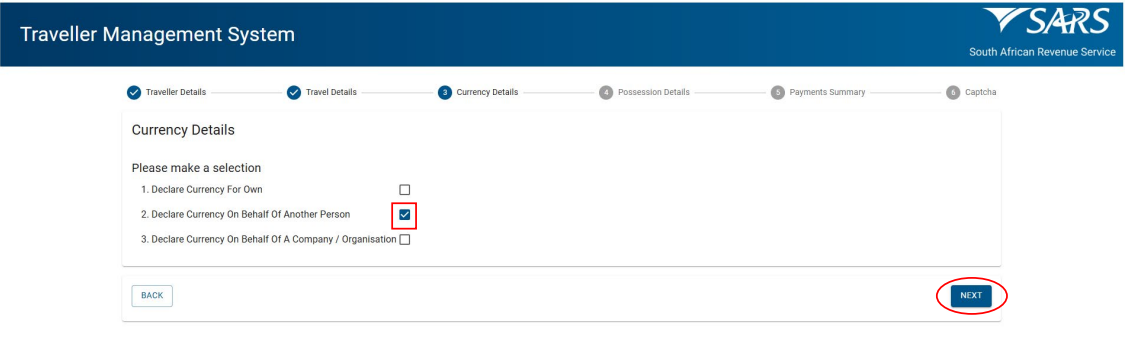
- The traveller clicks ‘Add Currency in Possession’.
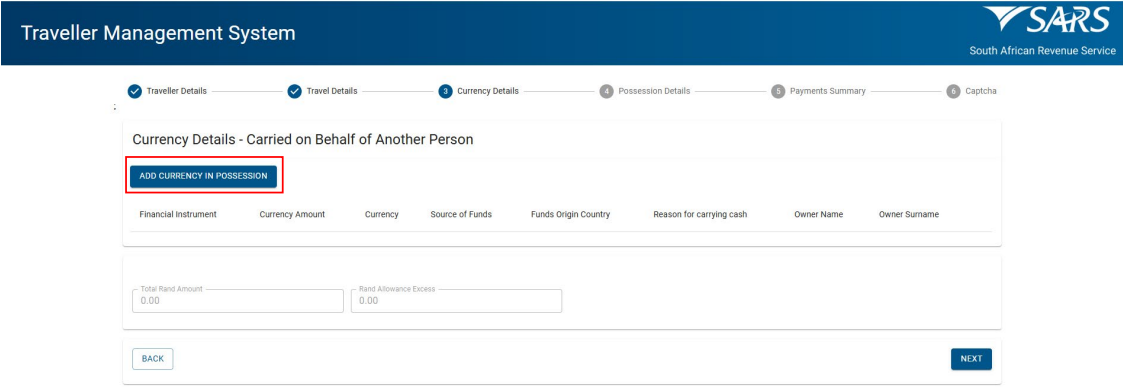
- The traveller:
- Selects ‘Financial Instrument’ from the drop-down options.
- Enters ‘Currency Amount’.
- Select from the drop-down options:
- ‘Currency.
- ‘Source of Funds’.
- ‘Funds Origin Country’.
- ‘Reason for Carrying Cash’.
- Enter ‘Owner Name’.
- Enter ‘Owner Surname’.
- Click ‘Next’ to continue.
- The SATMS will automatically:
- Convert any foreign currency to South African Rand based on Section 73 of the Act. The official rate of exchange published on the SARS website on the date of declaration will be used. The converted value will be reflected in the total Rand amount field. and
- Calculate and reflect the excess currency total in the Rand allowance excess field.
- The traveller clicks ‘Next’ to continue.
- The traveller:
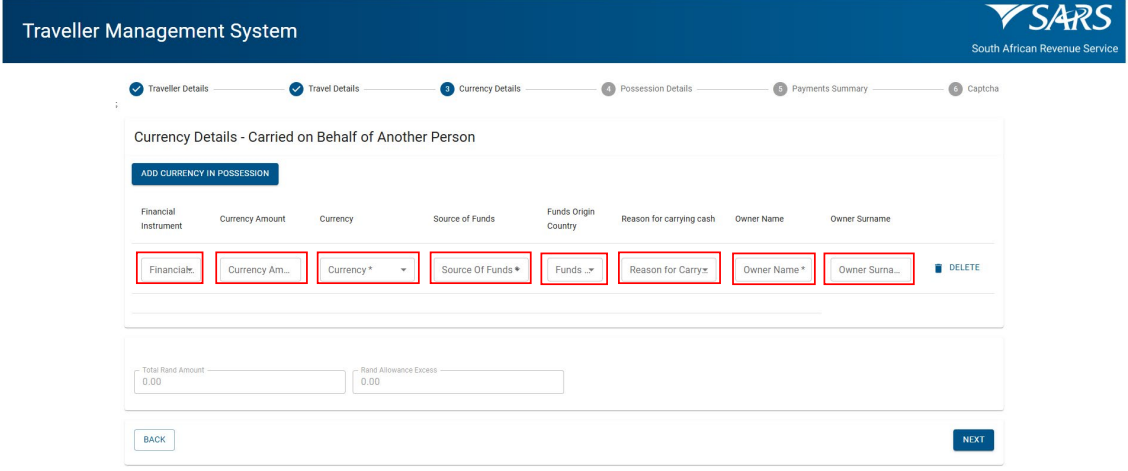
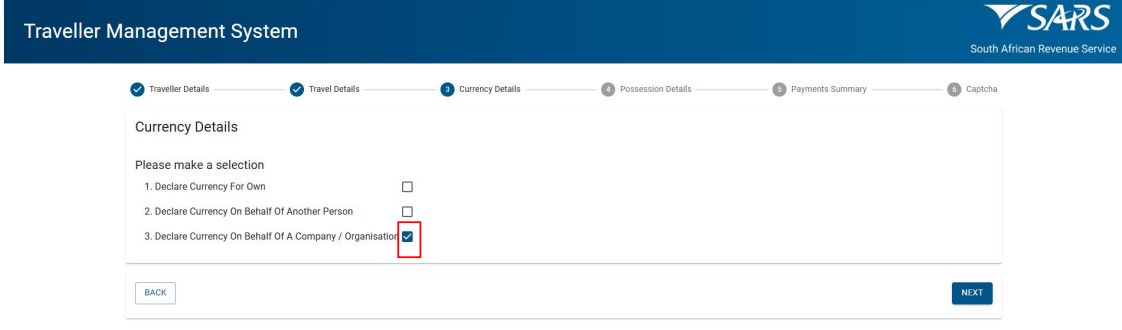
- If the ‘Declared Currency on Behalf of a Company or Organisation’ is selected, the traveller must:
- Click ‘Declare Currency On Behalf of a Company / Organisation’ check box;
- Click ‘Next’.
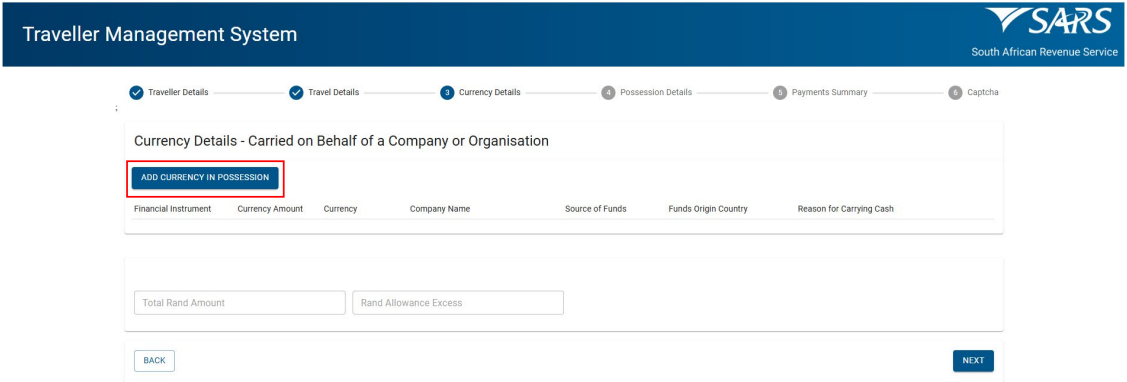
- Click ‘Add Currency in Possession’.
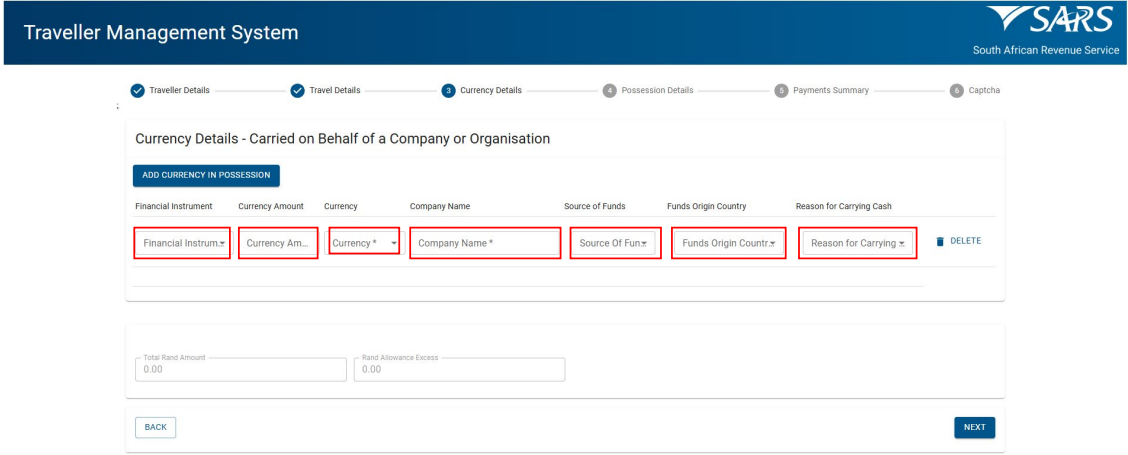
- Selects ‘Financial Instrument’ from the drop-down options.
- Enters ‘Currency Amount’.
- Select from the drop-down options provided:
- The ‘Currency.
- The ‘Source of Funds’.
- The ‘Funds Origin Country’.
- The ‘Reason for Carrying Cash’.
- Enter the ‘Owner Name’.
- Enter the ‘Owner Surname’.
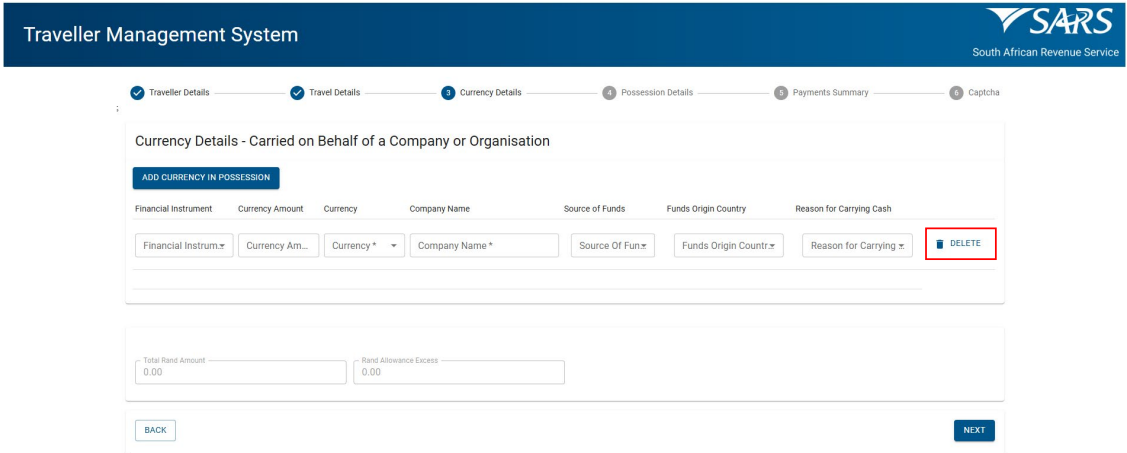
- To delete, click ‘Delete’ next to the entry.
- Click ‘Next’ to continue.
Possession Details
- If a traveller selects a non-designated port and their declaration is flagged as a risk, the system prompts them to change to the nearest designated port for Customs assessment.
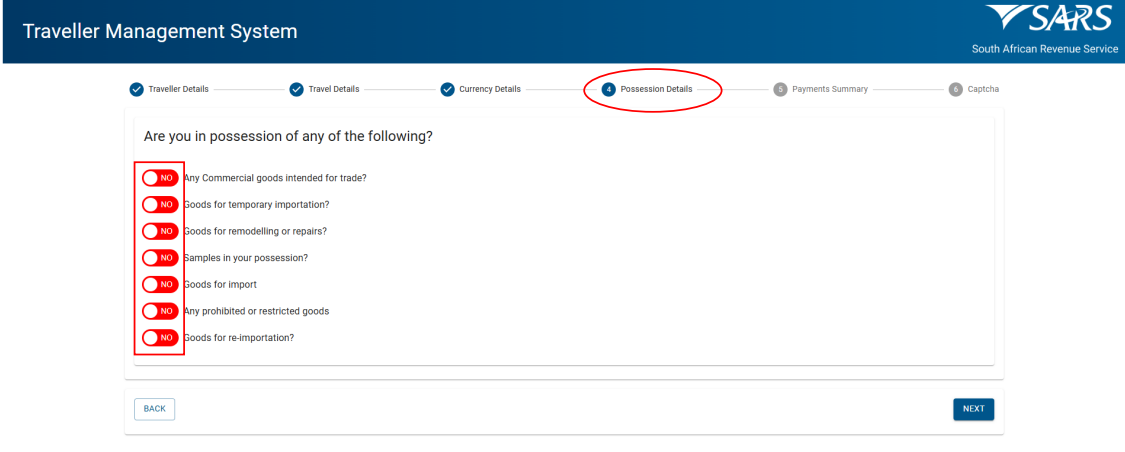
- On the Possession Details screen the traveller must click on the radio button next to each statement to change the selection from no to yes to declare.
Goods Declared for Commercial Goods Intended for Trade
- The traveller clicks ‘Any commercial goods intended for trade’ radio button.
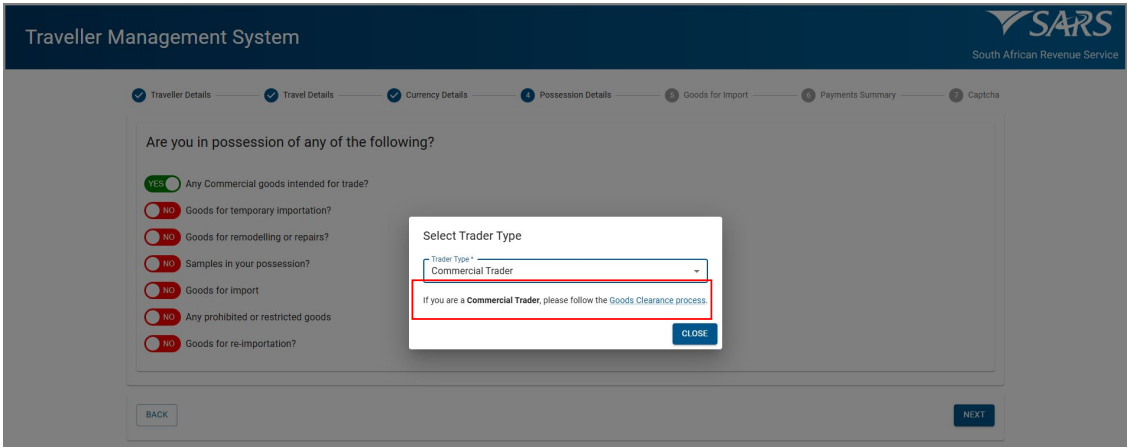
- If ‘Yes’ is selected the system displays the ‘Select Trader Type’ screen.
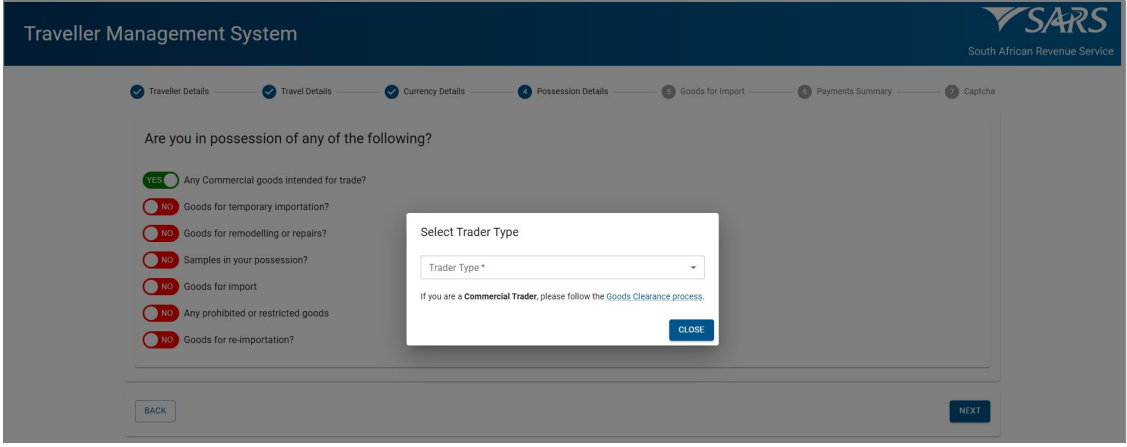
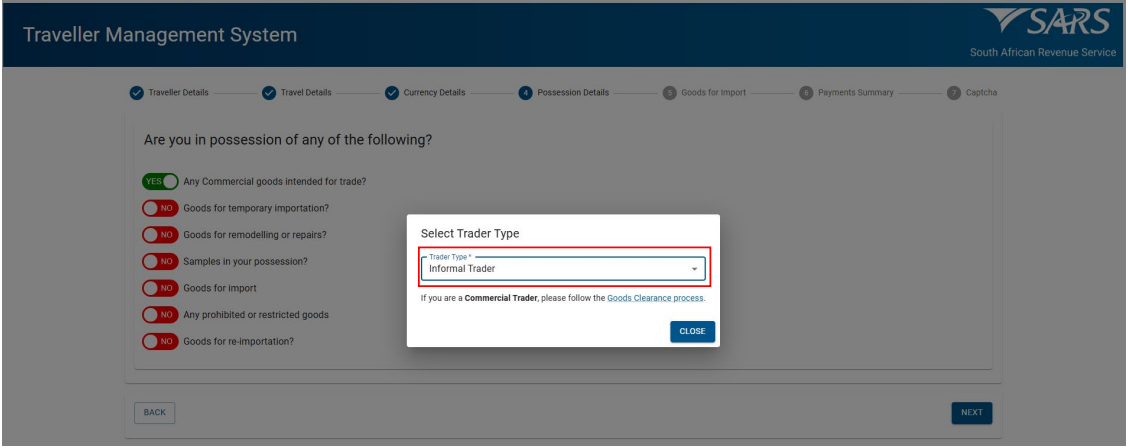
- Select ‘Commercial Trader’ or ‘Informal Trader’ from the drop-down options.
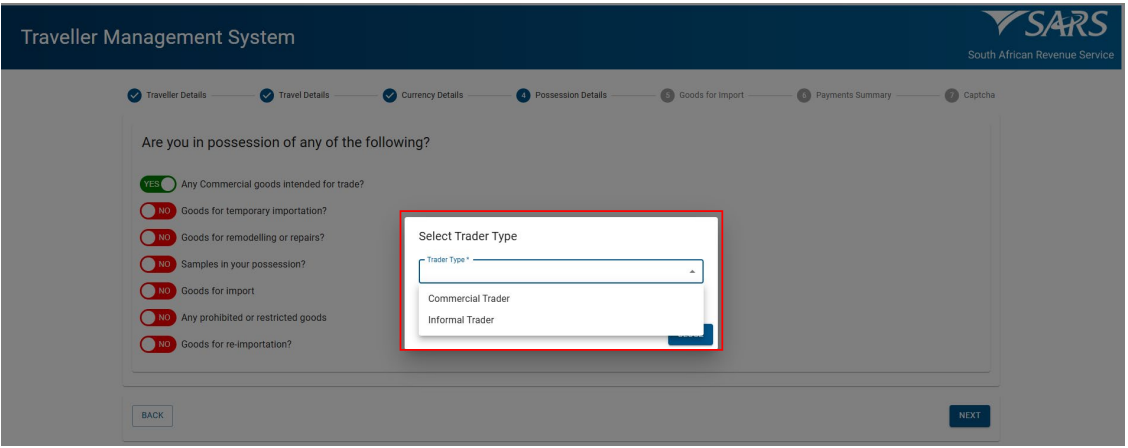
- If ‘Commercial Trader’ is selected, the traveller:
- Is prompted to submit a Goods Declaration in accordance with SC-CF-55 – Goods Declaration policy.
- Exits the screen by clicking the ‘Close’ button.
- Clicks ‘Next’.
- If ‘Commercial Trader’ is selected, the traveller:
- If ‘Informal Trader’ is selected the traveller:
- Selects ‘Close’.
- If ‘Informal Trader’ is selected the traveller:
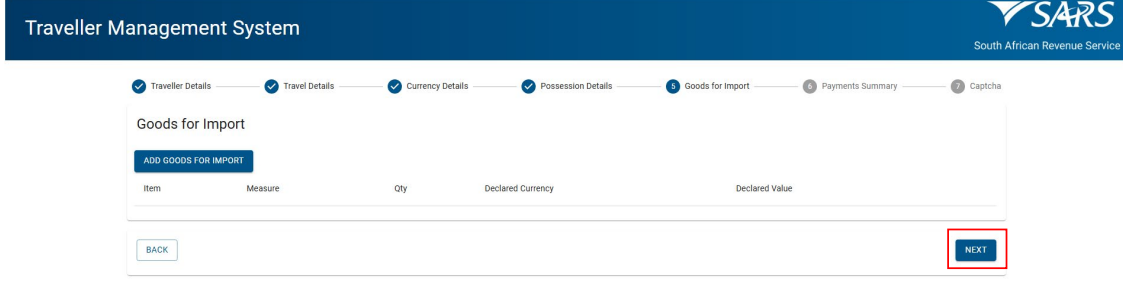
- Selects ‘Next’.
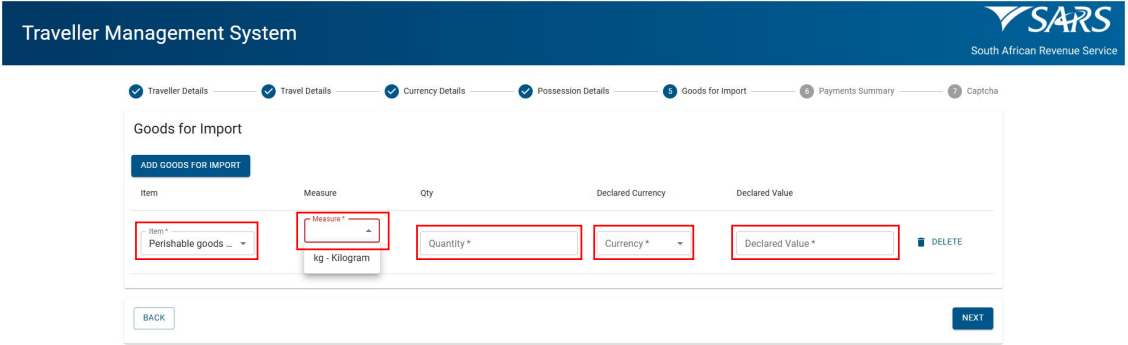
- Clicks ‘Add Goods for Import’.
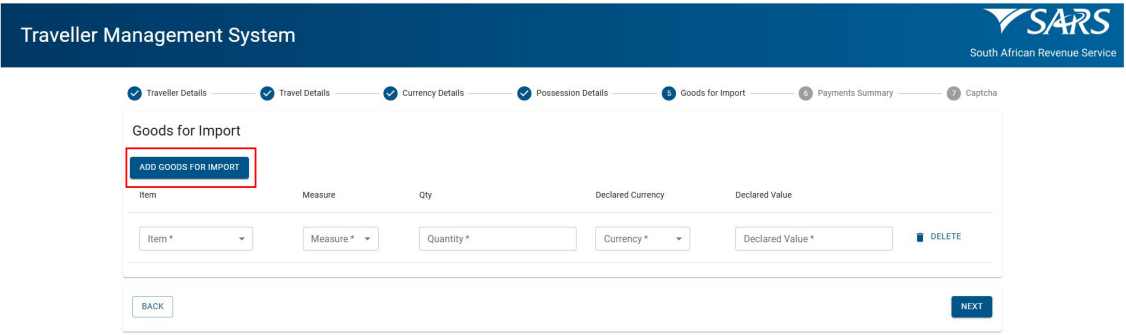
- Selects from the drop-down options:
- ‘Item’.
- ‘Measure’
- Enters ‘Quantity’.
- Selects ‘Declared Currency’ from the drop-down options.
- Enters ‘Declared Value’.
- Selects from the drop-down options:
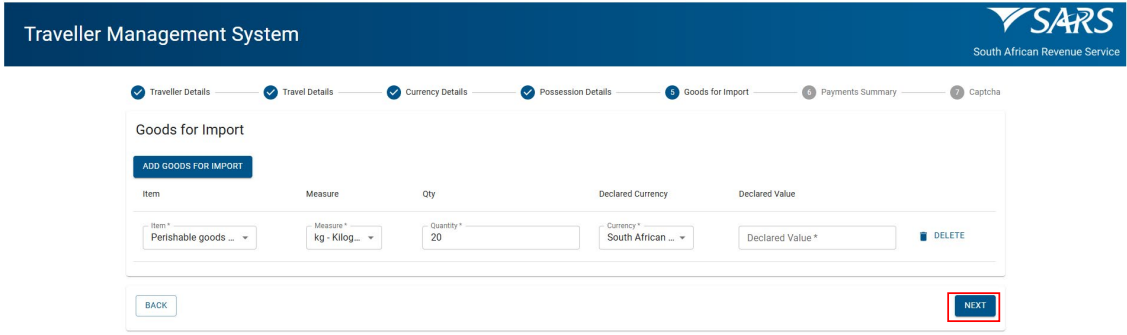
- Clicks ‘Next’ to continue.
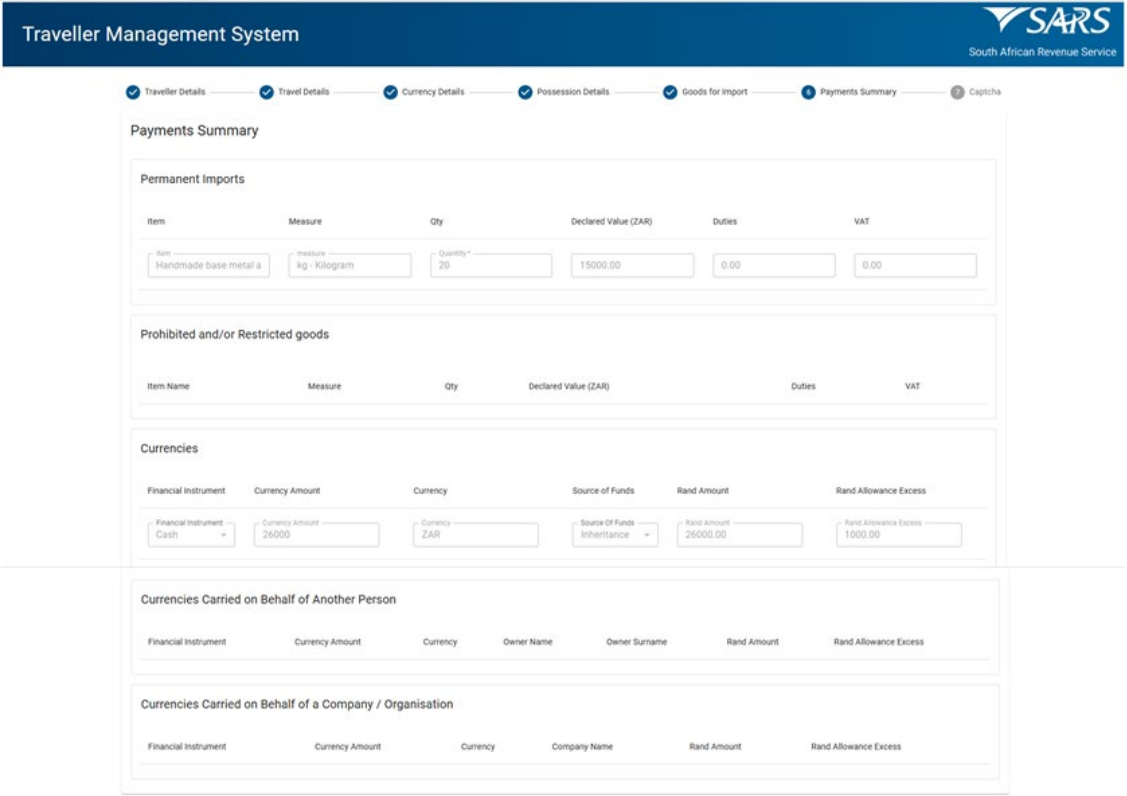
- The traveller can view the summary of the information declared, including:
- Payment summary (amount showing may change after the processing).
- Prohibited and/or restricted goods (blank if none declared).
- Currencies declared (if any).
- Currencies carried on behalf of another person or company (if any).
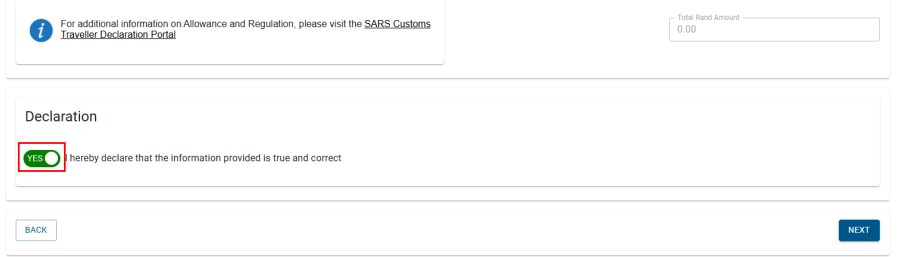
- Click the “Declaration” radio button to confirm the information is true and correct.
- After submitting, the traveller receives a message with directions from Customs.
Goods Declared for Temporary Importation
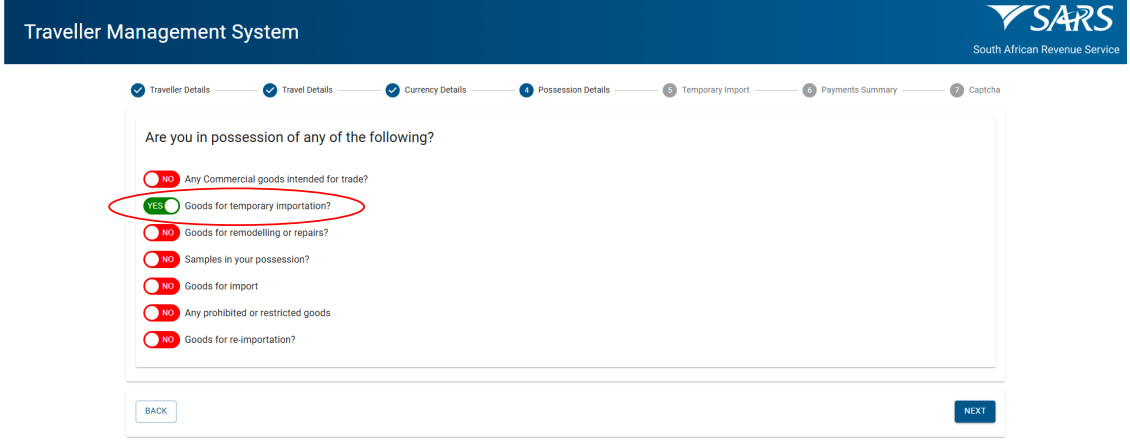
- The traveller clicks:
- ‘Goods for Temporary Importation’ radio button;
- ‘Next’.
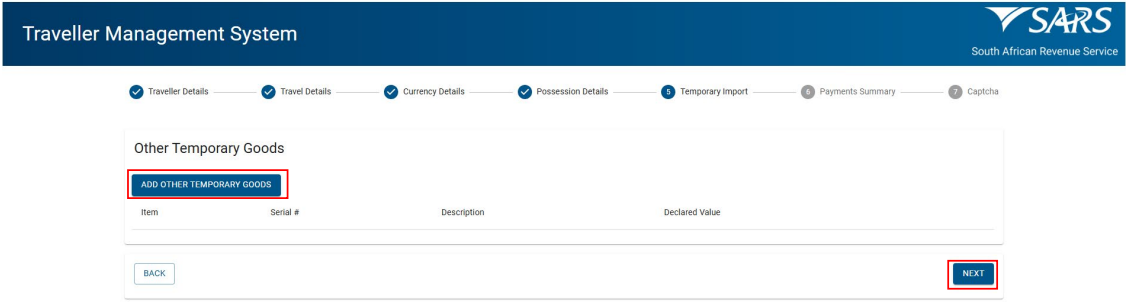
- Clicks:
- ‘Add Other Temporary Goods’ to capture the goods.
- ‘Next’.
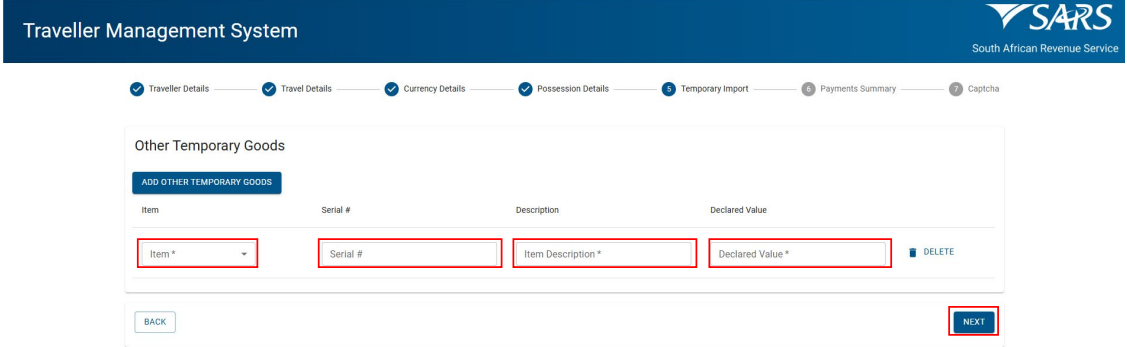
- Clicks:
- Selects ‘Item’ from the drop-down options;
- Enters:
- ‘Serial Number’;
- ‘Item Description’;
- ‘Declared Value’; and
- Clicks ‘Next’.
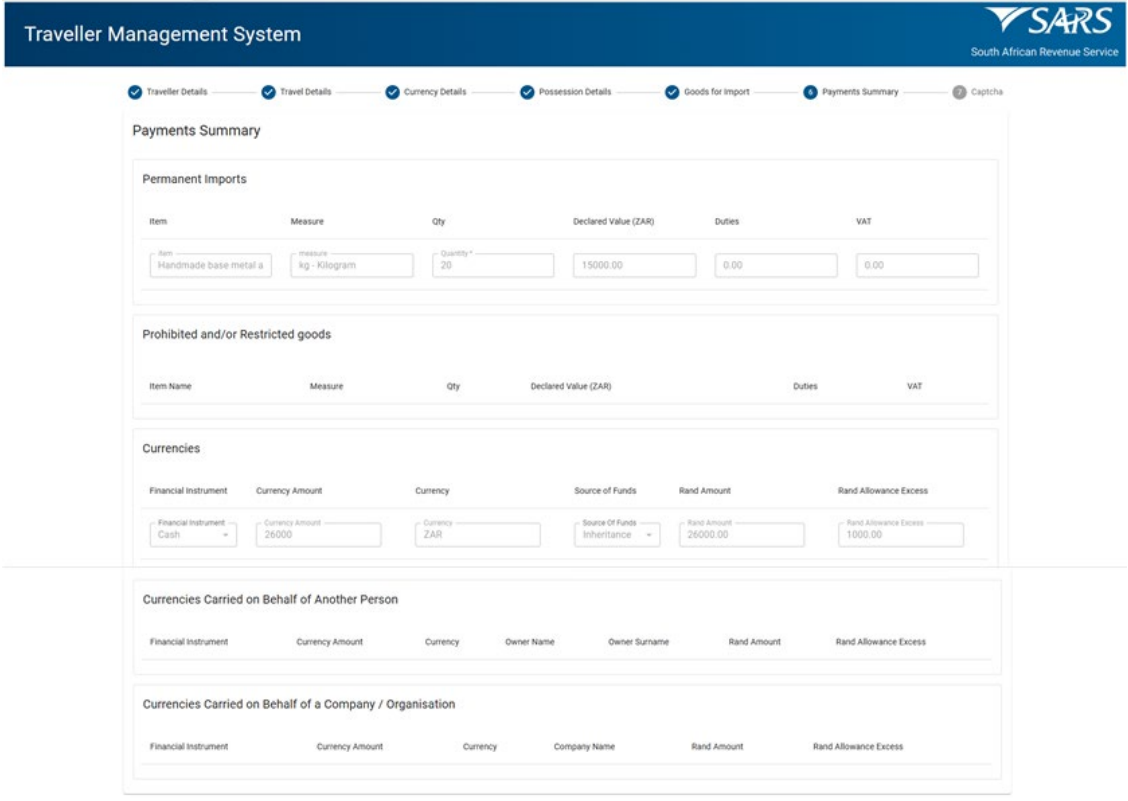
- The traveller can view the summary of the information declared, including:
- Payment summary (amount showing may change after the processing).
- Prohibited and/or restricted goods (blank if none declared).
- Currencies declared (if any)
- Currencies carried on behalf of another person or company (if any).
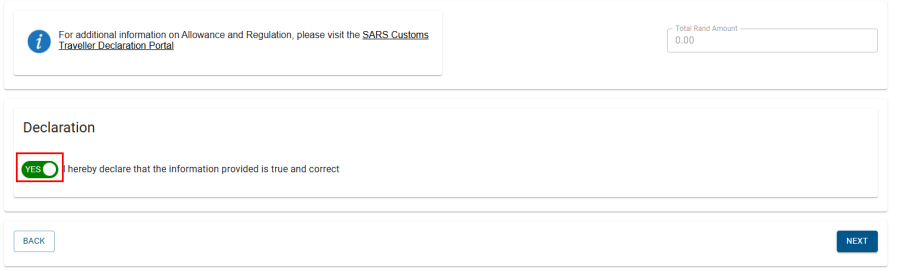
- Click the “Declaration” radio button to confirm the information is true and correct.
- After submitting, the traveller receives a message with directions from Customs.
Goods Declared for Remodelling or Repairs
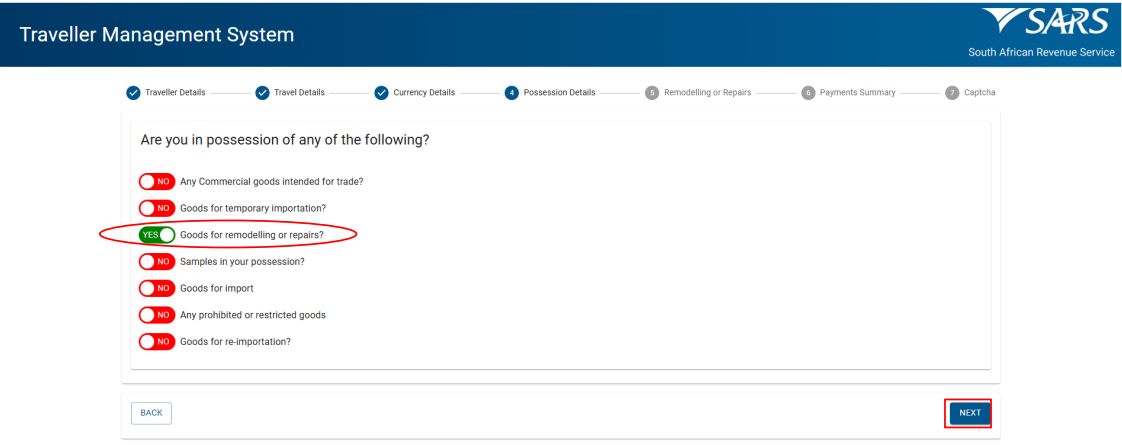
- The traveller Clicks:
- ‘Goods for remodelling or repairs’ radio button; and
- ‘Next’ to continue.
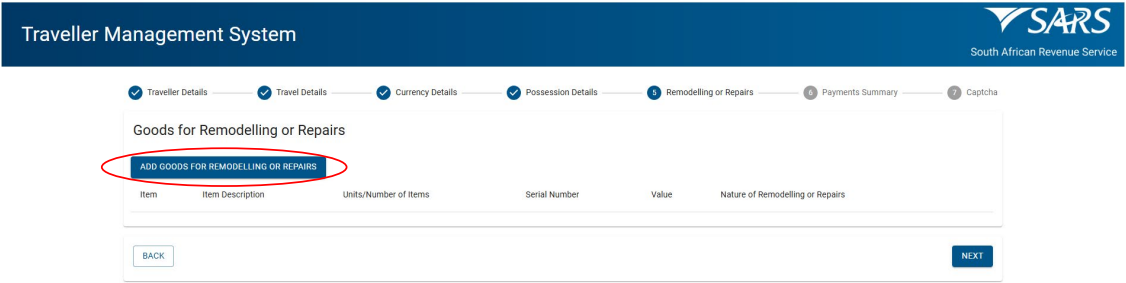
- Clicks ‘Add Goods for Remodelling or Repairs’.
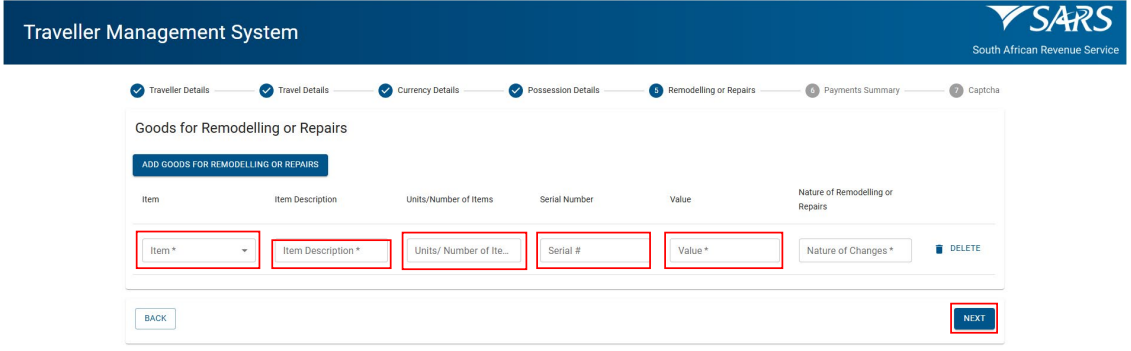
- Selects ‘Item’ from the drop-down options.
- Enters ‘Item Description’.
- Enters ‘Units / Number of Items’.
- Enters:
- ‘Serial Number’.
- ‘Value’.
- ‘Nature of Nature of Changes’.
- Clicks ‘Next’.
- The traveller can view the summary of the information declared, including:
- Payment summary (amount showing may change after the processing).
- Prohibited and/or restricted goods (blank if none declared).
- Currencies declared (if any).
- Currencies carried on behalf of another person or company (if any).
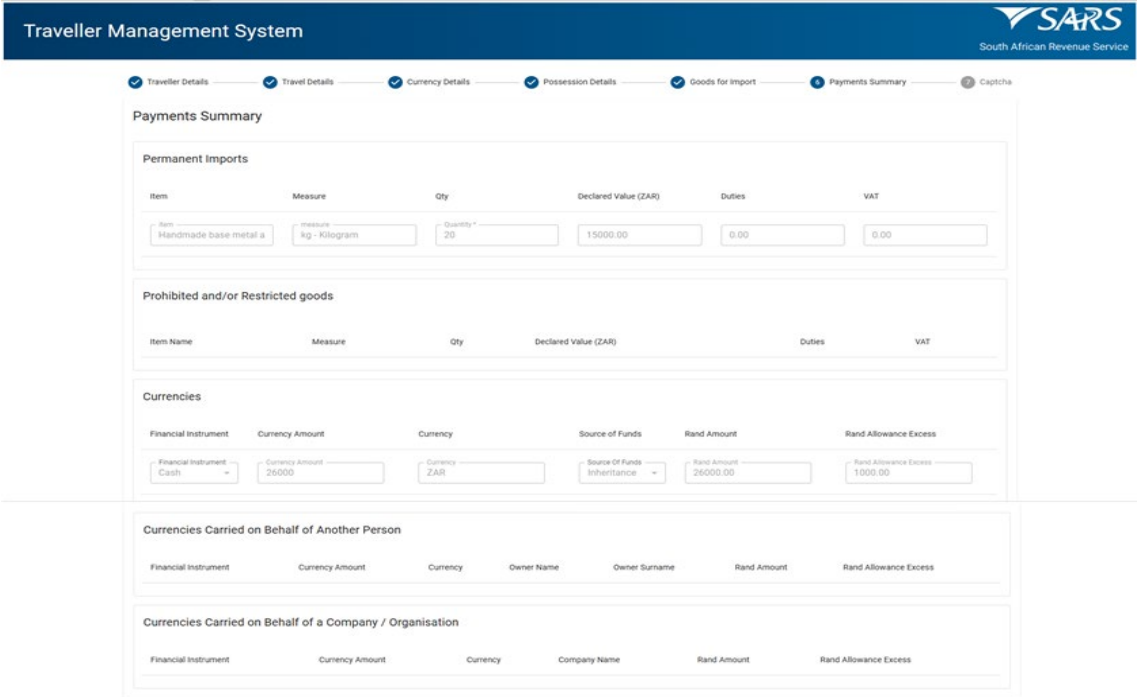
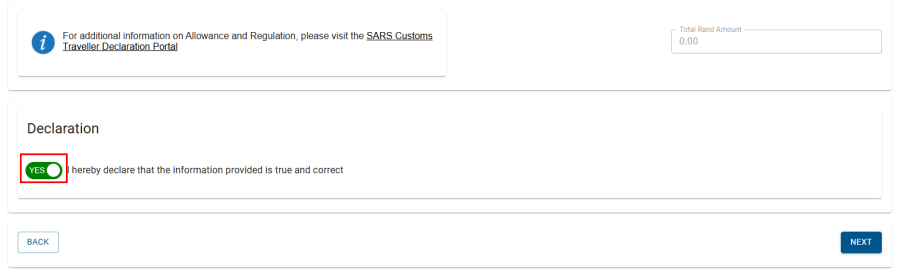
- Click the “Declaration” radio button to confirm the information is true and correct.
- After submitting, the traveller receives a message with directions from Customs.
Declare Samples
- The traveller clicks:
- ‘Samples in your Possession’ radio button; and
- ‘Next’ to continue.

- Clicks ‘Add Sample Goods’.
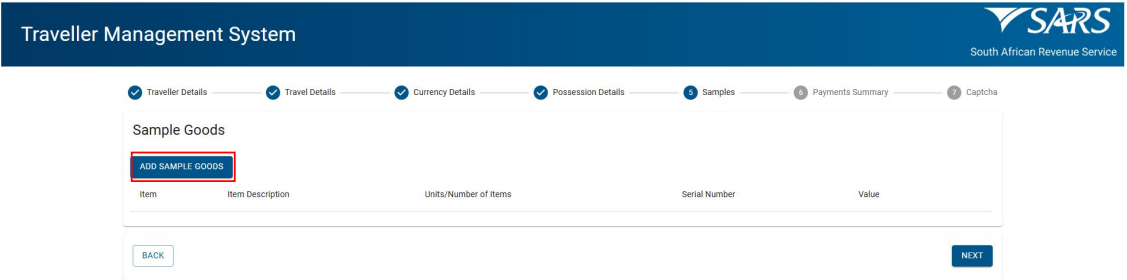
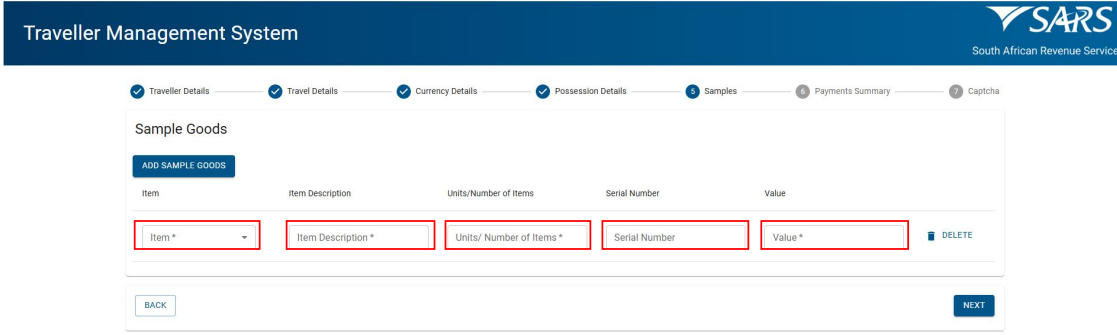
- Selects ‘Item’ from the drop-down list provided.
- Enters:
- Item description;
- Units / Number of Items;
- Serial Number; and
- Value;
- Clicks ‘Next’.
- The traveller can view the summary of the information declared, including:
- Payment summary (amount showing may change after the processing).
- Prohibited and/or restricted goods (blank if none declared).
- Currencies declared (if any).
- Currencies carried on behalf of another person or company (if any).
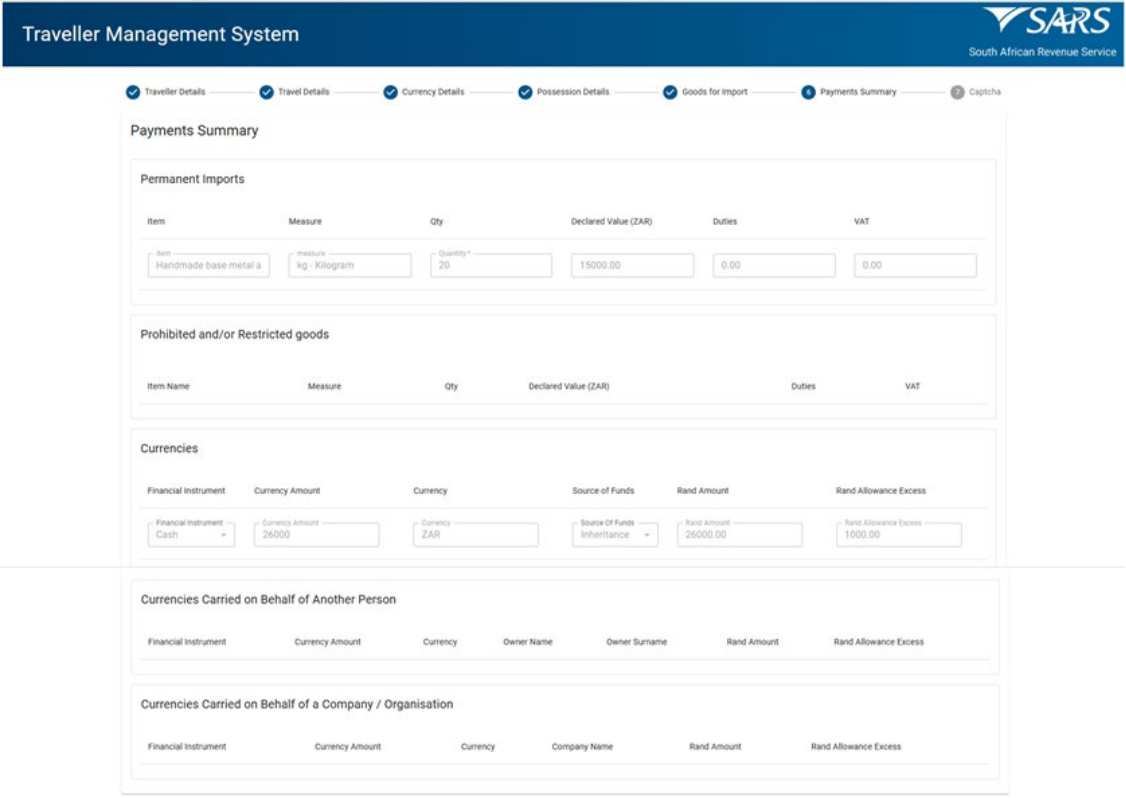
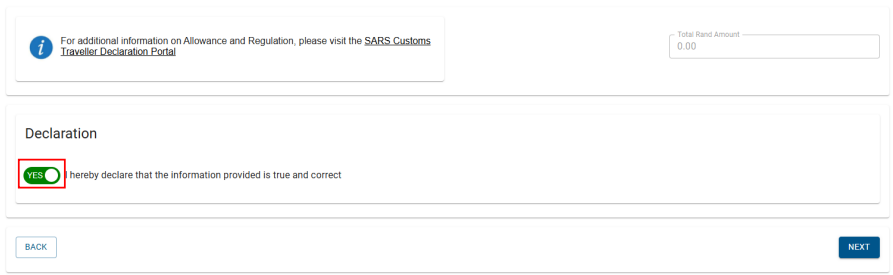
- Click the “Declaration” radio button to confirm the information is true and correct.
- After submitting, the traveller receives a message with directions from Customs.
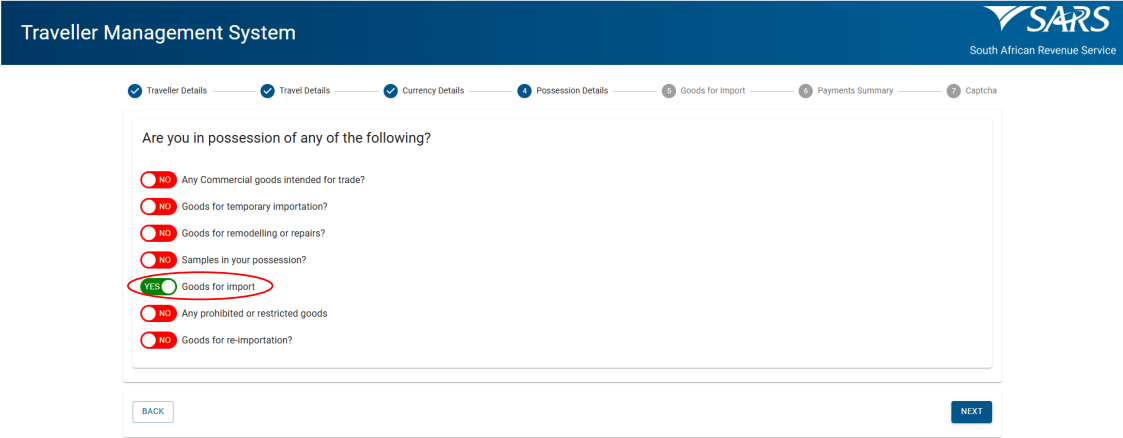
Goods for Import
- The traveller clicks:
- ‘Goods for remodelling or repairs’ radio button; and
- ‘Next’ to continue.
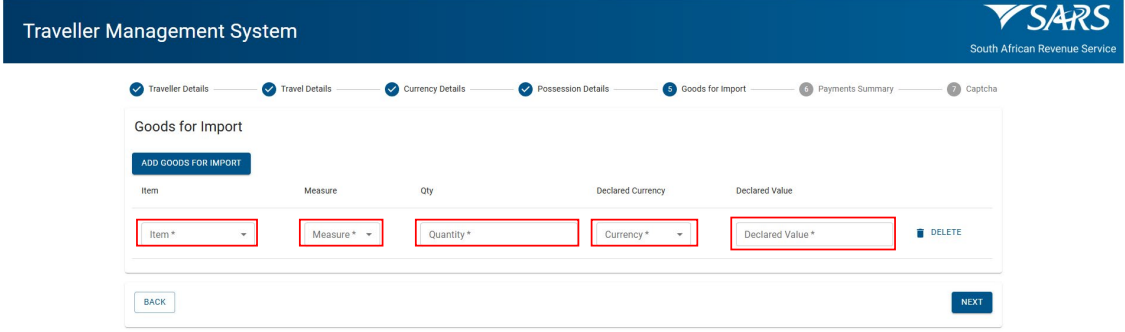
- Clicks ‘Add Goods for Import’
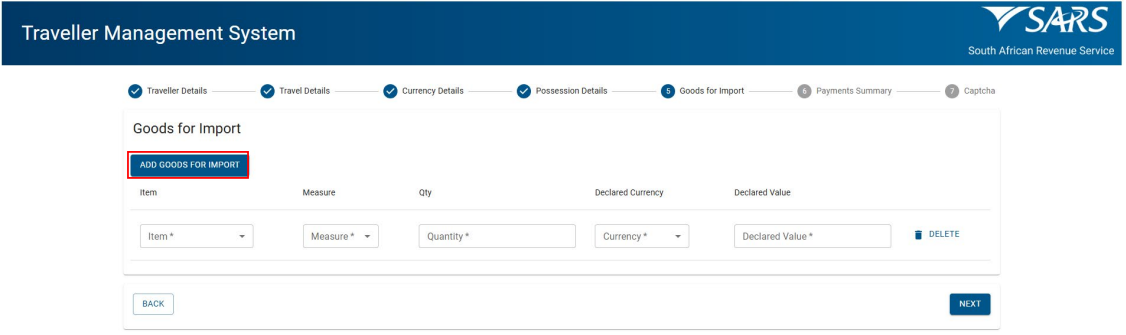
- Selects ‘Item’ from the drop-down list options.
- Enters:
- Item description.
- Units / Number of Items;
- Serial Number; and
- Value;
- Clicks ‘Next’.
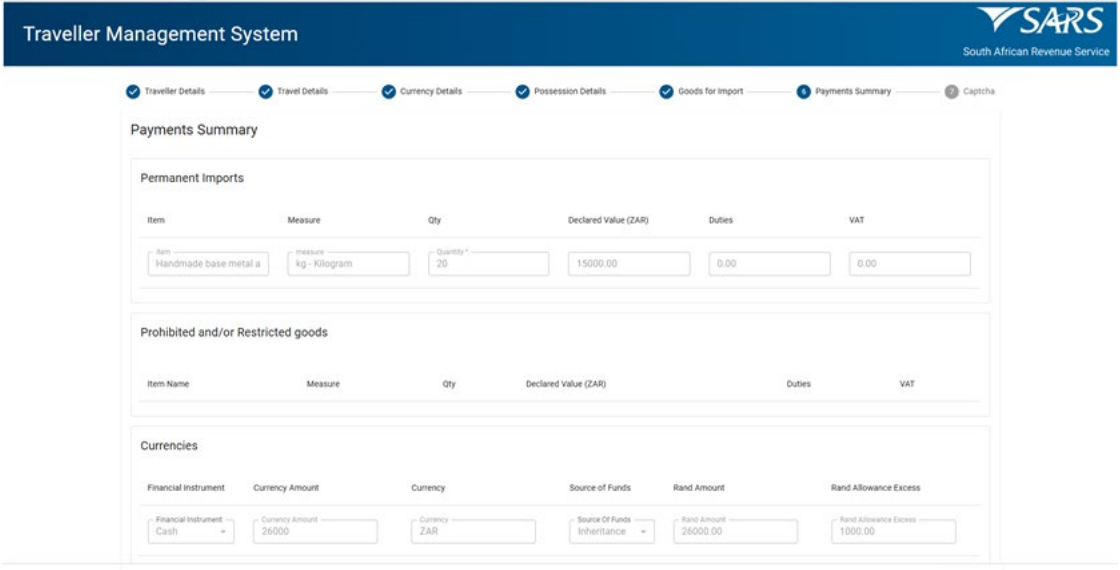
- The traveller can view the summary of the information declared, including:
- Payment summary (amount showing may change after the processing).
- Prohibited and/or restricted goods (blank if none declared).
- Currencies declared (if any).
- Currencies carried on behalf of another person or company (if any).
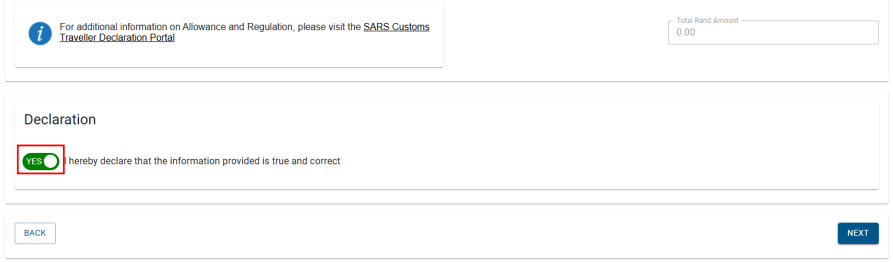
- Click the “Declaration” radio button to confirm the information is true and correct.
- After submitting, the traveller receives a message with directions from Customs.
Prohibited and Restricted Goods
- The traveller clicks:
- ‘Goods for remodelling or repairs’ radio button; and
- ‘Next’ to continue.
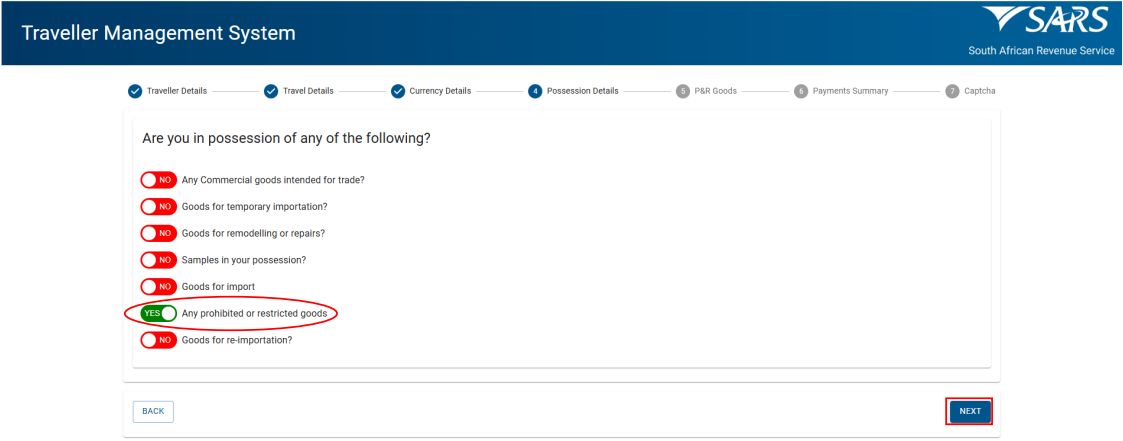
- Clicks ‘P&R Goods’.
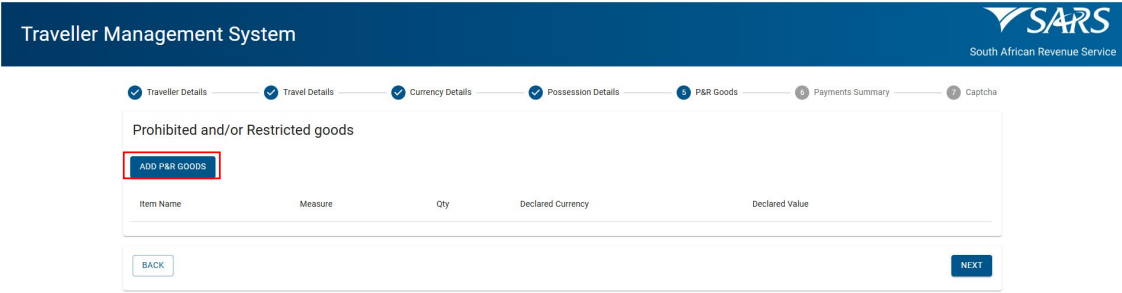
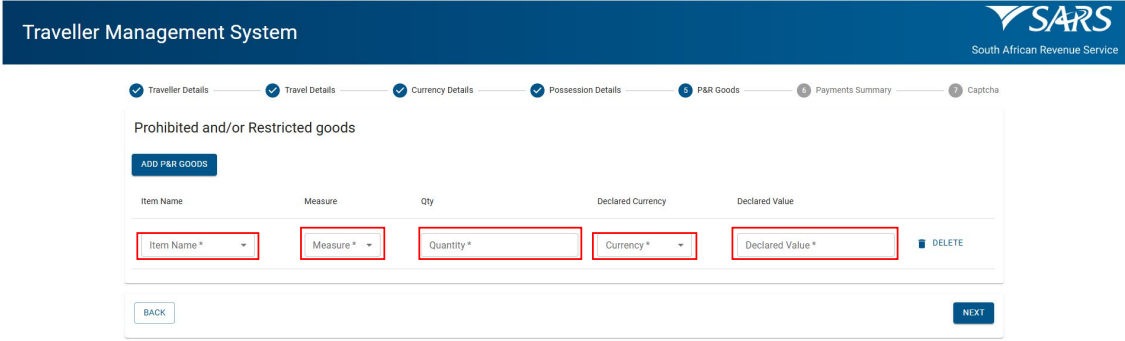
- Selects ‘Item’ from the drop-down options.
- Enters:
- Item description;
- Units / Number of Items;
- Serial Number; and
- Value;
- Clicks ‘Next’.
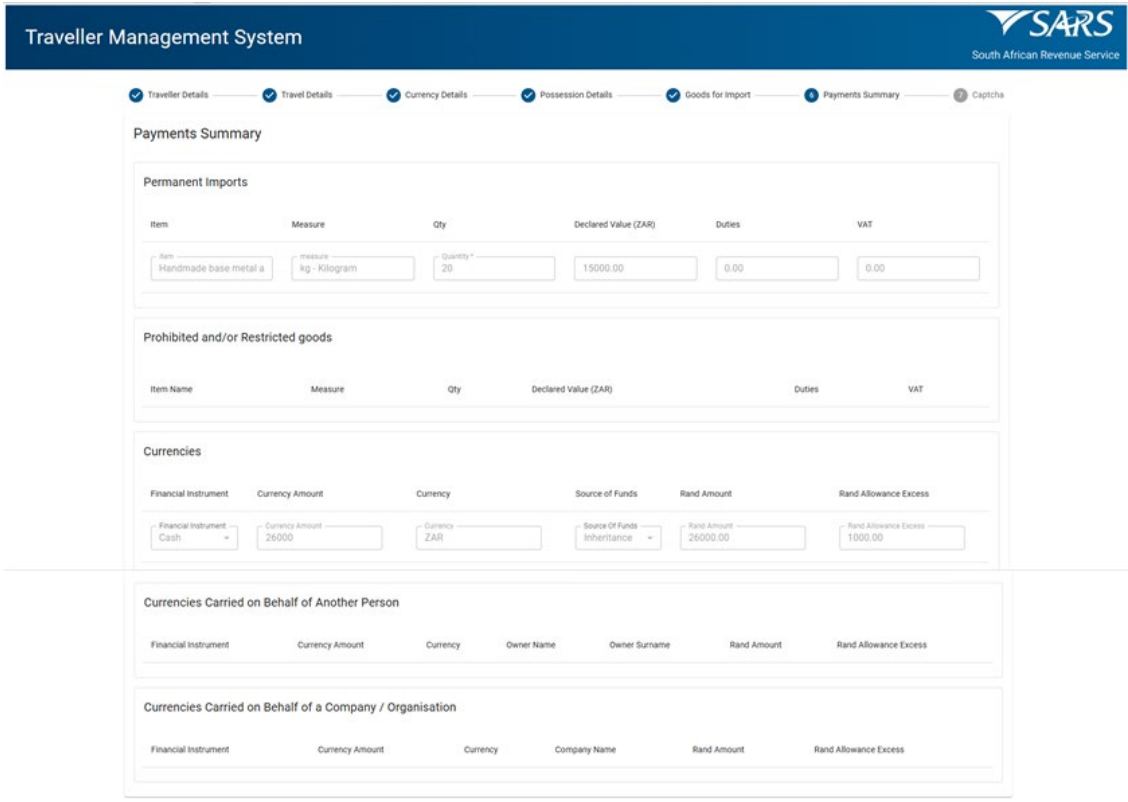
- The traveller can view the summary of the information declared, including:
- Payment summary (amount showing may change after the processing).
- Prohibited and/or restricted goods (blank if none declared).
- Enters the ‘Declared Value’.
- Currencies declared (if any).
- Currencies carried on behalf of another person or company (if any).
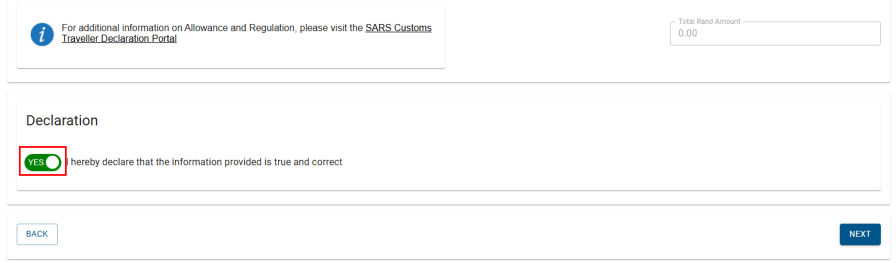
- Click the “Declaration” radio button to confirm the information is true and correct.
- After submitting, the traveller receives a message with directions from Customs.
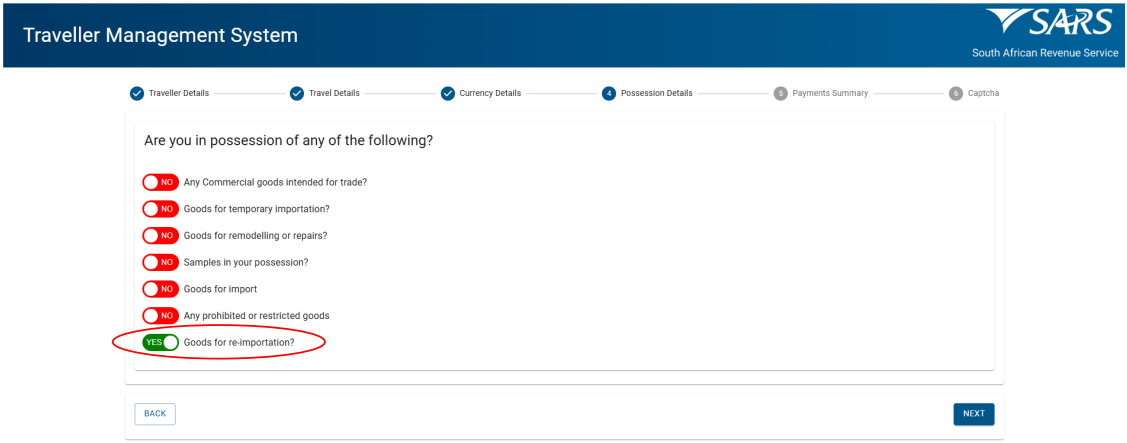
Goods for Re-Importation
- This is goods brought back into the South Africa after taking them out temporarily.
- The traveller clicks:
- Goods for remodelling or repairs’ radio button; and
- ‘Next’ to continue.
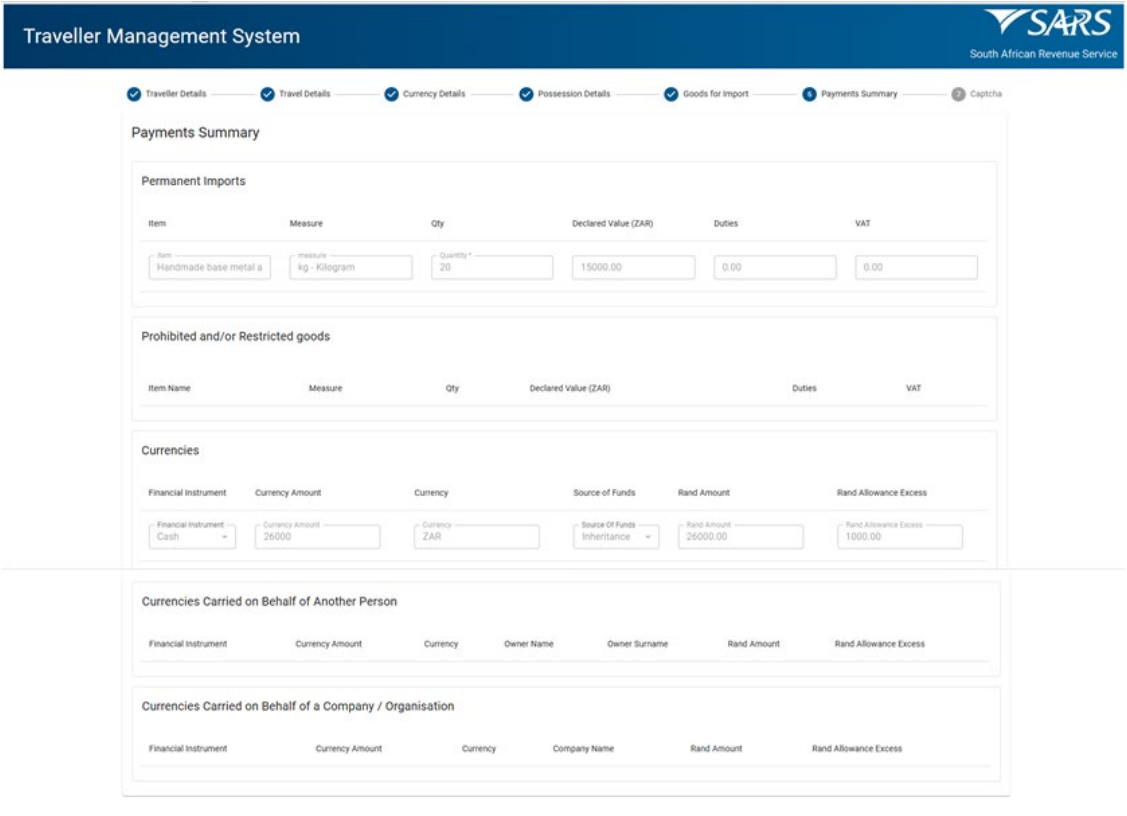
- The traveller views the summary of the information declared:
- Payment summary. The amount showing may change after the processing of the traveller’s declaration.
- Prohibited and / or Restricted goods. This section will remain blank if no prohibited / restricted goods are declared.
- Currencies declared, if declared
- Currencies Carried on Behalf of Another Person, if declared.
- Currencies Carried on Behalf of a Company / Organisation, if declared.
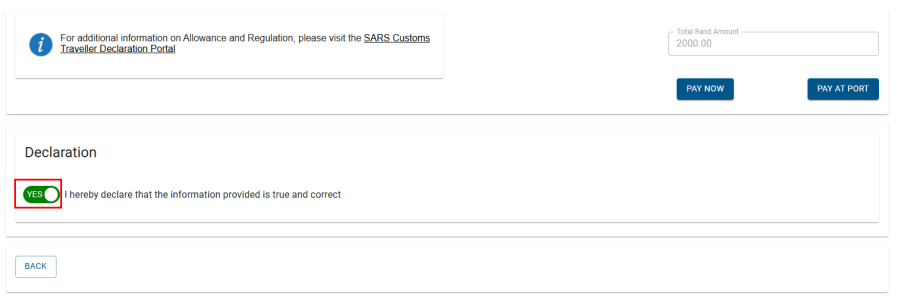
- If Customs duty / VAT is payable the traveller may elect to:
- ‘Pay Now’ – make payment immediately by bank cards, Electronic Bank transfers (EFT).
- ‘Pay at Port’ – if the location is equipped for such payments by:
- Cash (in South African Rand); or
- Debit / credit card.

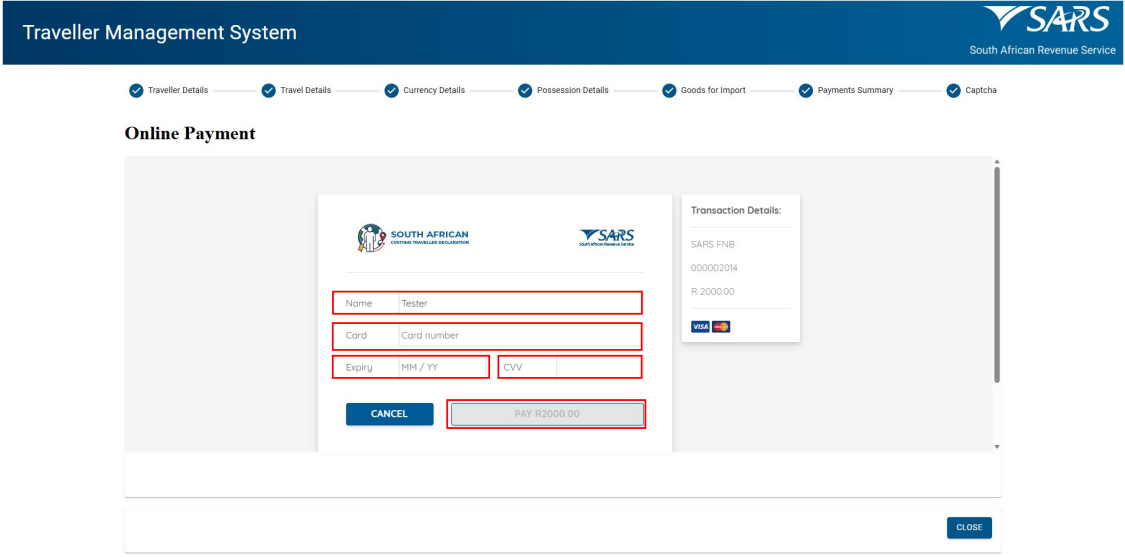
- The traveller:
- Selects ‘Pay Now’.

- Enters, found on the debit / credit card:
- ‘Card Name’;
- ‘Card Number’;
- ‘Expiry Date’;
- ‘CCV’. This is a Card Verification Value.
- Clicks the ‘Pay’ button.
- Enters, found on the debit / credit card:
- Receives on SATMS:
- The payment successful message; and
- Payment receipt.
- Receives on SATMS:
- Clicks the ‘Declaration’ radio button to confirm the information is true and correct, then click ‘Next’ to complete the declaration.
- After submitting, the traveller receives a message with directions from Customs.
CAPTCHA
- On the CAPTCHA screen the traveller must insert the displayed CAPTCHA code.
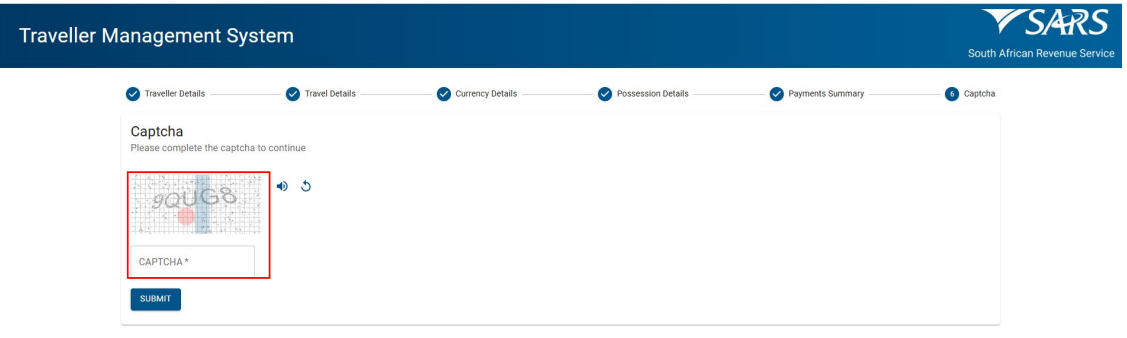
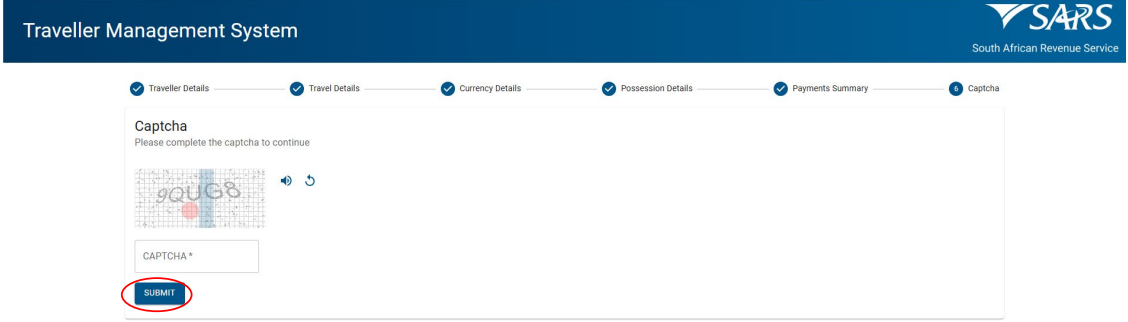
- The traveller clicks the ‘Submit’ button to complete the declaration.
Confirmation Of Submission
- The SATMS will confirm if the traveller’s declaration has been submitted successfully.
- The traveller clicks the ‘Close’ button.
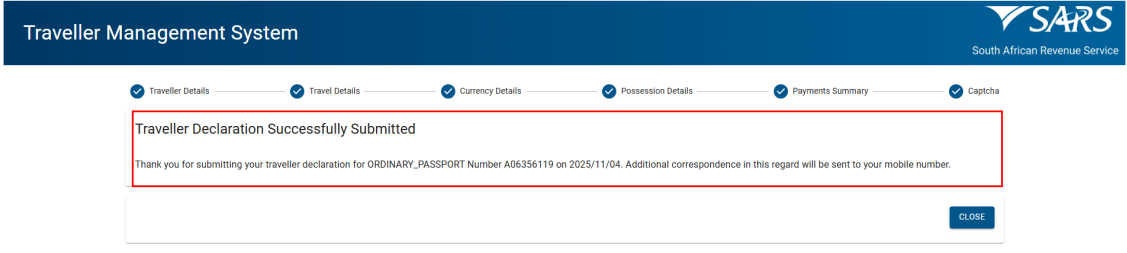
- The traveller will receive a notification SMS / email confirming successful submission of the traveller declaration and an instruction on how to proceed.
Definitions, acronyms and abbreviations
The definitions, acronyms and abbreviations can be accessed here – Glossary webpage
Legal disclaimer: In the event of conflict or inconsistency between this webpage and the PDF version of the guide, the latter shall prevail.