
Summary
Identifying the Beneficial Owner is essential for effective tax administration as it ensures transparency and accountability in financial transactions. It enables tax authorities to accurately assess tax liabilities, prevent tax evasion, and support investigations into money laundering and other illicit activities. Beneficial Owner information also strengthens international cooperation and information exchange, helping jurisdictions address cross-border tax evasion and ensure taxpayers meet their obligations.
- Definition of ‘Beneficial Owner’ as extracted from the Tax Administration Act, 2011:
- of a company, has the meaning assigned to it by section 1 of the Companies Act, 2008 (Act No. 71 of 2008).
- of a partnership, means a natural person who, directly or indirectly, ultimately owns, or exercises effective control of, the partnership, and includes—
- every partner, including every member of a partnership en commandite, an anonymous partnership or any similar partnership;
- if a partner in the partnership is a legal person or a natural person acting on behalf of a partnership or in pursuance of the provisions of a trust agreement, the beneficial owner of that legal person, partnership or trust; and
- the natural person who exercises executive control over the partnership; and
- of a trust, has the meaning assigned to it by section 1 of the Trust Property Control Act, 1988 (Act No. 57 of 1988);”.
- A Beneficial Owner Register for Partnerships, namely the IT3(BO) form has been developed to:
- Reduce administrative burden on partners who previously captured partner details individually on the ITR12 income tax return.
- Introduce a single eFiling form where an appointed partnership representative registers, completes and submits partner details annually.
- Establish reliable beneficial owner data to support compliance and downstream processing (3rd party data pre-population and validations).
- Partnerships must appoint a representative to act on behalf of all partners. The representative will have the authority to capture and submit partnership details to SARS.
- This webpage assists partnership representatives with completing, maintaining, submitting, and requesting corrections to the IT3(BO) form.
Who Must Complete and Submit IT3(BO) Form
- The IT3(BO) will be completed and submitted by an appointed partnership representative via eFiling. This functionality will not be available on the SARS MobiApp.
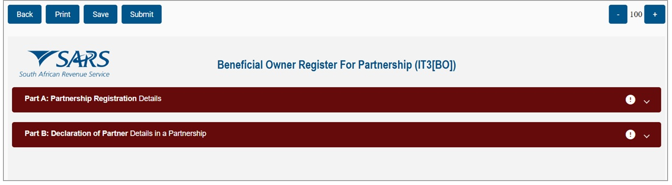
- The form consists of:
- Part A – Partnership Registration Details (incl. appointed partnership representative)
- Part B – Declaration of Partner Details (Individuals/Companies/Trusts/Other)
- A Read only view of the IT3(BO) will be available post submission on eFiling.
- The representative must submit information in the correct sequence according to the relevant year of assessment. This will ensure that previously submitted data is populated in the current submission year of assessment.
Access Beneficial Owner Register Form (IT3(BO))
- After successfully logging into eFiling, to access the Beneficial Owner Register – IT3(BO) functionality. The steps are the same for Individual, Tax Practitioner or Organisation profiles.
- Select ‘Returns’ and the returns landing page will be displayed.
- Click ‘Beneficial Owner Register – IT3(BO)’ menu on the left.
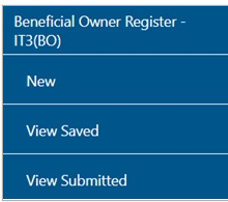
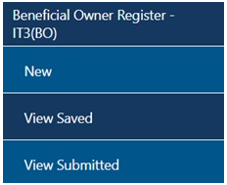
- The Beneficial Owner Register sub-menu item will be displayed with the following tabs:
- New – a new IT3(BO) form will be available for completion.
- View Saved – all the saved IT3(BO) form(s) will be presented.
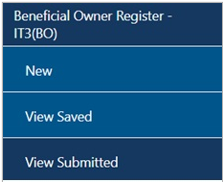
- View Submitted – all the saved IT3(BO) form(s) will be presented.
- The Beneficial Owner Register sub-menu item will be displayed with the following tabs:
- On the Tax Practitioner and Organisation profiles, the representative must ensure that the correct taxpayer(s) are selected on their profiles before completing and submitting the Beneficial Owner Register Form, to ensure the information is recorded for the appropriate entity.
- For more information regarding eFiling registration and user profiles, refer to the ‘How to Register for eFiling and Manage Your User Profile – External Guide’ on the SARS website.
Beneficial Owner Register Form for Partnership (IT3[BO]) Form
- The following section indicates the steps how to register a partnership, so that a IT3(BO) unique number can be created by SARS for the partnership.
- Partnership containers are limited to 150 per IT3(BO) form. If a partnership has more than 150 partners, the first 150 must be submitted on the initial IT3(BO). Any remaining partners must be submitted on additional IT3(BO) forms, with the Partnership Name clearly labelled (e.g. Part 1, Part 2). Ensure that any additional IT3(BO) forms submitted include at least two partners.
Register the Partnership
- Access the Beneficial Owner Register – IT3(BO) function as explained above.
Capture New Partnership Details information
- Select the ‘New’ sub-menu and the ‘Capture Partnership Details’ screen will be displayed with the following note:
- ‘Capture Partnership IT3(BO) Unique Number generated for this partnership by SARS. If you do not have beneficial owner unique number, please complete the form.’
- Note: You will only have a unique number if you have previously submitted IT3(BO)
- ‘Capture Partnership IT3(BO) Unique Number generated for this partnership by SARS. If you do not have beneficial owner unique number, please complete the form.’
- The following fields relating to the partnership will be displayed:
- Partnership IT3(BO) Unique Number.
- Year of Assessment; and
- The representative must submit information in the correct sequence according to the relevant year of assessment.
- Tax Reference Number.
- This field will be pre-populated.
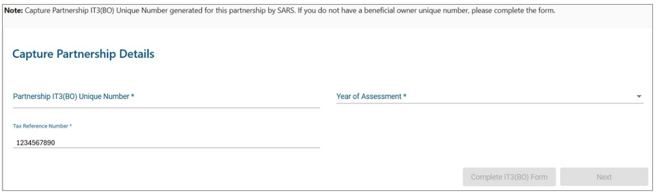
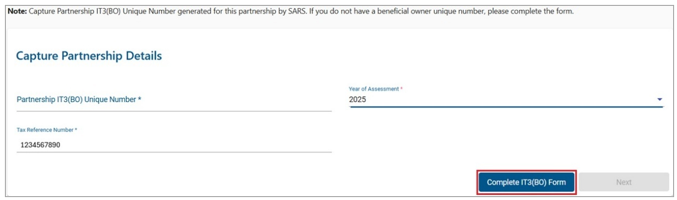
- Once the ‘Year of Assessment’ field has been completed, the ‘Complete IT3(BO) Form’ button will be available.
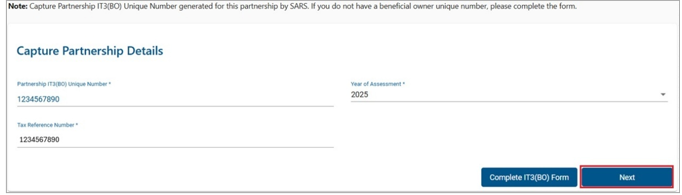
- The ‘Next’ button will only be available once both the ‘Partnership IT3(BO) Unique Number’ and ‘Year of Assessment’ fields have been completed.
- Once you have completed the year of assessment, click the ‘Complete IT3(BO) Form’ button to proceed.
- eFiling will check if there is a previously saved or submitted form and verify the status of the form.
- If there is a saved/issued form with no Partnership BO number displayed, you will be directed to the saved form on the Beneficial Owner Workpage. Click the ‘IT3(BO)’ hyperlink to open the form.
- eFiling will check if there is a previously saved or submitted form and verify the status of the form.
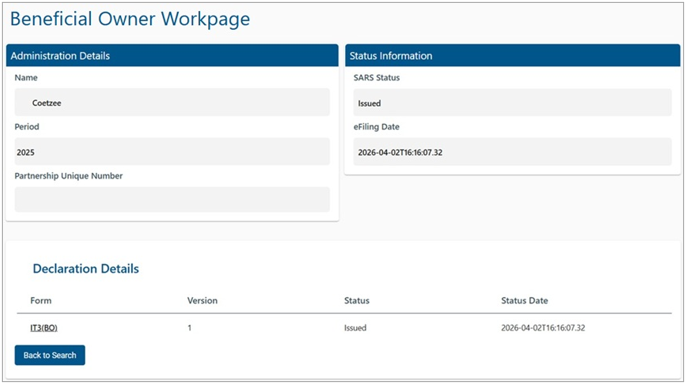
- If a saved form displays a Partnership BO number, eFiling checks how long it has been saved. If it was saved for less than 10 calendar days, the saved form opens with all previously captured data.
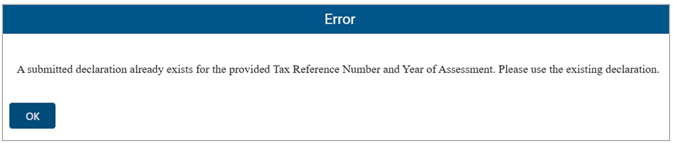
- If a declaration has already been submitted, eFiling displays a pop-up indicating that a submitted declaration exists for the specified Tax Reference Number and Year of Assessment. Click ‘OK’ to close the message.
- The ‘Beneficial Owner Register for Partnership (IT3[BO])’ form will be displayed for completion.
Part A: Partnership Registration Details
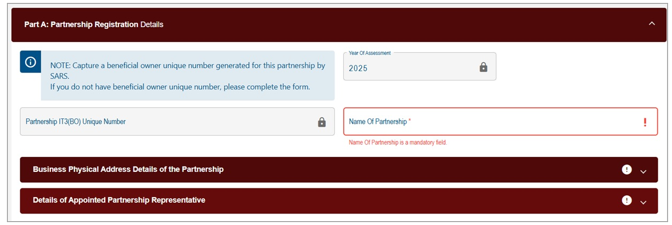
- The ‘Year of Assessment’ and ‘Partnership IT3(BO) Unique Number’ fields will be pre-populated and locked.
- Complete the ‘Name of Partnership’ field.
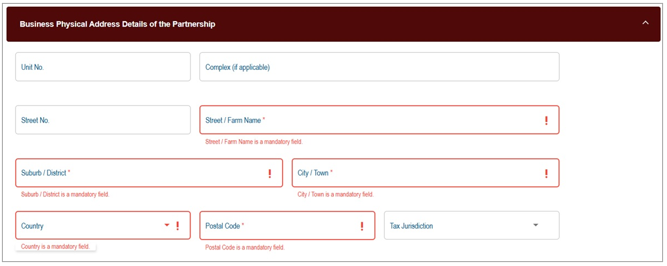
- In the ‘Business Physical Address Details of the Partnership’ container, the following fields will be displayed for completion:
- Unit No.
- Complex (if applicable).
- Street No.
- Street / Farm Name
- Suburb / District
- City / Town
- Country
- Postal Code
- Tax Jurisdiction
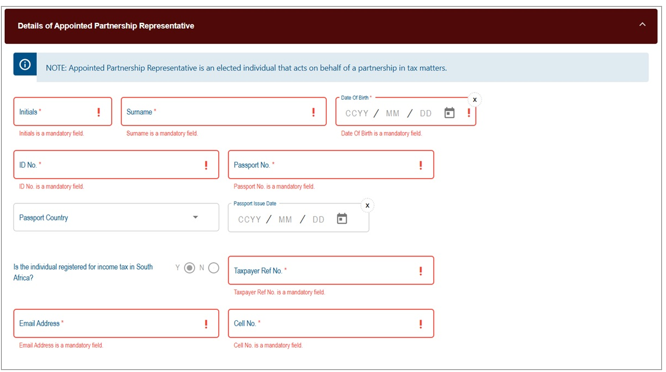
- In the ‘Details of Appointed Partnership Representative’ container, the following fields will be displayed for completion:
- Initials
- Surname
- Date of Birth (CCYY/MM/DD).
- ID No.
- Passport No.
- Passport Country.
- Passport Issue Date. (CCYY/MM/DD)
- Is the individual registered for income tax in South Africa? Select ‘Y’ or ‘N’.
- Taxpayer Ref No.
- Email Address.
- Cell No.
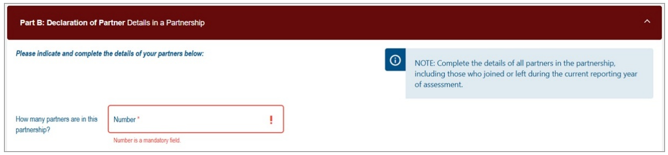
Part B: Declaration of Partner Details in a Partnership
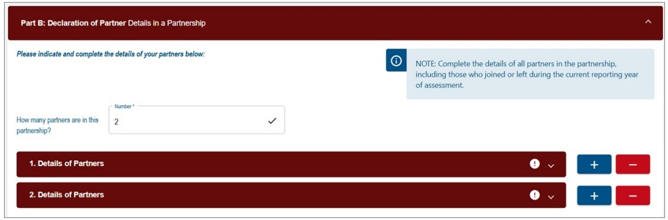
- Please indicate and complete the details of your partners below.
- The following note will be displayed as ‘Complete the details of all partners in the partnership, including those who joined or left during the reporting year of assessment.’
- Enter the number of partners in the ‘How many partners are in the partnership?’ field provided.
- Note: Partnership containers are limited to 150 per IT3(BO) form. If a partnership has more than 150 partners, the first 150 must be submitted on the initial IT3(BO). Any remaining partners must be submitted on additional IT3(BO) forms, with the Partnership Name clearly labelled (e.g. Part 1, Part 2). Ensure that any additional IT3(BO) forms submitted include at least two partners.
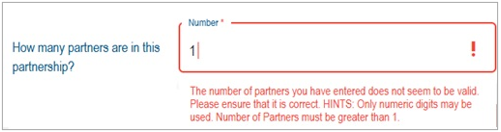
- A validation message is displayed below the number field when a value of 1 is entered.
- Depending on the number of partners indicated, the ‘Details of Partners’ containers will be displayed for completion. The ‘Details of Partners’ containers can be increased or decreased by clicking the ‘+’ or ‘–’ buttons.
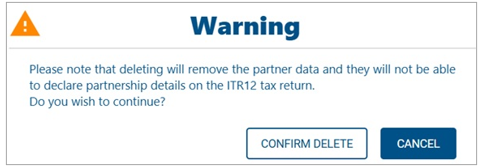
- If the number of partners is reduced, a warning message will be displayed. To continue with the deletion, click ‘Confirm Delete’ or ‘Cancel’ to leave the details as is.
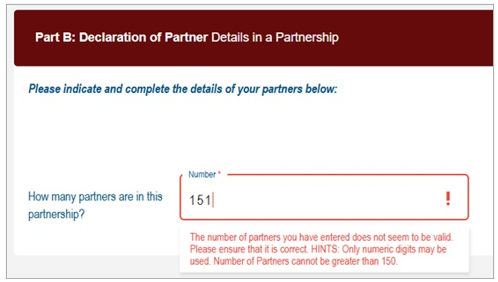
- An error message will be displayed below the number field if more than 150 partners are entered.
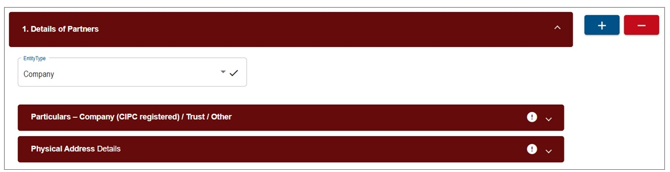
Details of Partners
- Entity Type: Individual / Company / Trust / Other.
- Depending on the selection made, the relevant container will be displayed for completion.
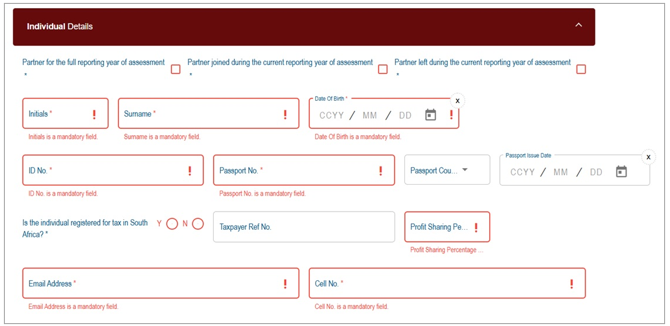
- Individual Details
- The following fields will be available for selection for each new tax year. Only 1 check box may be selected:
- Partner for the full reporting year of assessment.
- Partner joined during the current reporting year of assessment.
- Partner left during the current reporting year of assessment.
- Initials.
- Surname
- Date of Birth (CCYY/MM/DD).
- ID No.
- Passport No.
- Passport Country.
- Passport Issue Date. (CCYY/MM/DD)
- Is the individual registered for income tax in South Africa? Select ‘Y’ or ‘N’.
- Taxpayer Ref No.
- Profit Sharing Percentage Ratio (%).
- Email Address.
- Cell No.
- The following fields will be available for selection for each new tax year. Only 1 check box may be selected:
- Company
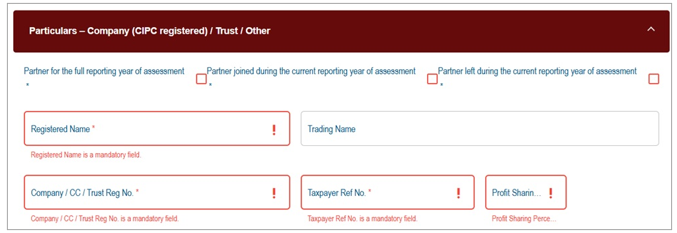
- The following fields will be available for selection for each new tax year. Only 1 check box may be selected.
- Partner for the full reporting year of assessment.
- Partner joined during the current reporting year of assessment.
- Partner left during the current reporting year of assessment.
- Registered Name
- Trading Name
- Company / CC / Trust Reg No.
- Taxpayer Ref No.
- Profit Sharing Percentage Ratio (%).
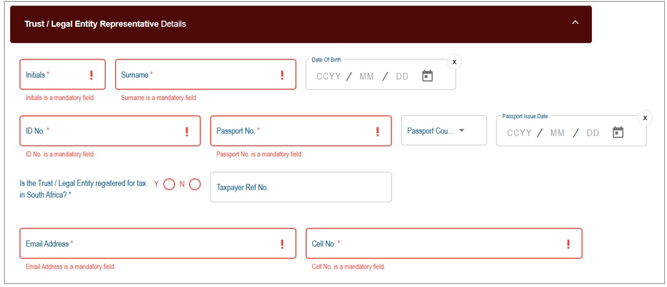
- The following fields will be available for selection for each new tax year. Only 1 check box may be selected.
- Trust / Legal Entity Representative Details
- Initials
- Surname
- Date of Birth (CCYY/MM/DD).
- ID No.
- Passport No.
- Passport Country.
- Passport Issue Date. (CCYY/MM/DD)
- Is the Trust / Legal Entity registered for income tax in South Africa? Select ‘Y’ or ‘N’.
- Taxpayer Ref No.
- Profit Sharing Percentage Ratio (%).
- Email Address.
- Cell No.
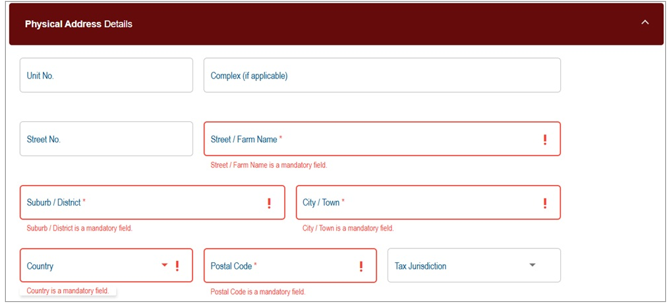
- Physical Address Details – each container will display the following fields for completion:
- Unit No.
- Complex (if applicable).
- Street No.
- Street / Farm Name
- Suburb / District
- City / Town
- Country
- Postal Code
- Tax Jurisdiction
- Once all the mandatory fields have been completed, the sub-container and main container header will change from red to blue, to indicate that it is complete. Below are examples of these indications.
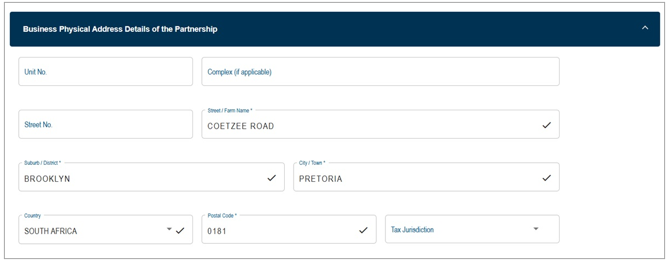
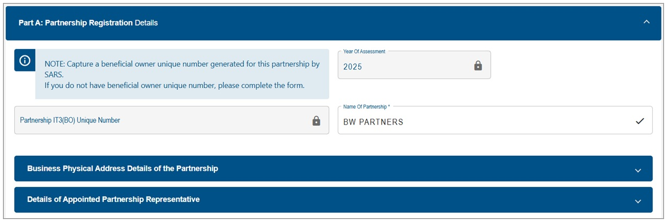
- After successfully completing the IT3(BO) form, you may select one of the following options:
- Save – Allows the form to be saved on eFiling for completion or submission at a later stage.
- Submit – Submits the completed form to SARS for processing.
- Print – Enables the form to be printed for record-keeping purposes.
- Back – Returns you to the previous screen.

Save the Beneficial Owner Register for Partnership IT3([BO]) Form
- After you have completed all the required information on the IT3(BO) form, you may select the ‘SAVE’ button to submit at the later stage.
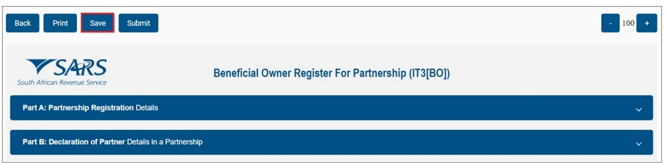
- The following message will be displayed to indicate that previously saved forms must be accessed within 10 calendar days of saving. If not accessed, the form will be updated with the latest available data. Click ‘OK’ to close the message.
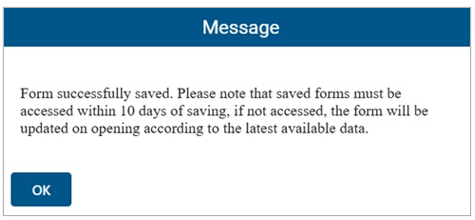
- The Saved List of IT3(BO) form(s) will be displayed and the status will be indicated as ‘Saved’.
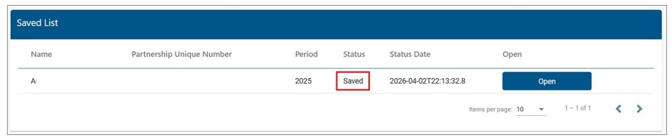
- You can now submit the form to SARS or choose to submit the form at a later stage.
- If you click the ‘Open’ button, you will be directed to the Beneficial Ownership Workpage.
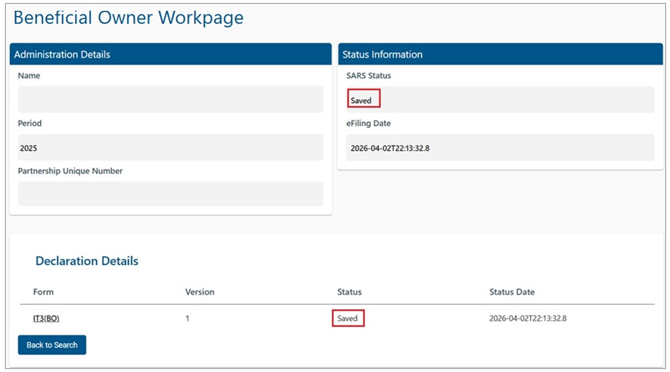
- By clicking ‘Back to Search’ on the Beneficial Owner Workpage or selecting ‘View Saved’ from the left-hand menu will both take you to the ‘Saved List’ page.
- To open the form, click the ‘IT3(BO)’ hyperlink.
Submitting the Beneficial Owner Register for Partnership(IT3[BO]) Form
- After completing all required information, you can submit the application to SARS either directly after saving the form or by opening it from the ‘View Submitted’ menu.
- The representative should ensure that the submission is done in a sequential year of assessment manner.
- Open the IT3(BO) form and click ‘Submit’ to complete the submission.
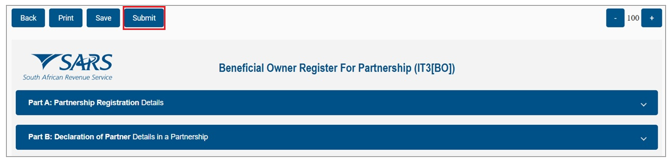
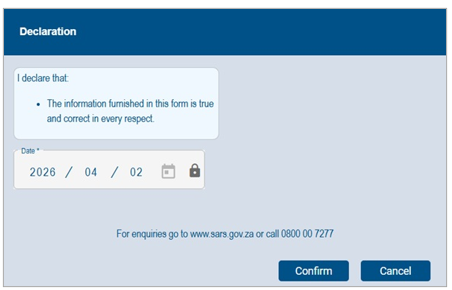
- The declaration will be displayed. Click ‘Confirm’ to proceed with the submission or ‘Cancel’ to return to the IT3(BO) form.
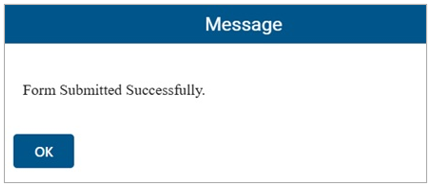
- A confirmation message is displayed once the ‘Submit to SARS’ button is selected. Click ‘OK’ to close the message.
- Once you have submitted the IT3(BO) form, you can access it by selecting the ‘View Submitted’ menu tab.
- The ‘Submitted List’ page will be displayed.
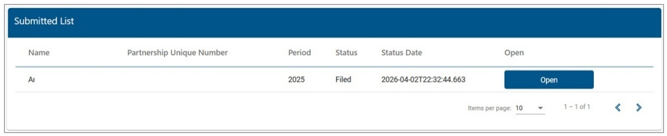
- Click the ‘Open’ button and you will be directed to the Beneficial Owner Workpage.
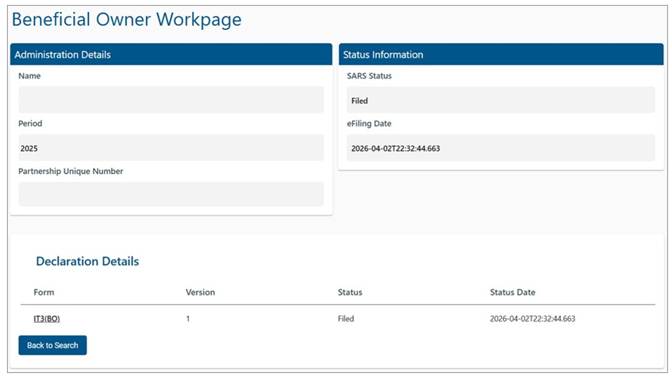
- Upon successful submission to SARS, each partner is issued a unique system-generated reference number that links them to the partnership’s IT3(BO) submission. This reference number is permanently linked to the partner or partnership and will not change or be reissued for subsequent submissions.
- Once the IT3(BO) form has been successfully submitted to SARS, a registration notification will be issued to inform the representative of the partnership IT3(BO) unique number.
- To print the filed IT3(BO), select the ‘Print’ button after opening the form. The form will be displayed and downloaded in PDF format to be printed.
Maintain or Request Correction of the Beneficial Owner Register for Partnership IT3([BO]) Form
- This section describes how to retrieve and update existing partnership details on the IT3(BO) form.
- Access the Beneficial Owner Register – IT3(BO) function as explained in section above.
- Select the ‘New’ sub-menu and the ‘Capture Partnership Details’ screen will be displayed.
- If you are working on a Tax Practitioner or Organisation eFiling profile, ensure that the correct taxpayer is selected.
- Enter the IT3(BO) unique no.
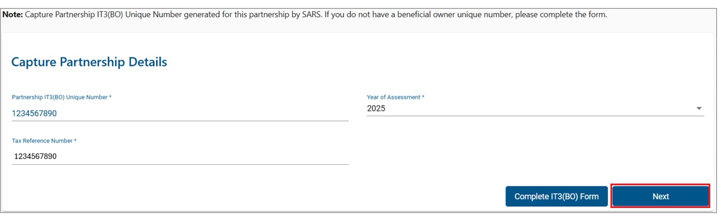
- One of the following messages may be displayed:
- If there is already a submitted declaration.

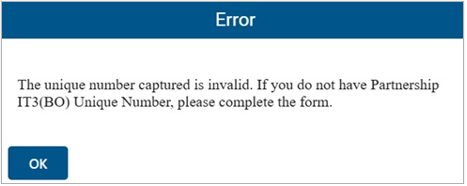
- An error message will be displayed if the IT3(BO) unique number is invalid.
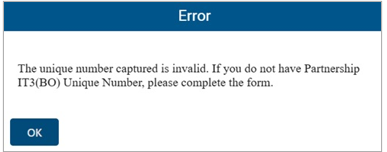
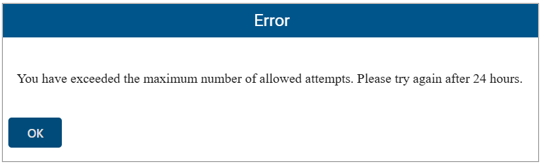
- A maximum of five (5) search attempts will be allowed, including the initial attempt.
- Once the number of attempts has been exhausted, a pop-up notification will be displayed. Click the ‘OK’ button to close the message.
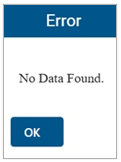
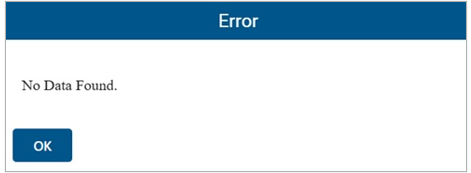
- If there is no data available for the requested IT3(BO), a message will be displayed.
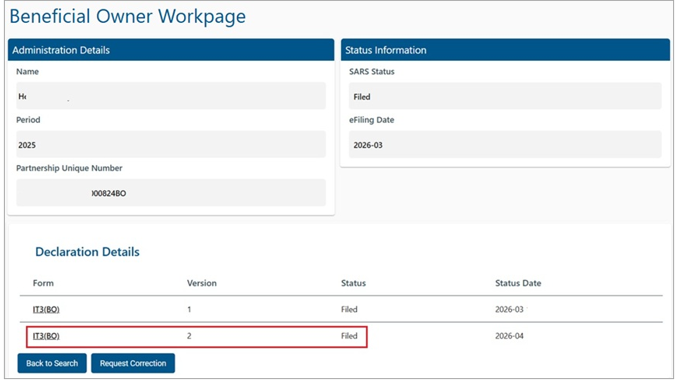
- After submission, click ‘OK’ on the validation message to access the ‘Beneficial Ownership Workpage’, where the IT3(BO) form will be displayed as ‘Filed’.
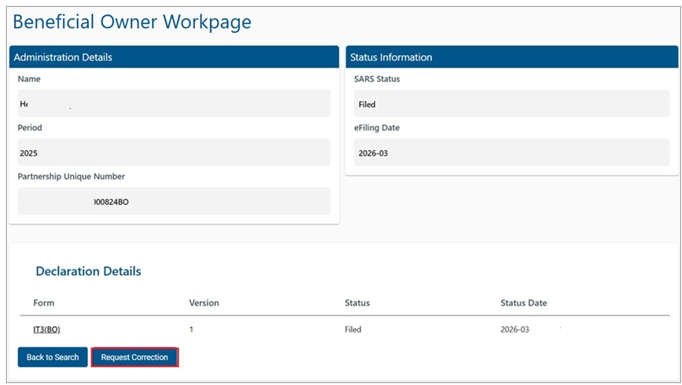
- To maintain the partnership details previously submitted, click the ‘Request Correction’ button and the IT3(BO) form will be displayed. Part B of the form will be highlighted in red to enable the representative to make changes to the existing information.
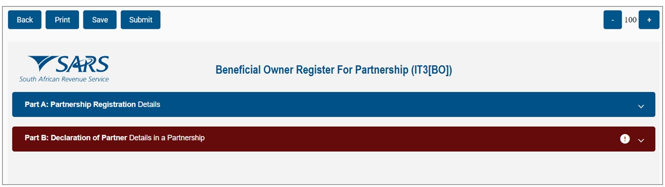
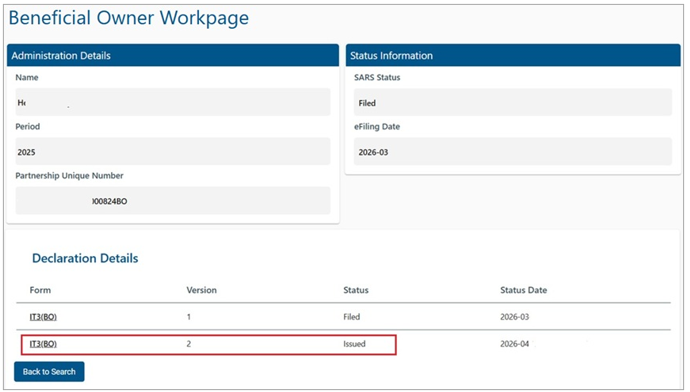
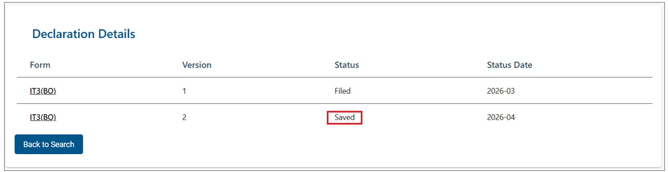
- If you click the ‘Back’ button, you will be directed back to the Beneficial Ownership Workpage. A second version of the IT3(BO) form will be displayed and available for editing.
- To amend the partnership information, expand the container header for Part B.
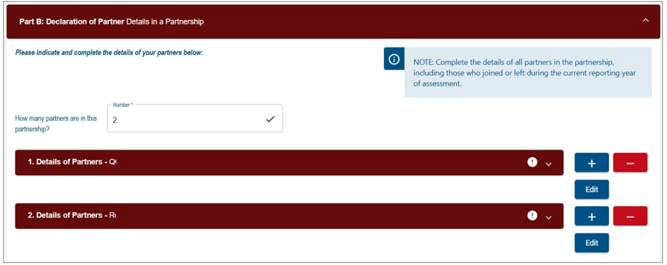
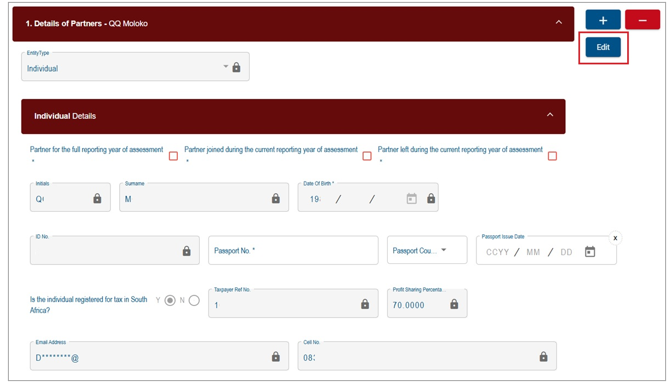
- Existing information will be pre-populated and displayed. Click the ‘Edit’ button and update the required details.
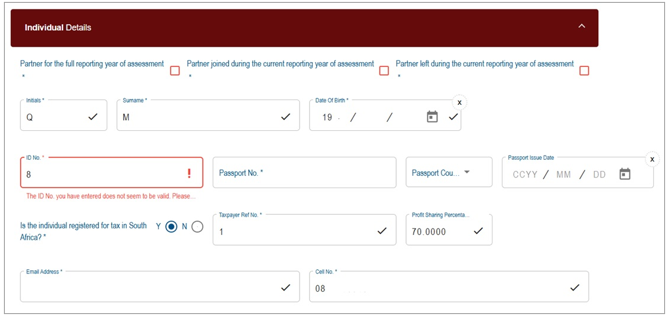
- Incomplete fields are highlighted in red, while correctly completed fields are marked with a tick.
- The Beneficial Ownership Workpage status updates according to the option selected on the form. The screen shown reflects a form that has been saved.
- Once all changes have been completed, click ‘Save’ to store the updates or ‘Submit’ to finalise and send the amended information to SARS.
- The declaration section of the Beneficial Ownership Workpage will be updated accordingly.
Correspondence
- To view partnership-related letters, taxpayers must access the ‘SARS Correspondence’ functionality available on the ‘Returns’ menu.
- Click on ‘SARS Correspondence’ and ‘Search Correspondence’ and the ‘Search Correspondence’ screen will be displayed with multiple search options to select.
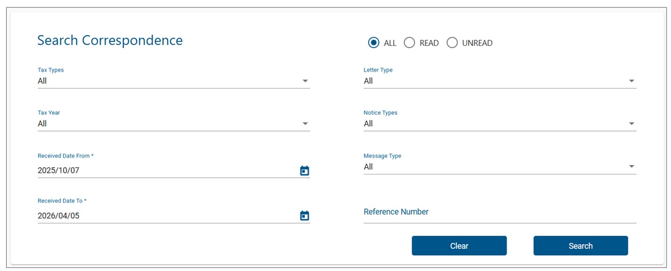
- Complete the relevant field(s):
- Tax Types – Select Income Tax
- Tax Year – select the relevant tax year to search
- Letter Type – indicate the specific letter type to search
- Notice Type – indicate the specific notice type to search
- Received Date From
- Received Date To
- Message Type
- Reference Number
- Click the ‘Search’ button to continue or the ‘Clear’ button to clear all fields.

- On completion of all search criteria and if there are correspondence available, it will be listed, as indicated in the below screen.

- Click on “View” to view the notification in pdf format.
IT3(BO) Third Party Data Search
- The ‘IT3(BO) Third Party Data Search’ functionality is to request submitted IT3(BO) data as third party data, so that the data is accessible for the respective assessment year.
- To access this functionality, click the ‘Returns’ tab and ‘IT3(BO) Third Party Data’ menu item on the left and the ‘Request IT3(BO) Third Party Data’ screen will be displayed.
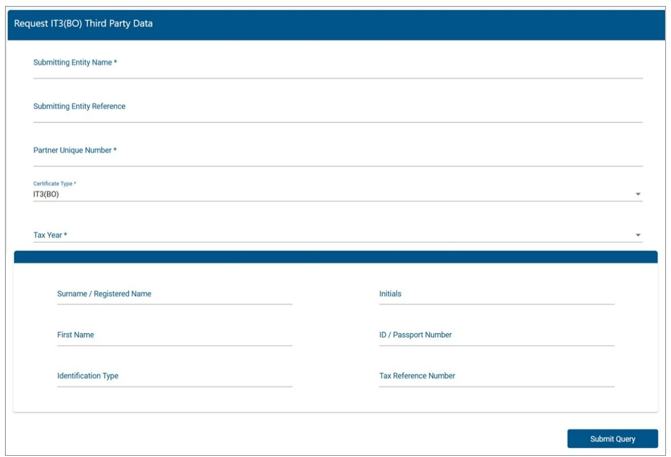
- The following fields will be displayed:
- Submitting Entity Name,
- Submitting Entity Reference,
- Complete the ‘Partner Unique Number’,
- Select the ‘Certificate Type’,
- Select the ‘Tax Year’.
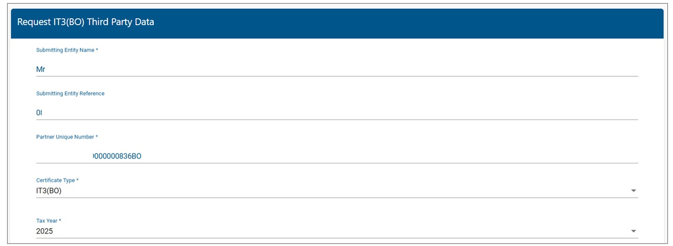
- Taxpayer Details are displayed in the bottom container.
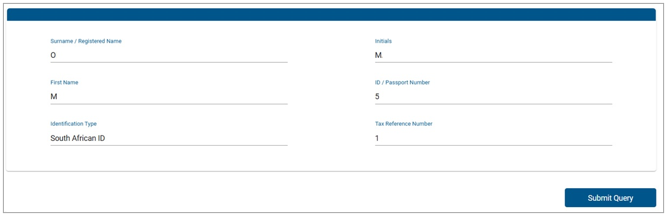
- Click the ‘Submit Query’ button to proceed.
- One of the following messages may be displayed:
- An error message will be displayed if the IT3(BO) unique number is invalid.
- If there is no data available for the requested IT3(BO), a message will be displayed.
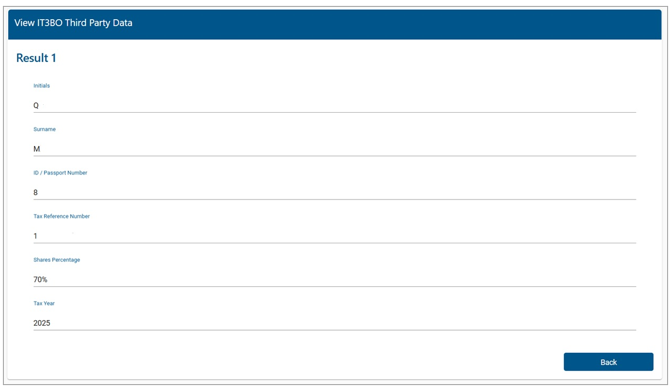
- Upon successful validation, the View IT3(BO) Third Party Data screen will be displayed.
Definitions, acronyms and abbreviations
The definitions, acronyms and abbreviations can be accessed here – Glossary webpage
Legal disclaimer: In the event of conflict or inconsistency between this webpage and the PDF version of the guide, the latter shall prevail.