
Summary
- The purpose of this webpage is to assist Taxpayers, Registered Representatives and Tax Practitioners with:
- The Unmerge of Entity Records on eFiling.
- The intention of this process is to provide Taxpayers, Tax Practitioners, and Registered Representatives who have incorrectly merged the taxpayer’s entity records into a single profile the capability to undo the merge.
- The Unmerge Functionality can be performed by the taxpayer in his individual capacity, Registered Representatives in respect of Companies, Trusts, Government Institutions and Public Entities and registered Tax Practitioners on eFiling, where the Income Tax record is included in their Tax Practitioner Profile.
- Where an Unmerge request is initiated via eFiling, the eFiler must complete a declaration and reason for the unmerge.
- Merges and unmerges are performed on entity level and not a tax product level.
- In instances where the Unmerge request exceeds more than 255 records, kindly make an eBooking appointment.
The Unmerge Process
Log in to eFiling
- Navigate to www.sars.gov.za and click “Login”.
- Enter your username and click “Next”.
- Enter your password and click “Login”.
- Enter your One-Time Pin and “Submit”.
- Select “SARS Registered Details”, to proceed.
SARS Registered Details
The SARS Registered Details functionality allows the user to view, edit and maintain demographic information on eFiling. This functionality will be under different menu tabs for each eFiling profile.
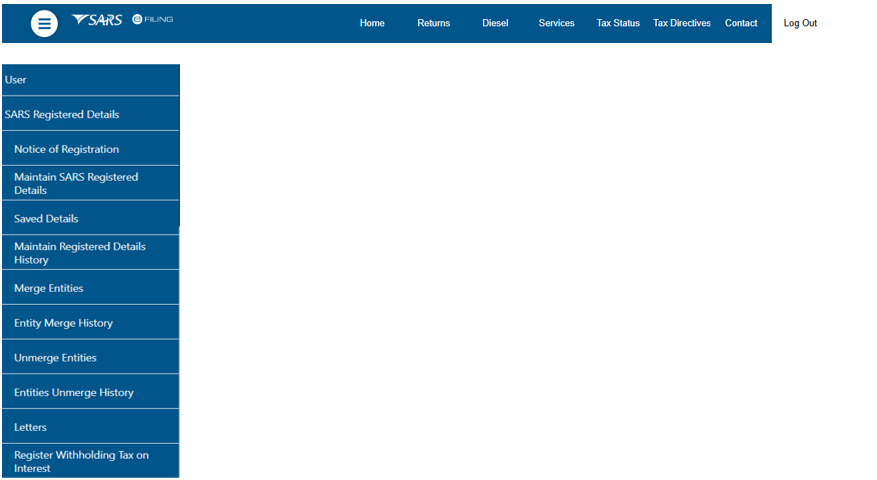
On the Individual profile on eFiling, the SARS Registered Details functionality is under the Home tab and has Notice of Registration, Maintain SARS Registered Details, Saved Details, Maintain Registered Details History, Merge Entities, Entity Merge History, Unmerge Entities, Entities Unmerge History, Letters and Register Withholding Tax on Interest menu items.
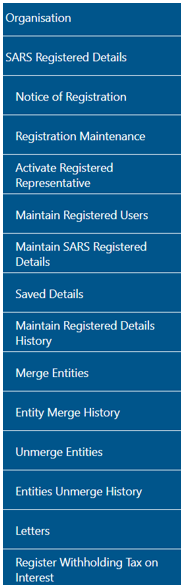
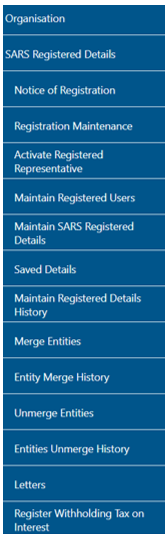
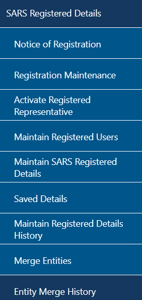
On the Tax Practitioner and Organisation eFiling profiles, the SARS Registered Details functionality is under the Organisations tab and has Notice of Registration, Registration Maintenance, Activate Registered Representative, Maintain Registered Users, Maintain SARS Registered Details, Saved Details, Maintain Registered Details History, Merge Entities, Entity Merge History, Unmerge Entities, Entities Unmerge History, Letters, and Register Withholding Tax on Interest.

- Ensure that at least one of the Entity Tax Reference Numbers is registered / activated on eFiling, if you want to use the SARS Registered Details functionality.
Unmerge Entities
The Unmerge Entities functionality will allow the Taxpayer, Registered Representative or Tax Practitioner to undo an incorrectly merged case via eFiling. This applies where the entity has more than one tax or customs registration and a case was incorrectly merged to the Legal Entity Profile.
- Select “Unmerge Entities” under SARS Registered Details:
- Upon the selection of the “Unmerge Entities” menu option under the Tax Practitioner and Organisation profiles, eFiling will determine if the user has been activated as the Tax Practitioner or Registered Representative of the entity.
- If the user is not activated as the Registered Representative or Tax Practitioner of the entity, a message will be displayed and you will have to activate yourself as the registered user before you will be able to access the unmerge entities functionality. Refer to the External Guide, GEN-ELEC-15-G01 – Guide to the Entity Merge Functionality on eFiling to activate yourself as the Registered Representative or Tax Practitioner.
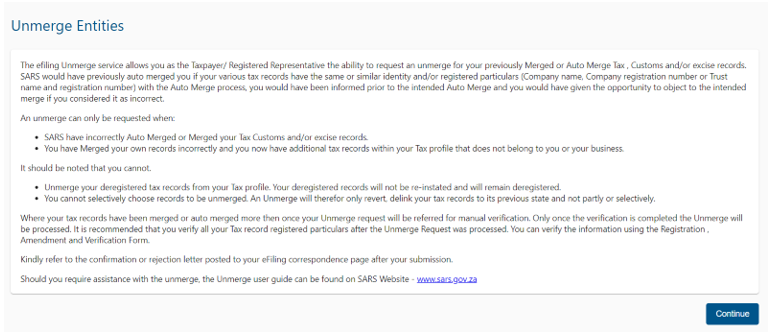
- Where the user reflects as the Registered Representative or a confirmed Tax Practitioner, an information page will be displayed with details pertaining to the functionality. Select “Continue” to proceed to the Unmerge functionality.
- The “SARS Records Unmerge” screen will be displayed.
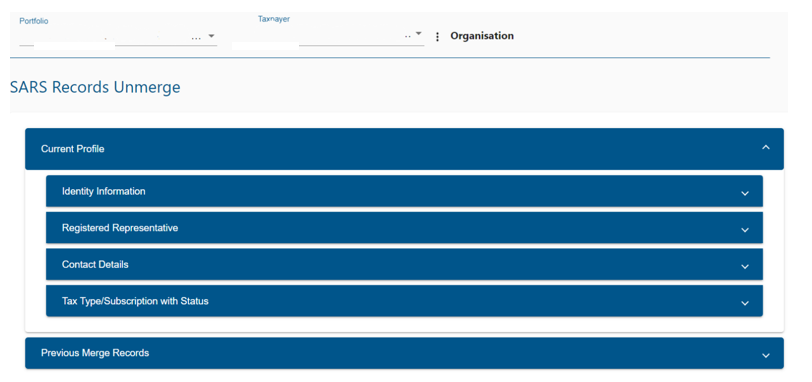
- The following headings will be displayed under “Current Profile”:
- Identity Information;
- Registered Representative;
- Contact Details; and
- Tax Type / Subscription with Status.
The following demographic information will be displayed when selecting the drop-down next to each heading:
- Identity Information Individual:
- Nature of Entity
- Legal Status
- First Name
- Surname
- Identity Number
- Date of Birth
- Identity Information Company:
- Nature of Entity
- Legal Status
- Registered Name
- Trading As
- Registration Number
- Registration Date
- Identity Information Trust:
- Nature of Entity
- Legal Status
- Registered Name
- Master Office
- Registration Number
- Registration Date
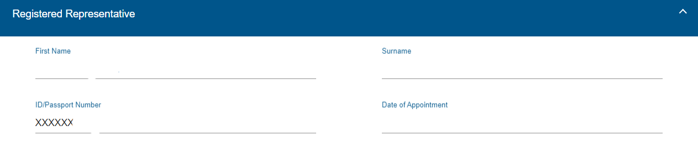
- Registered Representative:
- First Name
- Surname
- ID/Passport Number
- Date of Appointment
- Contact Details:
- Cell Number
- eMail Address
- Tax Type / Subscription with Status:
- Tax Type
- Tax Reference
- Status
“Previous Merge Records”, will display details relating to a previous merge. On expanding of the “Merge Details” eFiling will display details of the Target Party and Other Party which was included in the original merge. Details can be viewed in order to decide which records must be included in the “Unmerge”.
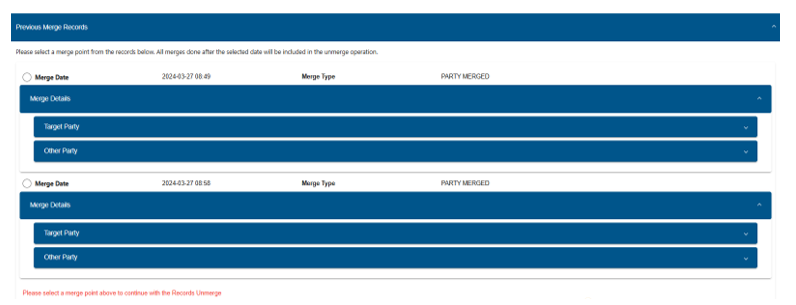
- Alternatively, any records previously merged can be viewed by selecting the “Entity Merge History” option under SARS Registered Details.
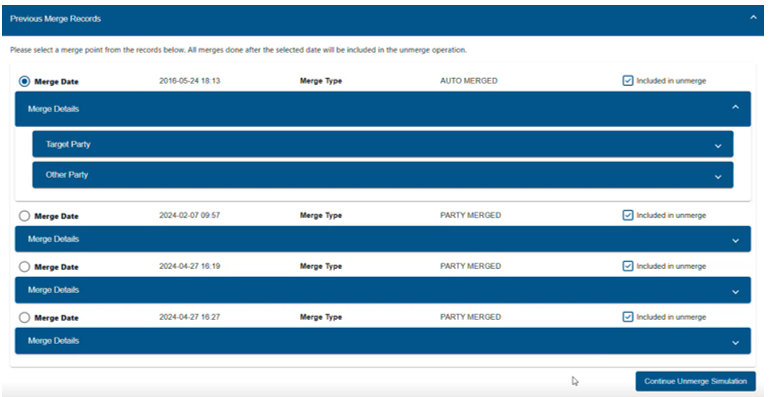
- To proceed with the unmerge request, select the record/s to be unmerged, then select the “Continue Unmerge Simulation” button to view the unmerge simulation result.
- The “Unmerge Simulation” screen will be displayed and you will be able to view the results of the simulation, before filing the unmerge request to SARS. Information relating to the Target Party and Other Party will be displayed.
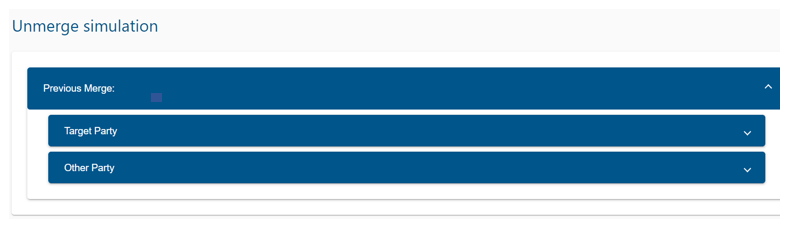
- When you select the drop-down next to “Target Party” or “Other Party”, you would be able to view the following demographic information:
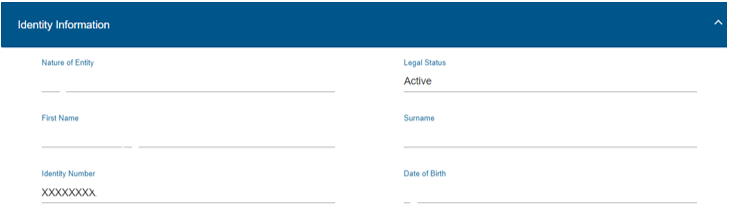
- Identity Information Individual:
- Nature of Entity
- Legal Status
- First Name
- Surname
- Identity Number
- Date of Birth
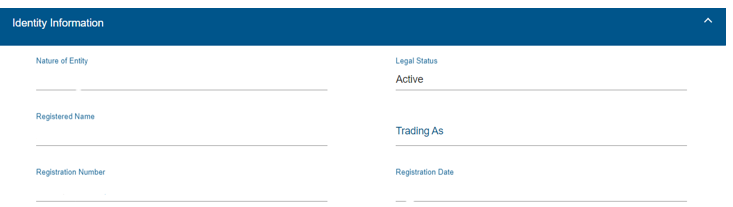
- Identity Information Company:
- Nature of Entity
- Legal Status
- Registered Name
- Trading As
- Registration Number
- Registration Date
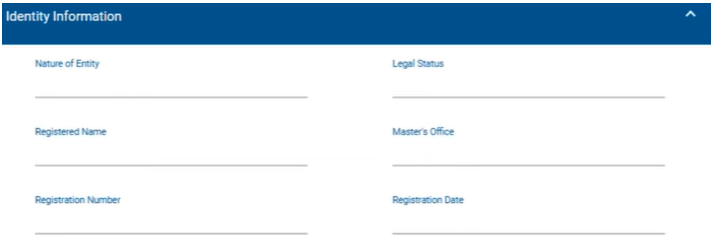
- Identity Information Trust:
- Nature of Entity
- Legal Status
- Registered Name
- Master Office
- Registration Number
- Registration Date
- Registered Representative:
- First Name
- Surname
- ID/Passport Number
- Date of Appointment
- Contact Details:
- Cell Number
- Email Address

- Tax Type / Subscription with Status:
- Tax Type
- Tax Reference
- Status
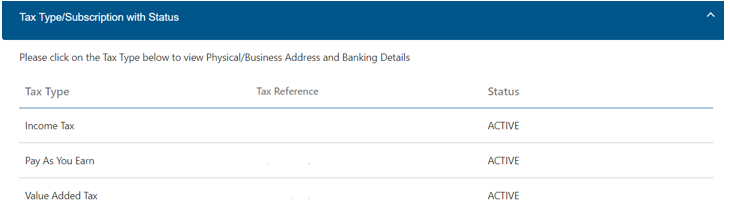
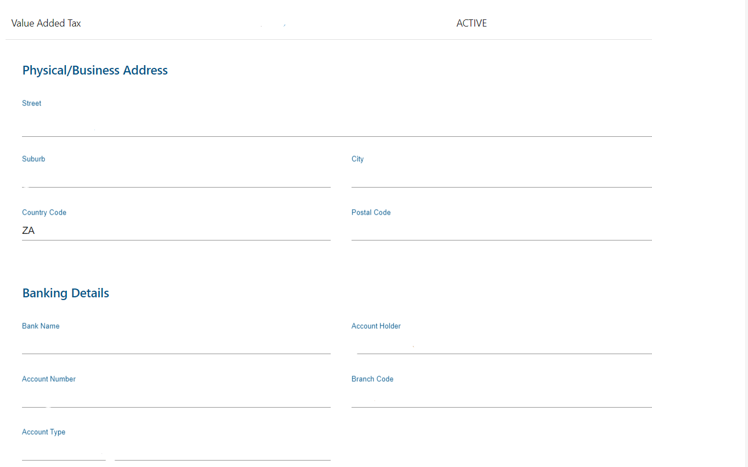
- When selecting the Tax Type (for example Income Tax), more information regarding the Physical/Business Address and Banking Details will be displayed.
- If you are satisfied with the unmerge result, select the unmerge reason and tick the declaration checkbox.
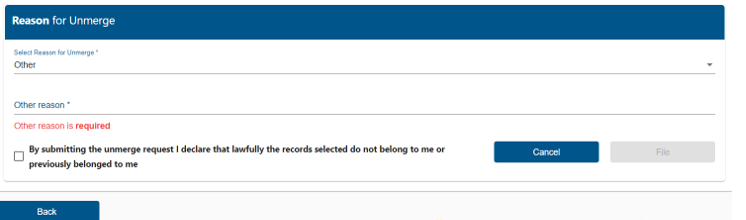
- You can select one of the following reasons from the drop-down list:
- ID/Passport or Registration Number
- Tax Product Registration Unknown
- Other
- Where the reason “Other’ is selected from the drop-down list, you have to enter a reason.
- Should you not be happy with the unmerge result, you can select the “Back” button to return to the previous screen and change your unmerge selection.
- The “Cancel” button will be used to cancel the unmerge request.
- The “File” button will be used to submit the unmerge request to SARS.
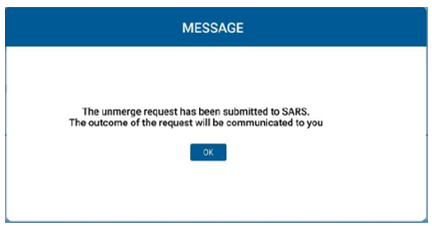
- You will receive a confirmation message indicating the request has been submitted to SARS. Any notices will be posted to the “Correspondence” page on eFiling.
Entity Unmerge History
- All the entity unmerge requests submitted to SARS will be listed on the “Entity Unmerge History” page.

- Select “View Details” to display a detailed page of the unmerge case details.
- If you are not activated as the Tax Practitioner or Registered Representative of the Entity, an error message will be displayed and you will have to activate yourself as the registered user before you will be able to access the “Entity Unmerge History” screen.
Definitions, acronyms and abbreviations
The definitions, acronyms and abbreviations can be accessed here – Glossary webpage.
Legal disclaimer: In the event of conflict or inconsistency between this webpage and the PDF version of the guide, the latter shall prevail.