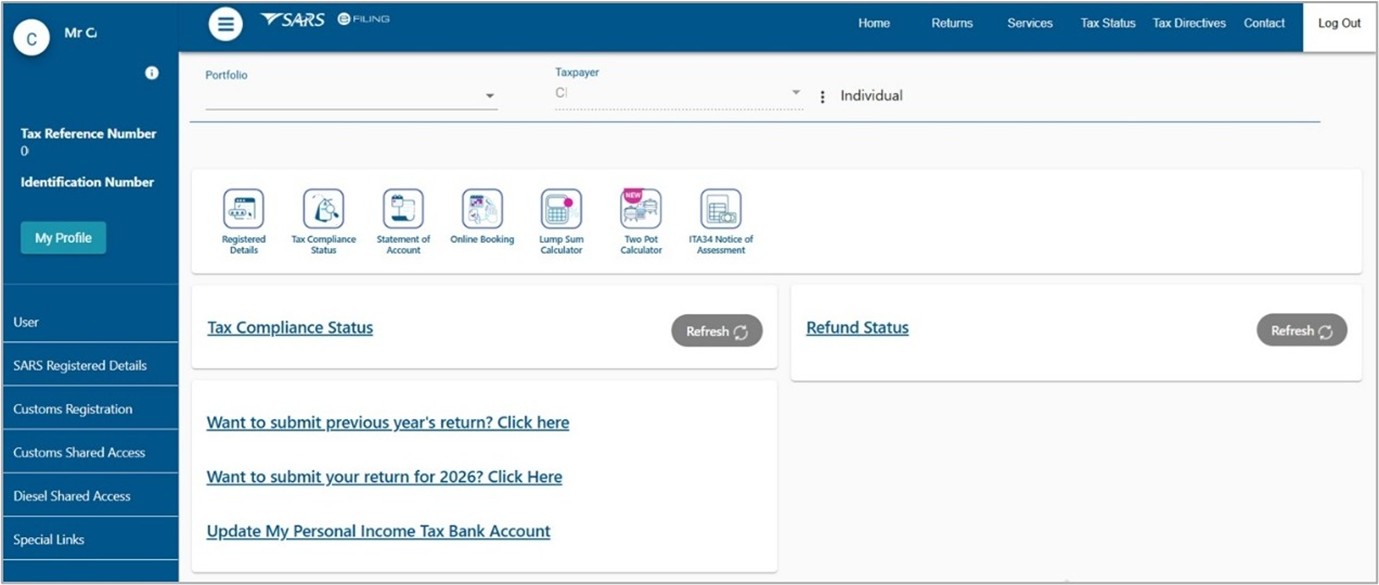
To manage high traffic on eFiling, at times, you will have to wait for full access to the site. While you wait, you can view your Auto Assessment information in read-only mode and access limited eFiling features. You will gain full access once the traffic subsides.
This option is only available to individual eFiling users.
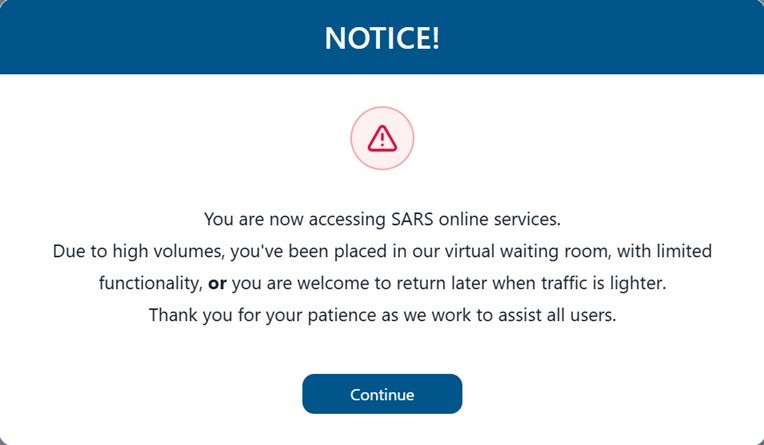
eFiling Notice Message
Log in to eFiling using your username and password, then enter the unique OTP.
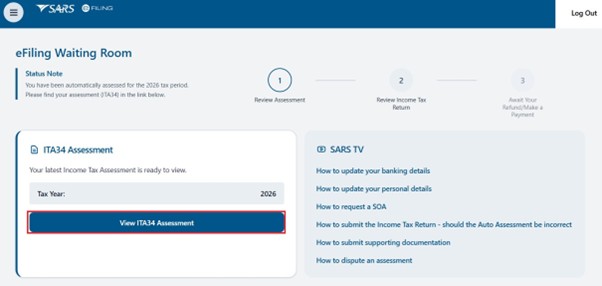
The Auto Assessment Waiting Room landing page gives redirected, auto-assessed individual taxpayers read-only access to their Auto Assessment information, without giving access to the full eFiling service.
The screen below will be displayed.
Auto-Assessment Landing Page
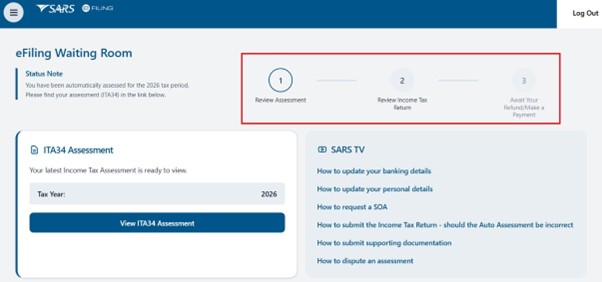
If you have been auto-assessed, the landing page will display your Notice of Assessment (ITA34) and Income Tax Return (ITR12) in read-only format.
To access the Notice of Assessment (ITA34), click on ‘View ITA34 Assessment’.
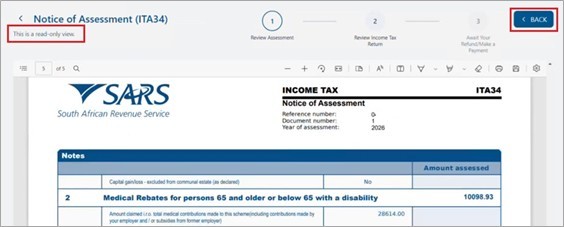
Auto-Assessment Waiting Room
The Notice of Assessment (ITA34) screen in the Auto-Assessment Waiting Room gives you a secure, read-only view of your ITA34 for information only. This will be clearly shown on the screen. After viewing the ITA34, click the ‘Back’ button to return to the landing page.
Read‑only view of your current Income Tax Return (ITR12)
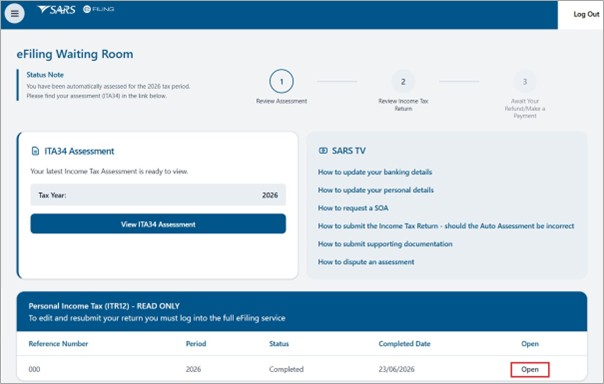
The Income Tax Return (ITR12) screen in the Auto Assessment Waiting Room gives you a secure, read-only view of your current year return for information only. To view your Income Tax Return (ITR12), click the ‘Open’ link under the ‘Personal Income Tax (ITR12)’ section, as shown below.
Income Tax Return ITR12
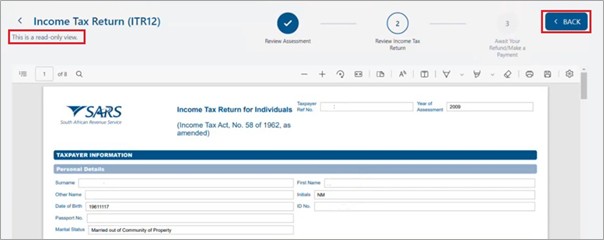
The ITR12 will open in a read-only view as illustrated below.
Waiting Room Indicators
After you have viewed the ITA34 and/or the ITR12, the indicators at the top of the landing page will be ticked, as shown below.
Individuals that have not been Auto-Assessed by SARS
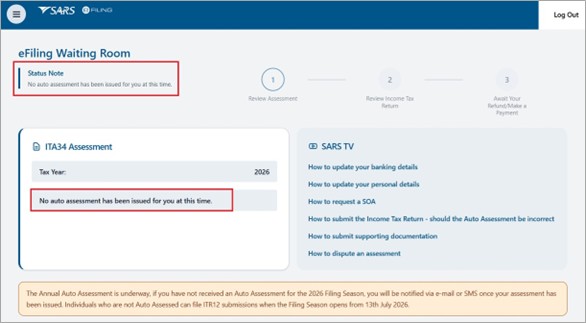
If SARS has not auto-assessed you, a message will appear on the landing page stating: ‘You have not been automatically assessed for the 2026 tax period.’
Additional Options
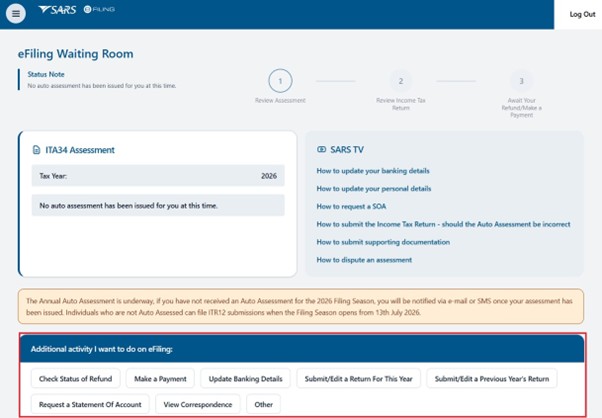
Other options available on the Auto Assessment landing page.
Taxpayers in the Auto Assessment Waiting Room can choose an option at the bottom of the page to access other eFiling services, such as making a payment, updating banking details or viewing correspondence, without leaving the waiting room.
After selecting Additional Options
After selecting one of these options, the eFiler’s request is recorded.
If high-volume restrictions are active, the eFiler will not be able to continue to eFiling and will be routed to the waiting room. The ‘Continue to eFiling’ button will not be available.
If high-volume restrictions are not active, the eFiler can continue to eFiling after logging in again to complete the selected action.
How to continue with Additional Options
You will be asked to log in to eFiling again. Once your login is successful, you will be taken to the normal eFiling landing page, where you can access the available eFiling services.
Auto Assessment Quick-Link
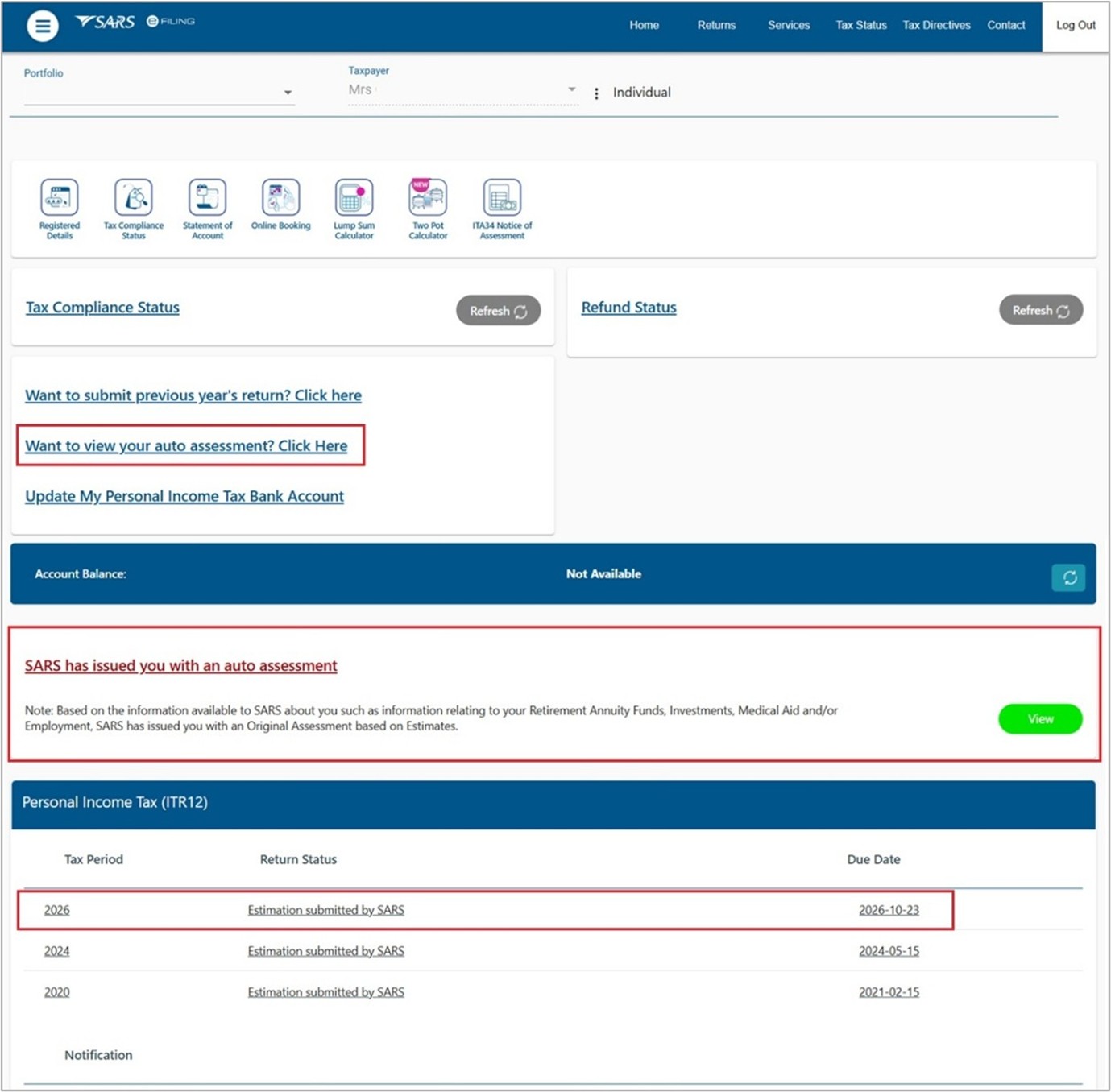
If you have been auto-assessed and are granted access to eFiling, the landing page will display the Auto Assessment quick link, Auto Assessment message and Income Tax Return (ITR12) link, as shown below.