
Purpose
This webpage describes how to report submitted Medical Scheme Contribution and Insurance Payments using eFiling. It also outlines the necessary steps to ensure a successful submission. The structure of the webpage includes:
- How to activate Medical Scheme Contribution and Insurance Payments.
- How to submit data files on Medical Scheme Contributions and Insurance Payments
- How to declare submitted data files on Medical Scheme Contributions and Insurance Payments.
Introduction
Third Parties include financial institutions such as banks, medical schemes, and fund administrators to name a few. These parties are by legislation required to submit financial and demographical data periodically to SARS. The data which is submitted must be detailed as per SARS external Business Requirement Specification (BRS) for a particular third-party data Tax Type.
Medical Scheme Contributions and Insurance Payments form part of the third-party data for submission to SARS. Third party entities are to report on Medical Scheme Contributions made by employers and employees towards a medical scheme as well as on benefits not covered such as interest and refunds. Insurance Payment data submissions, on the other hand, report on member and other demographics and contributions made by members towards insurance.
This webpage will detail the necessary requirements for a successful submission of the IT3 (F) by describing how to activate, submit data and declare the IT3 (F) Medical Scheme Contributions and Insurance Payments data to SARS.
Requirements for a Successful Data File Submission and Declaration
In order for an entity to submit Medical Scheme Contributions and Insurance payments data successfully, there are required processes that the user must follow. This section will highlight these processes and unpack what is required within each process. Furthermore, this section will direct the user to whom he/she should contact when there are problems experienced.
Figure 1: Process for a successful submission

Submission and Declaration process must be repeated during the submission periods, while Registration, Enrolment and Activation are done only once to support successful submissions. |
Registration
Registration must take place for the use of eFiling. The organisation must register its entity either as an organisation or via a tax practitioner profile. Once your organisation is registered, safeguard your login and password for the future use of eFiling.
On how to register on eFiling, refer to the following external guide:
- GEN-ELEC-18-G01 – How to register manage users and change password on eFiling – External Guide
This process is done once and does not have to be repeated for every submission. |
Enrollment
Once registered the organisation must register and enrol their selected representatives of the organisation. To manage third party data submissions, the organisation must have the following three types of representatives allocated in the enrolment and submission of third-party data to SARS:
- Business Administrator – This user is the same as the current eFiling full administrator. The role of this user is to enroll the legal entity/organisation that will be submitting data to SARS and the Technical Administrator. The taxpayer is not required to allocate new eFiling administrators for the purposes of third-party data submissions if one already exists.
- Technical Administrator – The role of this user is to request the security certificate and to enrol technical users. If the taxpayer decides to change the Technical Administrator, a new Technical Administrator must be added before the existing one can be removed. There must always be at least one Technical Administrator for each enrolled organisation.
- Technical User – The role of this user is to submit the data files to SARS via the Direct Data Flow channel. An organisation can have multiple Technical Administrators and Technical Users in order to allocate work according to the organisation’s requirements. The technical user must be a different person from the technical administrator.
To enrol for the use of HTTPS or Connect Direct refer to the following external guide available on the SARS website:
- GEN-ENR-01-G10 – Manage Submission of Third-Party Data – External Guide
Important to note: Once enrolment of the organisation is completed, the person who enrolled the organisation becomes the Business Administrator. This implies that he/she (the Business Administrator) cannot be enrolled as a Technical Administrator or a Technical User. This process is done once and does not have to be repeated for every submission. |
Activation process involves the creation of a desired Tax Type on eFiling so that a return of the desired Tax Type may be issued by SARS.
To submit and declare Medical Scheme Contributions and Insurance Payments on eFiling, you must activate the following Tax Types:
- Medical Scheme Contribution
- Insurance Payment
For instructions on how to activate these Tax Types on eFiling, refer to:
- GEN-ENR-01-G10 – Manage Submission of Third-Party Data – External Guide
This process is required only once and does not need to be repeated for subsequent submissions. However, it is advisable to confirm successful activation prior to making any declarations. |
Data Submission
Data submission involves routing a completed data file via HTTPS or Connect Direct to the SARS third party data unit.
Always refer to the SARS website for the external BRS which details how to prepare the data file for submission purposes. For how to submit Medical Scheme Contributions and Insurance Payments data file, kindly refer to the following submission guides:
|
There will be messages that SARS will send the user notifying him/her whether the submission was successful or not. For any errors or messages that you have encountered which noted that the submission was not successful, kindly communicate to SARS detailing the technical challenges experienced on the following email address:
Repeat this process for each periodic submission required. |
Declaration
Declaration involves the verification the submitted data file. Users must check that the pre-populated information on the declaration return matches the submitted data. Declaration is only possible after the Medical Scheme Contributions and Insurance Payments data file was successfully submitted via the secure channels.
The declaration return to report on the submission of the Medical Scheme Contributions and Insurance Payments is the MIT02 return. To access the MIT02 return, ensure that the relevant Tax Types has been successfully activated. For more on this, refer to the activation section above.
To amend a declaration, update the data file and resubmit the accurate updated data file via the designated secure channels. After submitting, review and file the revised declaration with the MIT02 return on eFiling. Note that changes cannot be made directly on the MIT02 form. It is advised that before resubmitting your updated data file, to contact the SARS Third-Party Data support for guidance at:
See section below on this webpage for details on how to declare Medical Scheme Contributions and Insurance Payments.
Repeat this process for during each required periodic submission. |
Access Rights
Once the product type has been activated successfully, it’s important to check that the user responsible for submitting the data file has been assigned the correct access rights. To verify this, follow these steps:
- Select the Organisations on the main menu
| 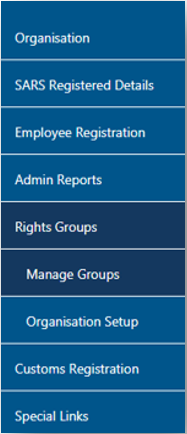 |
The Group Details page will be displayed.
- Click the Open hyperlink.

- On the Update Group Details screen, select Medical Scheme Contributions and Insurance Payments option.
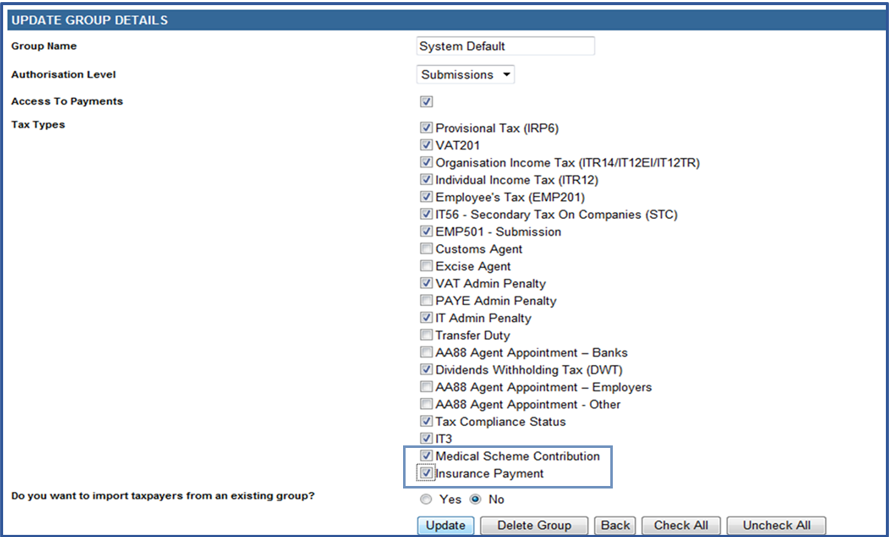
- Click on the Update button to continue.
Submission
How to Submit a Data File
Submission of the Medical Scheme Contributions and Insurance Payments data is when an organisation representative has detailed the Medical Scheme Contributions and Insurance Payments data file as per external BRS and routes the file to SARS.
This section will illustrate how to submit Medical Scheme Contributions and Insurance Payments data file.
Note that the organisations representative must prepare the submission file as per SARS external BRS on Medical Scheme Contributions and Insurance Payments. The following external BRS must be utilized to prepare the file for submission: |
Table 1: SARS External Business Requirement Specification (BRS)
Third Party Tax Type | SARS External BRS |
Medical Scheme Contributions | Medical Scheme Contributions MSC_v1.09-3 |
Insurance Payments | Insurance Payments (INS) v1.0.3 |
Once the organisation has enrolled a representative for submission purposes, proceed as follows:
- Click on Services
- Click on Enroll 3rd Party Data
- Select Secure File Submission
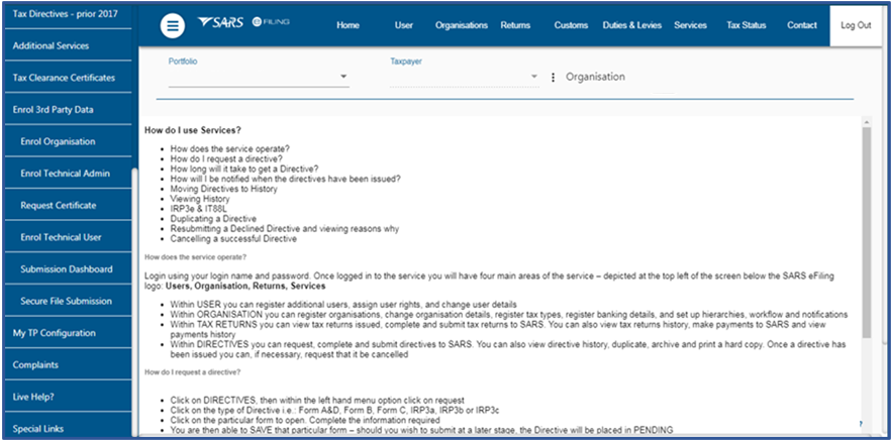
The user will be redirected to the secure site where data may be uploaded.
Kindly refer to the following submission guides:
- GEN-ENR-01-G01 – Guide for Submission of Third-Party Data using the Connect Direct Channel – External Guide
- GEN-ENR-01-G02 – Guide for Submission of Third-Party Data Using the HTTPS Channel – External Guide
Any technical queries or challenges experienced during submission, kindly revert them to the Third Party Data Support Unit on the following email address:
How to View the Status of the Submitted Data File
Once the data has been submitted, the user may view the status of the submitted Medical Scheme Contributions and Insurance Payments data via the third party data dashboard report. To do so, proceed as follows:
- Login
- Click on Services
- Click on Enroll 3rd Party Data
- Click on Submission Dashboard
- Select the appropriate data product from the dropdown list
- The dashboard will present the following screen:
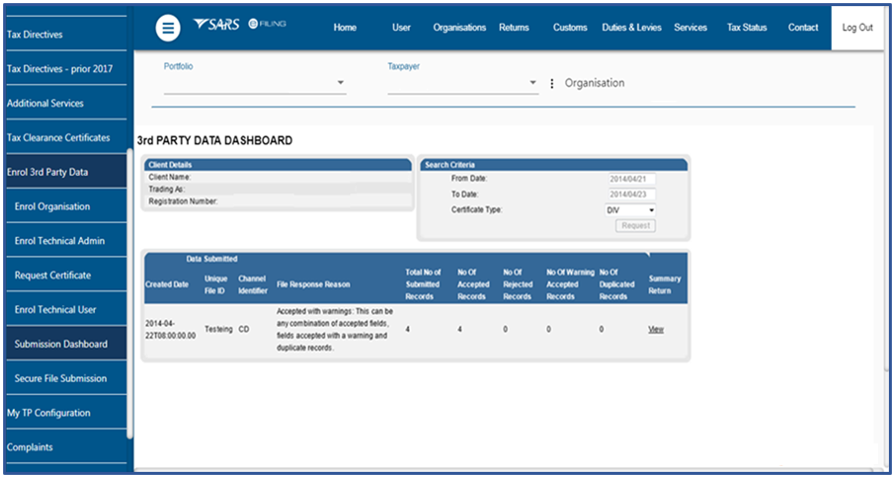
Note that the following codes that could appear on the 3rd party data dashboard and their interpretation. |
Table 2: File Response Codes on Submitted Data
Code | Description |
001 | Acknowledge of receipt |
002 | Rejected: Entire file rejected as contains critical errors. The file must be corrected and resubmitted to enable processing. |
003 | Successfully uploaded: All records accepted and processed. |
004 | Accepted with warnings: This can be any combination of accepted fields, fields accepted with a warning and duplicate records. |
005 | Rejected: Entire file rejected as it contains file structure errors. The file must be corrected and resubmitted to enable processing. |
006 | Partial upload: This can be any combination of accepted fields, rejected fields, fields accepted with a warning or duplication records. |
011 | Rejected: Entire file rejected as the file was submitted as part of a group and one or more of the files in the group failed the validations associated with the submission of the file as part of the group. |
012 | Rejected: Group submission incomplete and service level agreement expired for SARS to wait for all files in a group to be submitted. |
Any technical related queries on the submission process, send them to the following email address:
Declaration
How to Declare Submitted Data
The Submit New Return menu option enables users to access the declaration return, which is used to report their submitted third-party data file to SARS. To declare Medical Scheme Contributions and Insurance Payments, users must submit the MIT02 return.
Medical Scheme Contribution Declaration
To declare on Medical Scheme Contributions, proceed as follows:
- Click on Returns on the main menu
- On the left menu:
- Click on Third Party Data on the left menu
- Click on Submit New Return
- The following screen will be displayed
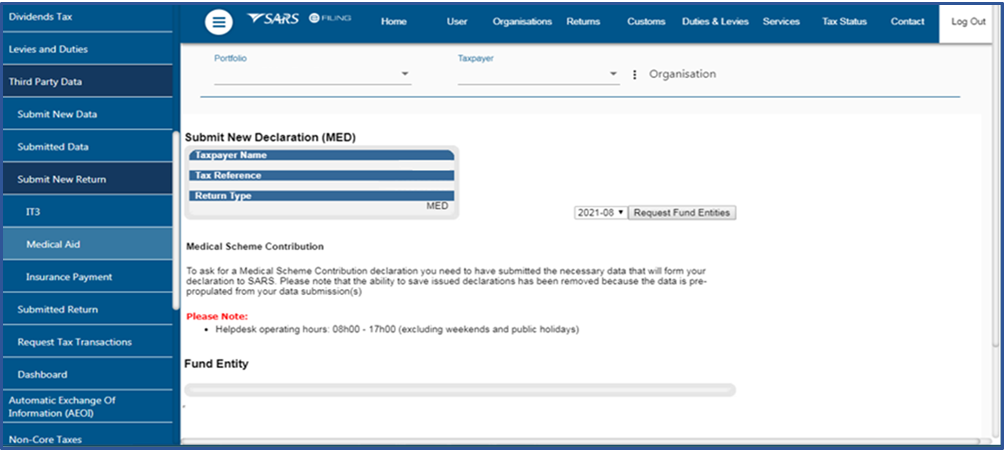
- Select the appropriate year and month from the drop-down option.
- Click on the Request Fund Entities button.
The list of funds will be displayed:

- Select the appropriate fund from the list by clicking on the applicable radio button.
- Once selected, click on the button Continue.
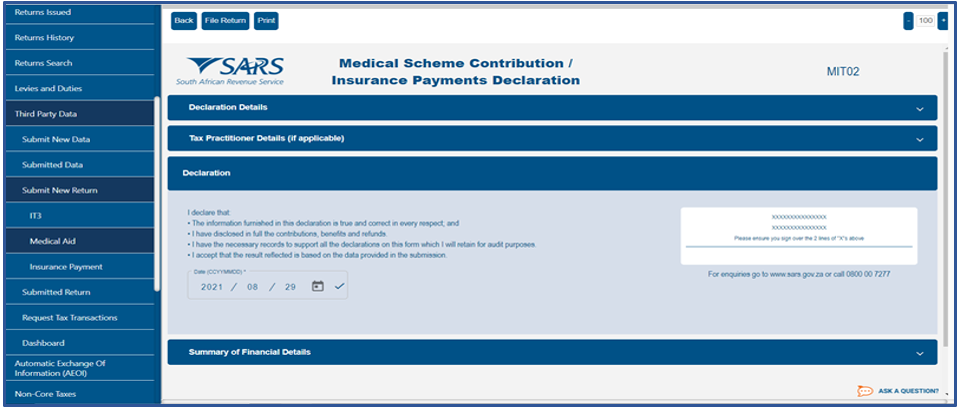
This will display the MIT02 return.
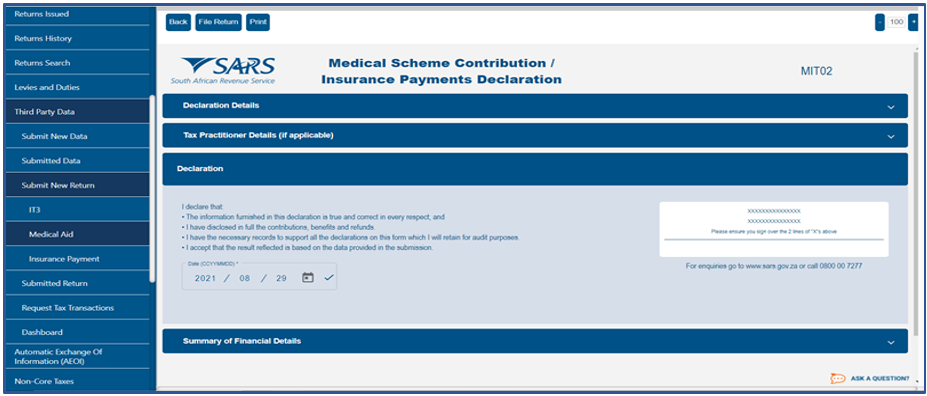
- Validate the summary of financial details pre-populated on the MIT02 return.
- Once in agreement with the financial displayed on the return, click on File Return button to submit the return to SARS.
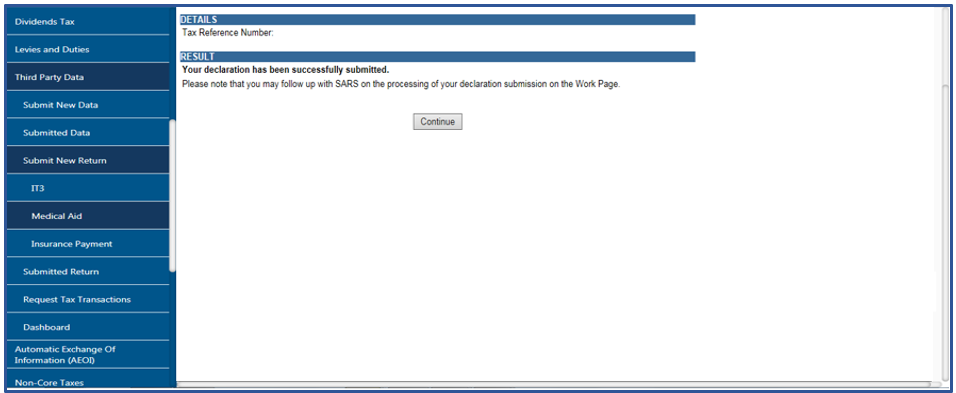
Insurance Payments Declaration
For the declaration of Insurance Payments, proceed as follows:
- Click on Returns on the main menu
- Click on Third Party Data on the left menu
- Click on Submit New Return
- Click on Insurance Payment
- The following screen will be displayed
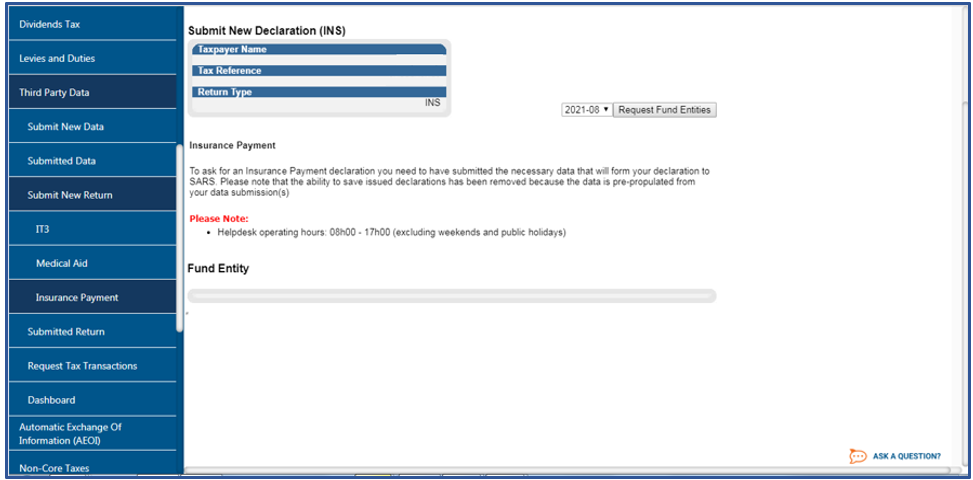
- Select the appropriate year and month from the drop-down option
- Click on Request Fund Entities
- The list of funds screen will be displayed
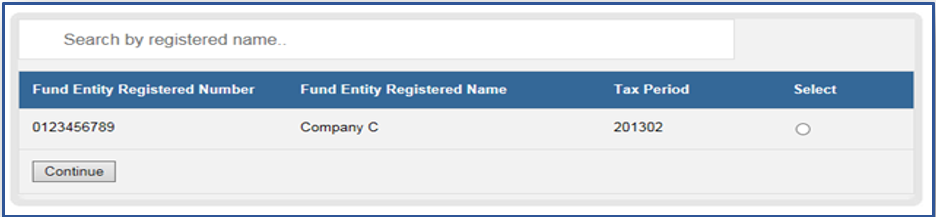
- Select the appropriate fund from the list by clicking on the radio button besides the appropriate fund.
- Once all have been selected, click on the button Continue
This will display the MIT02 return
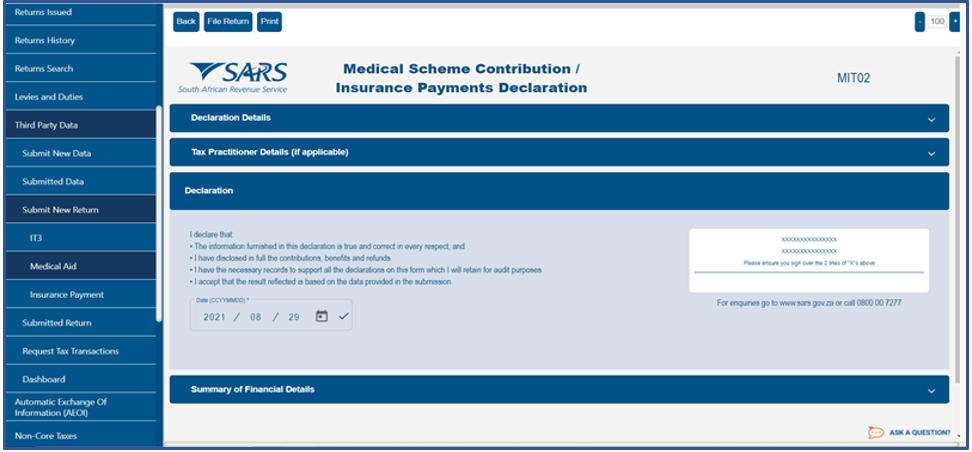
- Once the above screen is displayed, validate the populated MIT02 form.
- Once done, click on the File Return button to file the return.
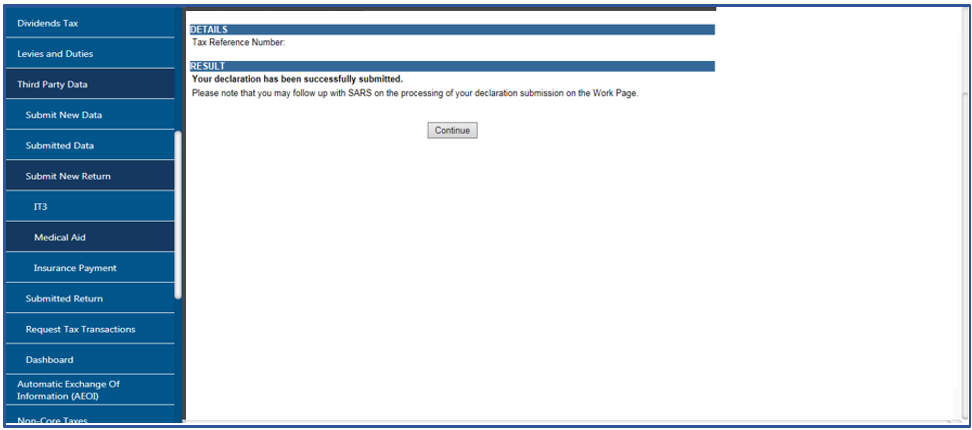
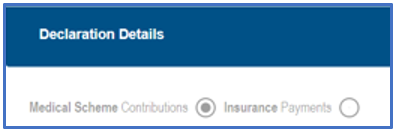
Note that the Medical Contribution and Insurance Payments return (MIT02) appears the same however indication of the difference between Medical Scheme Contributions and Insurance Payments is detailed in the section titled Declaration Details |
How to Print the Declaration
To print the MIT02 PDF return proceed as follows:
- Click on the Print button displayed on the menu above the return.

- Click on Open File to view the downloaded MIT02
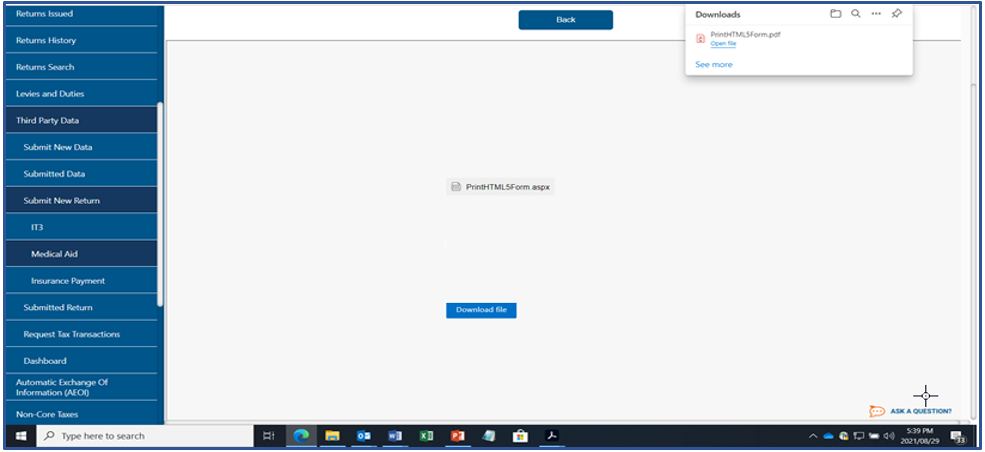
- Once opened the MIT02 return will be displayed as follows:
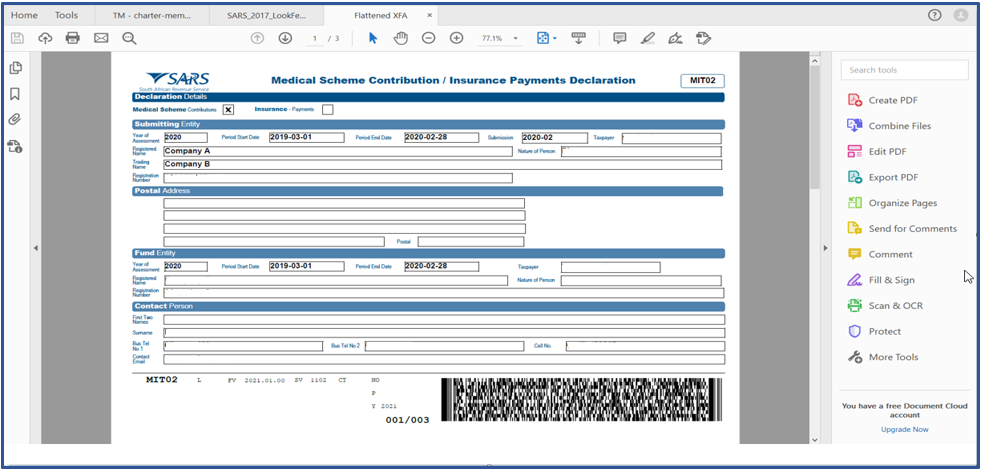
How to Access Submitted Declarations
This option is applicable if the user wants to view the history of all the third party data that has been submitted and declared to SARS.
Medical Scheme Contributions
To access previously submitted and declared Medical Scheme Contributions, proceed as follows:
- Click on the Returns on the main menu
- On the left menu.
- Click on Third Party Data
- Click on Submitted Return
- Click on Medical Aid
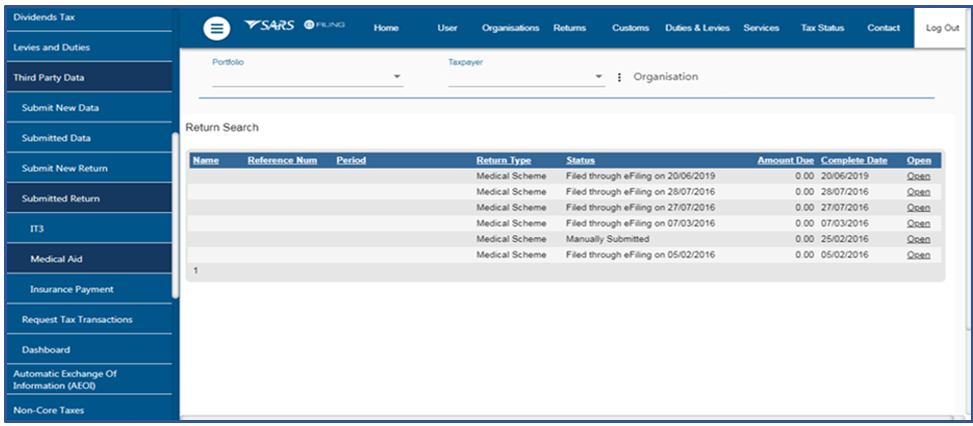
- Click on the Open hyperlink
- The Medical Scheme Contribution Work Page will be displayed
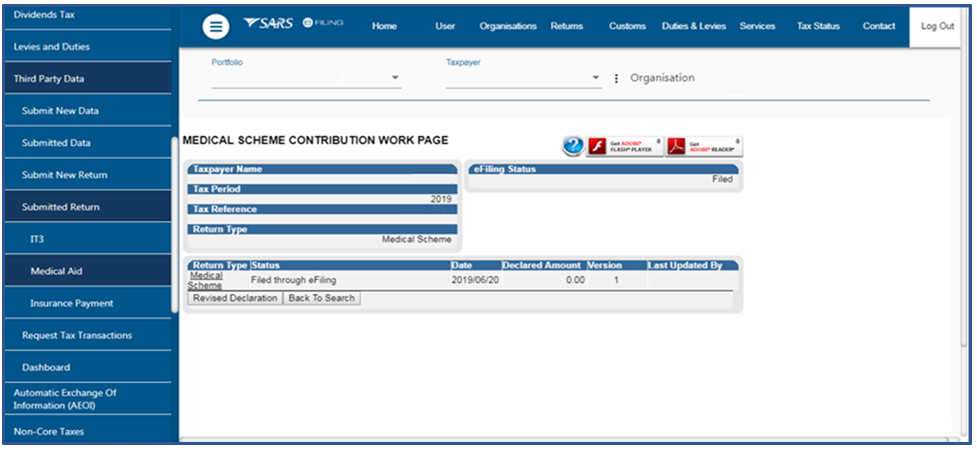
- Click on the hyperlink Medical Scheme to open up the filed return.
Note that the Revised Declaration button on the Medical Scheme Contribution Work Page will open up the MIT02 return which will include the revised data submitted by the entity. |
Insurance Payments
To access the returns that have been submitted for Insurance Payments, proceed as follows:
- Click on the Returns on the main menu
- On the left menu
- Click on Third Party Data
- Click on Submitted Return
- Click on Insurance Payment
- The following screen will be displayed
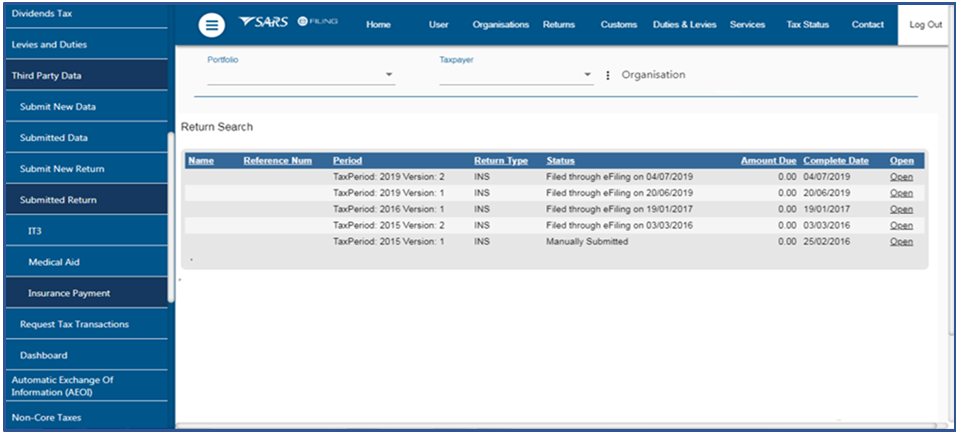
- Click on the Open hyperlink
The Insurance Payment Work Page will be displayed
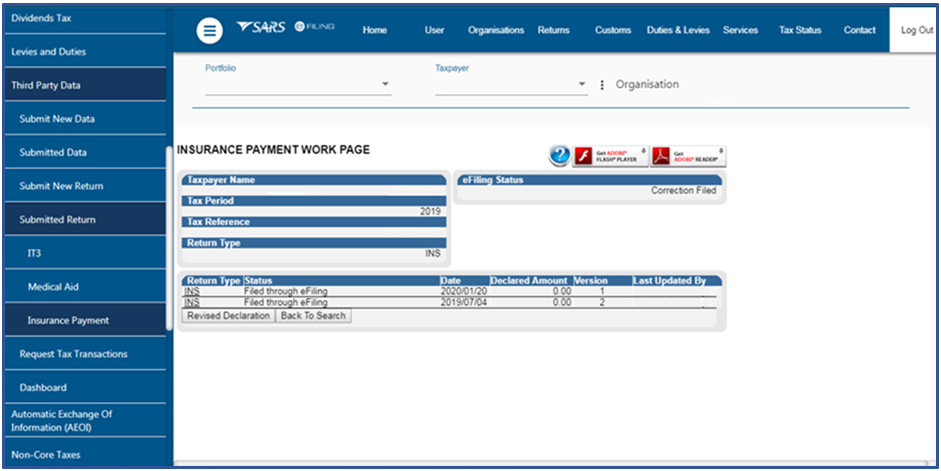
- Click on the hyperlink Insurance Payment to open up the filed return.
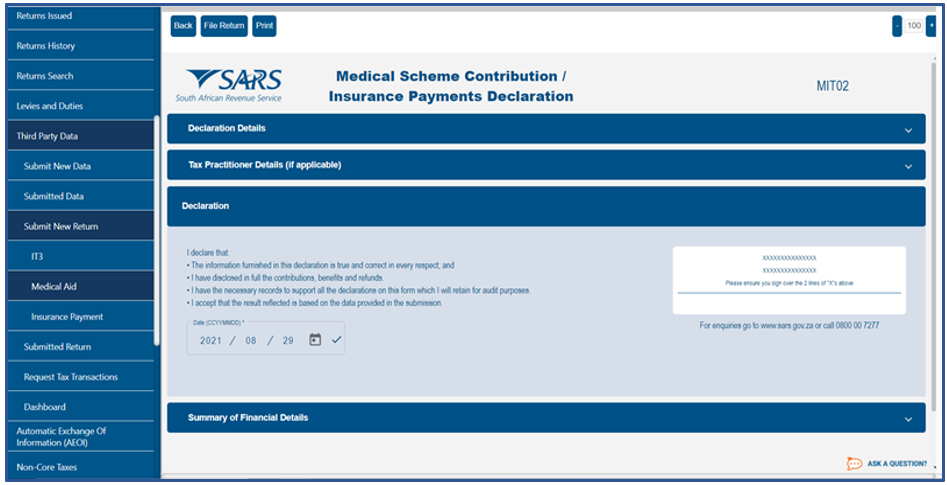
Note that the Revised Declaration button on the Insurance Payments Work Page will open up the MIT02 form which will include the revised data submitted by the entity. |
How to View Submitted Data on a Dashboard
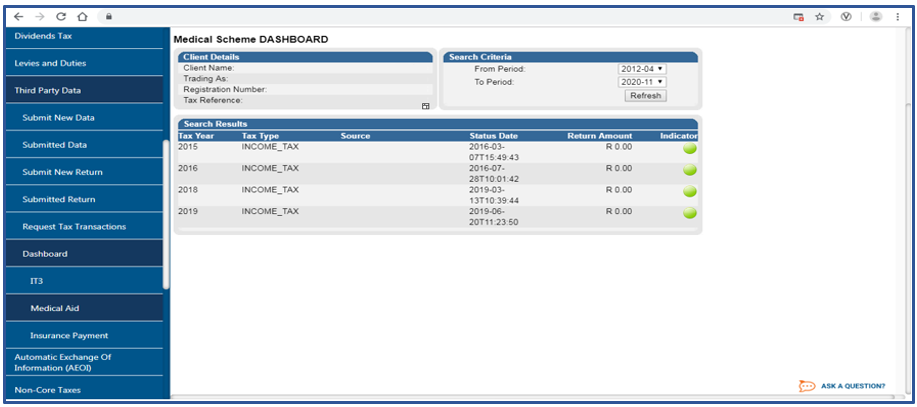
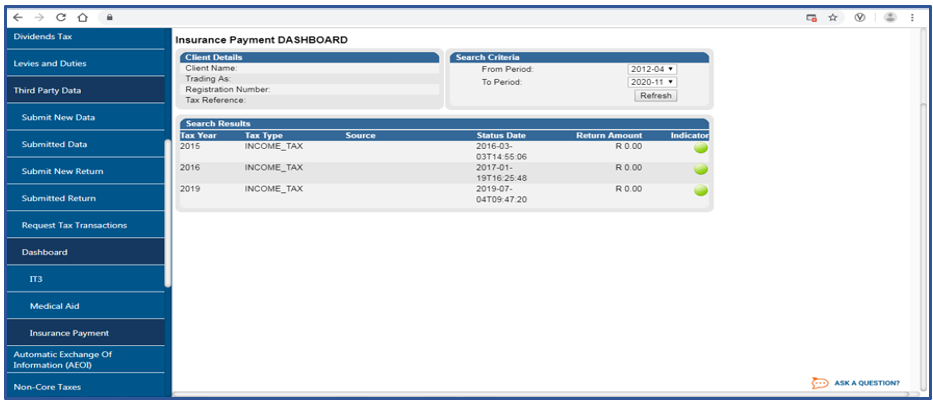
The dashboard allows you to view the summary of all the submitted data.
To access the dashboard for Medical Scheme Contributions, proceed as follows:
- Click on Returns on the main menu
- On the left menu.
- Click on Third Party Data
- Click on Dashboard
- Click on Medical Aid
To access the dashboard for Insurance payments, proceed as follows:
- Click on Returns on the main menu
- On the left menu.
- Click on Third Party Data
- Click on Dashboard
- Click on Insurance Payment
Definitions, acronyms and abbreviations
The definitions, acronyms and abbreviations can be accessed here – Glossary webpage.
Legal disclaimer: In the event of conflict or inconsistency between this webpage and the PDF version of the guide, the latter shall prevail.