
Purpose
This webpage is designed to support South Africa’s Reportable Financial Institutions in meeting their FATCA and/or CRS compliance obligations by describing how to submit the FTI01 form and the declaration of Foreign Tax Information (FTI) via eFiling.
The webpage is organised in the following way:
- How to activate FTI on eFiling
- How to submit the FTI01 form to SARS
- How to declare foreign tax information FTI02 via eFiling
Introduction
In 2014 an inter-governmental agreement (IGA) between South Africa and the United States of America was approved by Parliament with regards to the USA’s Foreign Account Tax Compliance Act (FATCA). In the same year, South Africa also adopted the OCED/G20 (Common Reporting Standards (CRS)) standard automatic exchange of information for financial accounts. FATCA reporting does not deviate exclusively from the CRS reporting. The slight alteration is driven by the multilateral nature of the CRS system and the specific aspects unique to the USA such as the concept of taxation on the basis of citizenship and the existence of a significant and comprehensive FATCA withholding tax.
Under the terms of the agreement listed, South Africa’s Foreign Financial Institutions (FFIs) are to report to SARS on certain required information under FATCA and the OECD Common Reporting Standard, effective from the 1st of July 2014. South Africa’s Foreign Financial Institutions who should report include South African banks and custodians, brokers, asset managers, private equity funds, certain investment vehicles, long-term insurers and other participants in the financial system. South Africa’s Foreign Financial Institutions which are exempt are beneficial owners or deemed compliant FFIs and the accounts which are excluded from the definition of Financial Accounts which are described in Annexure II of the IGA.
The first FATCA reporting period is from 1 July 2014 to 28 February 2015 and thereafter annually for every tax year ending February. Financial Institutions are required to do their first submission to SARS by 30 June 2015. These financial institutions are required to upload data on SARS systems and then declare the data making use of eFiling. This guide is to assist financial institutions in their activation and declaration of FTI to SARS.
Any queries relating to FTI, must be sent to the following email address:
|
Guidelines to Successfully Submit Foreign Tax Information (FTI) via eFiling
- To successfully submit FTI, the user must complete and submit the FTI01 form on eFiling.
Please note that the FTI01 form is considered a null form, indicating that there are no reportable accounts requiring disclosure to SARS. |
Foreign tax information submissions to SARS can be completed by the following methods:
- Submission of null form through completion and submission of the FTI01 form.
- Submission of null form by uploading a file according to the specifications outlined in the external BRS.
- Full data file submission via HTTPS or Connect Direct channels.
After submitting the required file or form, it is imperative that the user log in to eFiling and declare the submission through the FTI02 process, confirming that the data, file, or form has been appropriately submitted.
Figure 1: Data submission and declaration workflow for FTI
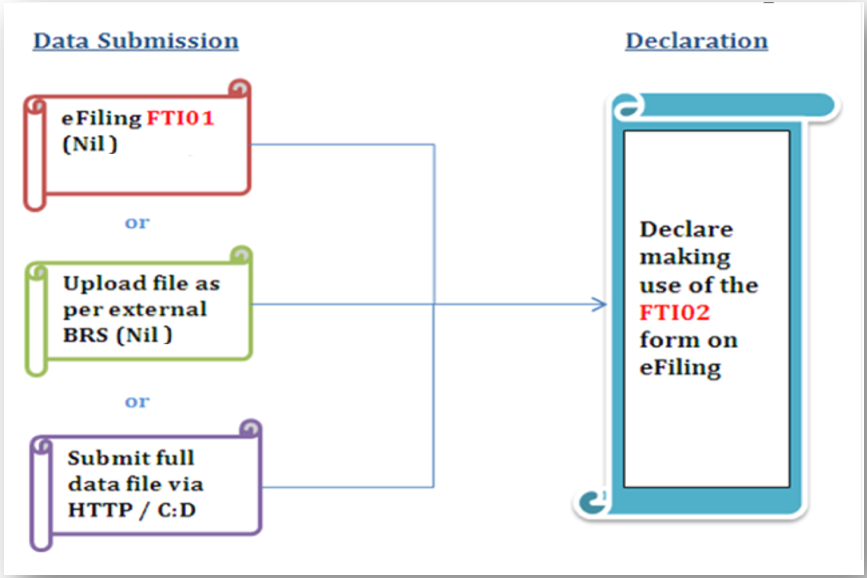
- Figure 1 illustrates the workflow of FTI. The files/data/form that has been submitted must be declared by submitting the FTI02 return via eFiling.
This webpage outlines the procedures for submitting either the FTI01 form or the nil data file. Additionally, it explains how to verify the submission by confirming the FTI02 return and completing the process via eFiling. For instructions regarding the preparation of the data file, please refer to the external BRS available on the SARS website. Completed data files should then be submitted through HTTPS or Connect Direct channels. Refer to the following guides on how to submit data files via the digital secure channels:
|
Activating FTI Submission Access Rights
eFiling requires you to activate your tax types so that appropriate forms will be created for submission purposes. Activating FTI involves creating a platform on your profile to declare FTI. This is available for the following portfolios:
- Tax practitioners and
- Organisations.
To activate FTI, proceed as follows:
- Click on Organisations displayed on the main menu
- Click on Organisation displayed on the left menu
- Click on Tax Types
- Select Manage Tax Type
The following screen will be displayed
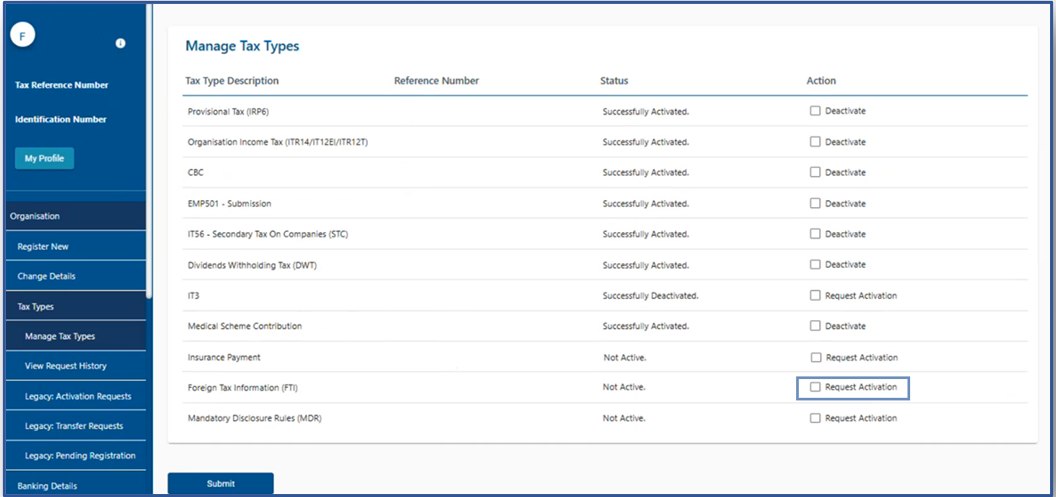
- Select Request Activation to access Foreign Tax Information (FTI).
- Click on Submit
- Once the Submit button is selected, the initial Status statement besides FTI, will read as Awaiting Registration Verification. This status will change after 48 hours, once activation verification has been completed. The Status statement will display Successfully Activated once activated.
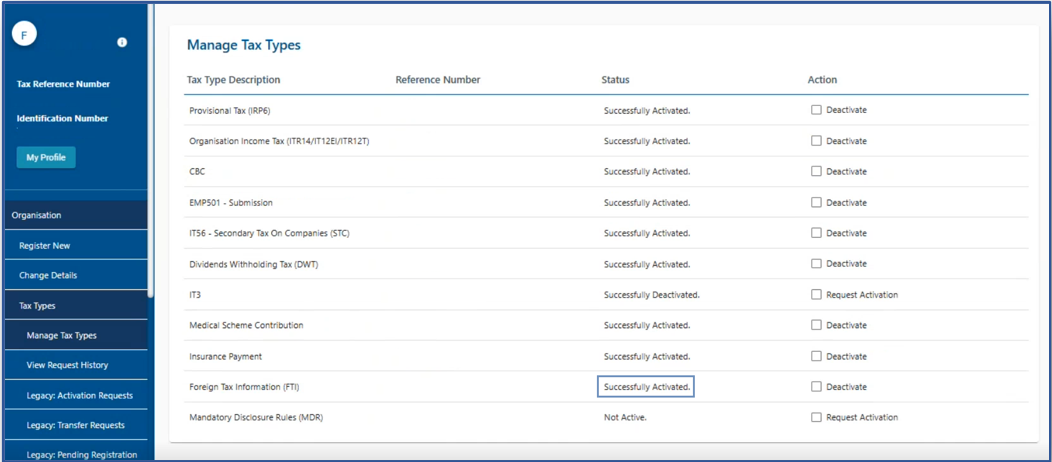
When the Status statement has not changed and no communication has been received from SARS, kindly contact the SARS Contact Centre for further assistance. |
To ensure that users have been assigned to the correct group and the FTI Tax Type is activated, proceed as follows:
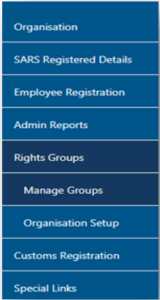 |
|
The Group Details page will be displayed.

- Click the Open hyperlink.
On the Update Group Details screen,
- Select the Foreign Tax Information (FTI) option.
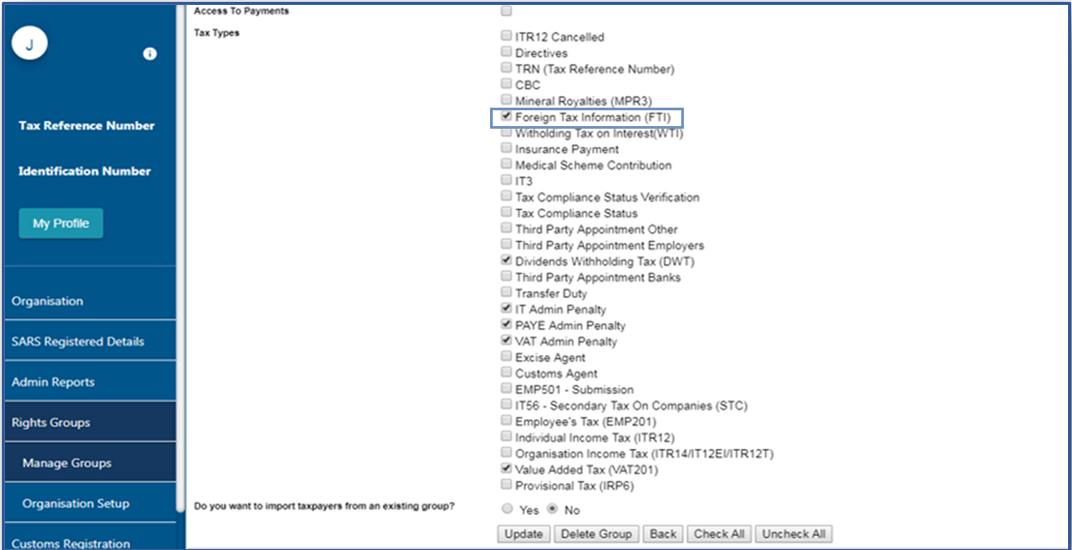
- To continue, click on Update.
Submitting your FTI Data
The secure file transfer channels allow organisations to upload data to SARS in the specified format. For bulk submissions of FTI, use Connect Direct, while HTTPS is recommended for medium-volume transfers. SARS will check every submission to ensure it is accurate and complete.
Submitting a data file is permitted only when the organisation is both enrolled and activated for Third-Party data submission on eFiling. For additional details, please refer to the guide below:
|
To submit your data to the secure site, please refer to the following guides for detailed information regarding the data upload process:
Note that your data must be prepared as specified on the external third-party data BRS. |
Any technical related queries should be sent to the following email address:
Submitting a Nil Return
Submitting a nil return implies that the financial institution has no foreign clients, thus cannot declare Foreign Tax Information to SARS. Submitting nil returns may be done in one of the following ways:
- Submitting a file to SARS, or
- Completing and submitting the FTI01 form via eFiling
Login
- Click on Returns followed by Automatic Exchange Of Information (AEOI)
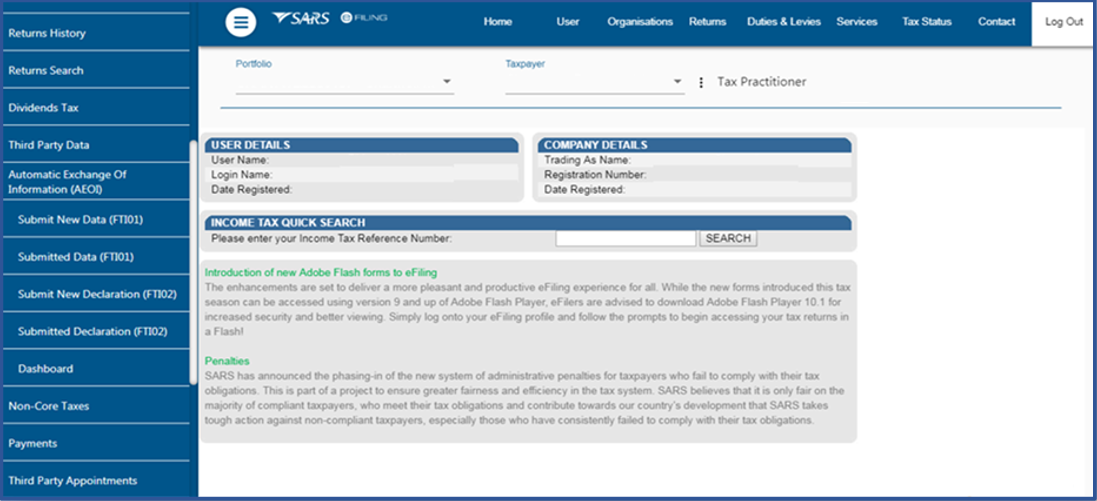
As part of the left menu, the Automatic Exchange of Information (AEOI) tab will be visible.
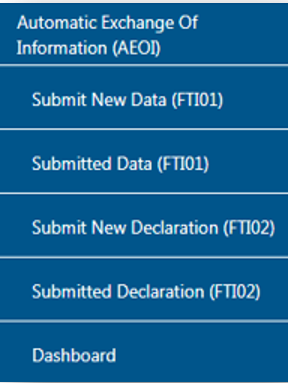
Note: This menu will be visible once you have been granted access to FTI declaration (the activation process explained above) |
Submitting a File to Declare Nil Return
- Download the sample NIL file from the SARS website www.sars.gov.za.
- Insert the required information on the NIL file as indicated below. The data fields are as explained in the external BRS available on the SARS website. Do not remove the pipes (|).
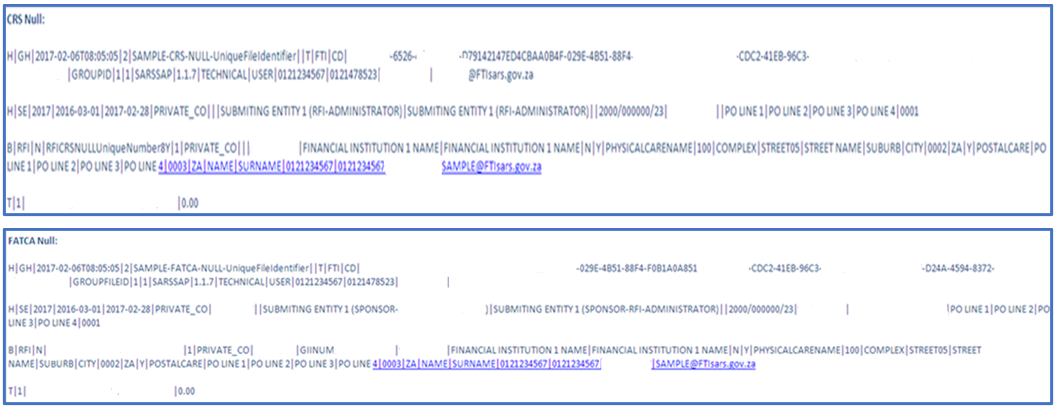
Submitting the FTI01 Form to Declare Nil Return
- Click on Submit New Data (FTI01)
- The Submit New Data (FTI) page will be displayed.
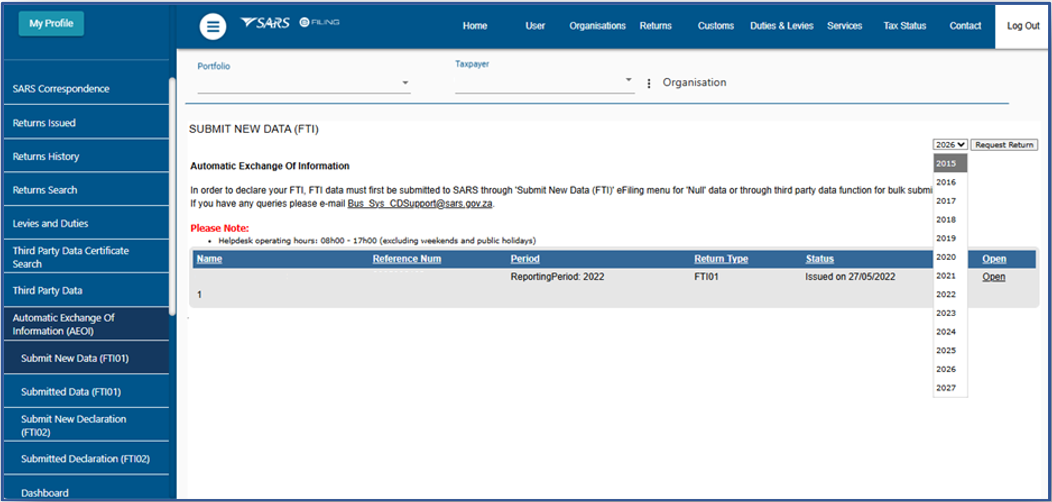
- Selected the appropriate year of submission and click on the Request Return button.
- The Foreign Tax Information Work Page will be displayed.
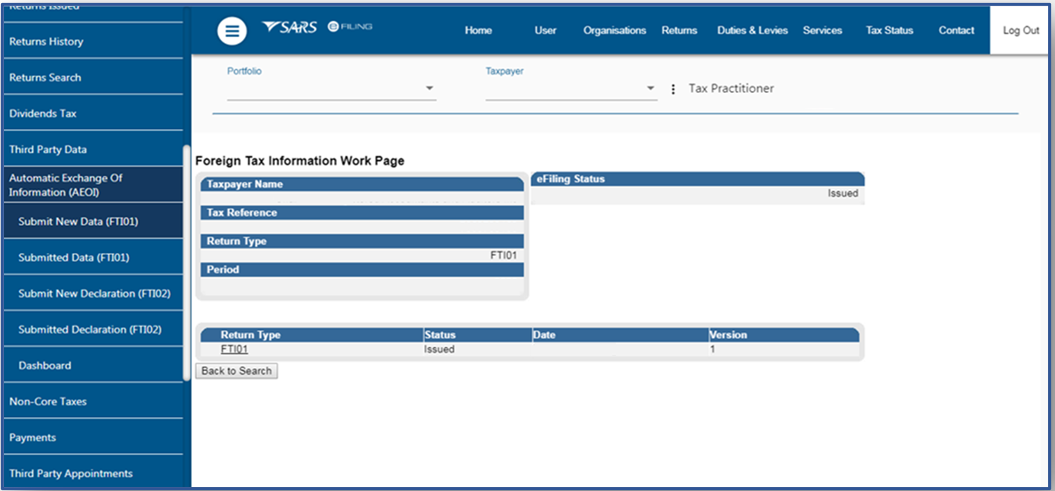
- Click on the hyperlink under FTI01.
The FTI01 form will be displayed.
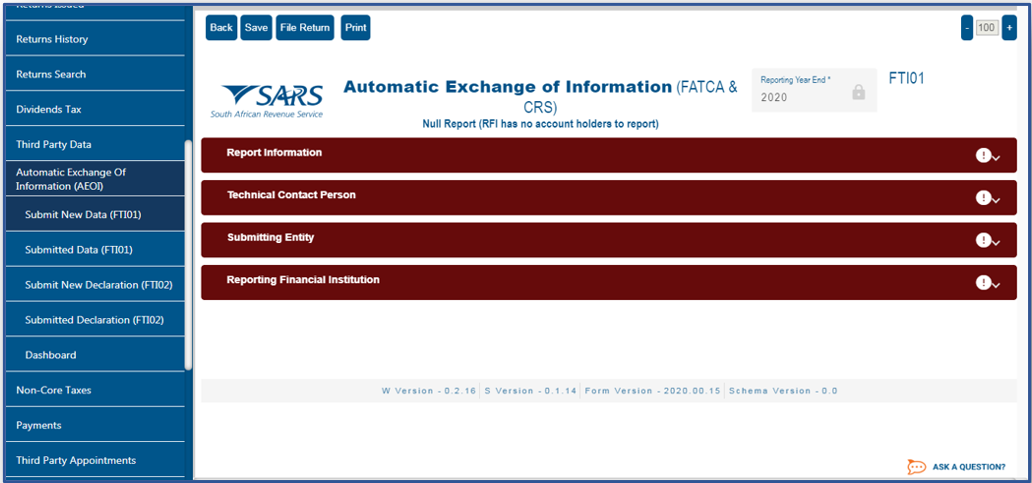
Note that some fields will be pre-populated, ensure the information is correct and complete where the field is marked in red. |
The FTI01 Form Completion
The FTI01 form captures the demographic information of the Reporting Financial Institution. This section will assist the user by detailing the requirements of the form for the ease of completion.
Report Information

- Do you have a FATCA GIIN number? Complete by selecting either ‘Yes’ or ‘No’
Technical Contact Person
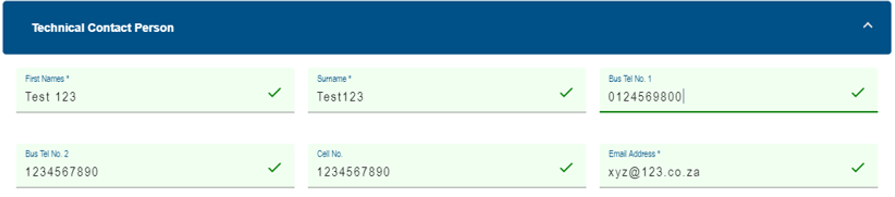
- First Names: Complete the first names of the technical person.
- Surname: Complete the surname of the technical person.
- Bus Tel No1: Complete the 1st business telephone number of the technical person.
- Bus Tel No2: Complete the 2nd business telephone number of the technical person.
- Cell No: Complete the cell number of the technical person.
- Email Address: Complete the email address of the technical person.
Submitting Entity
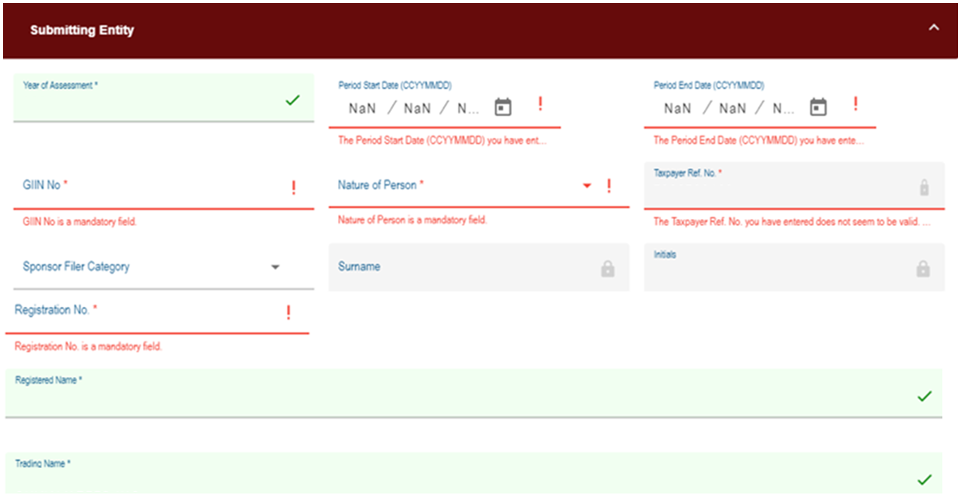
- Year of assessment: Complete the year of assessment for the submission.
- Period start date: Complete the start date of the submission.
- Period end date: Complete the end date of the submission.
- GIIN No: Complete the GIIN number of the submitting entity.
- Nature of Person: Complete the nature of person of the submitting entity (eg. individual, organisation, tax practitioner).
- Taxpayer Ref No: Complete the tax reference number of the submitting entity.
- Sponsor Filer Category: Complete the sponsor filer category as per Appendix A
- Surname: Complete the surname of the submitting entity (if applicable).
- Initials: Complete the initials of the submitting entity (if applicable).
- Registration No: Complete the registration number of the submitting entity.
Postal Address
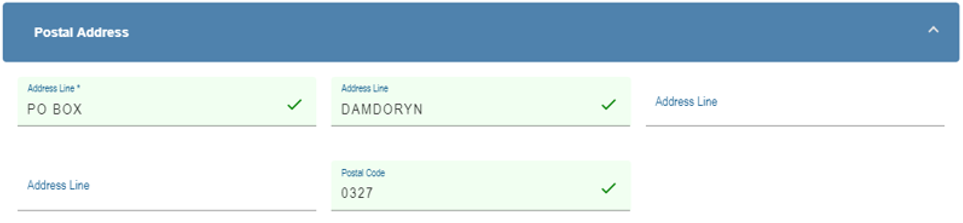
- Complete the postal address of the submitting entity.
- Postal Code: Complete the postal code of the submitting entity.
Reporting Financial Institution
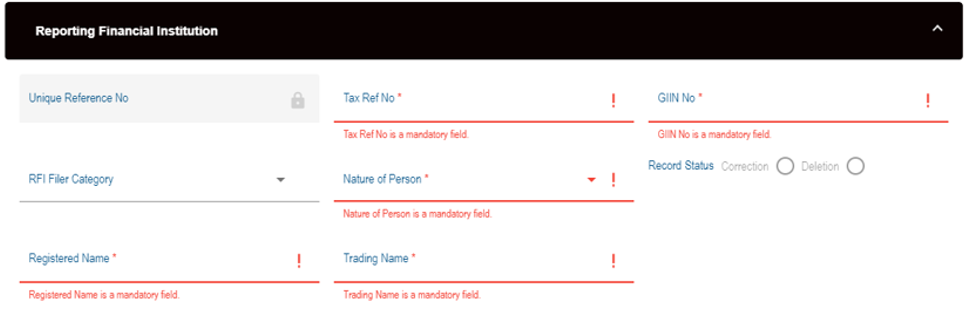
- Unique Reference No: Complete the unique reference number of the Reporting Financial Institution.
- Tax Ref No: Complete the tax reference number of the Reporting Financial Institution.
- GIIN No: Complete the GIIN number of the Reporting Financial Institution.
- RFI Filer Category: Select from the dropdown list the Reporting Financial Institution filer category as per Appendix B.
- Nature of Person: Select from the dropdown list the nature of person of the Reporting Financial Institution (e.g.: individual, organisation, tax practitioner).
- Record Status: Select the applicable radio button of the record status of the Reporting Financial Institution namely;
- Correction – Indicate that a previously submitted record is amended.
- Deletion – Indicate that a previously submitted record must be deleted.
Note: Care must be taken when deleting a record since it will affect all the subsequent fields. |
- Registered Name: Complete the registration name of the Reporting Financial Institution.
- Trading Name: Complete the trading name of the Reporting Financial Institution.
Physical Address
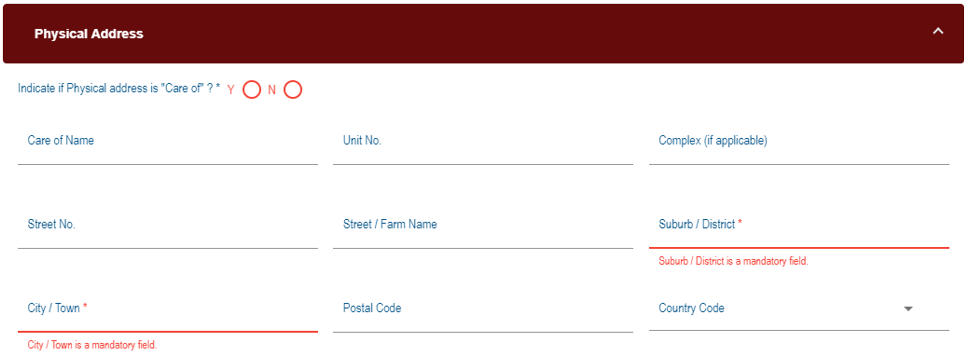
- Indicate if physical address is “Care of”? Select either ‘Yes’ or ‘No’
- Care of Name: Complete the Care of Name of the Reporting Financial Institution.
- Unit No: Complete the unit number of the Reporting Financial Institution.
- Complex (if applicable): Complete the complex number of the Reporting Financial Institution.
- Street No: Complete the street number of the Reporting Financial Institution.
- Street/Farm Name: Complete the street or farm name of the Reporting Financial Institution.
- Suburb / District: Complete the suburb or the district name of the Reporting Financial Institution.
- City / Town: Complete the city or town of the Reporting Financial Institution.
- Postal Code: Complete the postal code of the Reporting Financial Institution.
- Country Code: Select from the dropdown list the country code of the Reporting Financial Institution.
Postal Address
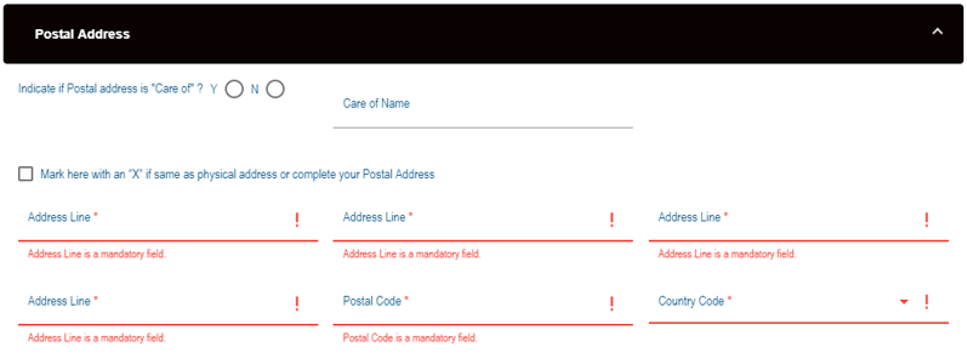
- Indicate of physical address is ‘Care Of’: Select either ‘Yes’ or ‘No’.
- Care of Name: Complete the Care of Name of the Reporting Financial Institution.
- Mark here with an “X” if same as physical address or complete your postal address: Select the checkbox if the details are the same.
- Postal Code: Complete the postal code of the Reporting Financial Institution.
- Country Code: Select from the dropdown list the country code of the Reporting Financial Institution.
Contact Person Details (RFI)
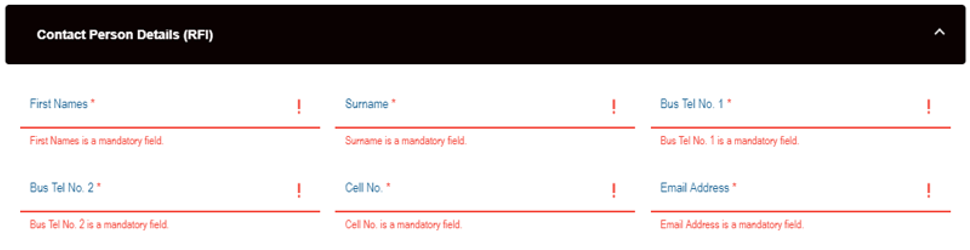
- First Names: Complete the first names of the Reporting Financial Institution contact person.
- Surname: Complete the surname of the of the Reporting Financial Institution contact person.
- Bus Tel No1: Complete the 1st business telephone number of the Reporting Financial Institution contact person.
- Bus Tel No2: Complete the 2nd business telephone number of the Reporting Financial Institution contact person.
- Cell No: Complete the cell number of the Reporting Financial Institution contact person.
- Email Address: Complete the email address of the Reporting Financial Institution contact person.

The following buttons are displayed on the top of the form. They represent the following:
- Back – This will take the user back to the search page.
- Save – This will save the data/information completed on the form for future completion.
- File return – This will submit the declaration to SARS.
- Print – This will allow the user to print the declaration.
Submitted Data (FTI01)
This section is to be utilised when the user wants to view all the submitted FTI01 forms.
To do this, proceed as follows:
- Click on Submitted Data (FTI01)
- The Submitted Data page will be displayed
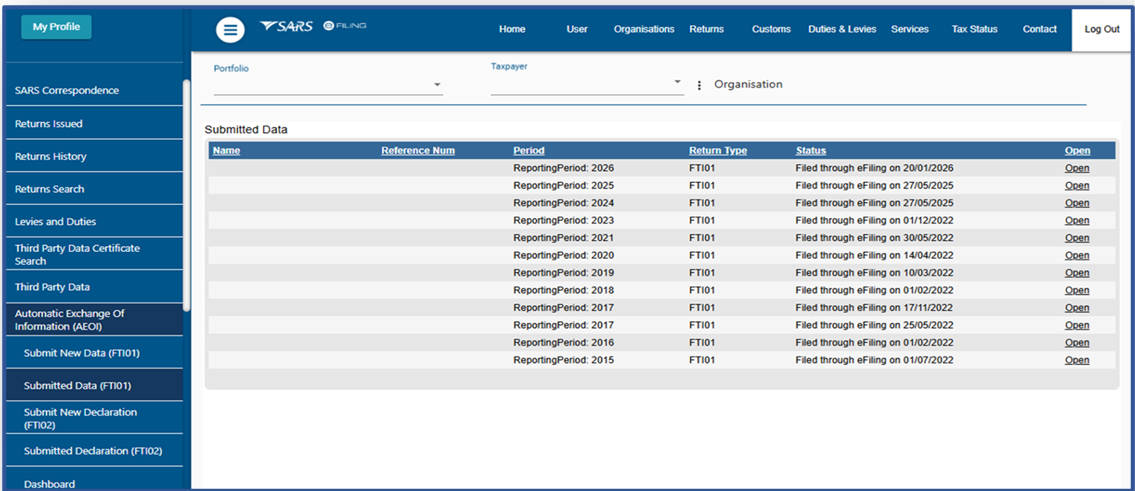
- Where there is a list presented, click on the Open hyperlink adjacent to the appropriate file of interest
The Foreign Tax Information Work Page will be displayed
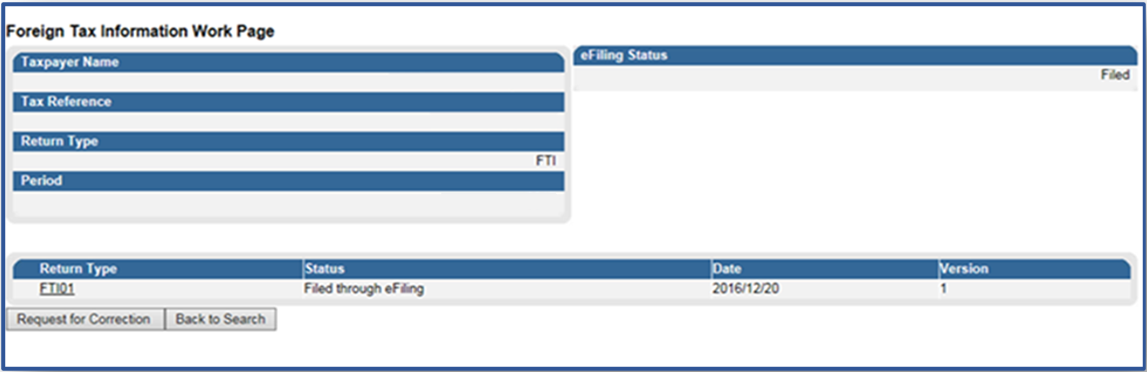
The user can either click on the Request for Correction button to rectify any corrections he/she wishes to make. When clicking on the Back to Search button, the user will be taken to the Submitted data work page.
Submitting your FTI Declaration
After submitting your FTI data or null return (FTI01) or file, you must declare your submission as follows:
- Select Submit New Declaration (FTI02)
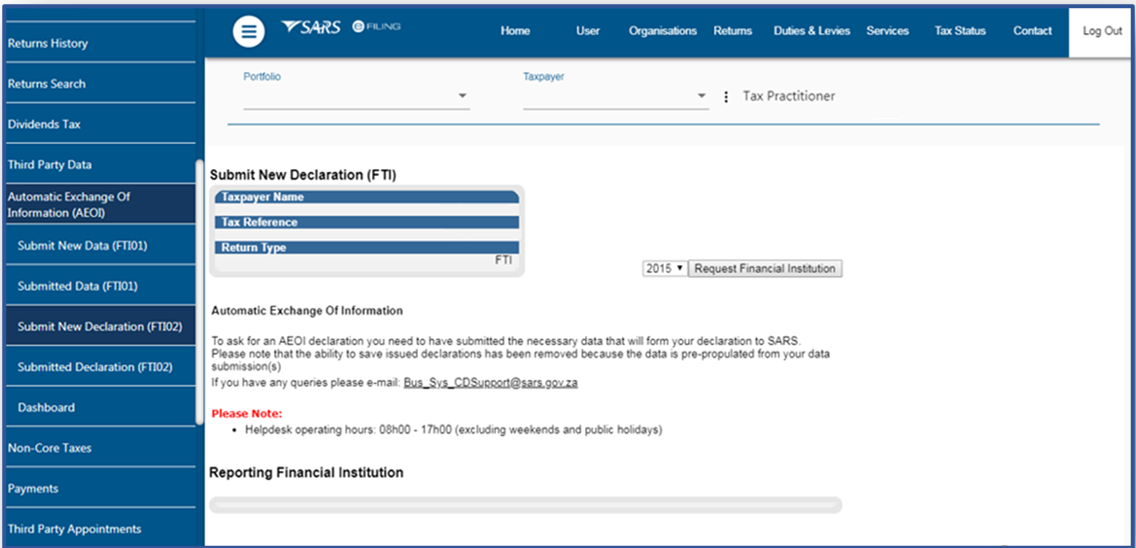
Note: Please refer to the SARS website for information on the periods during which FTI declarations must be submitted. |
- Select the appropriate year
- Click on Request Financial Institution
- The following screen will be displayed
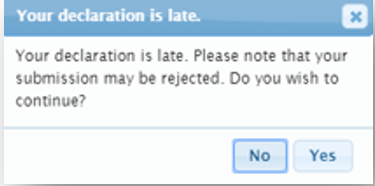
Where your declaration is late, note the pop-up screen. Click on Yes and the reporting financial institution will be displayed.
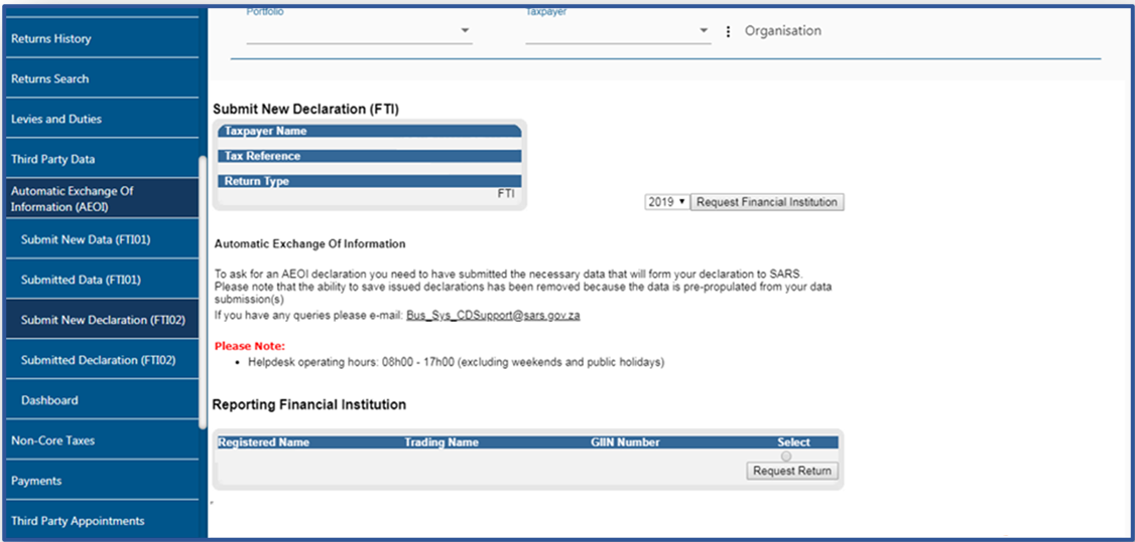
- Select the approprate row (in the case of multiple records being displayed)
- For a single Reporting Financial Institution (RFI) Tax Reference Number there might exist various GIIN Numbers or Registered Names linked to it. If such options exist the user should be able to view the various options on the screen. The users must use the radio button to select the appropriate combination and the declaration will then be created for the selected options.
- Note that all of the listed options (list of files) displayed for the RFI must be declared in order to finalize all submissions under a single RFI Tax Reference Number.
- The Business Administrater of the RFI is required to validate the correctness of the sumitted data files for the RFI. Furthermore he/she should validate whether all the files (options) have been declared.
- When an error is detected, (this can be from an incorrect combination declared by the RFI or an incorrect file /data submitted) the user must rectify this by resubmitting data file or FTI01 null submission and declaring by making use of the FTI02 again. This should be done ASAP to avoid inaccuracy of data.
- Click on Request Return
The following screen will be displayed
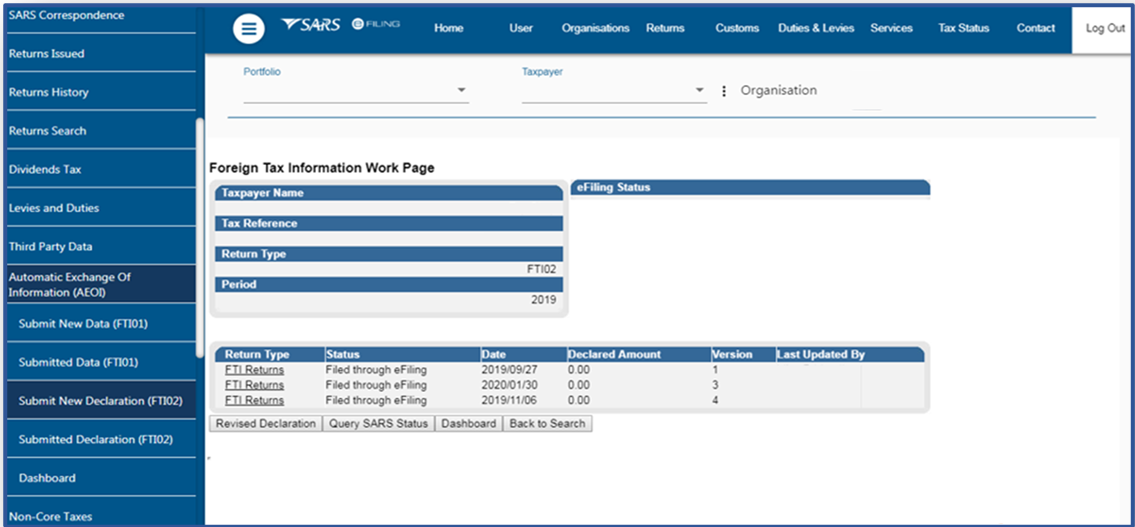
- Click on the hyperlink FTI Returns
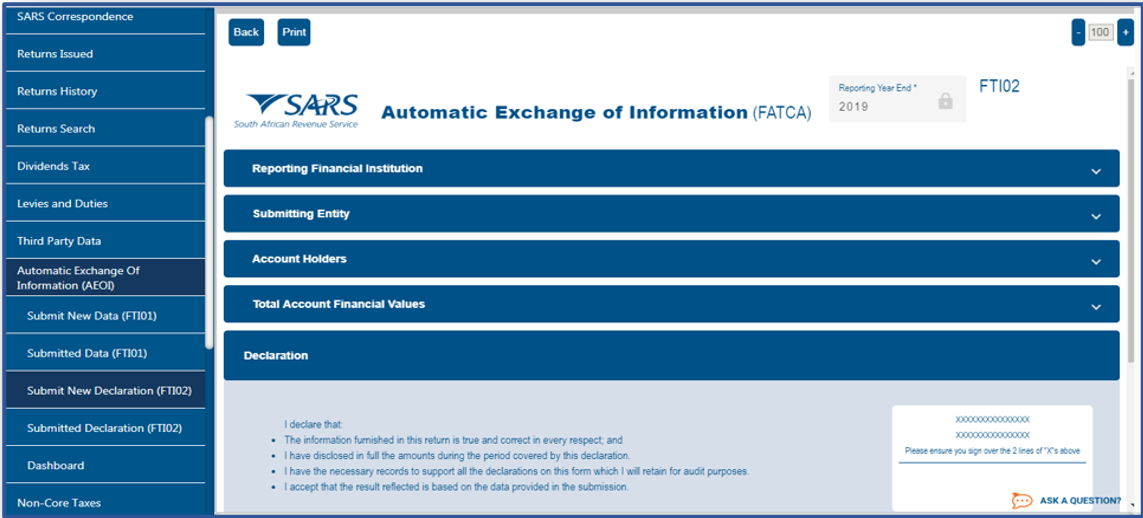
- Verify and edit the return

- Notice at the top left of the form, the following selection buttons
- Back – Will take you back to the search screen
- Print – Will allow you to print the declarations
- File Return – Will submit your FTI02 declaration to SARS
- Click on File Return

This will take you to the Foreign Tax information Work Page
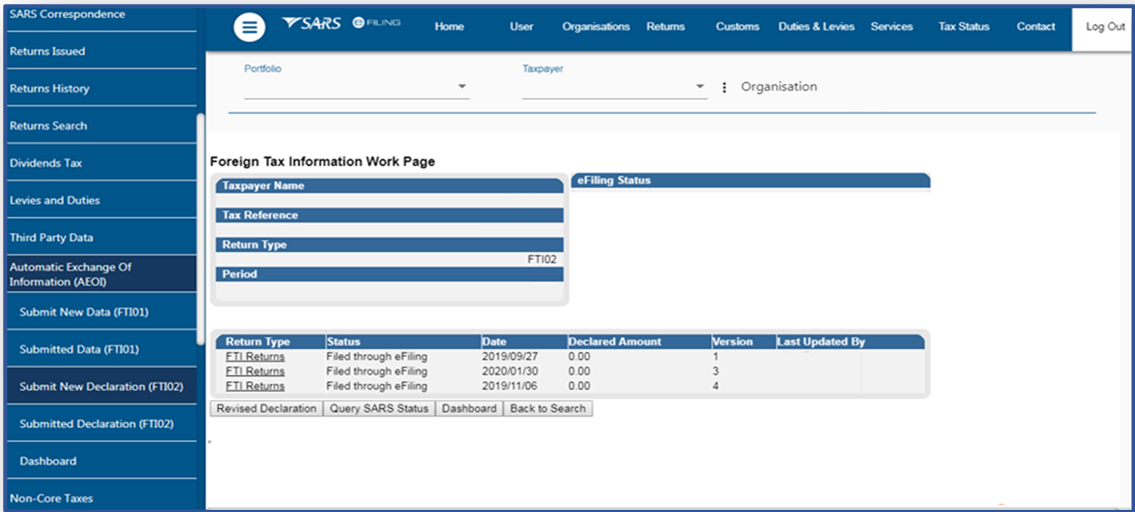
When you click on the hyperlink FTI returns it will lead you back to the form
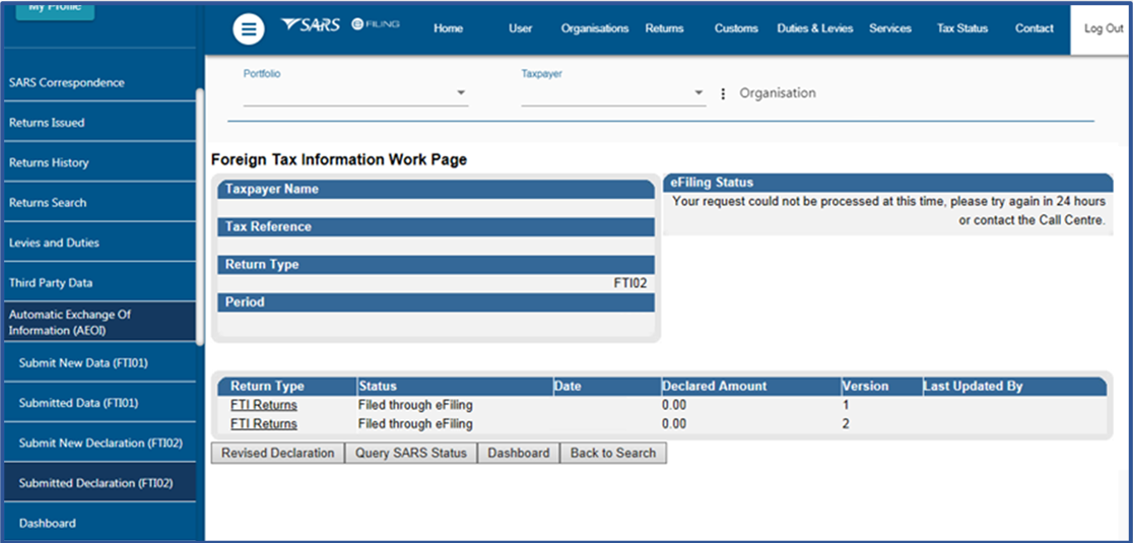
- On the Foreign Tax Information Work page, you will notice at the bottom of the page the following buttons

- Revised Declaration should be used when you want to revise your FTI declaration.
When you click on the tab, the FT102 form will be displayed, this acts as a data refresh command where the FT102 form will be un-editable.
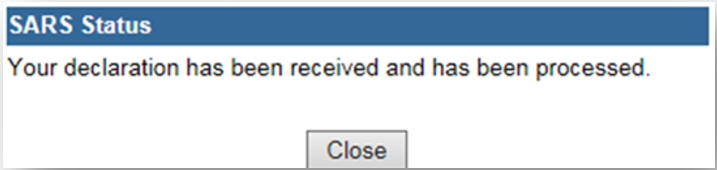
When you have selected Query SARS Status a message will pop up displaying the status of your submitted FTI. An example of a message is given below
When you select dashboard the summary Dashboard will appear, which is displayed.
When you select Back to Search the listed Submitted Declarations screen will be displayed.
Submitted Declaration (FTI02)
To access your submitted declarations, click on Submitted Declaration (FTI02) displayed at the left of the menu screen. The Submitted Declarations page will be displayed
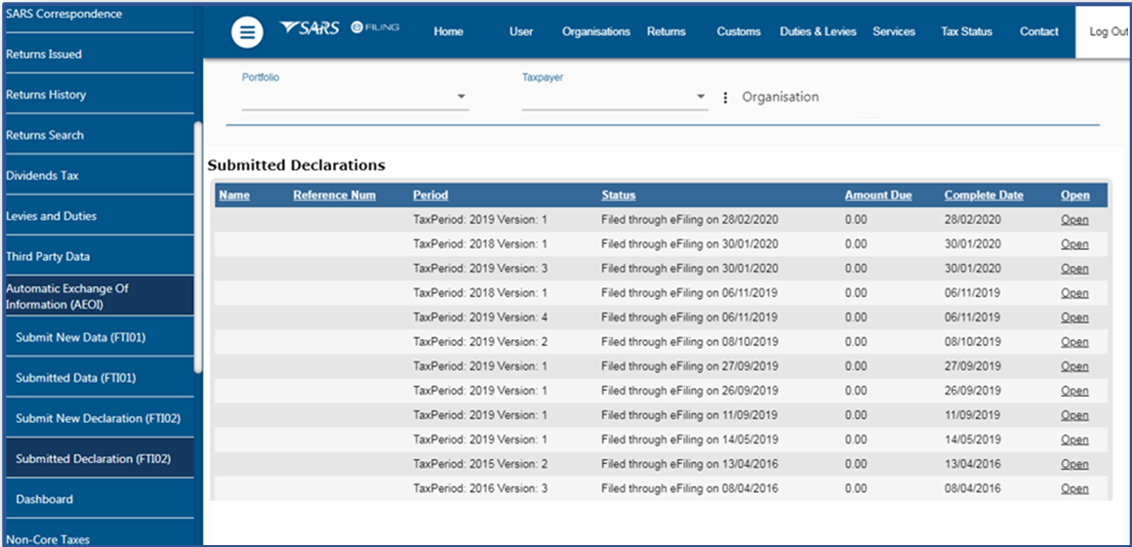
- Click Open next to the declaration you want to view.
- This will display the Foreign Tax Information Work Page
Dashboard
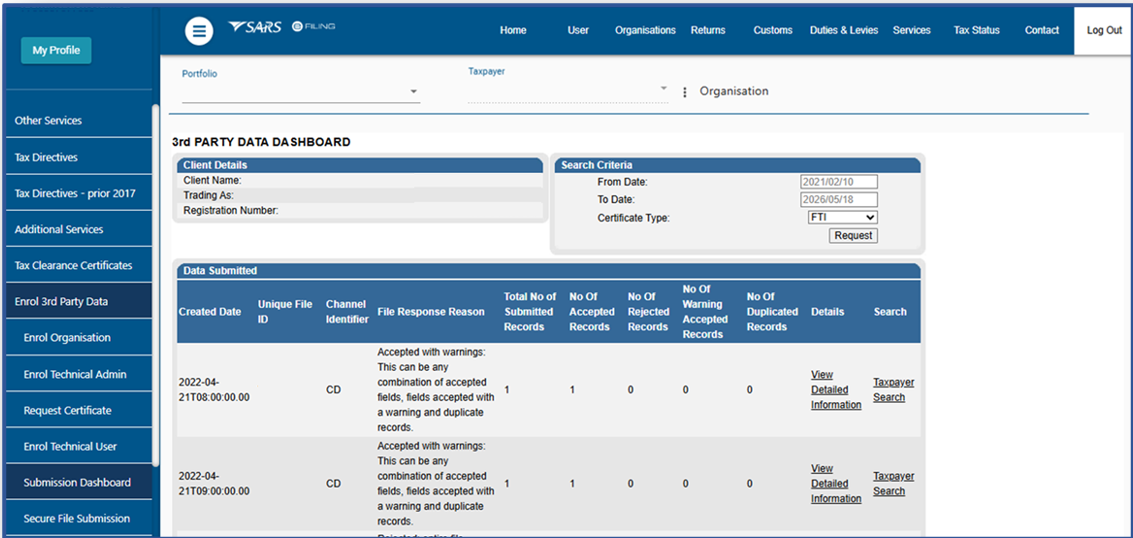
- You can either access the dashboard directly without going through the Foreign Tax Information work page or by clicking on the left menu screen below Automatic Exchange of Information tab
When you click on Dashboard, the following screen will be displayed:
Definitions, acronyms and abbreviations
The definitions, acronyms and abbreviations can be accessed here – Glossary webpage.
Legal disclaimer: In the event of conflict or inconsistency between this webpage and the PDF version of the guide, the latter shall prevail.