
Purpose
This webpage describes how taxpayers can access tax certificates submitted to SARS by their Financial Service Providers (Third-Party data providers e.g. Employer, Funds, Medical Aid, Trust, Insurance etc), and how Third-Party data providers can view their submitted data files. It also outlines how both parties can make queries relating to tax certificates or data files.
Intoduction
Third-party data providers—including banks, medical aid schemes, and insurance companies—submit client information to SARS via Connect Direct (C:D) or secure web HTTPS protocols. To complete submissions, these entities are required to log in to eFiling to verify and formally declare their submitted data files. Such files typically contain third-party details pertaining to taxpayers, including medical aid records and employment certificates (IRP5).
As part of ongoing efforts to improve accuracy and efficiency within tax administration, income tax returns now incorporate pre-populated data from tax certificates submitted to SARS by third-party providers. SARS has enhanced eFiling by introducing a feature that enables taxpayers to view these tax certificates sent on their behalf. This function also permits third-party data providers to access both the files they have submitted and the corresponding taxpayer information.
The following users may access or query third-party data through eFiling:
- Individual – users with an eFiling profile and has activated their tax type.
- Tax Practitioner – registered tax practitioner with a confirmed status or users with a delegated tax practitioner right. Note that the taxpayer should also have an activated tax type as part of their portfolio.
- Registered Representative – where an associated user is a registered representative and has administrator rights. Also, to note is that the user should be associated to a taxpayer on their portfolio
SARS continues to advance taxpayer services by automating access to third-party data certificates, enhancing efficiency and transparency among SARS, taxpayers, tax practitioners, and third-party providers. This development empowers taxpayers to independently manage queries related to third-party data without direct intervention from SARS.
With this new feature on eFiling, taxpayers can now view their tax certificates sent to SARS and query any certificate issues directly with their third-party data providers, such as Employer, Funds, Medical Aid, Trust, Insurance Similarly, third-party providers can review the data files they’ve submitted and query about specific taxpayer details included in those files to SARS.
Note: For details on registering for the use of eFiling, please refer to the following guide:
|
Resolving Tax Certificate and Third-Party Data File Queries
For queries concerning viewed or downloaded tax certificates, taxpayers are advised to reach out to their respective Third-party data provider e.g. Employer, Funds, Medical Aid, Trust, Insurance Conversely, when a correction is required for a previously submitted third-party data file that has been found to be inaccurate, the Third-party data service provider should direct an enquiry to the SARS Third Party Data Unit and adhere to the provided guidance prior to resubmitting the amended data file.
Enquiries to the Third-Party Data Unit should be sent via email to:
Individual Taxpayer
How to Access Third-Party Data Certificate Search Functinality
- On the SARS webpage, login to eFiling and proceed by completing your Username and Password.
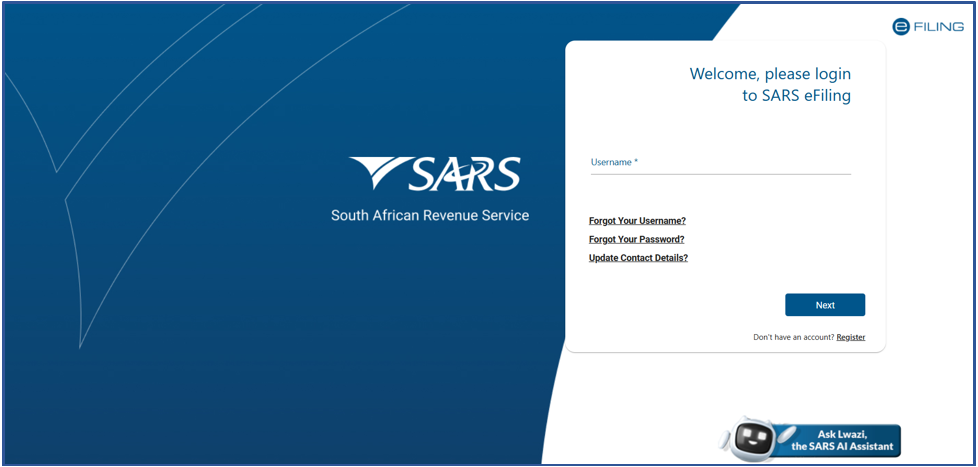
Once successfully logged in, the following screen will be displayed.
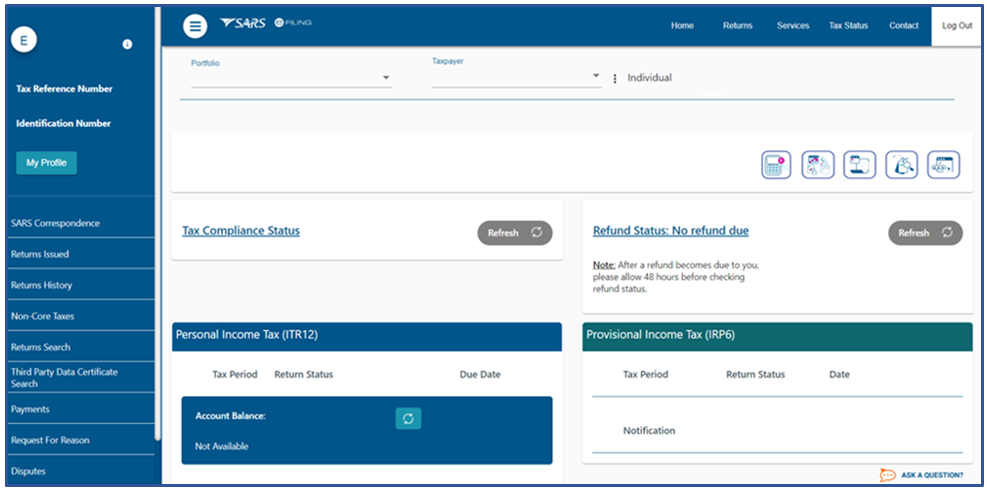
- Click on Third Party Data Certificate Search menu option displayed as part of the left menu option.
How to Request and View Third-Party Data Certificates
Once you have selected the Third-Party Data Certificate Search menu option, the following Request Third Party Certificates screen will be displayed.
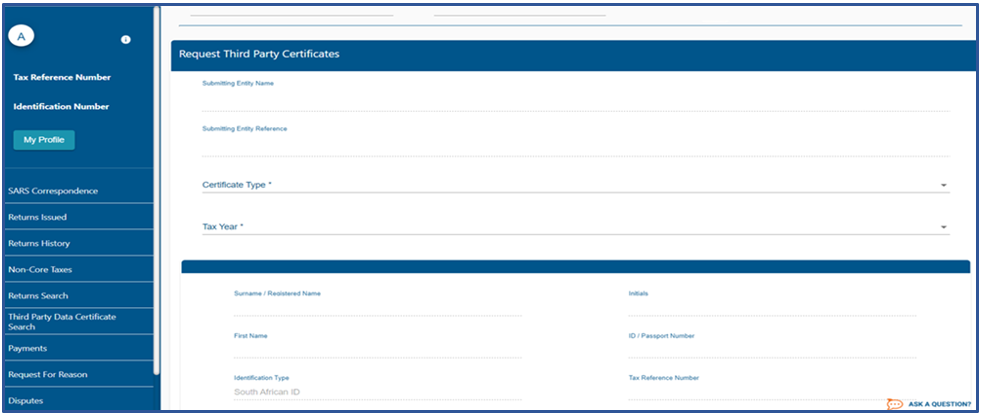
Note: The demographic fields will be pre-populated and un-editable. To update these fields, you need to complete the RAV01 form on your eFiling profile. On how to do this, refer to the following guide:
|
On the Request Third Party Certificates form note that you can only select the Certificate Type and Tax Year.
- Click on the Certificate Type drop down list.
- Select the appropriate Certificate Type, from the drop-down list
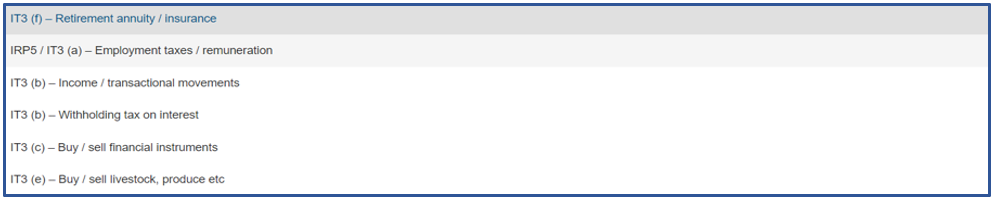
- Once completed, click on the Tax Year drop down list.
- Select the appropriate tax year, from the drop-down list.

|
|

The Certificate Type selected will be displayed. In this example the IT3(f) – Retirement Annuity / Insurance Certificate was selected
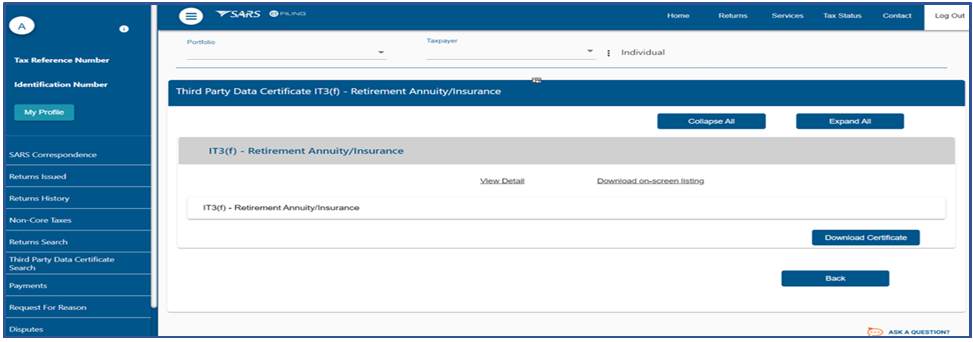
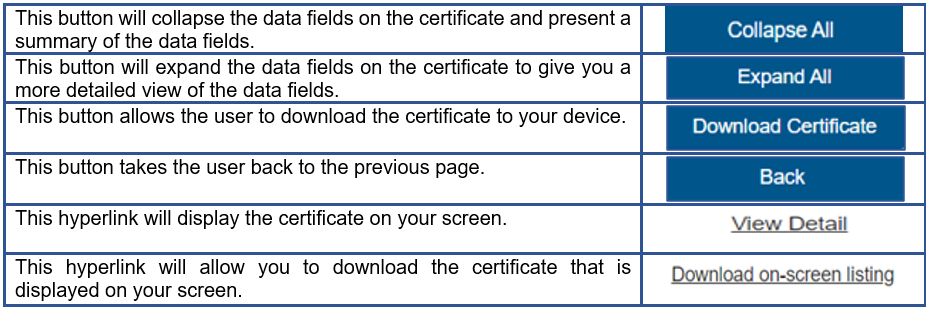
Note the following functionalities (buttons and hyperlinks) displayed on your screen and their use
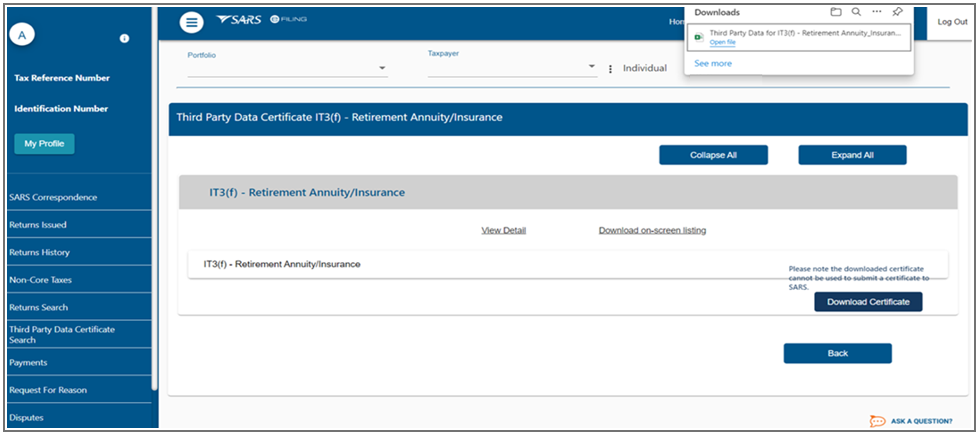
- Click on Download Certificate to view your Certificate.
- Note the message displayed on your device, indicating that the certificate cannot be used to submit to SARS.
How to query your Third-Party Data Certificate
Taxpayers who are not in agreement with a specific certificate item listed, has the option to indicate so. However, to resolve the query regarding the certificate, notify the relevant Financial Service Provider or Funds, medical, aids, trust, employer, insurance etc. who submitted their data to SARS.
At the bottom of your displayed third-party data certificate, take note of the Query Reason drop down option and the Query Certificate button.

- Click on Query Reason drop-down, the following options will be displayed.
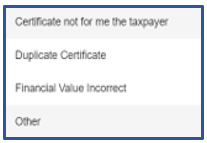
- Select the applicable Query Reason from the drop-down list.
When Other is selected from the drop-down list, an editable text box will be displayed
- If Other is selected, complete your reasons.

- Once completed, click on Submit Query
- To finalise your Query, click on the Query Certificate button.
- The following message will be displayed.
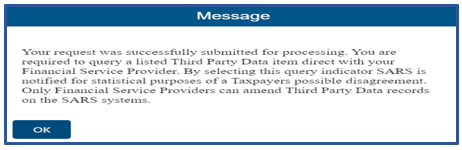
This pop-up message implies that once you have submitted your query, regarding an inaccurate viewed/downloaded third-party certificate, to SARS via eFiling, you are also liable to notify your Financial Service Provider (Third Party Data Provider) of the query. |
How to view a Detailed Third-Party Data Certificate
- The detailed certificate allows the user to view the data by months to name a few.
- On your certificate note the Collapse All and Expand All buttons displayed
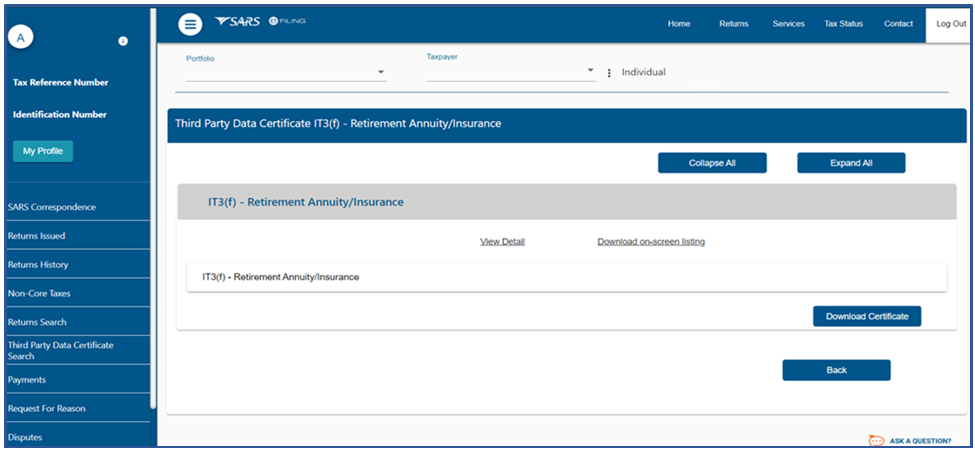
- Select the Expand All button. The data will be expended on the certificate.
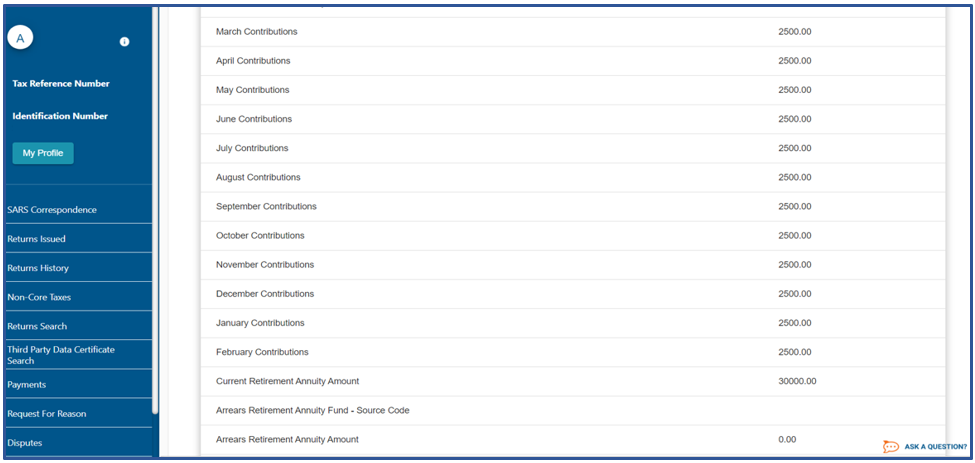
- The Collapse All button is selected to view the summary of the certificate data.
Warning Messages
To view and download third party data certificates related to your ITR12 Return via eFiling, the user must be a registered eFiler and activated for a tax type.
- Where your ITR12 (Personal Income Tax) tax type has not been activated on eFiling, the following error will be displayed
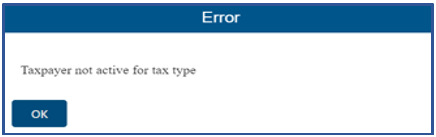
- On how to activate your tax type, refer to the following guide available on the SARS website: GEN-ELEC-18-G01 – How to register for eFiling and manage your user profile – External Guide
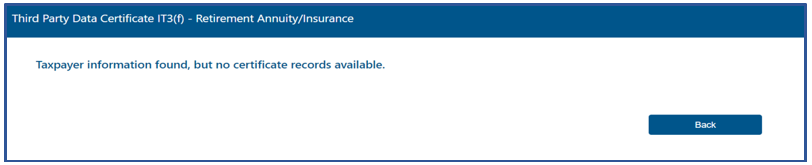
Where there is no certificate(s) found on the SARS records on the third-party data request you have made, the following error message will be displayed.
Third Party Data Provider
How to access Third-Party Data Files
- Login using your Username and Password to access eFiling. When you have logged in, the following screen will be displayed.
- Click on Services displayed as part of the main menu
- Click on Enrol 3rd Party Data displayed on the left menu
- Select Submission Dashboard from the menu option.
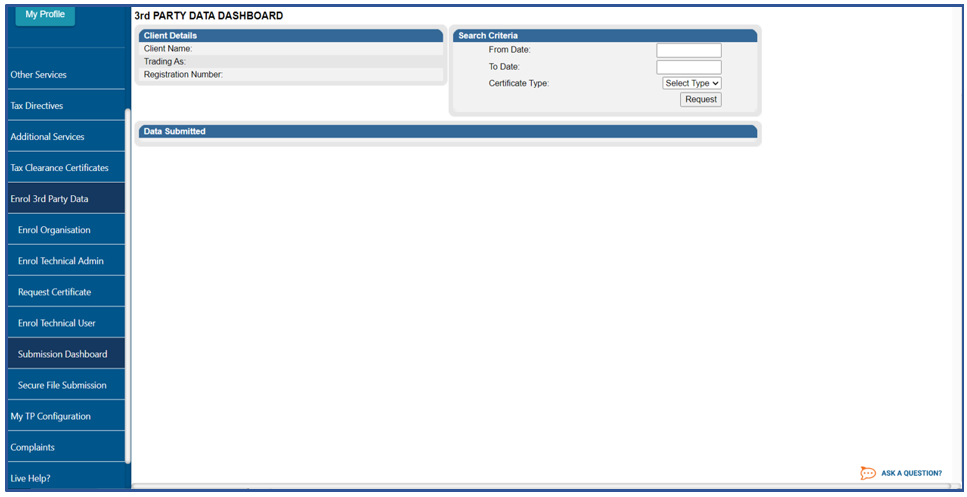
- The 3rd Party Data Dashboard will be displayed
Note: On this screen, third-party data providers may request data files and search for specific taxpayers or clients within a given file. Additionally, demographic information will be pre-populated and can only be updated through the RAV01 process. |
To access the applicable third-party data file,
- Select the applicable start date From Date and end date To Date.
- Select the applicable Certification Type
- Click on Request to request the data file(s)
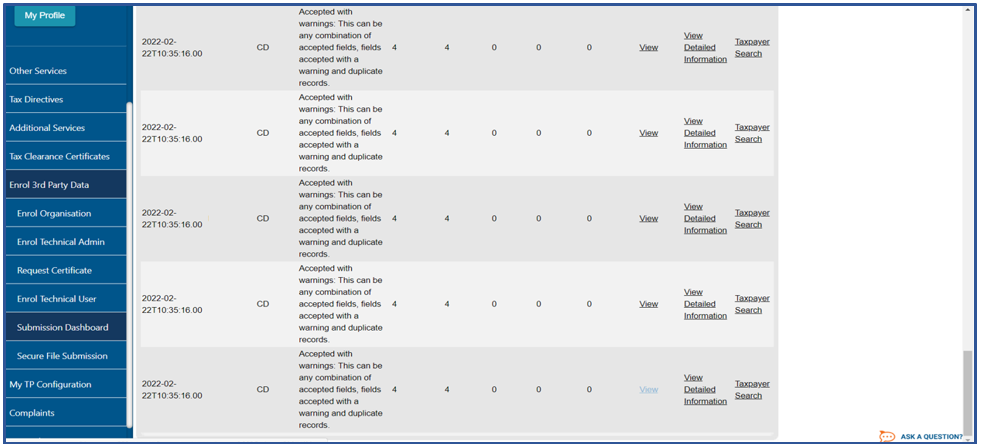
eFiling will list the applicable Data Submitted on the 3rd Party Data Dashboard.
- Note: The applicable file records will be listed
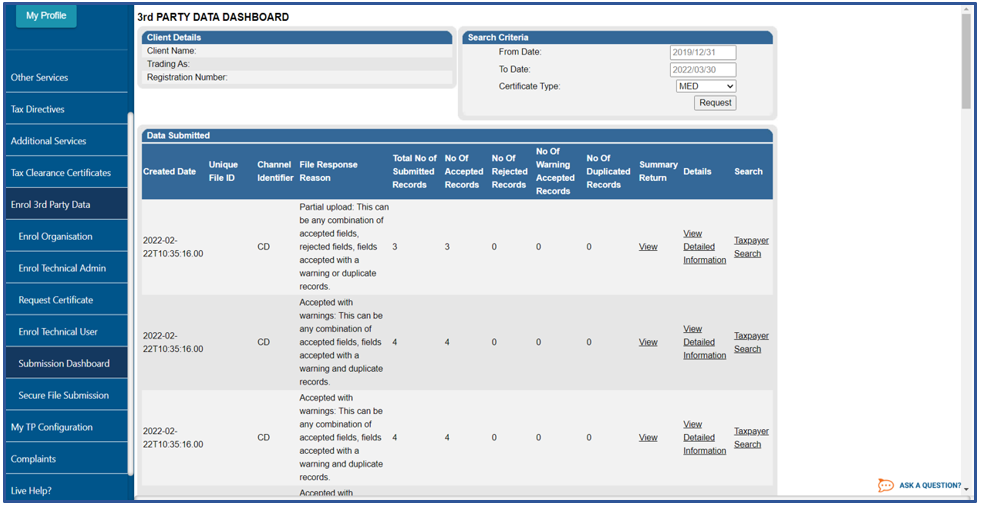
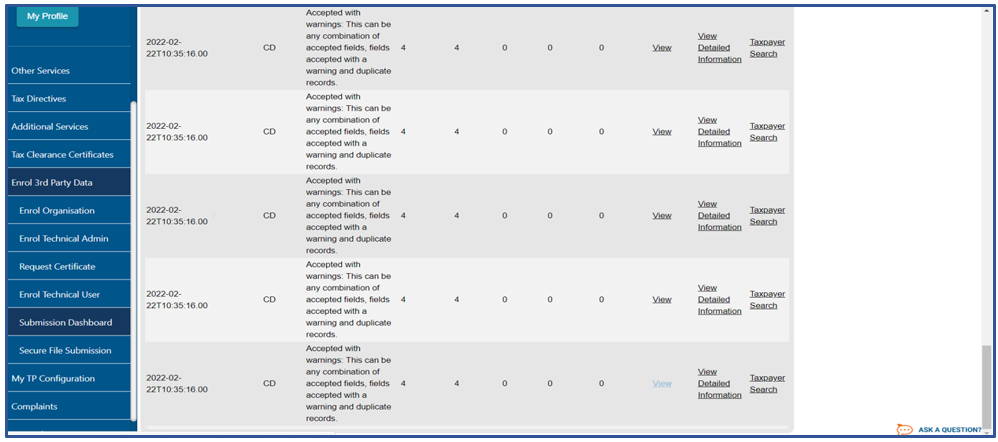
The hyperlinks displayed besides each record listed and its function are as follows:
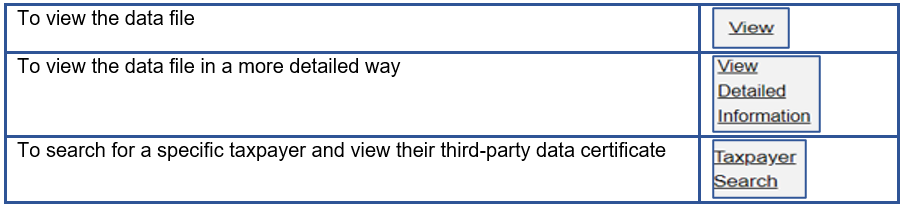
How to view a Third-Party Data File Submitted
- On the records listed on the 3rd Party Data Dashboard, selected the applicable data file.
- Once selected, on the applicable record, click on the View hyperlink
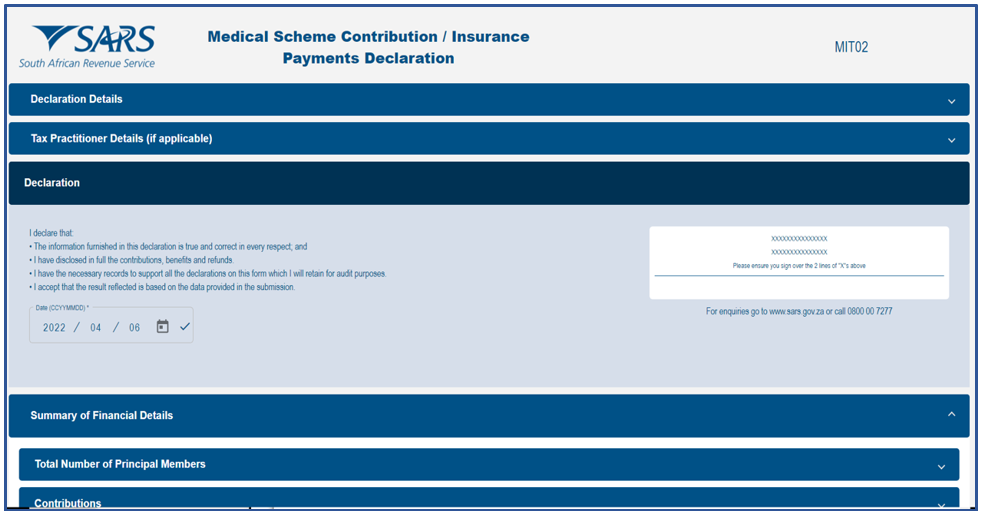
The summary Declaration return (in this case the MIT02) will be displayed. Note that this return cannot be updated.
Please note that if the user is not currently enrolled, guidance on enrolling a user as a technical user or administrator for your organization can be found in the external document available on the SARS website: GEN-ENR-01-G01 – Guide for the Submission of Third-Party Data Using the Connect Direct Channel – External Guide. |
How to View a Detailed Third-Party Data File
- To access comprehensive information about a third-party data file, the technical administrator or technical user should click the View detail information link next to the relevant data file listed on the 3rd Party data dashboard page.
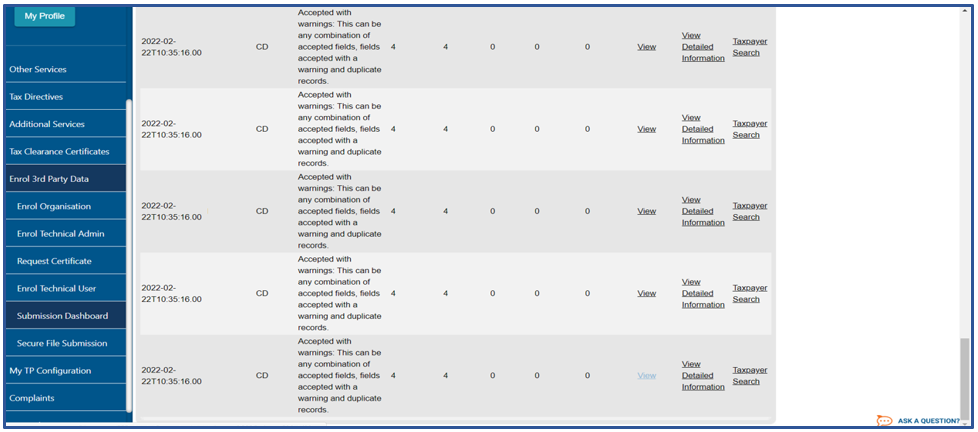
Once selected the Certificate Detailed Information page will be displayed.
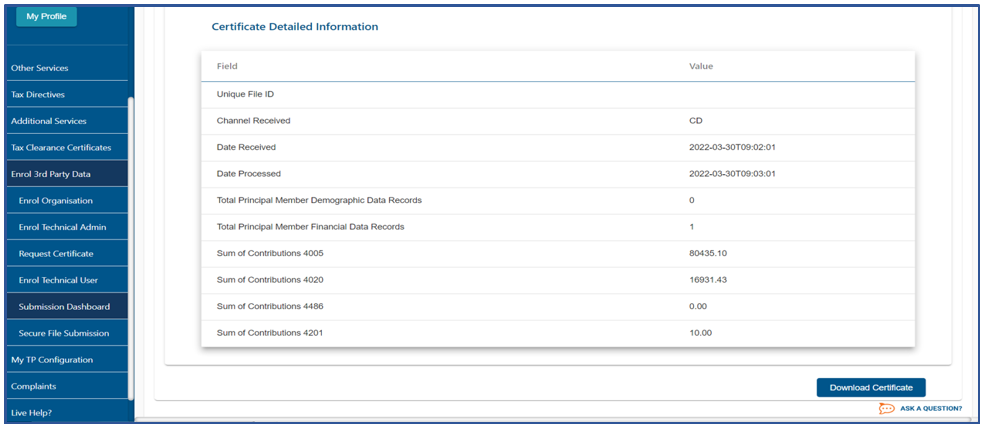
Note: The user can download the Detailed Certificate by clicking on the following button. |  |
How to Search for a Taxpayer’s Third-Party Data Certificate
The technical administrator or technical user may locate a taxpayer’s third-party data certificate by selecting the Taxpayer Search link next to the relevant data file entry on the 3rd Party data Dashboard page.
Once selected the Complete Search Criteria Request page will be displayed. Complete the listed fields displayed.
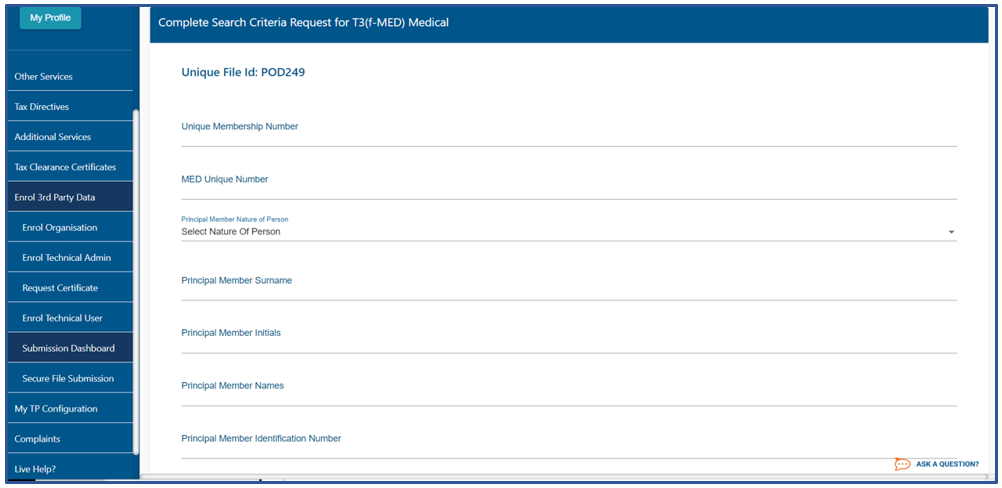
- Once completed, click on the Submit Query button displayed at the bottom of the form.
- The certificate details will be displayed.
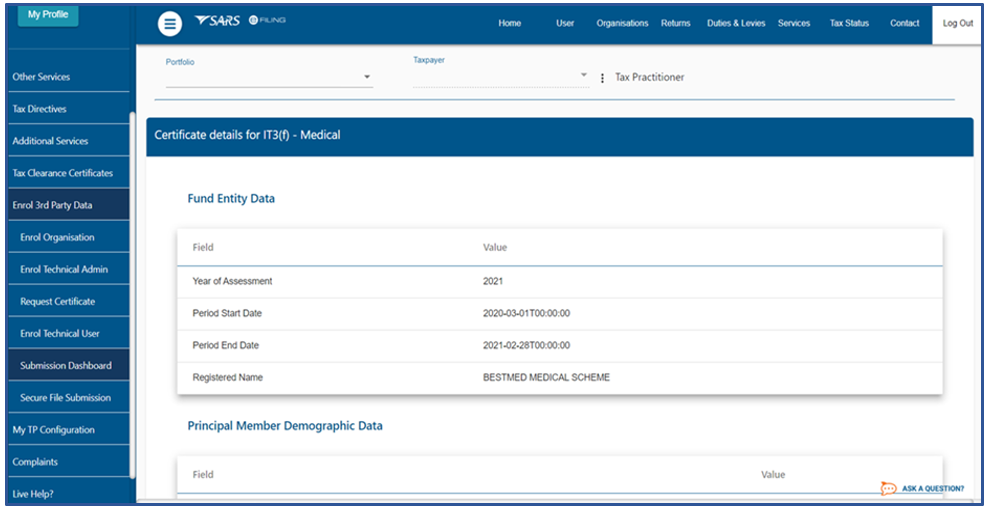
Note that the user can download the certificate by clicking on the Download Certificate button.
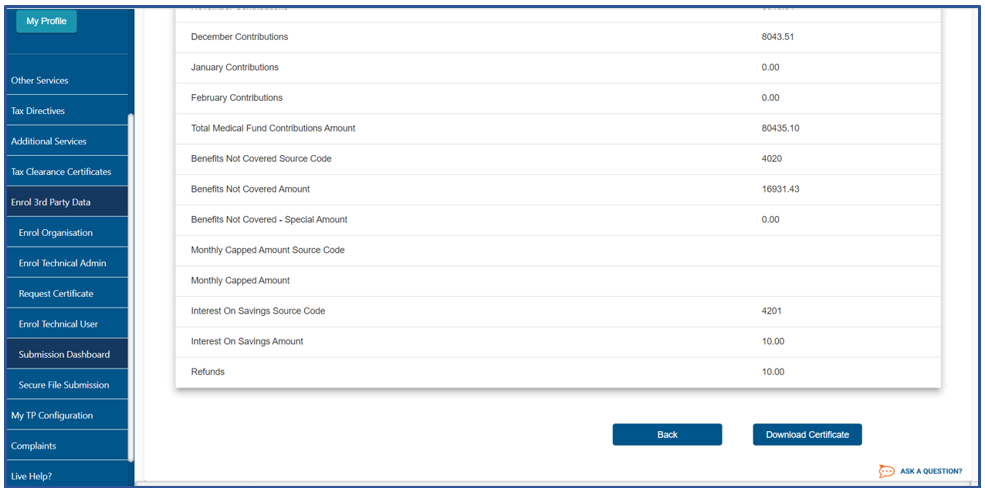
- The Back button will take the user to the previous screen
Tax Practitioner
How to view Third-Party Data Certificates of Individual Clients
- Login using your Username and Password to access eFiling.
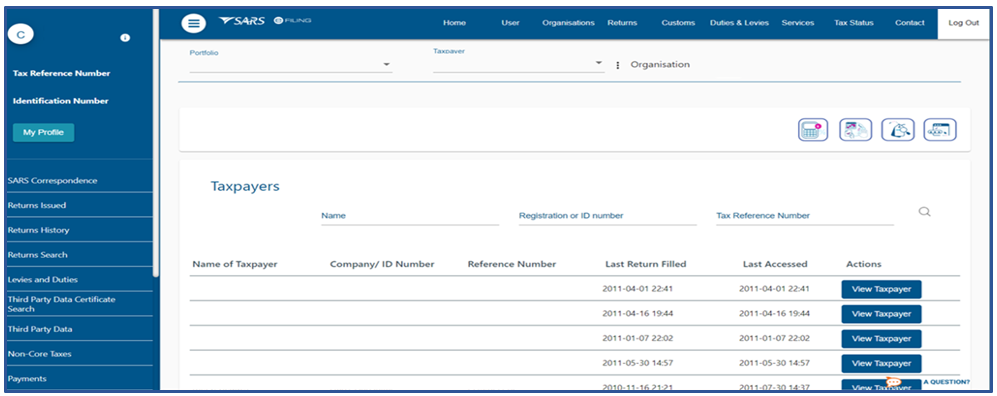
When you have logged in, the following screen will be displayed.
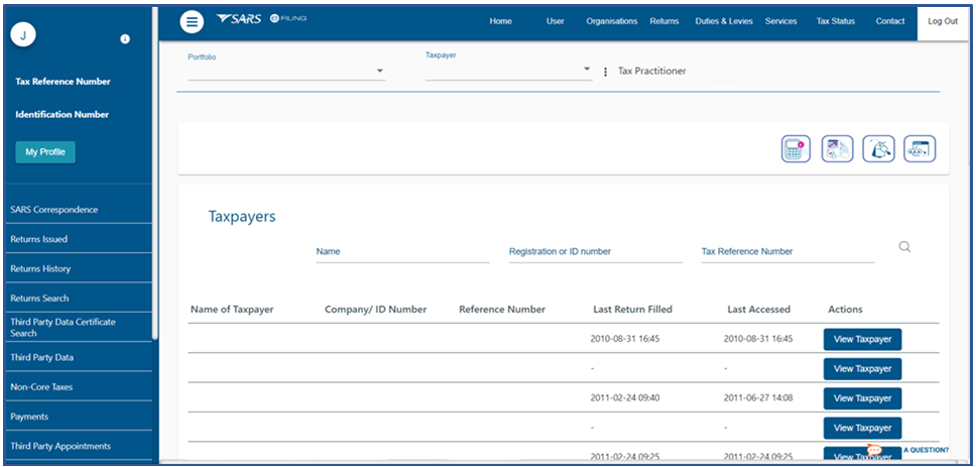
- Select the applicable Taxpayer by clicking View Taxpayer on the row detailing the information of the Taxpayer.
The profile eFiling screen of the selected Taxpayer will be displayed.
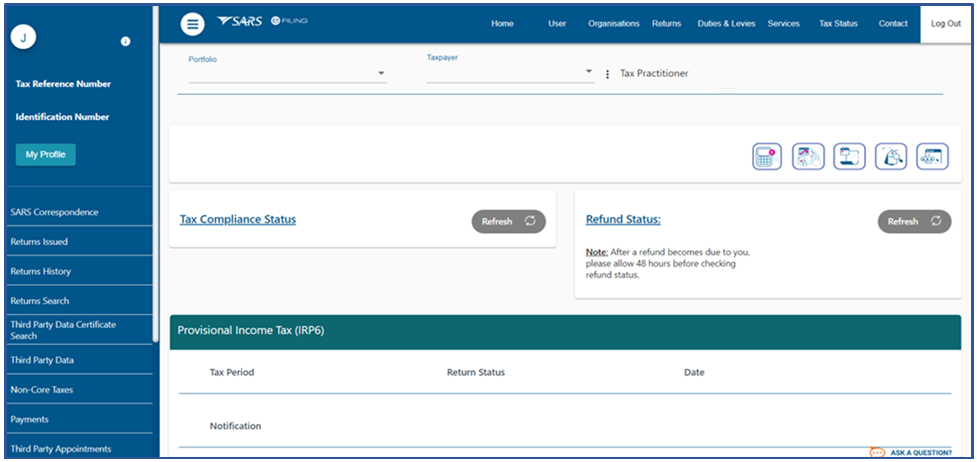
- Click on Third party Data Certificate Search displayed on the left menu option.
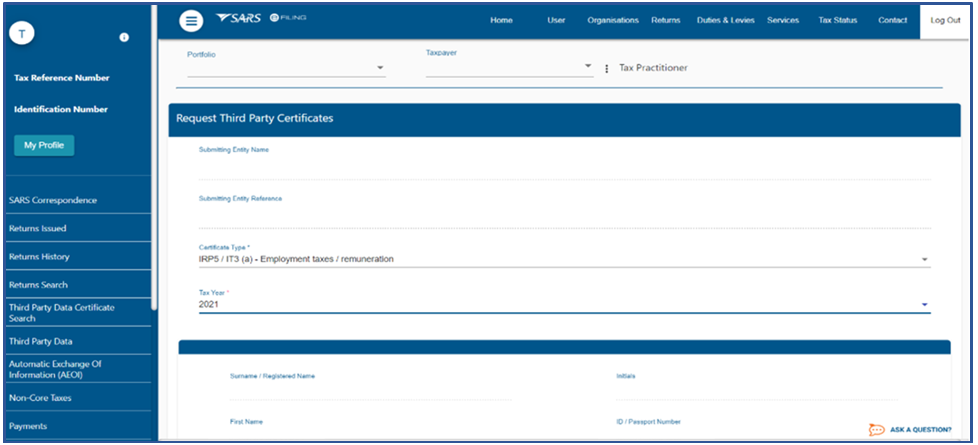
This profile works the same way as an individual taxpayer profile. So, follow the steps explained in section above on how individual taxpayers can view their third-party data certificates.
How to view Third-Party Data Files of Tax Practitioners
Tax practitioners are as organizational profile when viewing third party data
- Login using your Username and Password to access eFiling.
When you have logged in the following screen will be displayed.
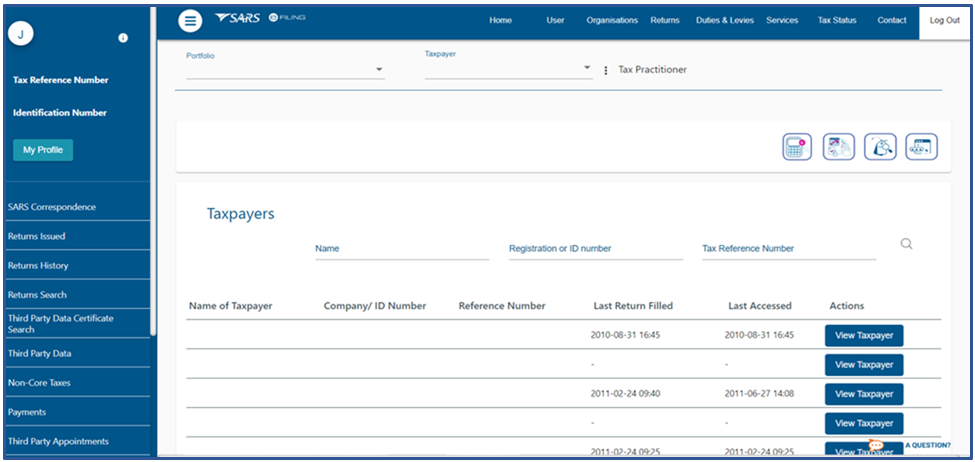
- Click on Services displayed on the main menu
To navigate to the Data Submitted screen, proceed as follows:
- Click on Enrol 3rd Party Data
- Select and click on Submission Dashboard, the following screen will be displayed.
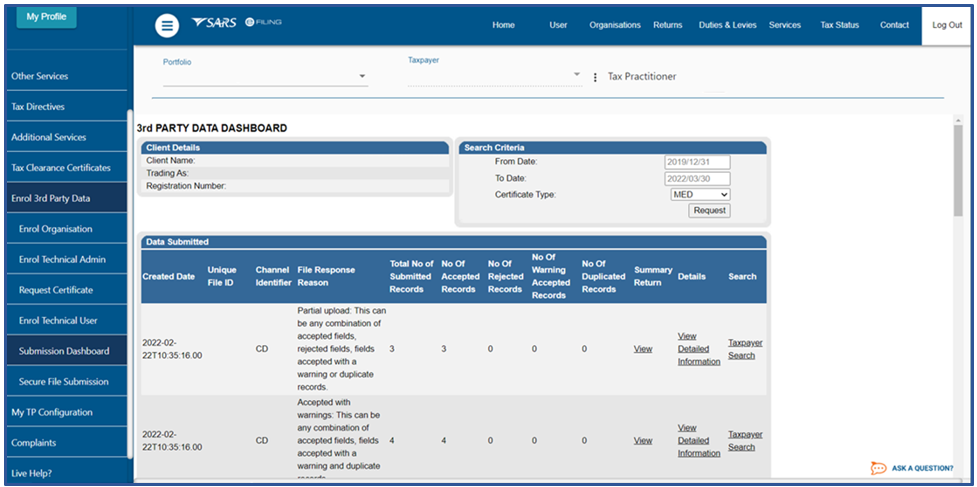
This profile operates in a manner consistent with that of an organisational profile. Please refer to section above for guidance on viewing and updating third-party data files as a third-party data provider user.
Definitions, acronyms and abbreviations
The definitions, acronyms and abbreviations can be accessed here – Glossary webpage.
Legal disclaimer: In the event of conflict or inconsistency between this webpage and the PDF version of the guide, the latter shall prevail.