
Purpose
The purpose of this webpage is to provide clear and practical guidance on the submission and processing of Air Passenger Tax (APT) registration applications for operators liable in terms of the Customs and Excise legislation.
This webpage supports a consistent, secure, and efficient approach to the administration and management of APT registrations by SARS, ensuring that all stakeholders understand the requirements and processes involved.
Scope
This webpage applies to all Air Passenger Tax (APT) registration-related applications administered by SARS and includes guidance on the following processes:
- Submission of new electronic applications for APT registration
- Withdrawal or cancellation of existing APT registrations
- Amendments to an APT operator’s registered details
- Renewal of APT registrations
In addition, this webpage covers the submission of APT registration applications through SARS eFiling and SARS Customs Branch Front End channels, as well as the associated validation, investigation, processing, and approval activities required to support APT compliance.
Log in to eFiling
To access the eFiling platform, the user needs to visit the SARS website, click on the eFiling icon and enter his/her login details.
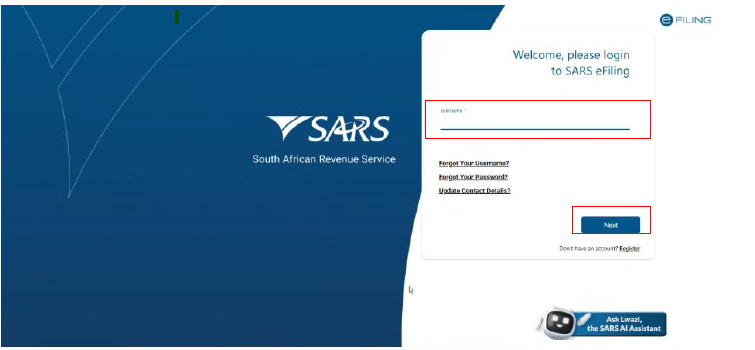
- To log to the user must :
- Insert username; and
- Click Next.
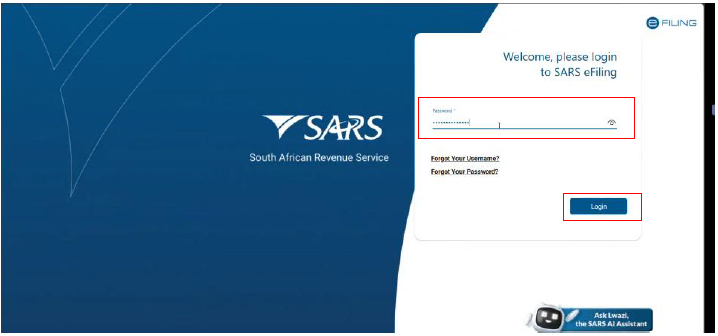
- The user must:
- Insert Password; and
- Click Login.
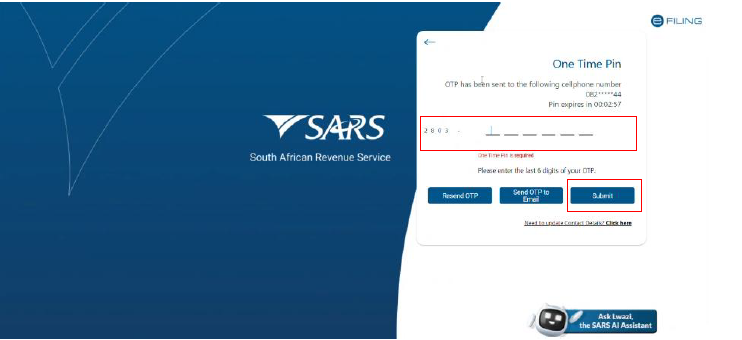
- The user must:
- Insert One Time Pin sent to their preferred communication method; and
- Click Submit.
Taxpayer Portfolio Selection
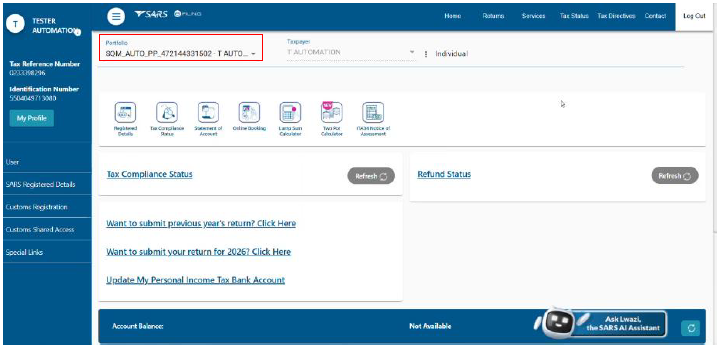
- The user must click on the Portfolio dropdown
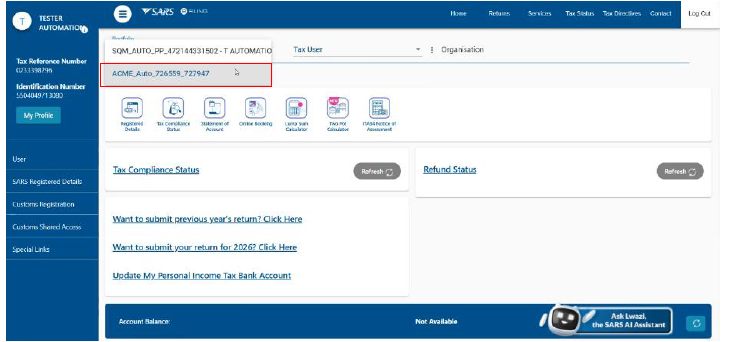
- The user must select the required portfolio from the list provided,
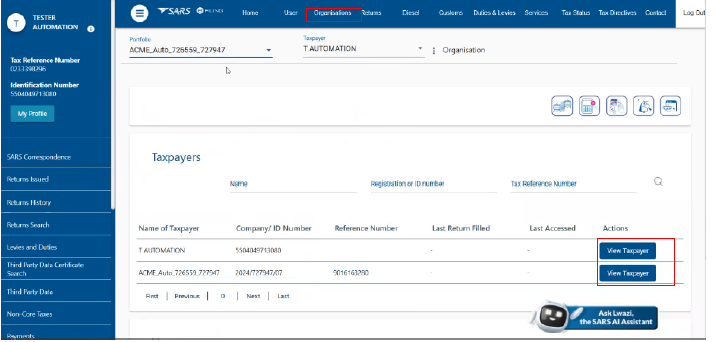
- The user must
- Click on Organisation on the ribbon, and
- Click on the View Taxpayer button along taxpayer details listed at the bottom of the screen.
Activation of Registration Representative
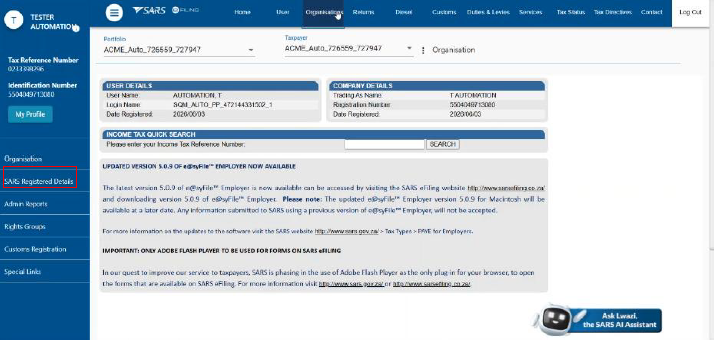
- The user must click on SARS Registered Details on the menu bar.
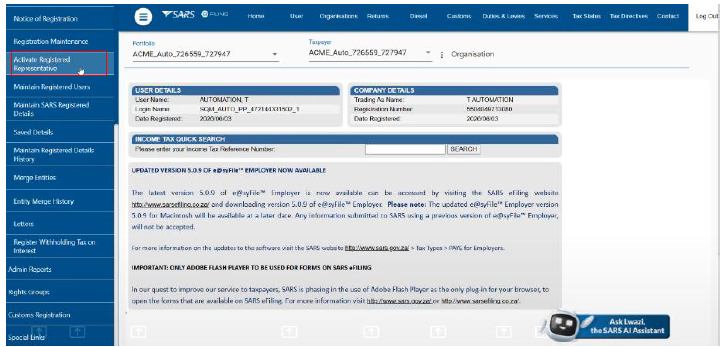
- The user must click on Activate Registered Representative on the menu bar.
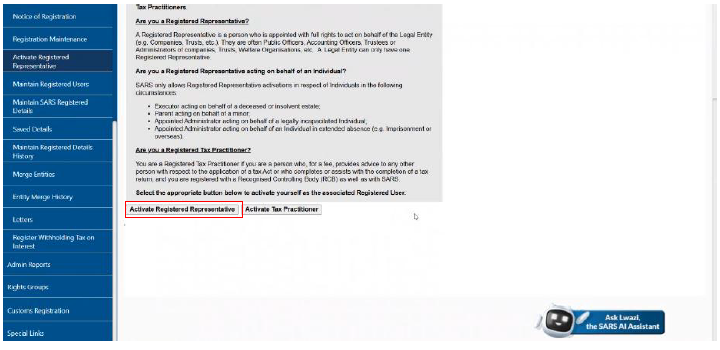
- The user must click on Activate Registered Representative button.
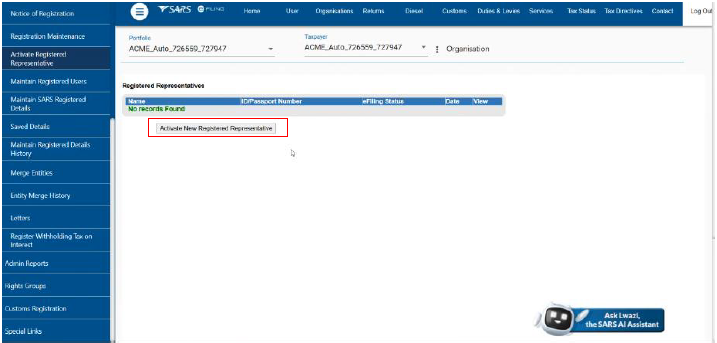
- The user click new registered representative button
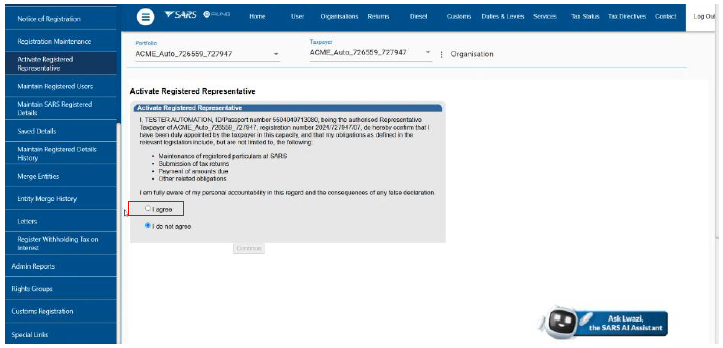
- The user must confirm that they are aware of the accountability and what happens if they provide SARS with false information. If they are happy to confirm then they click on radio button next to I agree,
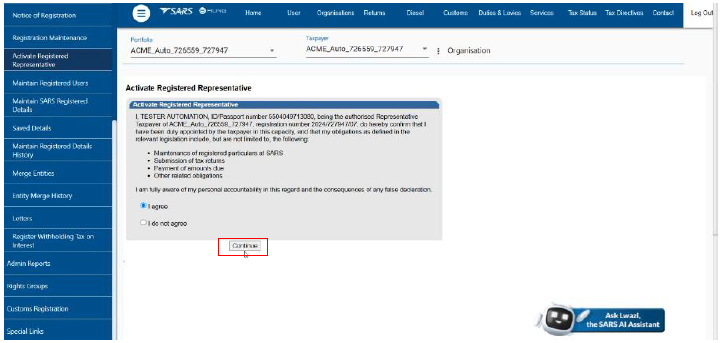
- The user must click on Continue to proceed with the activation,
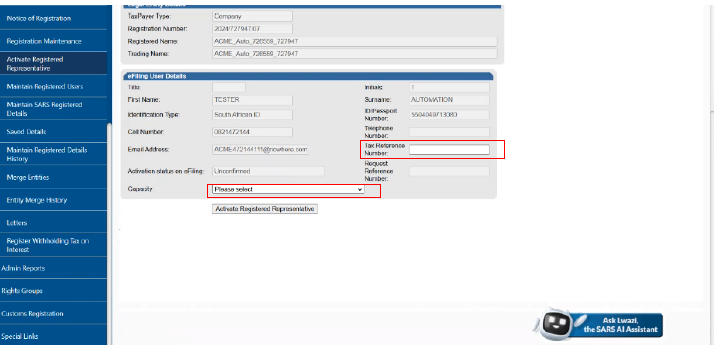
- The user must:
- Insert the Tax Reference Number; and
- Click on the Capacity drop down field.
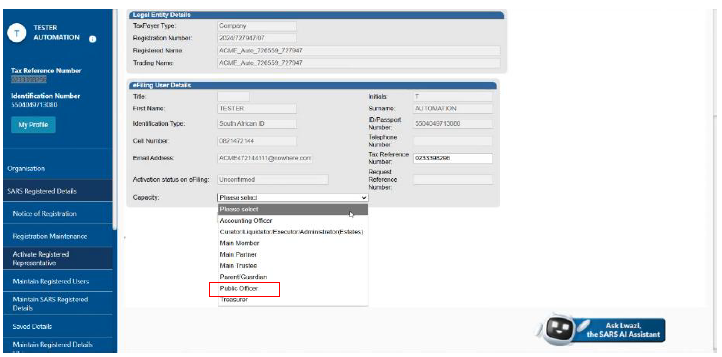
- The user must click on the Public Officer on the drop-down menu,
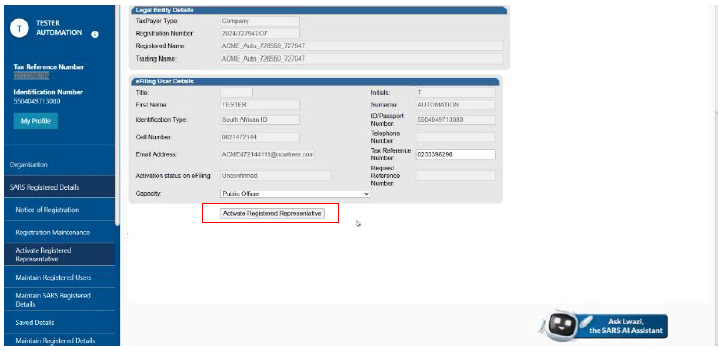
- The user must click on Activate Registered Representative on the menu
APT Registration
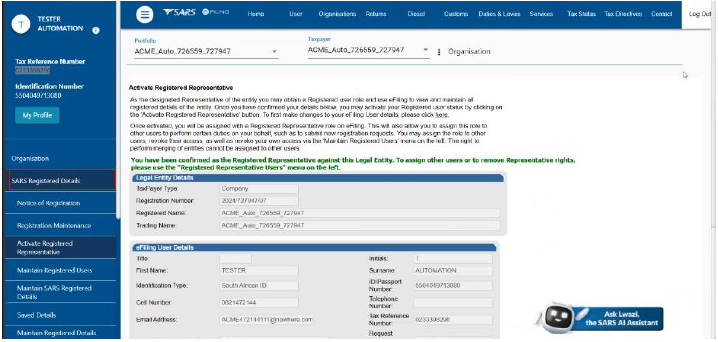
- The user must click on SARS Registered Details on the menu
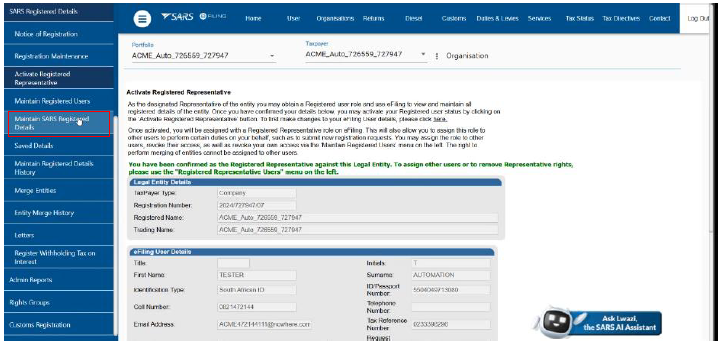
- Then click on Maintain SARS Registered Details menu
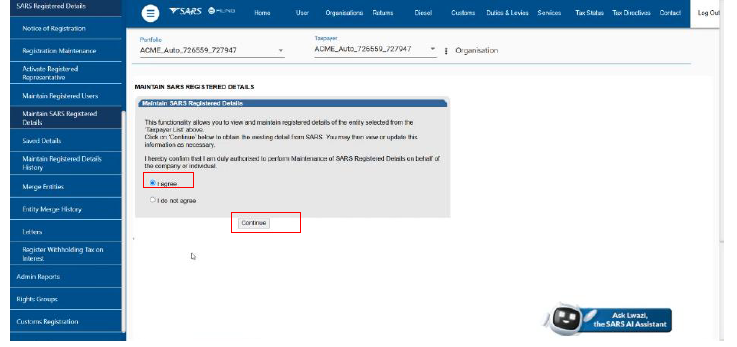
- The user must:
- First confirm if they are authorised by clicking the radio button next to I agree; and
- Click Continue.
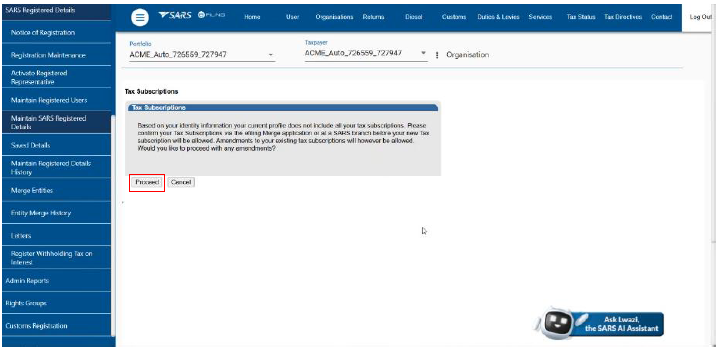
- The user must click Proceed
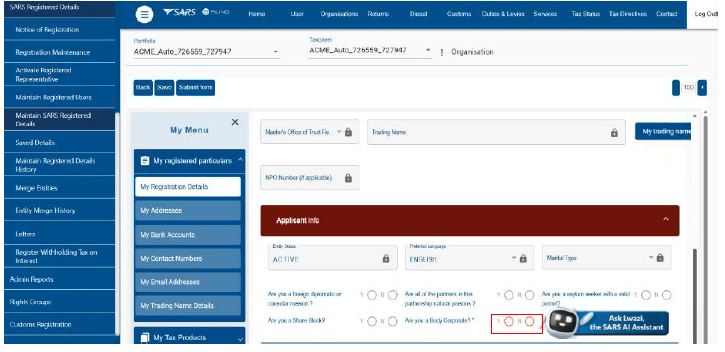
- The user must provide an answer to the question regarding body corporate and Click No.
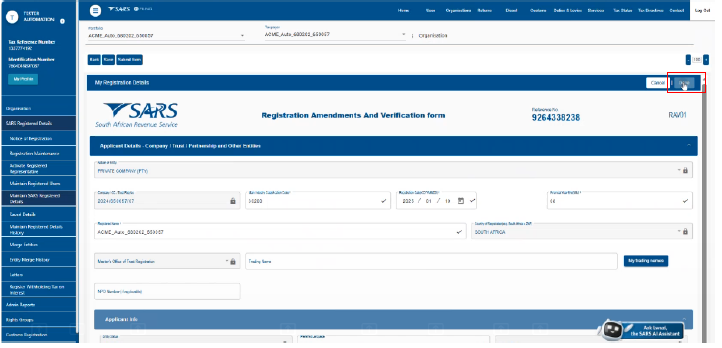
- The user must click Done at my registration details tab.
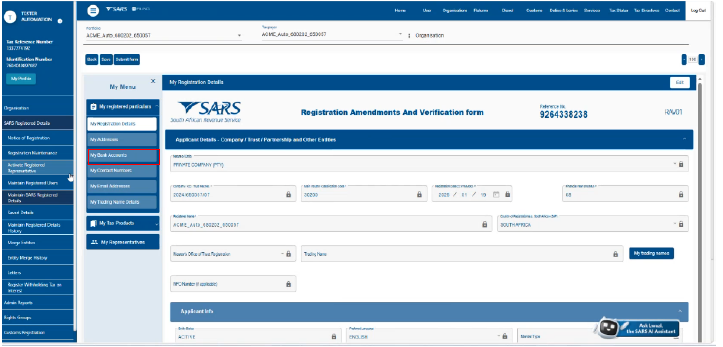
- The user must click on the My Bank Account to amend or capture new bank details
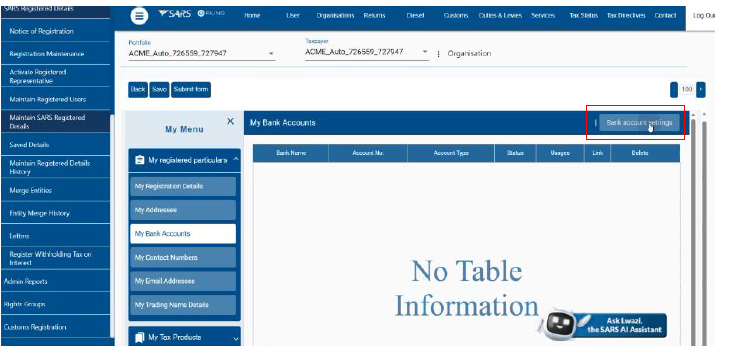
- The user must click on bank account settings button,
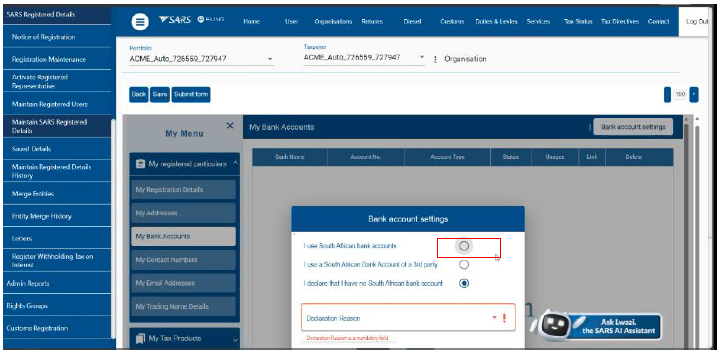
- The user must click on radio button next to I use south African Bank account and select the relevant declaration status by selecting the relevant options on the declaration reason drop down arrow.
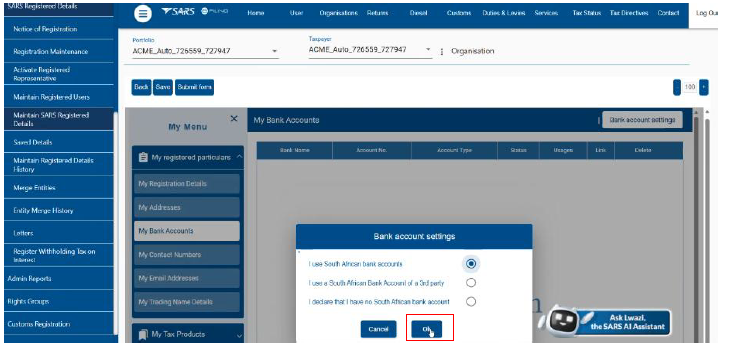
- The user must click OK button
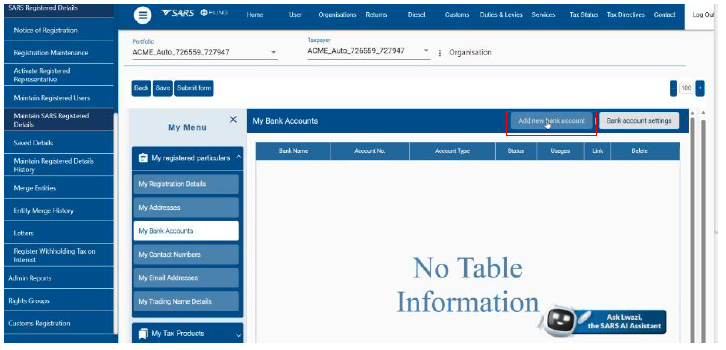
- The user must click my bank account on the My meu and then click on Add New Bank Account button to add one.
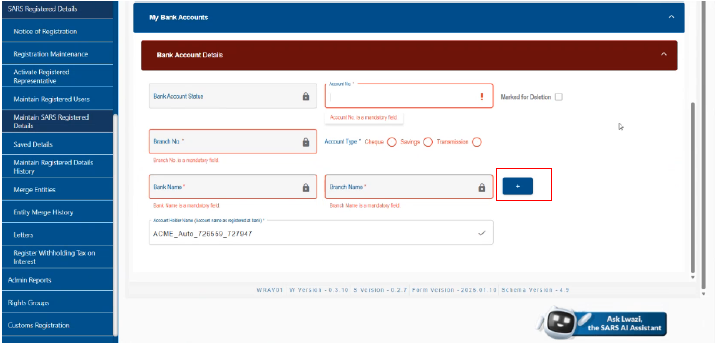
- The bank details window opens up and the user must click on the plus sign to populate the details,
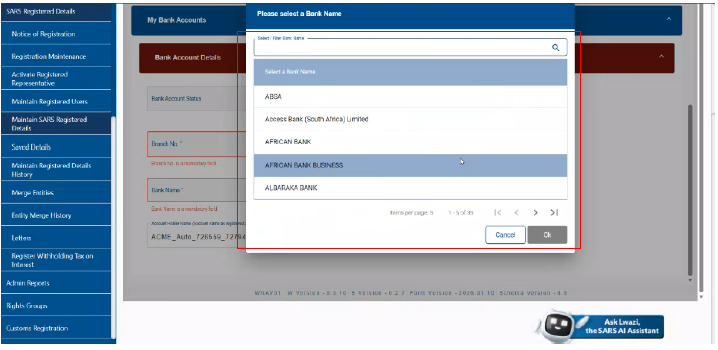
- The user must:
- Select the banking institution from the list provided; and
- Click Ok button
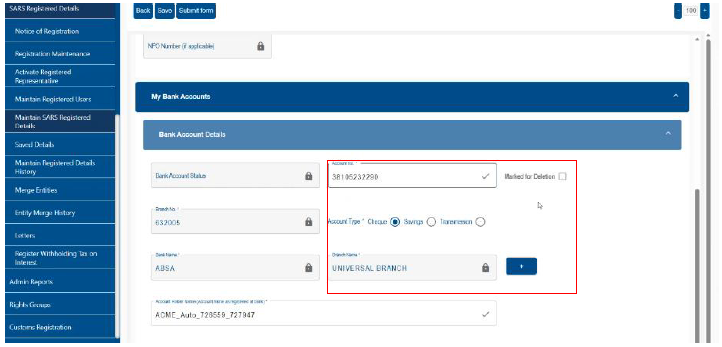
- The user must:
- Select the account type;
- Insert the account number; and
- Click on the Plus Sign button.
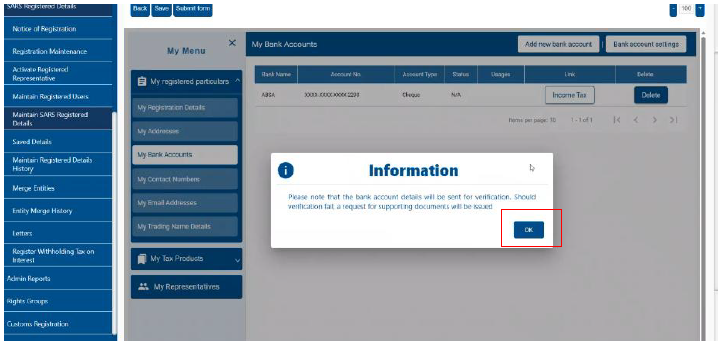
- The user must take note of the warning on the information box and then click ok button,
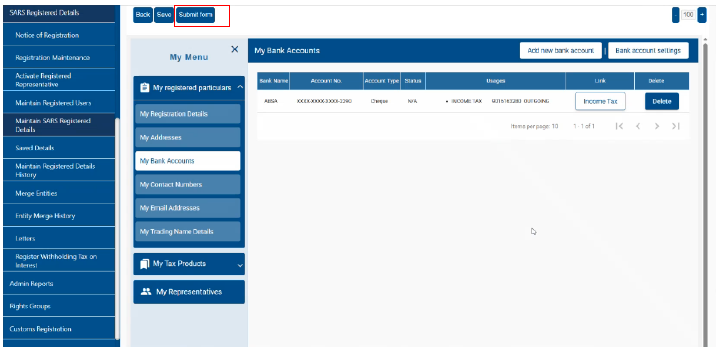
- The user must click on submit form button
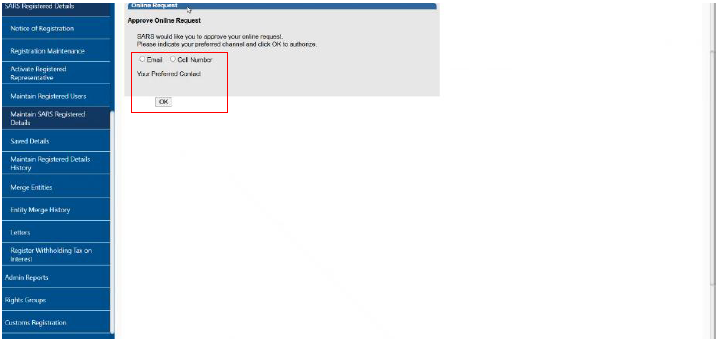
- The user must click:
- Select email; or
- Cell number; and
- Click ok button.
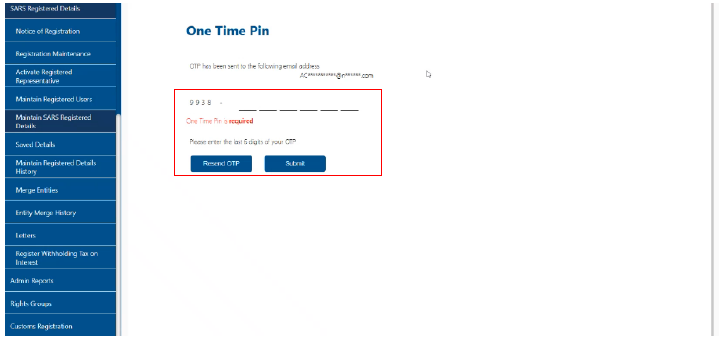
- The user must:
- Insert the OTP Code; and
- Click Submit button.
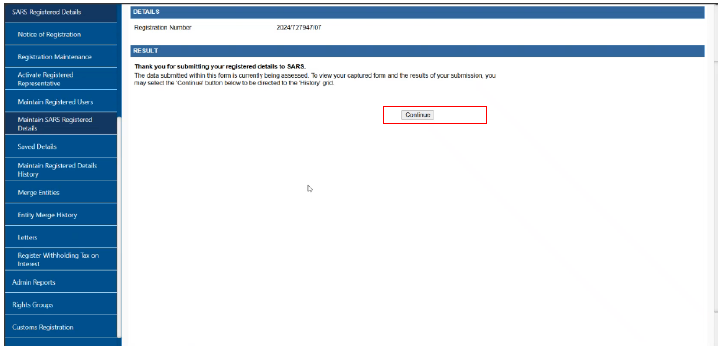
- The user must click Continue to view the captured form and results of user’s submission,
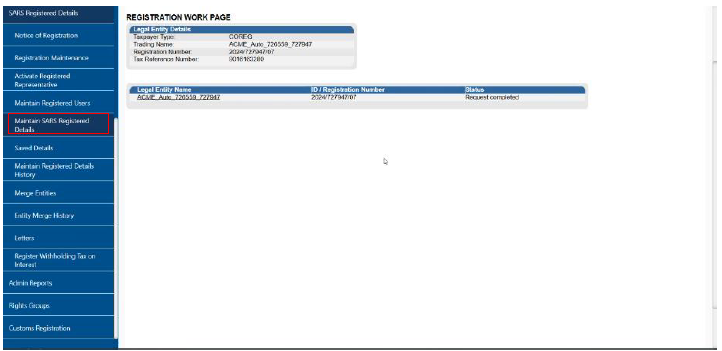
- To update contact details the user must click on Maintain SARS Registered details under the SARS registered details menu,
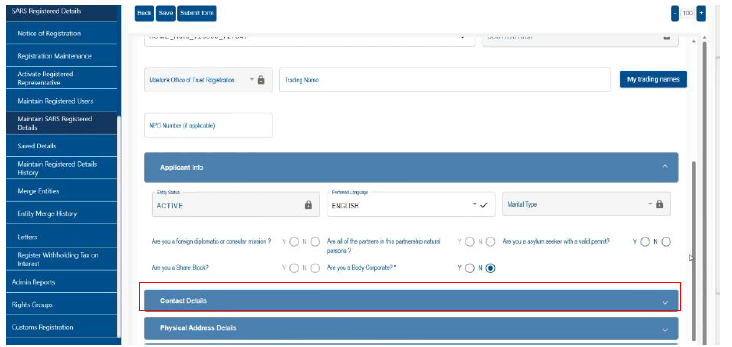
- Click on the contact details tab,
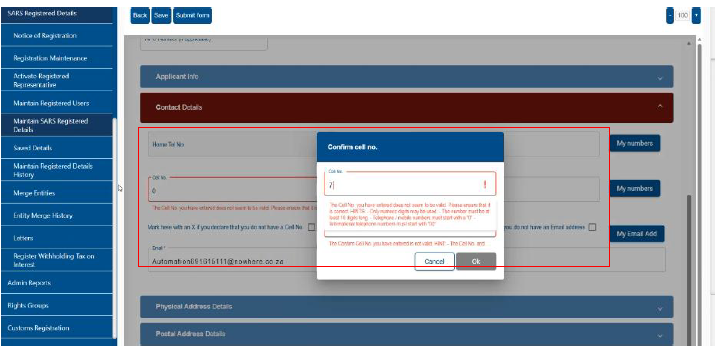
- The user must:
- Insert the cell phone number as well as confirm it; and
- Click ok button.
- The user must further:
- Insert the email address; and
- Click ok button.
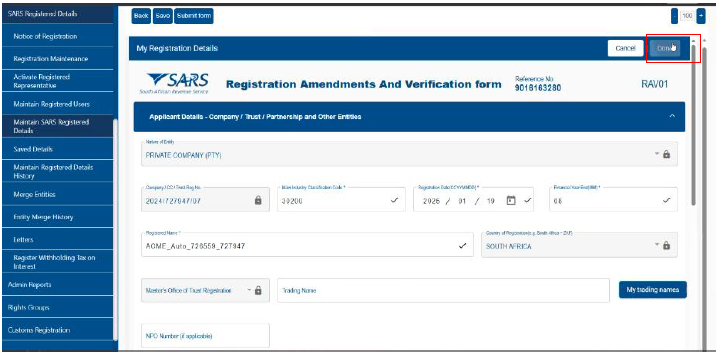
- The RAV01 form will appear with captured information so that the user can confirm and after confirmation the user must :
- Click Done ; and
- Submit Form.
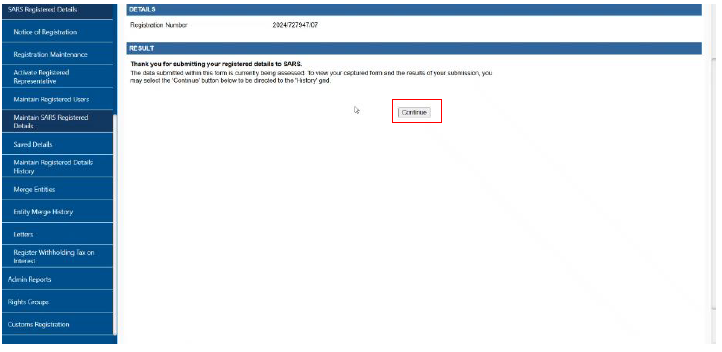
- The must click the Continue button to view the capture information and results of submitted contact details.
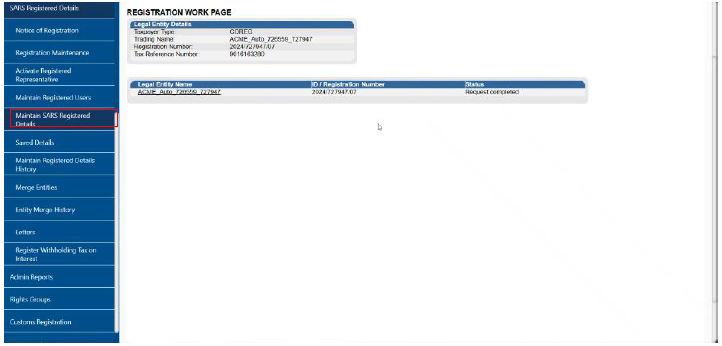
- The user must click on Maintain SARS Registered Details
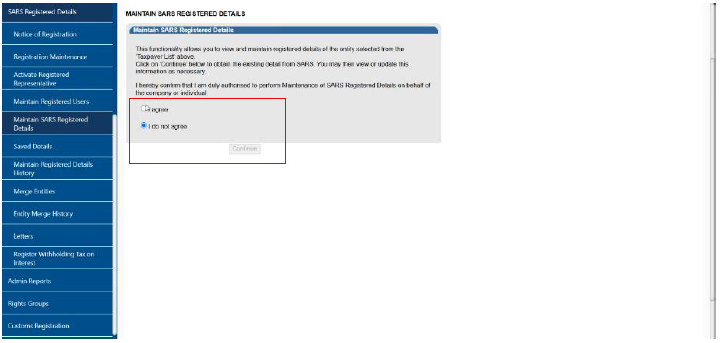
- The user must:
- First confirm if they are authorised by clicking the radio button next to I agree; and
- Continue.
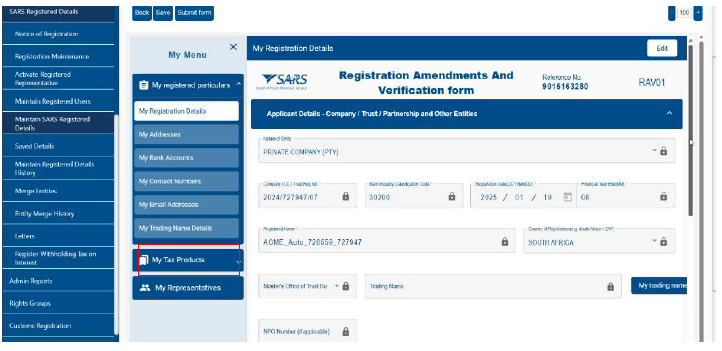
- The user must click on My Tax Products to register APT,
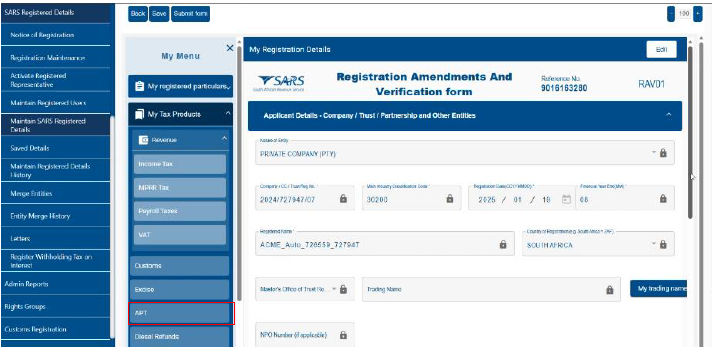
- The user must click on APT on the tax products menu, and
- Capture the applicants’ details on the registration form,
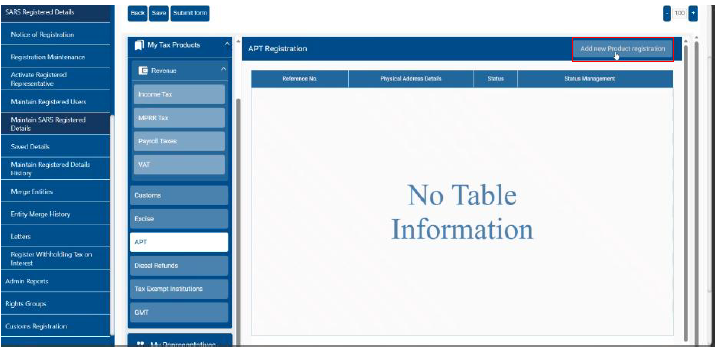
- The user must click on New Product Registration

- The user must read the information box and click the Ok button,
Air Passenger Tax Liability Type
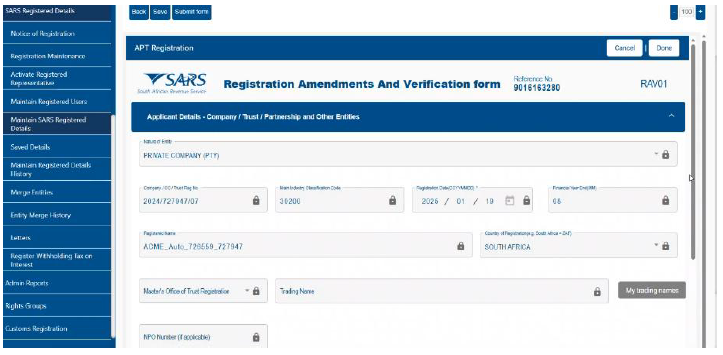
- The user must:
- Fill in all the applicant’s details on the registration form; and
- Click done.
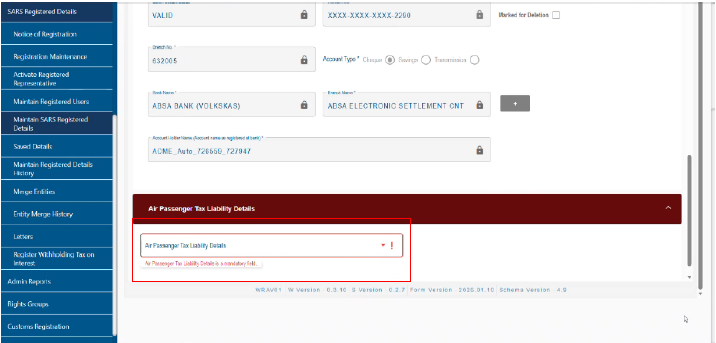
- The user must select the APT liability types by clicking on the dropdown.
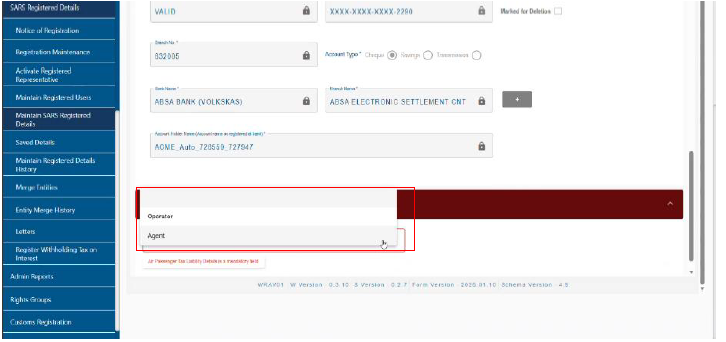
- The user must choose the type of client from the dropdown list:
- Operator; or
- Agent.
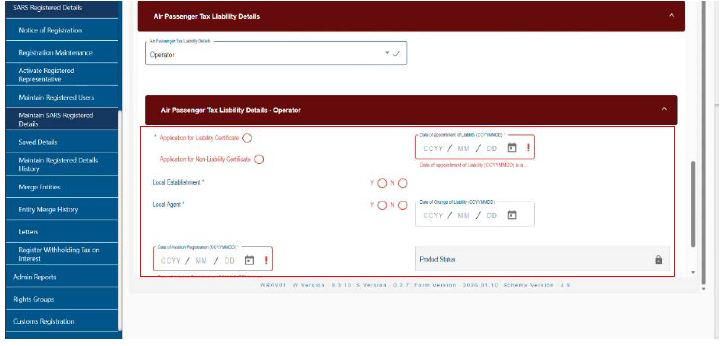
- The user must:
- Capture all the necessary information regarding the APT liability details; and
- Click done.
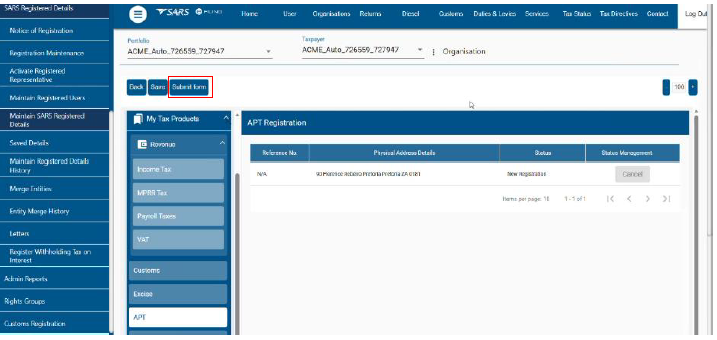
- The user must click on submit form, after confirming the registration details are correct,
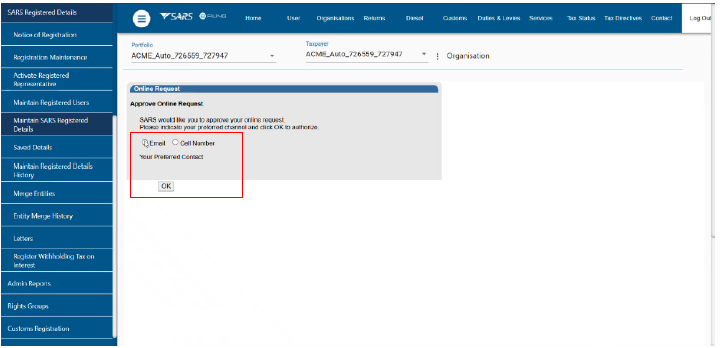
- The user must click on the appropriate radio button to select the preferred communication method, between:
- Email; or
- Cell phone; and
- Click Ok button
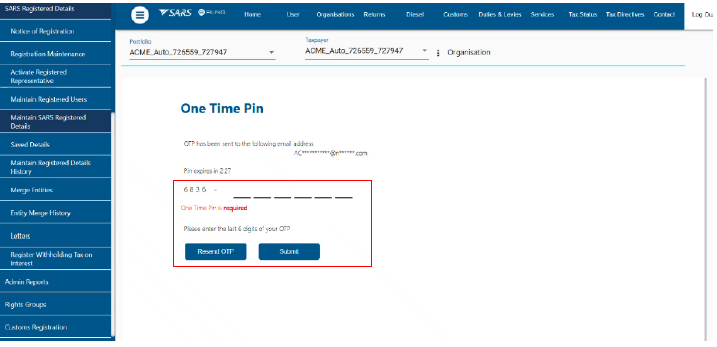
- An OTP will be issued to the email address or cell phone registered. On receipt, the user must:
- Insert the OTP Code; and
- Click Submit button.
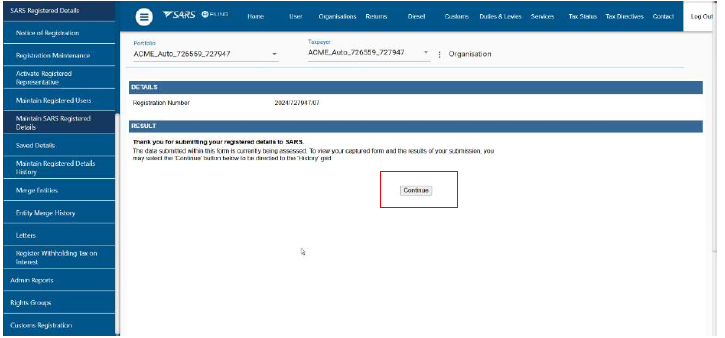
- The confirmation of successful registration will appear, and the user must click the Continue button.
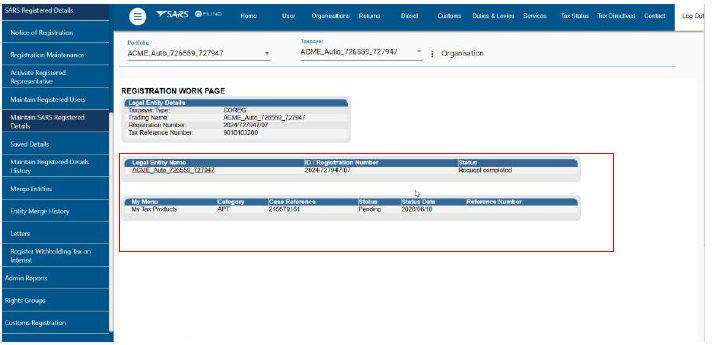
- The user must keep the application case reference number for future use
Definitions, acronyms and abbreviations
The definitions, acronyms and abbreviations can be accessed here – Glossary webpage.
Legal disclaimer: In the event of conflict or inconsistency between this webpage and the PDF version of the guide, the latter shall prevail.