
Purpose
The purpose of this webpage is to assist taxpayers to initiate a payment arrangement request on SARS Mobi App for outstanding debt.
Introduction
- One of the 9 SARS strategic objectives is “Making it easy for Taxpayers to Comply” and in support of this objective, SARS digital channel (Mobi App) has been enhanced with the functionality to enable Taxpayers to request Deferral Payment Arrangements.
- This functionality is available on the SARS Mobi App digital channel to allow the taxpayer (Individuals)to make a payment arrangement request for Personal Income Tax (PIT) without the need to visit a SARS branch or contact the SARS Contact Centre on 0800 00 7277.
- On the SARS Mobi App, the payment arrangement request functionality will be limited to Personal Income Tax (PIT).
Payment Arrangement Request Submission Process
- Log on to the SARS Mobi App and navigate to where there is outstanding debt against an assessed return in order to initiate the payment arrangement request. A payment arrangement request can be initiated from any of the following places where there is outstanding debt and only one tax type request
at a time will be allowed:- Statement of Account (SOA)
- Return Work-Page
- Notice of Assessment
- Final demand letter
- Final demand reminder letter.
- Once a payment arrangement request has been initiated, you will be presented with the auto-simulated payment plan to either accept, save, cancel or propose different terms;
- Accept – If you accept the simulation, you make a declaration that you have read and understood the agreement by selecting the checkbox. A check is done to see if supporting documents are required.
- Save – If you save, the simulation will be saved and you will be able to view the simulation at a later stage ( before midnight ).The simulation will only be saved up until midnight, therefore if the payment arrangement request is not finalised before midnight, then the simulation will be discarded and a re-simulation will be required
- Cancel – If you cancel the auto-simulation, it will be discarded/deleted and you will have to start the process from beginning if you want to request for a payment arrangement
- Propose terms – If you propose different terms, then you will be asked to provide the payment term.
- A series of primary validation checks will be done against the tax reference number and the tax type when initiating a payment arrangement request. If the taxpayer fails these primary validations as mentioned below, the taxpayer will not be able to proceed with the payment arrangement request and the applicable validation error message(s) will be displayed. The taxpayer will then have to contact SARS in order to rectify the error as displayed.
- Validation checks:
- Where a taxpayer has outstanding return(s)
- Where a taxpayer has a pending approval payment arrangement request or an active payment arrangement request for the tax type in question
- Where taxpayer has no debt / debit balance / unallocated credit on the account
- Where a taxpayer has defaulted a previous payment arrangement
- Taxpayer marked as “Address Unknown”, “Estate” or ‘Inactive’ deregistered or untraceable.
Payment Arrangement Functionality
- A new tab labelled “Payment Arrangement” to initiate the payment arrangement request has been added to the following areas on SARS Mobi App, where there is outstanding debt:
- Statement of Account (SOA)
- Return Work-Page
- Notice of Assessment
- Final demand letter
- Final demand reminder letter.
Initiate Payment Arrangement Request
Access Payment Arrangement tab from Statement of Account
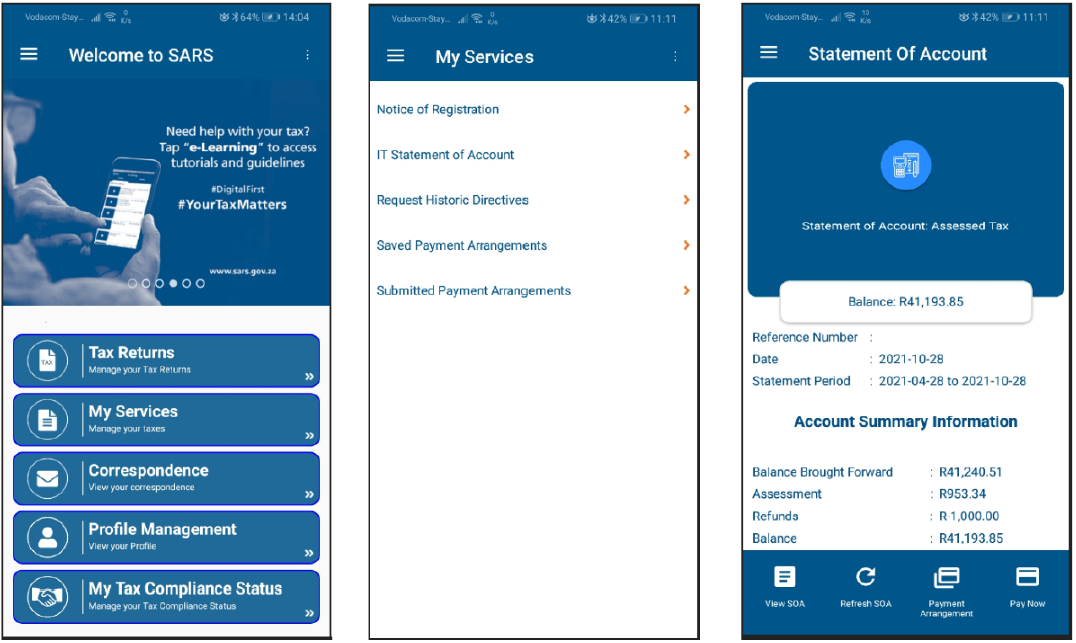
- Once you have successfully logged in to SARS Mobi App, follow the steps below to access your payment arrangement tab from Statement of Account:
- Select <My Services> from the menu
- Select <IT Statement of Account> from the menu
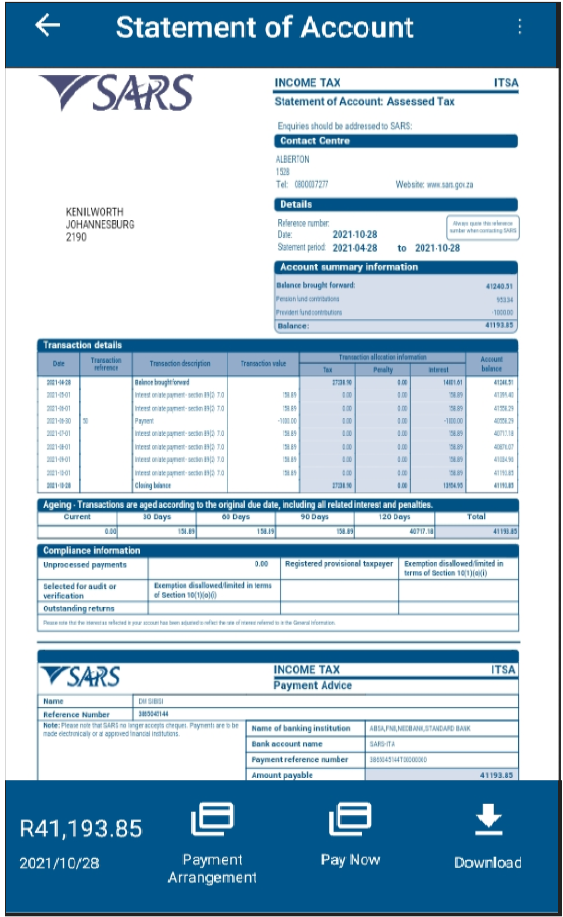
- Payment arrangement tab may be accessed either from the Account Summary Information page or from the SOA PDF screen:
- From the Account Summary Information page, Tap <Payment Arrangement> tab
- To access the payment arrangement tab from the SOA PDF screen, Tap <View SOA>from the Account Summary Information page and then tap <Payment Arrangement>
Access Payment Arrangement tab Work Page
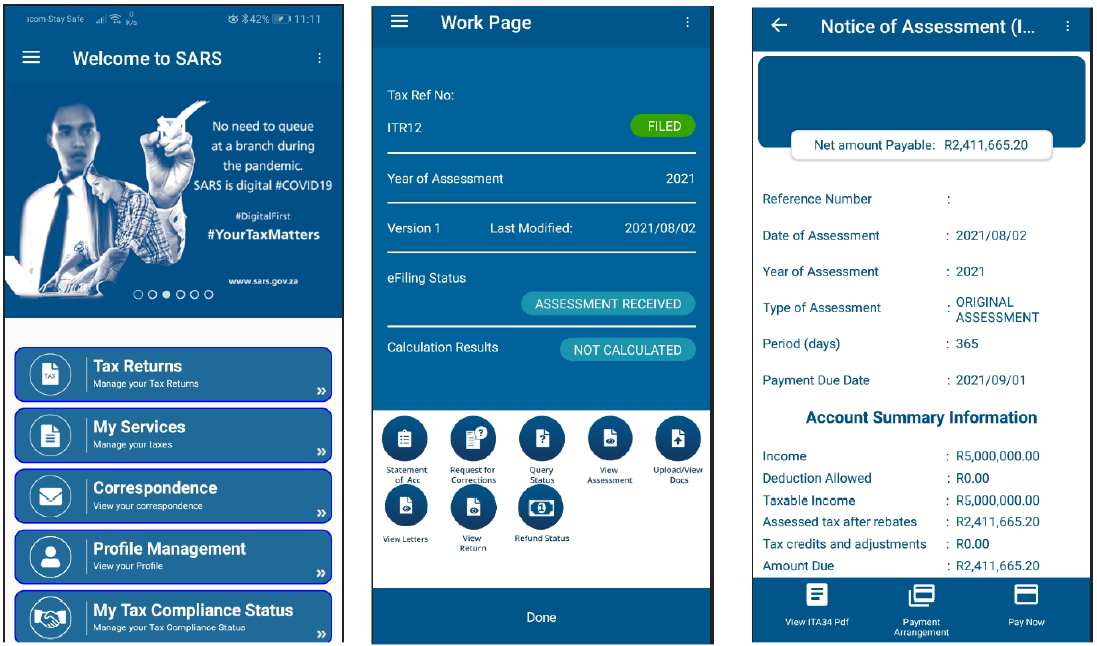
- The work page provides two options to access the payment arrangement tab, either from the Statement of Account or from the Notice of Assessment.
- Follow the steps below to access your Payment Arrangement tab from the Statement of Account:
- Select <Tax Returns> from the landing page
- Tap <Statement of Account> option from the work page. The Account Summary Information page will be displayed
- Tap <Payment Arrangement> tab from the Account Summary Information
- To access the <Payment Arrangement >tab from the SOA PDF screen, tap <View SOA> from the Account Summary Information page and then tap <Payment Arrangement>
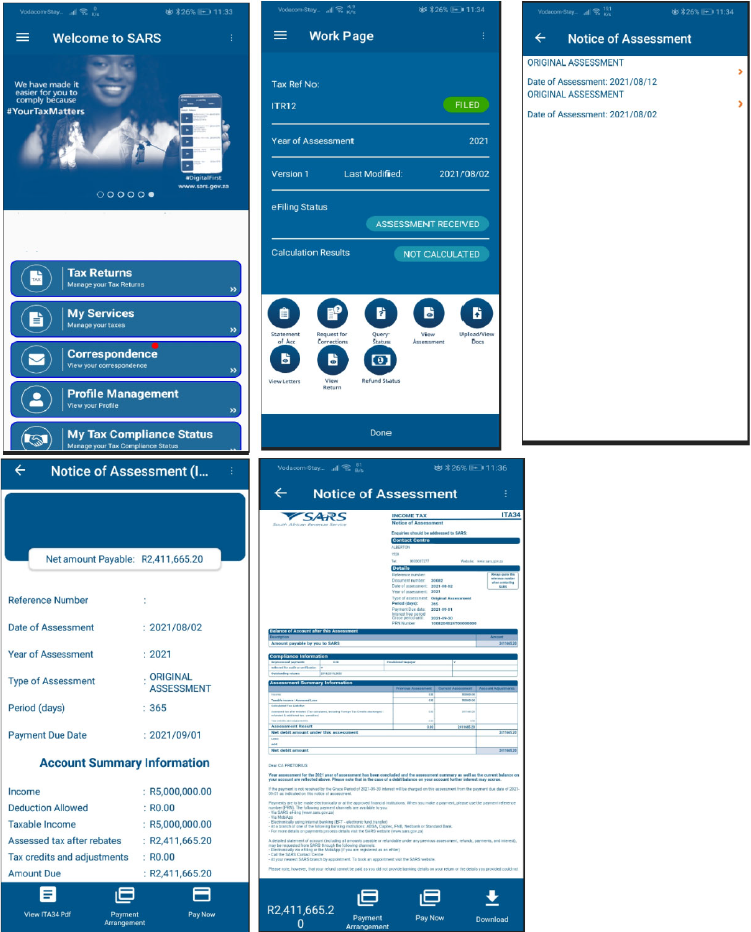
- Follow the steps below to access your Payment Arrangement tab from the Notice of Assessment:
- Select <Tax Returns> from the landing page
- Tap <View Assessment> The Notice of Assessment page will be displayed
- Tap <Original Assessment> to view your notice of assessment.This will display the Notice of Assessment (ITA34) Account Summary Information page
- Tap <Payment Arrangement> tab from the Account Summary Information
- To access the Payment Arrangement tab from the ITA34 PDF screen, tap <View ITA34 PDF>from the Account Summary Information page and then tap <Payment Arrangement>
Access Payment Arrangement from final demand letter / Reminder
- Follow the steps below to access your payment arrangement tab from the Final Demand and Final Demand Reminder letters:
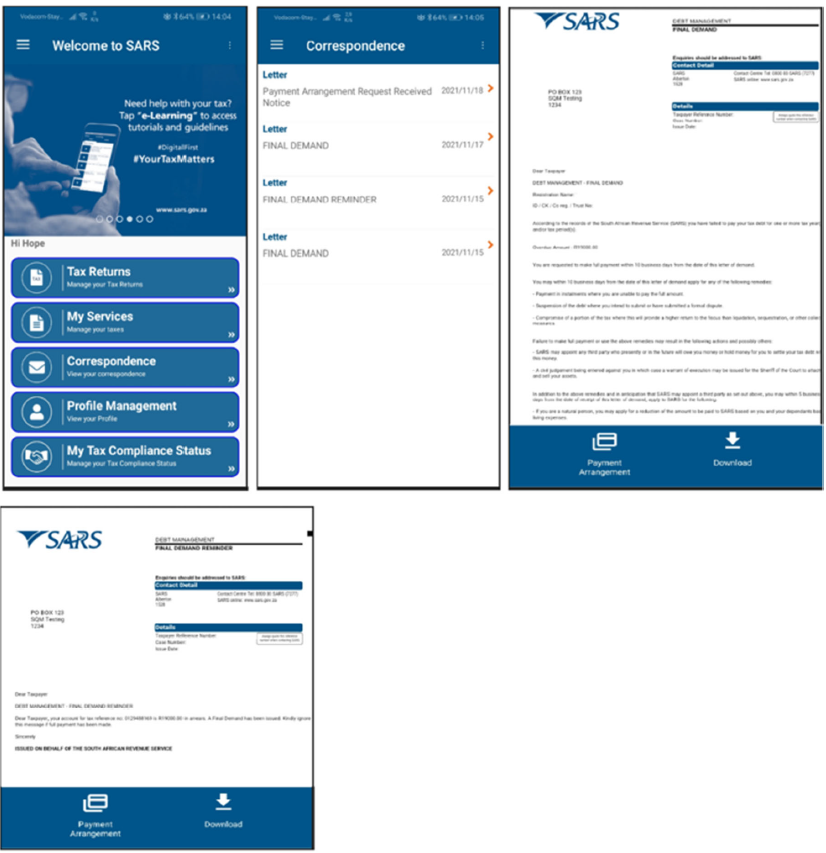
- Select <Correspondence> from the landing page
- Tap < FINAL DEMAND> or < FINAL DEMAND REMINDER>
- Tap <View> – this option will take you to the final demand letter / reminder
- Tap <Payment Arrangement> from Final Demand or Final Demand Reminder letter.
Capture Payment Arrangement
Simulated Payment Arrangement Plan
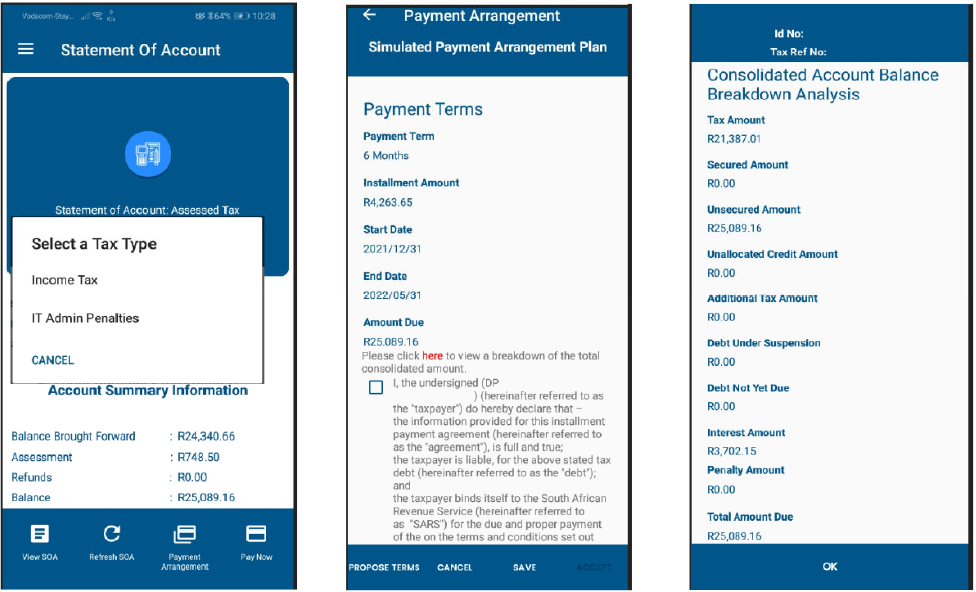
- Once you have selected Payment Arrangement tab wherever there is any outstanding debt, you will be required to choose one tax type to continue with the deferment process. The payment arrangement request can only be done on one tax type at a time and not on multiple tax types in a single payment arrangement request.
- Select <Tax type> – this option will display the auto simulated payment arrangement plan defaulted to 6 months with the option to “Accept” or “Save” the auto-simulated payment arrangement plan or “Propose Different Terms” or to “Cancel”
- From the auto-simulated payment arrangement plan, you will be able to view the account balance breakdown.
- Follow the steps below to continue with the auto simulated payment arrangement plan:
- Verify the following information displayed on the auto simulated payment arrangement plan and consolidate account balance breakdown analysis:
- Payment term
- Installment amount
- Start date
- Amount due
- Interest Amount
- Total Amount Due.
- The Auto Simulated Payment plan will display the following tabs for selection:
- Propose Terms – If you select this option you will be asked to provide the payment term.
- Cancel – If you cancel the auto-simulation, it will be discarded/deleted and you will have to start the process from beginning if want you to request for a payment arrangement.
- Save – If you select this option, the simulation will be saved and you will be able to view the simulation at a later stage, provided that it has not expired.
- Accept – If you select this option, you are accepting the auto simulated payment arrangement plan and you make declaration that you have read and understood the agreement. The “Accept” tab will be disabled until you have acknowledged the “Agreement Details”.
- Tap “Agreement Details” checkbox if you accept the auto simulated payment arrangement plan.
- Select < Accept > – the following pop up message will display if there is no supporting documents required.
- Verify the following information displayed on the auto simulated payment arrangement plan and consolidate account balance breakdown analysis:
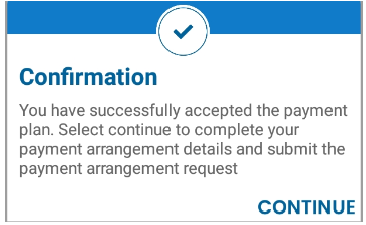
- Tap <CONTINUE> this option will display the next screen to capture your payment arrangement details.
Capture Payment Arrangement Details
- Once you have accepted the auto simulated payment arrangement plan, you will be redirected to these screens. The screens will have two tabs, one for completing personal details and the other for completing payment terms details.
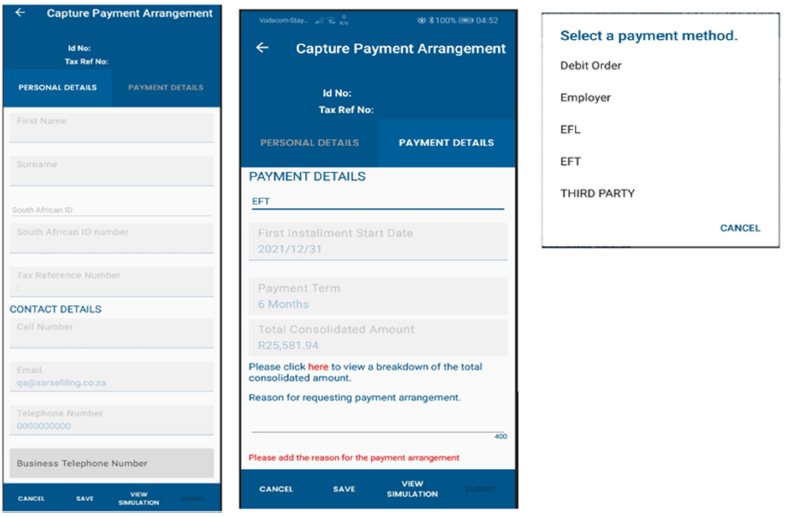
- Complete the following mandatory fields:
- Cell-phone Number – Enter the cell phone
- Email Address – Enter valid email address
- Business Telephone – Enter business telephone
- Method of Payment – Tap on the dropdown, then you will be presented with the following method of payment to select:
- Debit Order – This debit order option does not send the payment instruction to your bank.You are required to make arrangements with your banking institution and load the debit order instruction in favour of SARS. If this option is selected, the captured banking details will be validated using the Account Verification System (AVS). You will not be allowed to submit the payment arrangement request if the captured banking details was not successfully validated.
- EFL (eFiling) – If this option is selected, a check will be done to determine if there is banking details set-up on the profile. If there is no banking details set-up, you will be required to setup your bank details to make payment on eFiling.Refer to GEN-ELEC-11-G01-Guide-to-Bulk-and-Additional-Payments-on-eFiling-External-Guide
- EFT (Electronic Funds Transfer) – if this option is selected, will not be expected to capture any additional details relating to this option.
- Employer – If this option is selected, you will be required to complete your Employer Name and Employment number, the rest of the other fields will be prepopulated based on your demographic details.
- Third Party – If this option is selected, you will be required to complete the Third Party Name and unique number, the rest of the other fields will be prepopulated based on your demographic details.
- Reason for requesting for payment arrangement – Capture the reason for requesting payment arrangement.
- The following tabs will be available on the payment arrangement details screen:
- Submit tab: – Selecting this tab will submit the information displayed. This tab will be available provided the there’s no supporting documents required and all the mandatory payment arrangement details have been completed.
- Save tab: – Selecting this tab will display a pop-up confirming that the payment arrangement details have been saved with a following warning message “Payment Arrangement Plan will expire by midnight and any saved payments arrangement details on this screen will discarded after two days”
- View Simulation tab: – Selecting this tab will navigate to the simulated payment arrangement plan screen and load the simulation that has already accepted.
- Cancel – If you cancel the auto-simulation, it will be discarded/deleted and you will have to start the process from beginning if you want to request for a payment arrangement.
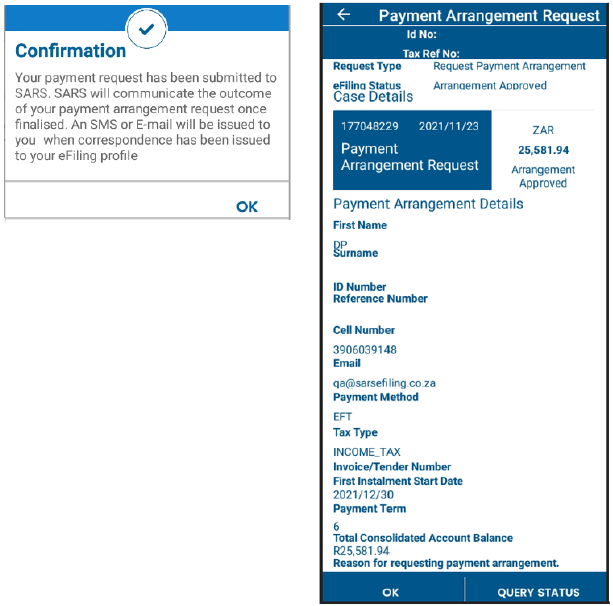
- Tap <Submit> you will be presented with the confirmation message
- Tap <OK> on the confirmation message, you will be redirected to the payment arrangement confirmation screen confirming the status of the payment arrangement request submitted.
Propose Different Payment Terms
- When you select the “Propose Terms” tab a page will be displayed where you will be required to update the payment term value and have the option of choosing to include / exclude the “debt not yet due”amount as part of the re-simulation.
- Select <Propose Terms>
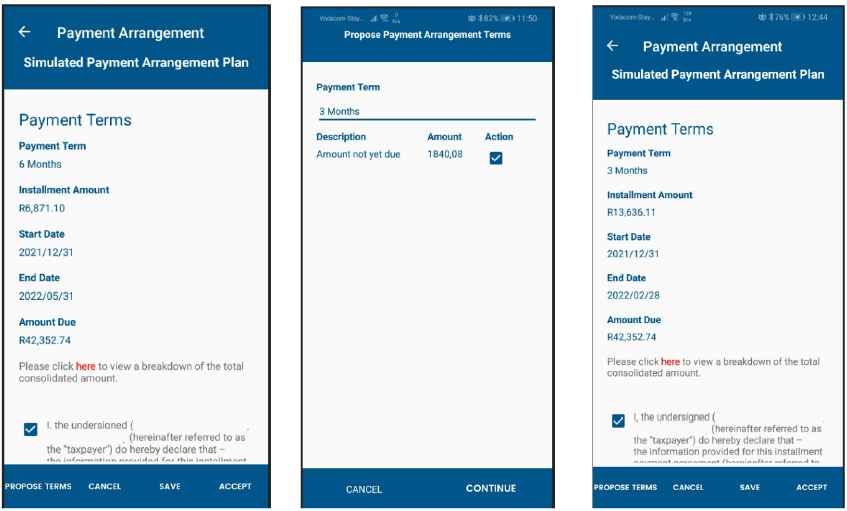
- Select <Payment Term > select any value from 1 month to 36 months
- Tick <Action> – this tab will give you the option to include / exclude the “Amount not yet due” as part of the re-simulation.
- Tap <Continue> – this option will take you to the simulated payment arrangement plan.
- Tap <Check box> – by tapping on the checkbox you are accepting the proposed simulation payment arrangement plan, and you make declaration that you have read and understood the agreement.
- Select < Accept > Selecting this tab will trigger either one of the confirmation messages:
- Figure 1 will be displayed where supporting documents are not required.
- Figure 2 will be displayed where supporting documents are required.
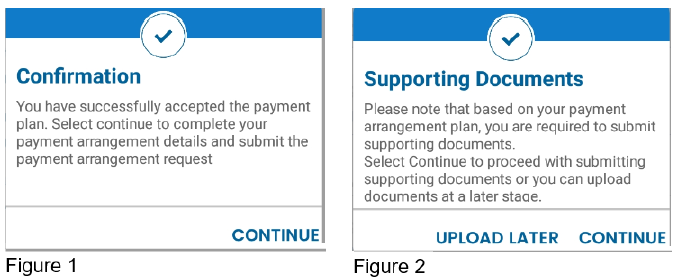
- Tap <Continue> – selecting continue on figure 1, you will be redirected to capture your payment arrangement details. Refer to Capture payment Arrangement Details and by selecting continue on figure 2, you will be redirected to submit supporting documents
- Upload Later – selecting this tab you will be redirected to the saved payment arrangement screen to upload documents at a later stage.
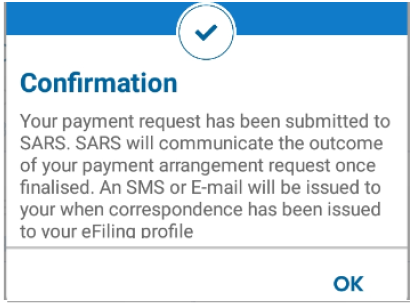
- Once all the payment arrangement details have been completed, Tap < Submit > – the following confirmation message will be displayed.
Submit Supporting Documents
- If you accept the simulation, then a check will be done to see if there is supporting documents required:
- If supporting documents are required, a message will be displayed, and you will be able to continue to the supporting documents functionality. After uploading and submitting supporting documents, you will be able to complete the payment arrangement details so that the request can be finalised. You can choose to upload supporting documents at a later stage, however, the payment arrangement request will not be finalised without supporting documents having been uploaded.
- If there are no supporting documents required, you will proceed to complete the payment arrangement request details and submit once all the mandatory fields have been captured.
- Follow the steps below to upload and submit supporting documents:
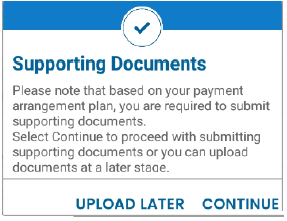
- Tap <Continue>
- Tap <ADD DOCUMENT>
- Browse for the file to select the documents to be uploaded.
- Upload the supporting documents.
- Tap <SUBMIT DOCUMENTS> by selecting this tab a confirm submission message will display.
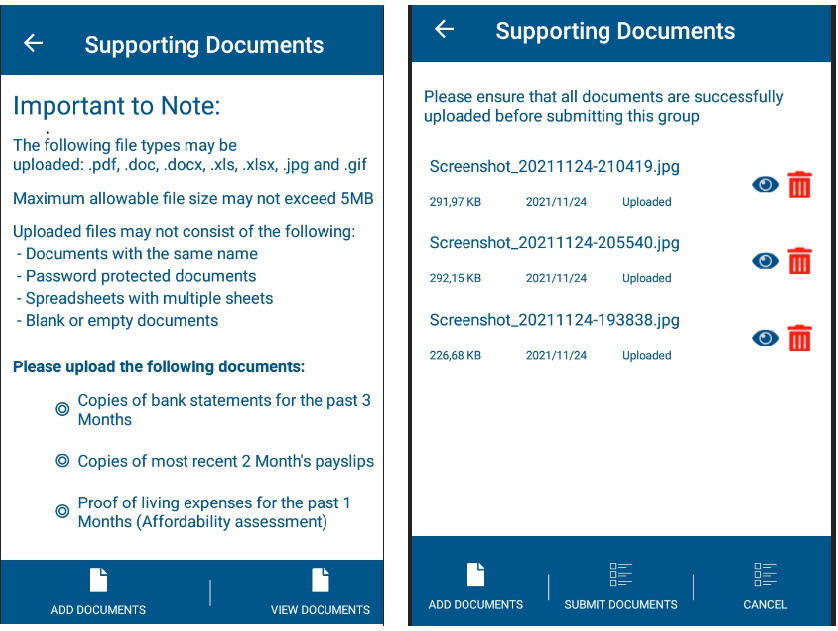
- Tap <VIEW DOCUMENTS> to check if you have uploaded the correct documents.
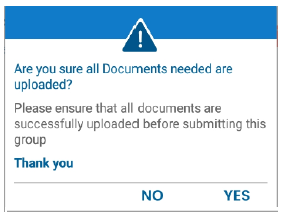
- Tap <YES> if the correct documents are successfully uploaded.
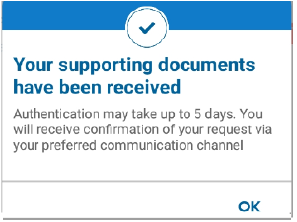
- Tap <OK> to be will redirected to the payment arrangement details screen to complete your personal details and payment terms details.
View History of Payment Arrangement Requests
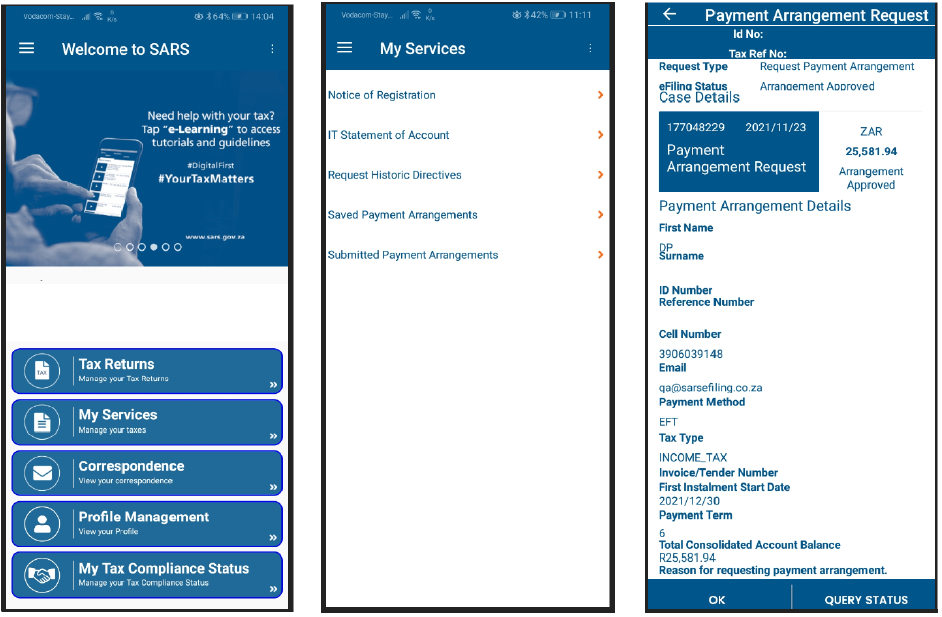
- A history of all submitted payment arrangement request will be available from the landing page.
- Follow the steps below to view the details of the submitted payment arrangement request:
- Navigate to My Services
- Select <Submitted Payment Arrangements>
- If there are any submitted payment arrangement requests, tap <Payment Arrangement Request> block displayed on the screen. The details of submitted payment arrangement requested will be displayed and the you will have the option to query the status of the submitted payment arrangement.

Definitions, acronyms and abbreviations
The definitions, acronyms and abbreviations can be accessed here – Glossary webpage
Legal disclaimer: In the event of conflict or inconsistency between this webpage and the PDF version of the guide, the latter shall prevail.