
Summary
The Tax Administration Act empowers the Commissioner for the South African Revenue Service (SARS) to appoint a third party to withhold and pay over to SARS any amounts due by a taxpayer in terms of the relevant tax Act. Such a third party may be an employer of the taxpayer or any other person who has the management, custody or control of any income, monies or property of the taxpayer.
An appointed third party is required to do the following:
- Review the list of impacted taxpayers (manage outcomes)
- Deduct the stipulated amount from the salary or wages of the respective employees, as indicated
- Pay the amounts over to SARS by the due date.
Where the employer is unable to execute the request, feedback providing the reasons for his/her inability to execute the agent appointment request must be given using one of the following channels:
- Log on to SARS e@syFile™ Employer to view the AA88 Notice and provide a response to SARS by selecting one of the outcomes from the drop-down list.
- Contact the SARS Contact Centre or make a Branch eBooking Service where a SARS agent will assist the employer with capturing the outcomes in relation to taxpayers listed on the AA88 Notice.
For further information or assistance, visit the e@syFile™ webpage on www.sars.gov.za or call the SARS Contact Centre on 0800 00 SARS (7277) or make a Branch eBooking Service.
AA88 Third Party Appointment
A Third Party Appointment will be initiated against non-compliant taxpayers if:
- Overdue balance on taxpayer’s account (administrative penalty and/or assessed tax debt) occurs.
- No dispute is in progress regarding the overdue balance (a TPA notice will be issued only against finalised disputes or if the dispute was disallowed or partially allowed).
- The final demand letter was issued to the taxpayer and the taxpayer has not complied with the demand for payment.
- A valid third party can be identified from the information at SARS’s disposal.
Possible third parties who can be appointed for individual taxpayers include:
- Employers
- Any debtor who owes the taxpayer money
- Financial institutions, such as banks
- Attorneys
- Medical aid schemes (in case of members of the medical fraternity)
- Investment managers
- Insurance companies.
These third parties will only be appointed if they hold money on behalf of the taxpayer.
SARS will issue the Third Party Appointment Notice (AA88) via the following manners:
- The e@syFile™ Employer application
- eFiling to the Employer
In terms of the Tax Administration Act 28 of 2011, A person receiving the notice must pay the money in accordance with the notice and, if the person parts with the money contrary to the notice, the person is personally liable for the debt.
The payment due date will be reflected on the Third-Party Appointment Notice that will be sent to relevant employers. Employers must note that the amount reflected on the notice does not represent the total employee’s or taxpayer’s outstanding account balance, as it may differ from the actual balance.
If the employer pays over the outstanding penalty amount, but the taxpayer already made the payment in respect thereof, the overpayment will be refunded to the taxpayer.
Where the employee left the services of the employer or the employee is deceased and the amount was incorrectly paid over to SARS by the employer, the employer must send a written request to SARS for rectification.
AA88 Function on e@syFile™ Employer
The following is required to receive, manage and pay AA88 notices using e@syFile™ Employer:
- Download the new version of e@syFile™.
- A valid eFiling login name and password linked to the PAYE number, with the necessary access rights and authorisation level.
- You must be registered for PAYE and AA88’s on eFiling.
- An internet connection.
- Always synchronise your e@syFile™ Employer software database with your eFiling profile.
Installation or Updating e@syFile™ Employer
- Backup database:
- Once you have successfully logged onto e@syFile™ Employer, you will be required to make a backup of the current database prior to updating or installing the new version.
- Only a system administrator can perform database backups.
- Follow the steps below to back up your database:
- Click Utilities from the navigation pane under on the left menu.
- Click Database Utilities.
- Select BACKUP DB
- Select OK on the pop message.
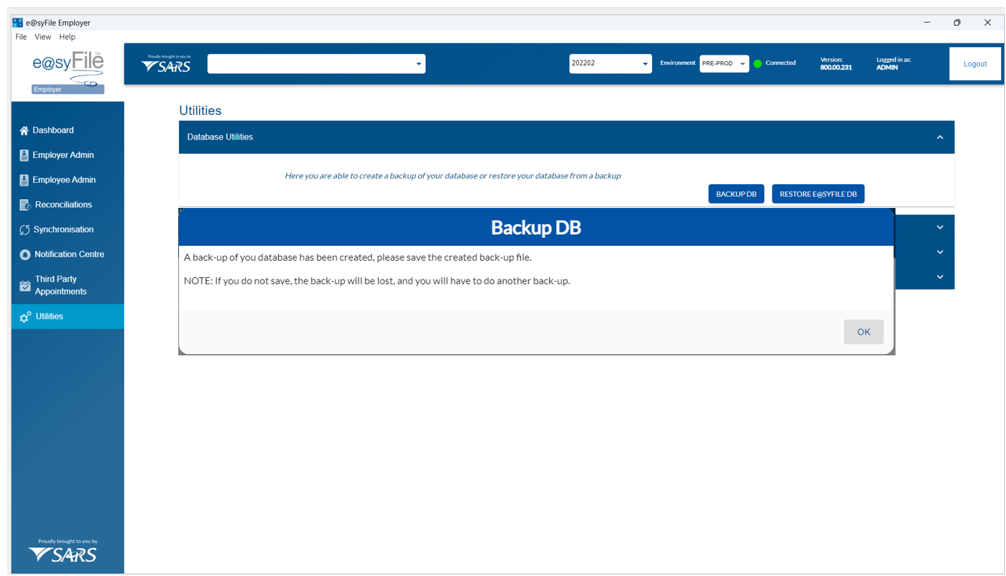
- Select the file where the database will be saved.
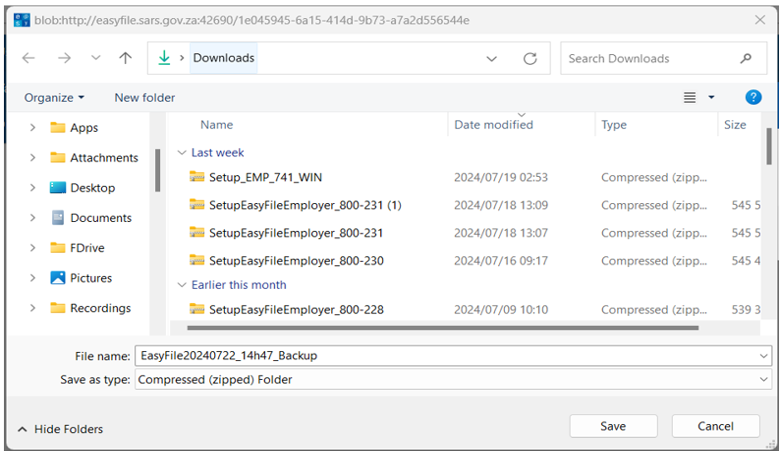
- A message will be displayed indicating that the database back-up was successful, click OK.
- Please note: Backup files are all named in the following manner to make it easy to locate the most recent back-up file: [e@syFile]+[date]+ [time of backup] +[Backup]. New back-up files will be zipped (compressed) and will include data for all the PAYE reference numbers included in the e@syFile™ Employer database.
- Ensure the e@syFile™ Employer login details, which created the backup, are saved with the back-up files. The e@syFile™ Employer login details, which created the backup file, will be needed when restoring the backup. The encrypted data contained in the backup will not be accessible unless the e@syFile™ Employer login details which created the back-up are used.
- Download the new version of e@syFile™:
- The new version of e@syFile™ Employer will be available as an update inside the application, or as a download via the SARS and SARS eFiling website: https://downloads.sarsefiling.co.za/easyfilehome/easyfile.html
- Click on the link and follow the on-screen instructions to download the new version of e@syFile™ Employer.
- Install new version of e@syFile:
- Install the new version by double-clicking on the setup file and then the unzipped Employer setup file and follow the standard installation process guided by pop-up messages.
- Uninstallation of previous version is optional.
- Users that prefer using the update function inside e@syFile™ Employer can follow the normal process to update the application to the latest version.
- Install the new version by double-clicking on the setup file and then the unzipped Employer setup file and follow the standard installation process guided by pop-up messages.
Synchronisation of e@syFile™ Application
Employers must receive new and updated AA88 transactions from SARS via the synchronisation process.
The Third-Party Appointments menu will be locked until you successfully synchronised and retrieved AA88 data.
Employers may choose to perform either delta synchronization or full synchronization:
- Delta Synchronisation – e@syFile™ will perform a delta synchronisation when synchronisation is performed using an existing production database, e., return only available changes since previous synchronisation. This will include new penalties and status updates for existing AA88’s.
- Full Synchronisation / Restart – This function has been added to allow users to delete or clear all previously received AA88 data, prior to completing a full synchronisation.
Follow the steps below to perform delta synchronisation:
- Click on Synchronise from the navigation pane on the left menu.
- Complete your eFiling credentials and click on login to start the synchronisation process.
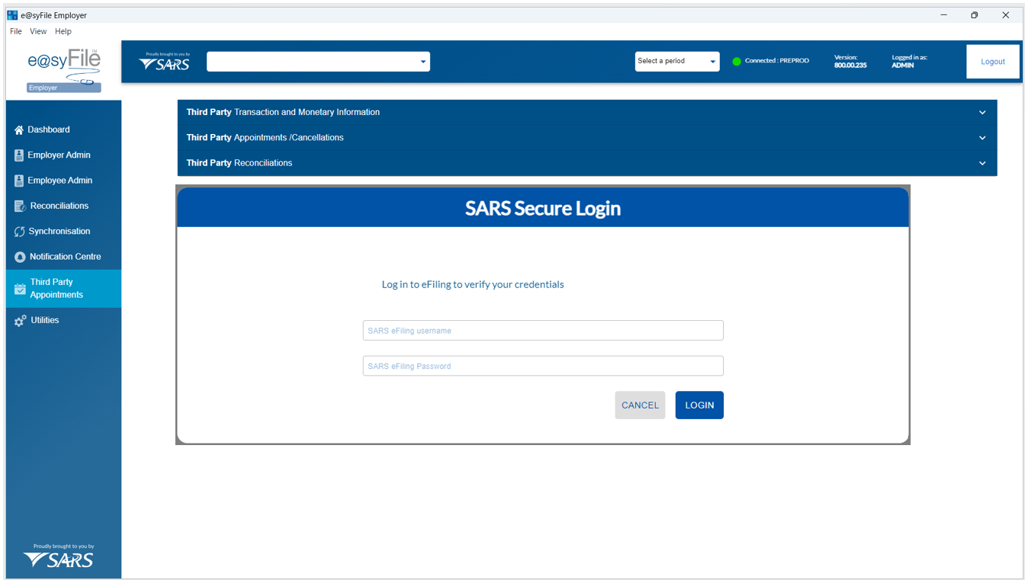
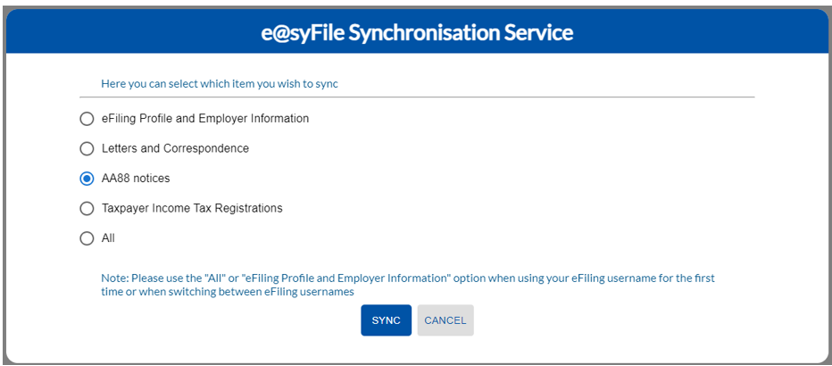
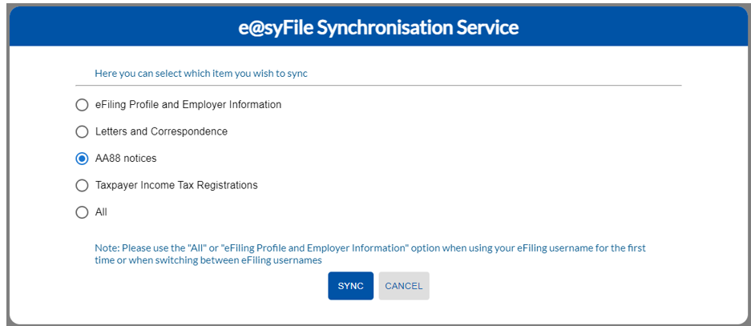
- Select which items must be synchronised:
- eFiling profile and Employer information
- Letter and Correspondence
- AA88 notices
- Taxpayer Income Tax Registrations
- All
- Click SYNC to Synchronise.
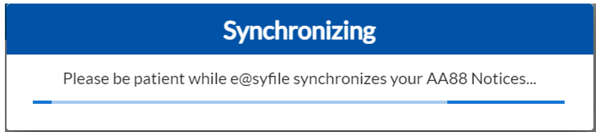
A pop-up messages will indicate progress during the synchronisation process and confirm once the initial synchronisation is complete. If you encounter any errors during the synchronisation process, follow the steps described in the section “Troubleshooting Steps for Synchronisation Challenges” to resolve the issue.
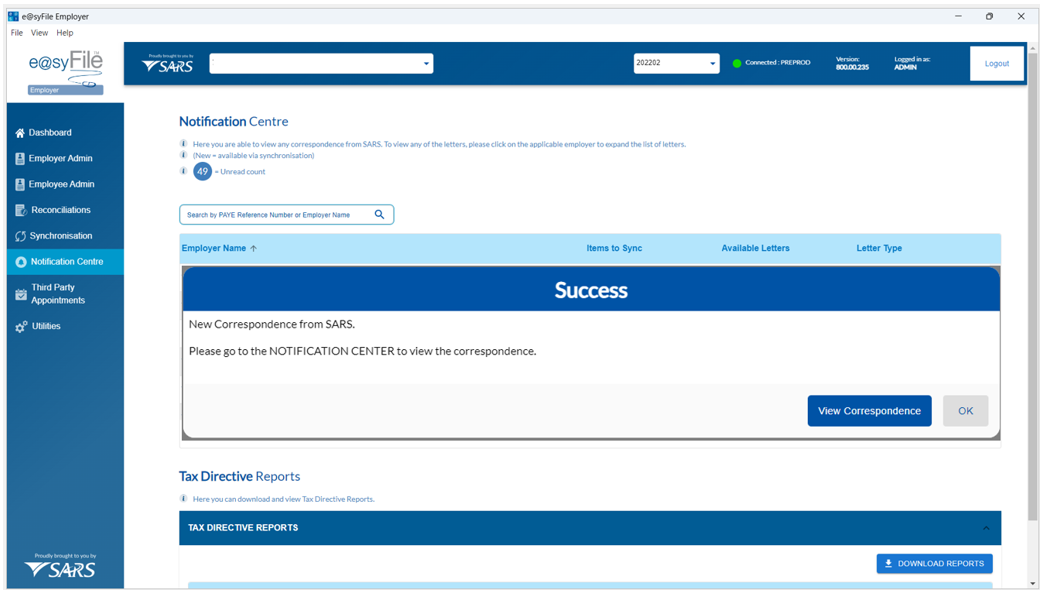
- Once the synchronisation process is complete, e@syFile™ will display a message to confirm receipt of new correspondence from SARS.
- Correspondence will be visible in the Notification Centre.
- AA88 Notices will be available in the Third-Party Appointments menu.
- Click on View Correspondence or go to the NOTICATION CENTER to view Correspondence.
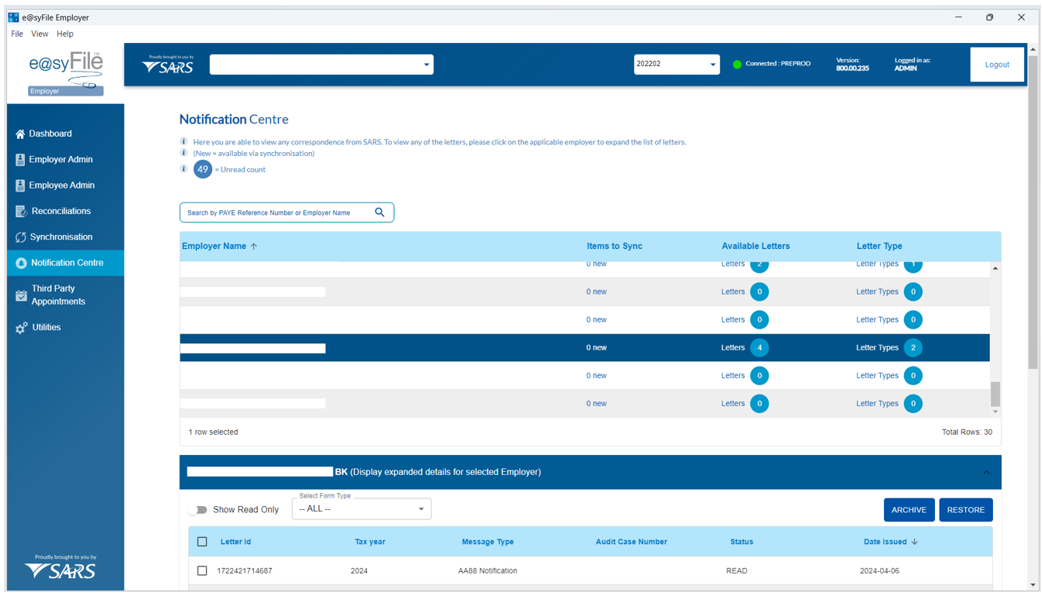
- Click on the applicable employer from the list or search by PAYE reference number or employer name to view updated Correspondence/AA88 Notices.
Follow the steps below to perform full synchronisation:
- Select Third Party Appointments from the navigational pane on the left.
- Click Clear Local AA88 Data on the Third-Party Transaction and Monetary Information tab.
- The system will display a warning message when “Clear Local AA88 Data” is selected.
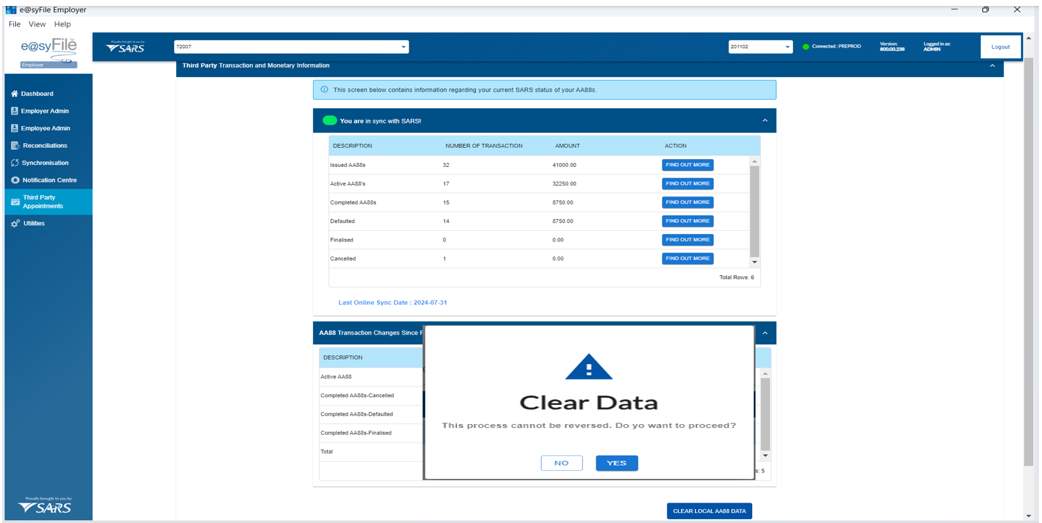
- Confirm deletion of the local database.
- If No is selected, the process will stop.
- If Yes is selected, all previously retrieved AA88 data will be cleared from the user’s database.
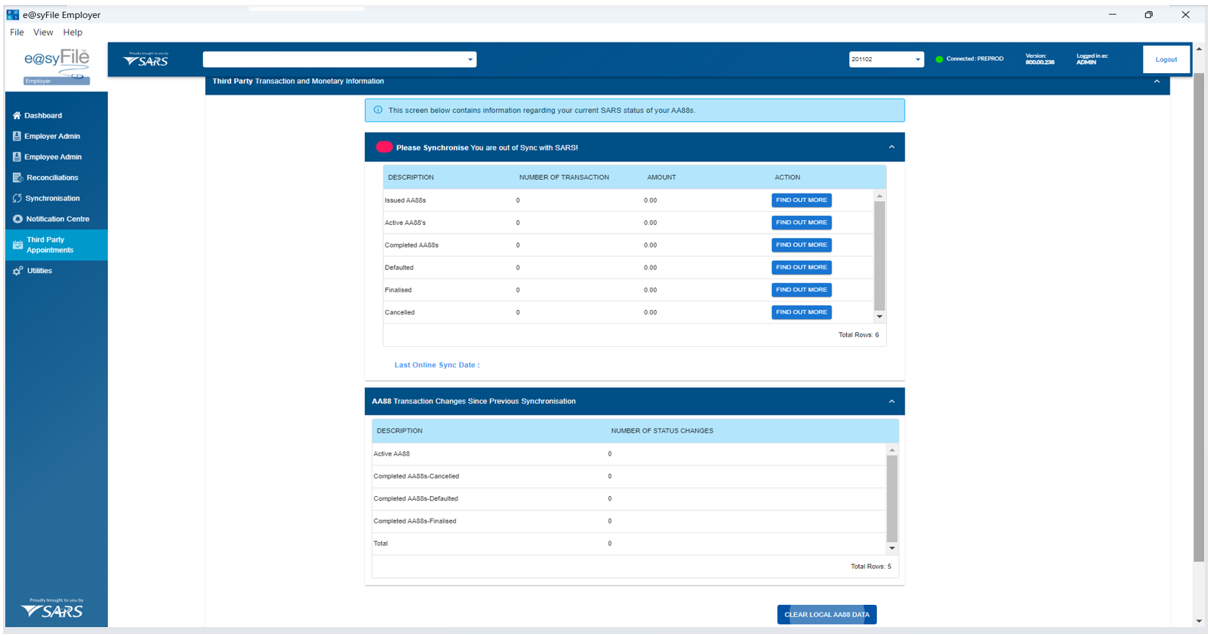
- The screen shown below displays an ‘Out of Sync’ status following the clearing of AA88 data.
- This will allow a full synchronisation that should retrieve all available data from the e@syFile back-end server.
- The result after synchronisation should be “In Sync with SARS”.
- Click on Synchronise from the navigation pane on the left menu once AA88 data has been cleared.
- Select AA88 notices to receive new and/or updated AA88 data from SARS if eFiling credentials for authentication has been completed.
- Click SYNC to Synchronise.
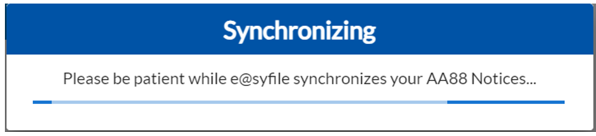
- A pop-up message will indicate progress during the synchronisation process and confirm once the initial synchronisation is complete. If you encounter any errors during the synchronisation process, follow the steps described in the section “Troubleshooting Steps for Synchronisation Challenges” to resolve the issue.
- Once the synchronisation process is complete, a message will confirm receipt of new correspondence from SARS.
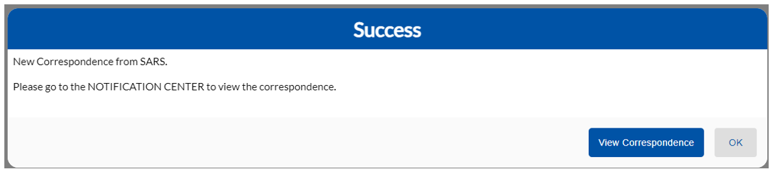
- Click on View Correspondence or go to the NOTICATION CENTER to view correspondence.
- The Notification Centre will display a list of all employers linked to your eFiling profile, with the number of various letter types available.
- Select the relevant employer from the list displayed to view the available correspondence.
- Once you have selected an employer from the list, if new AA88 information is available a single AA88 notice will be displayed marked “Issued”.
- The AA88 details will automatically be transferred to the Third Party Appointments menu to view and action updated/new AA88’s.
- The Archive button gives the employer the option to archive selected notices in the Notification Centre. These notices can be restored again at any time by clicking on Restore. All archived notices will be populated so that the user can select and restore.
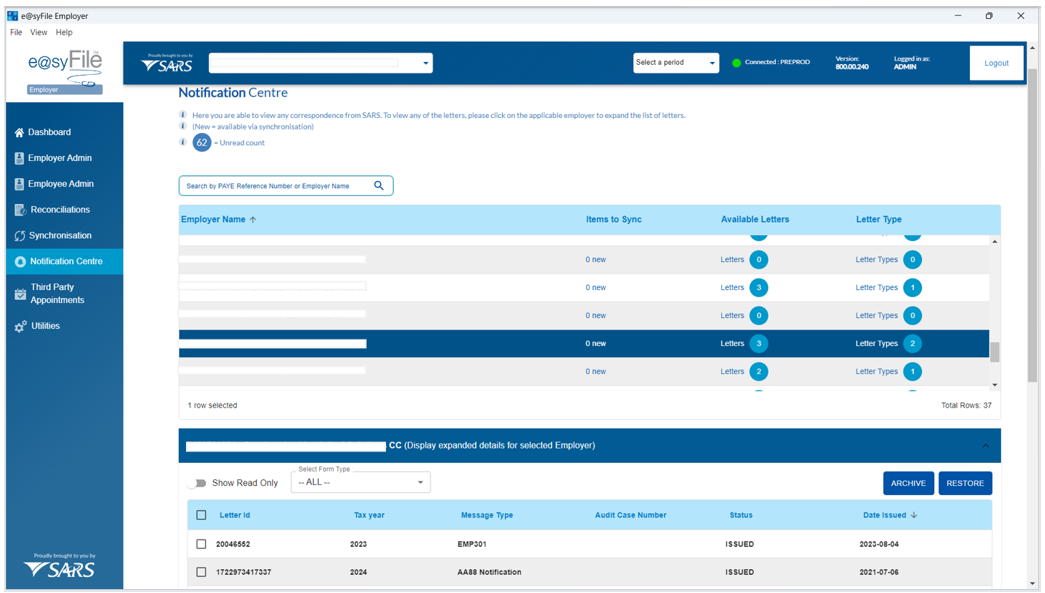
- The detailed AA88 notices can be viewed on the Third Party Appointments menu.
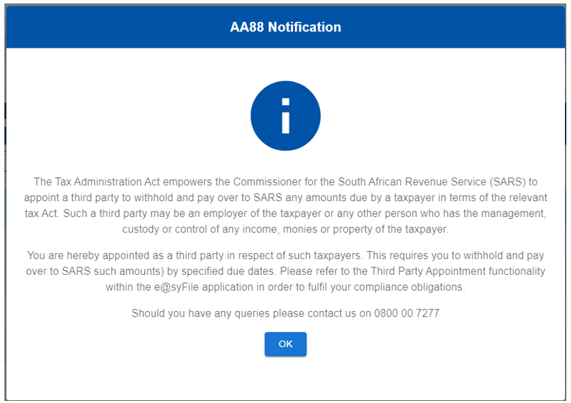
- The following pop-up message will appear when double clicking to view AA88 Notification and status of the AA88 notification will change from “Issued” to “Read”
Third Party Appointment
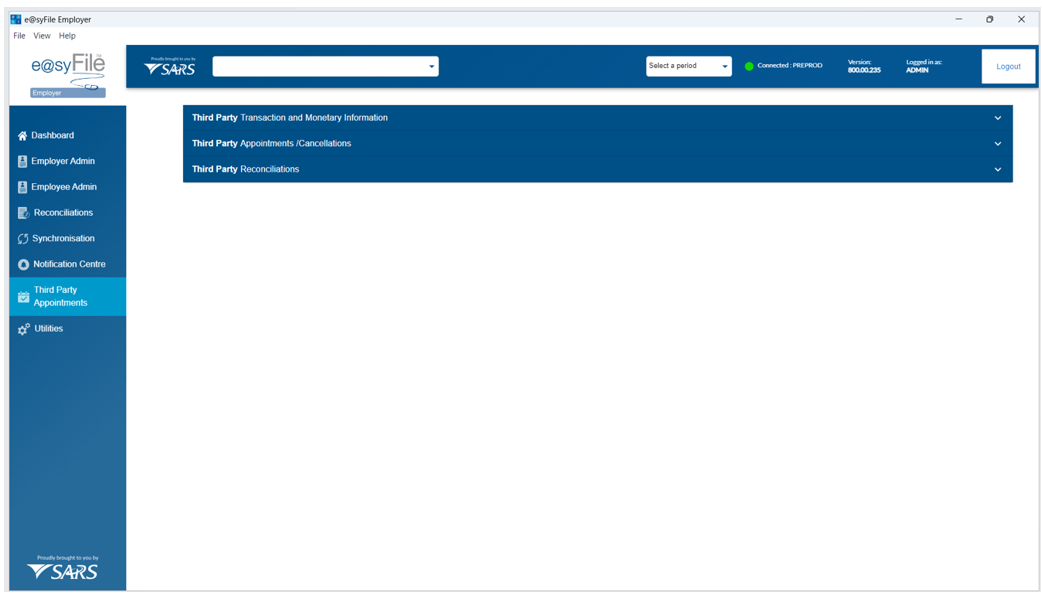
Once the e@syFile™ Employer database has updated after synchronisation, all the AA88 notices will be marked as Issued in the Notification Centre, and all the data will automatically be grouped by PAYE reference number (employer name) on the Third Party Appointments Menu:
- Third Party Transaction and Monetary Information – Details a summary of all AA88’s issued against a PAYE grouped in status.
- Third Party Appointments/Cancellations – Where you can view and process details of AA88’s. A new option has added to allow use of the unique AA88 Transaction Number as search filter.
- Third Party Reconciliations – Where you can view the details of finalised AA88’s.
Third Party Transaction and Monetary Information
To access the “Third Party Transaction and Monetary Information” screen, follow these steps:
- Select “Third Party Appointments” from the left menu pane.
- The first grid on the dashboard will show sub-totals of all AA88 issued and grouped by status. It will also display the total number of AA88 penalty transactions and the monetary value for each status group.
- The system will compare the AA88 data retrieved after synchronisation on the user database with the AA88 data available to retrieve from the e@syFile back-end server. This indicator will show “Out of Sync” when there are any discrepancies and prompt the user to synchronise to align their AA88’s with available records.
- The second grid on the dashboard shows a summary of movement since previous synchronisation.
- Please ensure the status reflecting on this screen is “You are in sync with SARS”.
- A red indicator will be seen, where you are required to update the values reflecting by synchronising.
- When working offline on e@syFile™ Employer the red indicator will always be shown, and will display the values obtained from the previous synchronisation
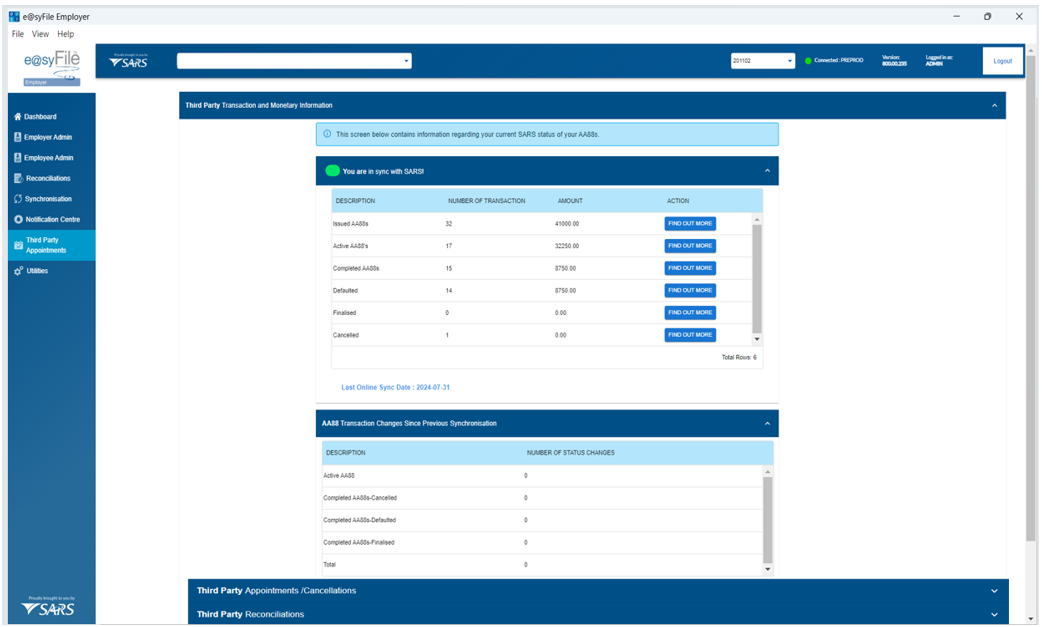
To view description of each status listed, click on “Find OUT More?” next to each line entry on the grid.
- Issued AA88s – This represents the total number of AA88 transactions issued against your PAYE, excluding those AA88 transactions that have been archived. It displays the number of transactions and the Rand value amount. Please note that an employee may have multiple Third Party Appointment (AA88) transactions. For example, where non‑compliance remains unresolved, penalties are imposed on a monthly basis. Each recurring penalty will therefore be reflected as a new monthly AA88 transaction. It is important that employees address the non‑compliance timeously by submitting the outstanding returns or visiting a SARS branch to correct the non‑compliance in order to prevent further penalties from being raised.
- Completed AA88s – This represents the total number of completed AA88 transactions against your PAYE number. To complete a transaction, it should either be finalised (settled/paid) or Cancelled. No further action is required from the employer regarding these transactions. completed AA88’s also includes AA88 transactions that have been placed in a Defaulted status by SARS. It displays the number of transactions and the Rand value amount. Please note that some employees may have multiple transactions in different statuses.
- Cancelled – This represents the total number of AA88 transactions with a cancelled status against your PAYE number. A transaction can be cancelled by an employer for various reasons such as “Not employed”, “Deceased” or “Affordability requests”. SARS may also cancel transactions as a result of “Taxpayer disputes”, “New 3rd Party identified”, etc. It displays the number of transactions and the Rand value amount. Please note that some employees may have multiple transactions in different statuses.
- Finalised – This represents the total number of AA88 transactions with a finalised status against your PAYE number. A transaction is finalised where the employee’s debt is settled, or the total outstanding amount is paid. It displays the number of transactions and the Rand value amount. Please note that some employees may have multiple transactions in different statuses.
- Active AA88s – This represents the total number of AA88 transactions against your PAYE number that have an outstanding action by the employer or SARS. Employers are required to respond to/action transactions on/before the payment due date. Employers have 20 business days from this date to resolve this non-compliance, failing which these AA88s will be placed in a defaulted status. Please note that some employees may have multiple transactions in different statuses.
- Defaulted – This represents the total number of AA88 transactions with a defaulted status against your PAYE number. This means that an employer failed to make payments in accordance with the notice. This non-compliance may result in the employer being personally liable for the defaulted amount. It displays the number of transactions and the Rand value amount. Please note that some employees may have multiple transactions in different statuses.
Third Party Appointment/Cancellations
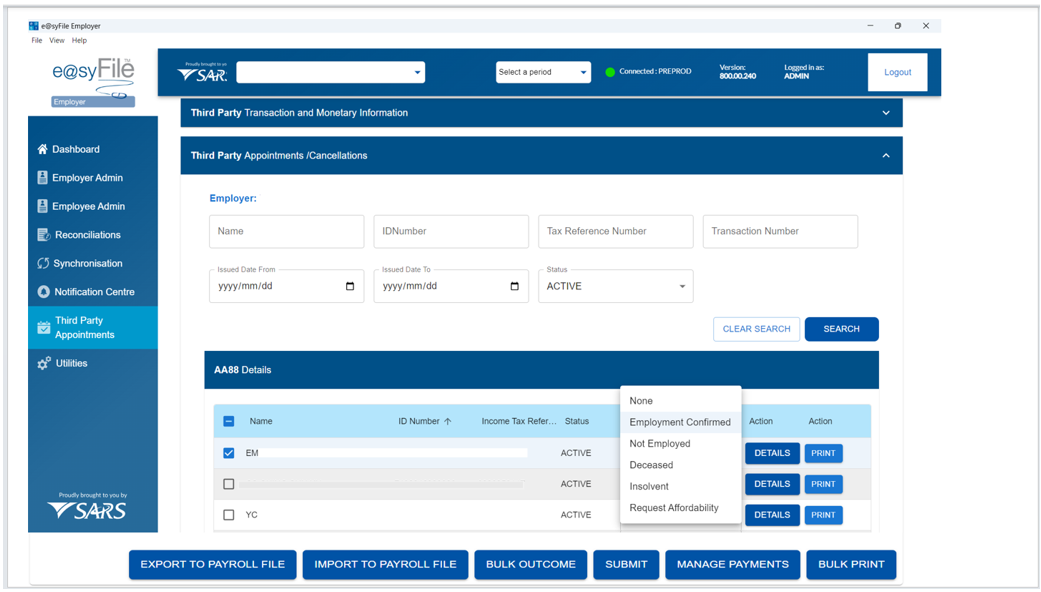
The “Third Party Appointment/Cancellations” tab shows AA88 details. This page lists all employees with AA88 transactions. It includes a status column indicating all active AA88 transactions and all completed AA88 transactions.
The screens and steps below illustrate how to navigate to the “Third Party Appointments/Cancellations” tab:
- Select “Third Party Appointments” from the left-hand navigational pane.
- Select “Third Party Appointment/Cancellations” tab.
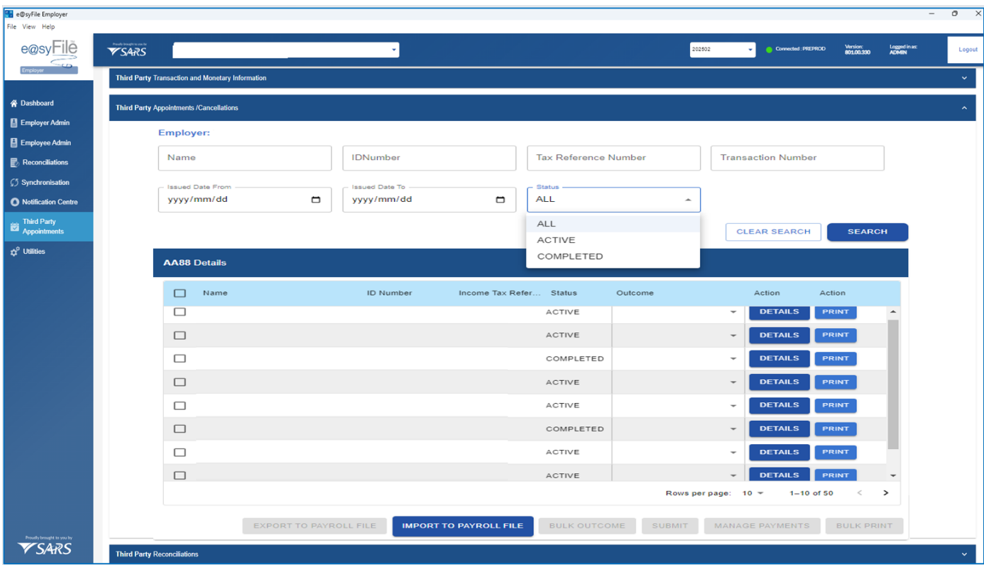
From the “Third Party Appointments/Cancellations” tab, the employer will be able to perform the following functions:
- Search for and view AA88 transactions issued against the employer, grouped by employee record.
- Select outcomes for a single employee record.
- Select outcomes in bulk for multiple employee records.
- Select AA88 transactions for inclusion in a bulk payment file submitted to SARS via eFiling.
How to search and view AA88
The system provides multiple options to search for specific employee and AA88 records for viewing and actioning. You may search using one of the following criteria:
- Employee name
- ID number
- Tax reference number
- AA88 transaction number
- Issued date range
- AA88 status ( All, Active or Completed )
Active or new Third Party Appointment notices must be identified according to the month in which the employer synchronises. For example, if synchronisation takes place in March 2026, only Third Party Appointment notices issued in March 2026 with a start date of 31 March 2026 must be processed. Employers must not process notices from previous months, as a taxpayer’s account status may change at any time and such processing may negatively impact the taxpayer.
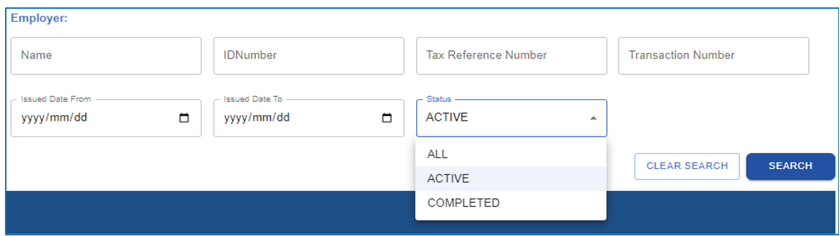
- Select one search option and click Search. Once the search is executed, the system will display a results screen populated with matching AA88 records, grouped by employee.
- Select one or more employees from the list displayed.
Note: Action buttons are enabled only after a search is completed and one or more employee records are selected.
- Click Details on the right‑hand side of the screen to view the detailed information for the selected AA88 record, or click Print to generate an individual AA88 letter, which may be provided to the employee.
- To perform a bulk print of AA88 notices, select the required AA88 transactions from the list on the left‑hand side and click Bulk Print. The system will generate individual AA88 letters for each selected employee.
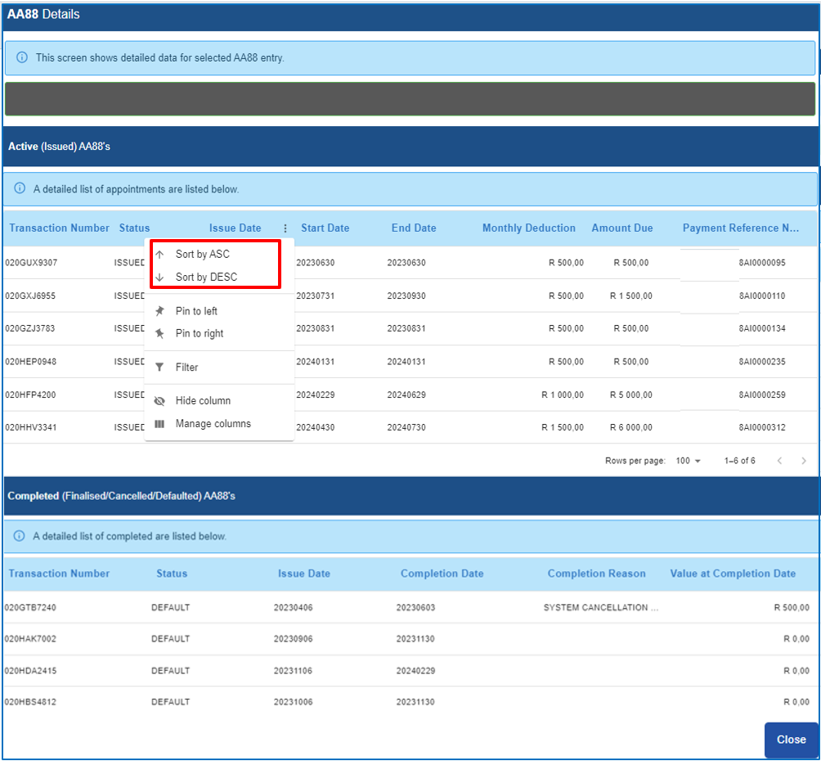
- All AA88 transactions for an employee, including additional details for each penalty can be viewed for each employee record.
- Click Details option next to the employee record:
- The system will open an additional window to display two additional grids with all penalty (AA88) transactions for the employee, listing Active AA88’s in the top grid and Completed AA88’s in the bottom grid.
- Sort AA88 records by Issued Date in either Ascending (ASC) or Descending (DESC) order.
- The Issued Date indicates the date on which SARS issued the AA88 Third Party Appointment notice. Sorting by this field assists employers to identify newly issued AA88 transactions or to prioritise older AA88 notices for compliance.
- ASC (Ascending): Displays AA88 records from the oldest to the most recent issued date.
- DESC (Descending): Displays AA88 records from the most recent to the oldest issued date.
AA88 Statuses
Every AA88 is assigned a status by SARS and moves through different stages during its lifecycle. Employers can review the AA88’s details to determine the required action for each penalty. Below is the table indicating the statues:
- The Active (Issued) table:
AA88 Status | Higher level Status | Description |
Issued | Active |
|
- The Completed (Finalised and Cancelled) and Inactive (Defaulted):
AA88 Status | Higher level Status | Description |
Cancelled | Completed |
|
Finalised | Completed |
|
Defaulted | Inactive |
|
Please note: An AA88 transaction may only appear in one of the tables above.
Third Party Reconciliations
During the second week of each month SARS will issue an AA88 Reconciliation Information to the employer (PAYE number). The reconciliation indicates the rand-value, AA88 movement per employee for the previous calendar month(s). This information will be displayed on the Third Party Appointments tab.
- AA88 movement is defined as:
- The Opening Balance at the beginning of a month
- Plus new AA88s issued
- Minus AA88 Cancelled, default and or Finalised (Settled)
- The Closing balance at the end of the month.
- The portion of the End Balance also includes the default (past due date) value.
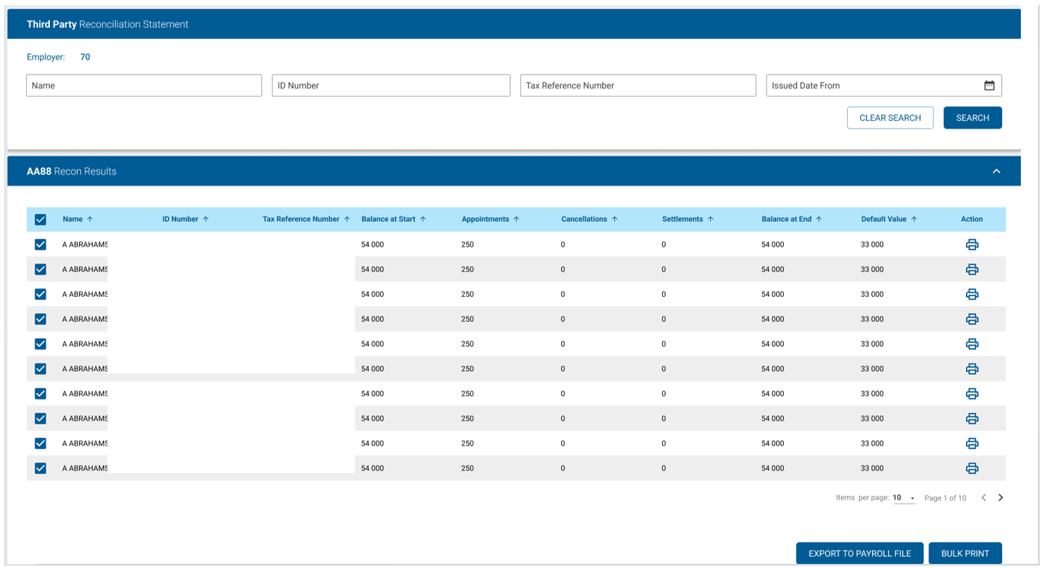
- Individual AA88 Reconciliation statements can be generated by clicking on the Print button to the right of each transaction listed
- To generate AA88 Reconciliation statements in bulk, select transactions on the left and click on Bulk Print.
Managing Outcomes
Important note: The Submit button is used only to inform SARS of instances where the employer is not able to make the deduction from the employee’s salary, as indicated on the AA88 notice (No longer employed, Affordability Requested, etc).
The Employment confirmed outcome must not be submitted using the Submit The Employment confirmed outcome is only used when you want to Export to Payroll file or Make payment when making a bulk payment via e@syFile™ Employer.
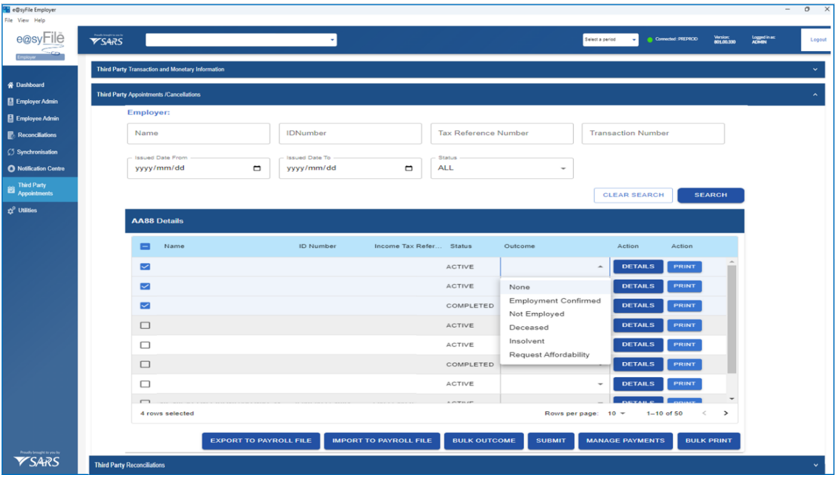
In order to process and manage AA88s, review the amounts due to determine deductions, cancellations, etc. Update the outcome for the taxpayer by assigning one of the following outcomes to each Active AA88:
- Employment confirmed:
- The employer accepts responsibility for the deduction.
- The AA88 transaction stays active awaiting payment.
- Records with this outcome will be included in the Payroll Input File for deduction from payroll.
- With this option selected, a payment must be made in order to submit.
- Not employed:
- The employer indicates that the employee is no longer employed or unknown.
- Employer is permitted to reject the AA88 appointment.
- All active AA88 transactions against the specific taxpayer will be cancelled.
- Request Affordability:
- The employer indicates that the taxpayer won’t be able to afford the full amount requested.
- SARS will use the employees IRP5/IT3(a) information to calculate affordability terms.
- All active AA88 transactions against the specific taxpayer will be cancelled and replaced by new AA88 transactions allowing SARS to determine the monthly instalments.
Note: If the affordability terms provided by SARS are in the employee’s view too onerous, the employee is required to visit a SARS branch to make necessary arrangements and substantiate what is affordable in order to allow for the employee to pay for basic living expenses
- Taxpayer Estate – Deceased: (SARS should be notified of a taxpayer’s death)
- The employer indicates that the taxpayer is deceased.
- The employer is permitted to reject the AA88 appointment.
- All active AA88 transactions against the specific taxpayer will be cancelled.
- Taxpayer Estate – Insolvent: (Select this outcome where the employee is unable to afford the amount requested by SARS).
- The employer indicates that the taxpayer is insolvent.
- The employer is permitted to reject the AA88 appointment.
- All active AA88 transactions against the specific taxpayer will be cancelled.
Note: SARS will record all outcomes specified by the employer for audit purposes.
Navigate to the Third Party Appointment/Cancellations page.
Using the drop-down list in the Outcomes column, select the relevant outcome for each taxpayer listed.
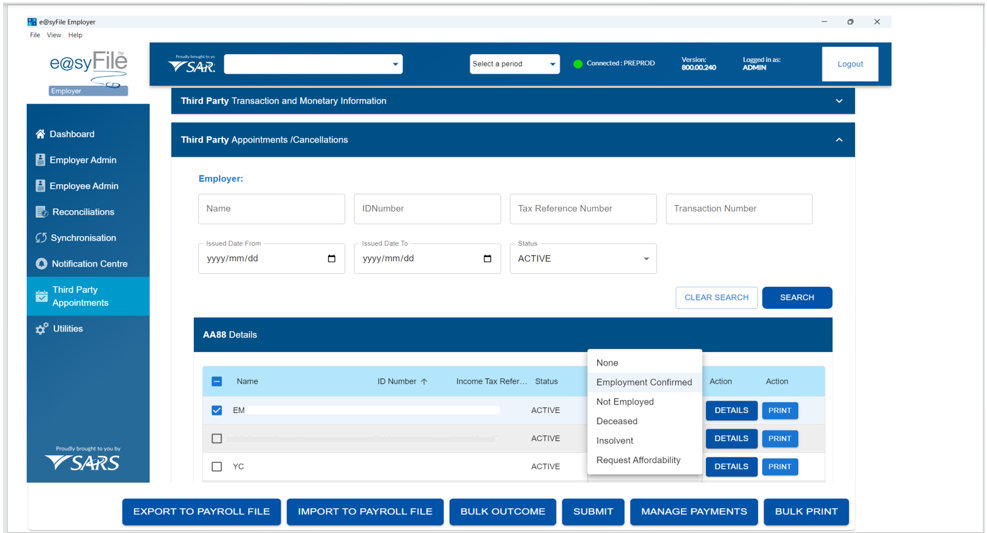
Note: If an employer is not going to import the AA88 information into their own payroll system, please proceed to section “Submit updated outcomes to SARS”.
Submit Updated Ooutcomes to SARS
Employers may receive two types of Third Party Appointment notices in e@syFile™ Employer:
- AA88 Notices:
- AA88 notices relate to non‑compliance or penalty‑based third‑party appointments. Each AA88 contains a unique Payment Reference Number (PRN) made up of the taxpayer’s tax reference number, followed by “AI” and an eight‑digit unique number.
- These notices update successfully in e@syFile™ when outcomes are submitted.
- ITA88 Notices:
- An ITA88 notices will only be issued to an employer if an overdue debt exists against a taxpayer’s account.
- The PRN for an ITA88 also starts with the taxpayer’s tax reference number but is followed by “T00000000”.
- Because the eight zeros are not unique, ITA88 notices cannot be updated electronically in e@syFile™. This limitation is the primary reason ITA88 notices have historically been processed manually.
- When ITA88 notices are submitted, they will return after the standard 24–48 hour synchronisation period as either: Active, or Submit to SARS, without reflecting a completed status.
Processing ITA88 Notices:
- To process ITA88 notices, employers must follow the manual process below:
- Select Export to Payroll File to export the AA88/ITA88 data.
- Open the extract as a comma‑delimited (CSV) Excel file.
- Search for T00000000 in the PRN Number column (typically Column Z / Column 32, depending on import settings) to identify all ITA88 records.
- Copy the ITA88 records to a separate spreadsheet and manually update the relevant status column (typically Column AF / Column 34).
- Email the updated spreadsheet to SARS requesting a status update and resolution.
- Ensure the updated columns are clearly highlighted and referenced in the email. (The relevant SARS contact details and subject line will be communicated separately.)
Note: When synchronising the following month’s notices, employers must confirm whether the updates were applied by using the Search function and checking for completed notices.
Note: Employers are encouraged, where possible, to clear outstanding notices timeously, as this will significantly reduce manual processing and future administrative burden.
Navigates to the Third Party Appointment/Cancellations page.
- Select updated taxpayer records to submit to SARS by clicking on the blocks to the left of each listing,
- Select the outcome and then click the Submit button. (These are the employees where you can’t fulfil your obligation as an agent).
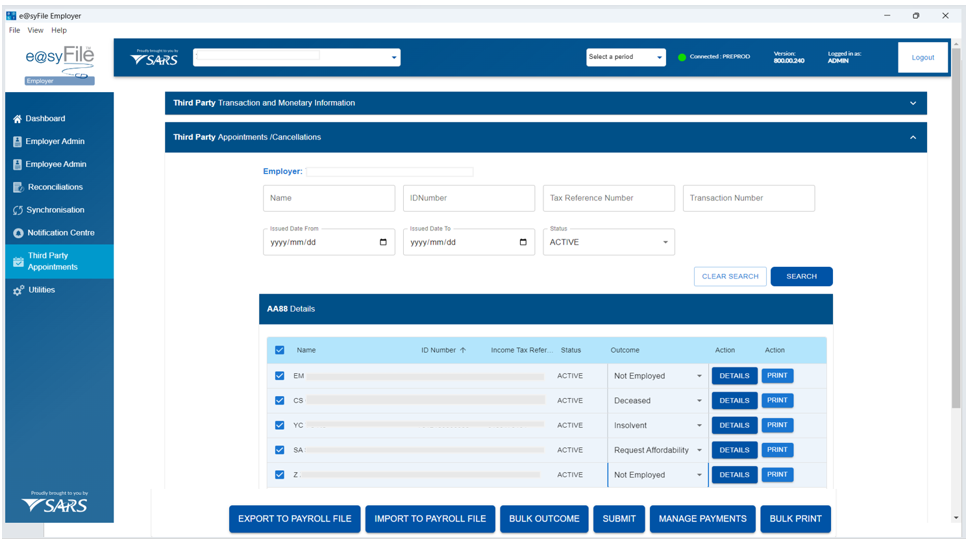
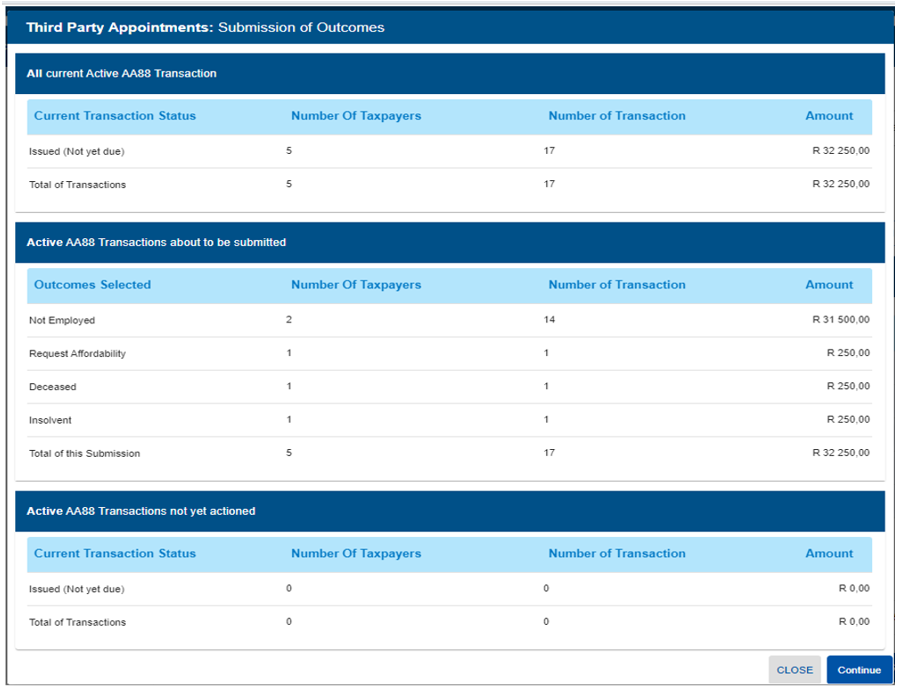
- A summary of the outcomes for transactions included in submission will display.
- If you agree with the summary:
- Click “Continue” or click “Cancel” to edit outcomes selected for submission.
Note: Default transactions have a due date in the past indicating that the employer defaulted in paying the amount due to SARS. These transactions can no longer be actioned.
- A pop-up message will warn you that outcomes cannot be reversed electronically once submitted to SARS. Click “I understand, Continue” to proceed with the submission.
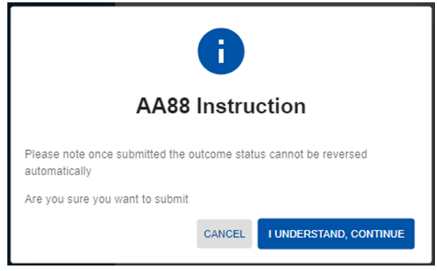
As soon as SARS has successfully processed the request, a response will be posted on e@syFile™ Employer with an updated AA88 after synchronisation.
Updates for affordability requests should be available within 24-48 hours.
Adding Deductions to Payroll
Once all outcomes are updated, the relevant deductions must be applied. Deductions can be added to the payroll manually, or by exporting a file from e@syFile™ Employer to import into the payroll software the employer uses.
To generate an export file including all active AA88’s:
- Navigates to the Third Party Appointment/Cancellations page.
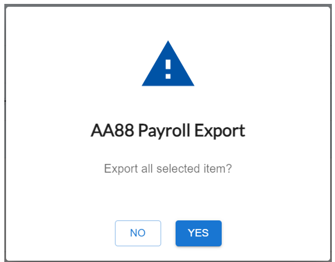
- Select Export to Payroll file and click Yes to confirm.
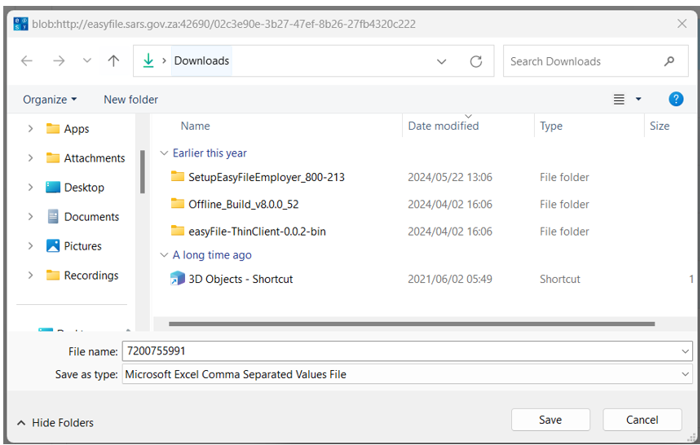
- Enter a file name and indicate where you would like to save the CSV file.
- Click Save.
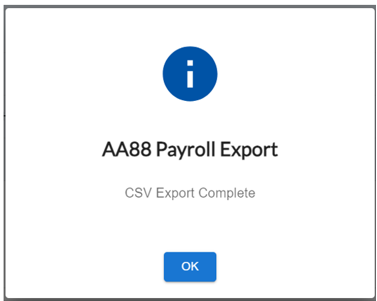
- The system will display a confirmation message when the export completed.
Import Status Update from Payroll Software
Once the deductions are processed in your payroll system, you should be able to generate an export file in your payroll software to update the outcome status on e@syFile™ Employer.
Follow the steps to import a CSV file from your payroll application to set Outcomes for employee records:
- Navigates to the Third-Party Appointment/Cancellations page.
- Select IMPORT TO PAYROLL FILE.
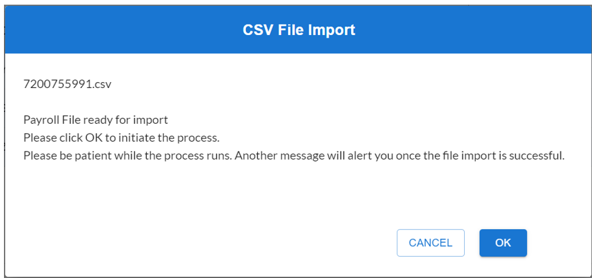
- Select the relevant file and click on Open to import.
- Click Ok to initiate the process.
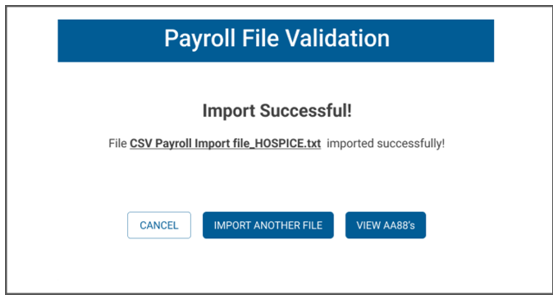
- A confirmation message would display if validation passed and import was successful.
- The following message will display validation failed.

- e@syFile™Employer will update the taxpayer’s outcomes as affected by the imported file from the payroll system
Third Party Appointment Notice
Details of the Third-Party Appointment Notice
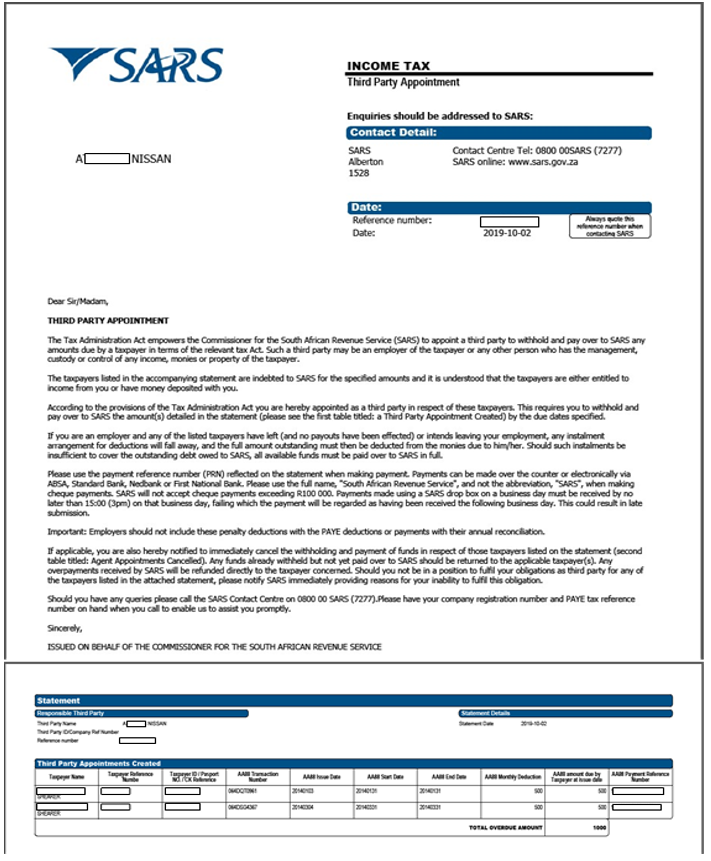
The PAYE reference number will be used to identify the employer in all engagements related to third party appointments.
The content explains the employer’s obligation to deduct the money owed to SARS in respect of outstanding administrative penalty and/or outstanding assessed tax debt, from the specific employee/s’ (taxpayer/s’) salary or wages and pay it over to SARS.
It also explains how the employer can engage with SARS if the employer is unable to fulfil this obligation.
The next section of the notice will contain the Third Party Appointment Created:
- This table contains details of the employee in respect of which the employer has been appointed as a third party. The employee’s name, tax reference, and ID number has been supplied for ease of identification.
- The AA88 transaction number is the unique reference number which, together with the employer’s PAYE tax reference number, should be quoted when resolving any queries with SARS.
- The monthly instalments (AA88 Monthly Deduction) and total amount (AA88) amount due by Taxpayer at issue date) are reflected.
- The employer is responsible for paying the monthly instalment by the due date stipulated.
- In instances of affordability (taxpayer not able to afford the total amount as one salary deduction), the total value will be broken into instalments.
- The “AA88 Start Date” and “AA88 End Date” will be different.
- The start date is the date by which the first instalment should be paid whereas the end date is the date by which the last instalment must be paid.
- Each AA88 appointment contains the 19-digit Payment Reference Number (PRN) that must be used when making payment.
- It is essential that this number is correctly quoted so that the payment is correctly reflected and allocated to the taxpayer’s account.
On receipt of the Third Party Appointment Notice, the employer must:
- Review the list of impacted employees
- Deduct the stipulated amount from the salary or wages of the respective employees, as indicated on the Third Party Appointment Notice
- Pay the amounts over to SARS by the due date, as indicated on the AA88 Third Party Appointment Notice.
Where the employer is unable to execute the request to withhold the stipulated amount against the salaries and wages of the employee as requested by SARS, the employer must provide feedback on reasons for his/her inability to execute the third party appointment request via one of the following channels:
- Employer to log on to SARS e@syFile™ Employer to view the Third Party Appointment Notice and provide a response to SARS by selecting one of the outcomes from the drop-down list
- Contact the SARS Contact Centre or visit a SARS branch where an agent will assist the employer with capturing of the responses in relation to the employees listed on the Third Party Appointment Notice.
Making Bulk Payments to SARS
e@syFile™ Employer will enable you to process bulk payments through the eFiling ad hoc payment option. This option allows an employer to make a single payment for the AA88s while updating AA88 details and status for each employee. It also allows SARS to allocate the appropriate amount of single payments to each of the employee’s Income Tax accounts.
Follow steps below when making bulk payments:
- Login to e@syFile™ Employer
- Select Third Party Appointments and proceed to Third Party Appointments/Cancellations.
- Select the relevant employees with active AA88’s to be included in this payment on the left.
- Click on the Manage Payments button on the top right.
- The outcome for these transactions should be set as “Employment confirmed”.
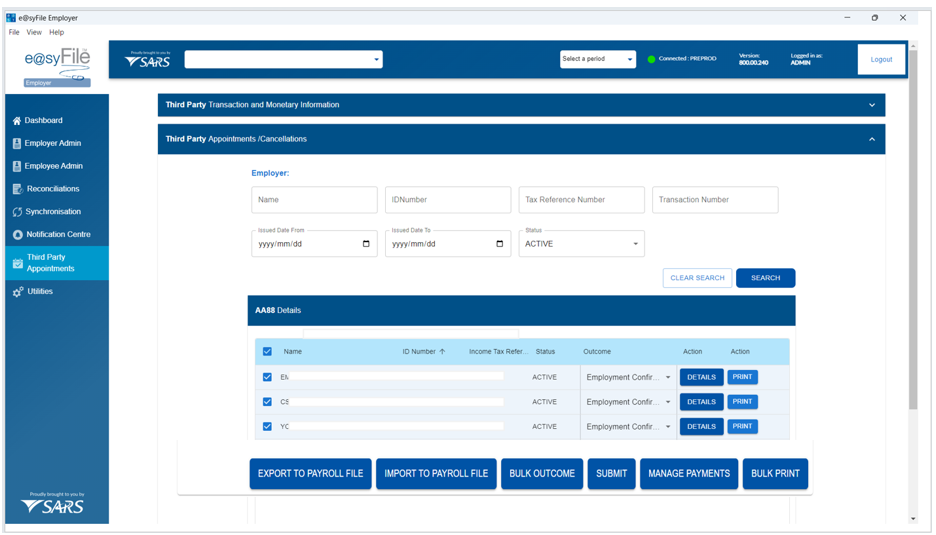
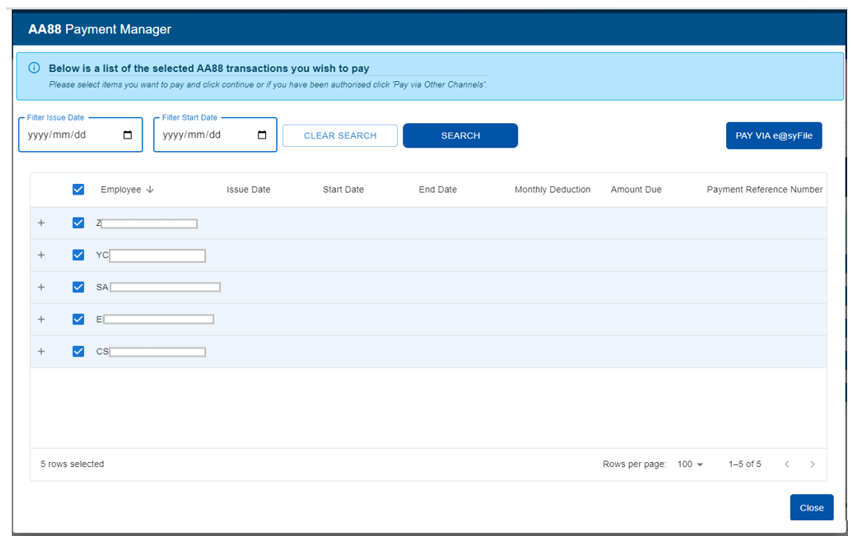
- A list of all selected employees will display with new options to “Select all”, “Expand All” to view details per employee, and “Collapse All” to hide details again.
- Select the correct AA88 transactions to include in your bulk payment and click PAY VIA e@asyFile to proceed.
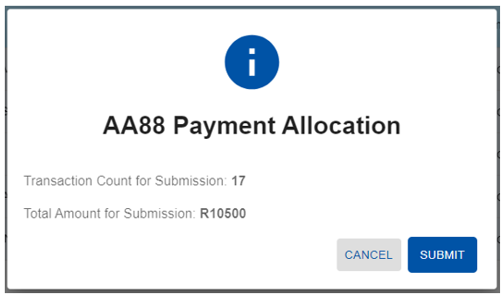
- Click Submit to proceed.
- Once you have clicked on the Submit button, enter your SARS eFiling login credentials and click the Login button
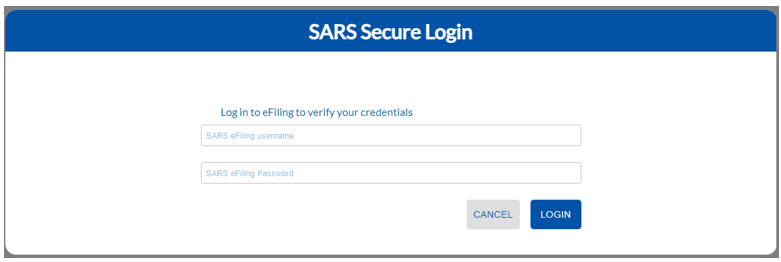
- Once your eFiling login credentials have been verified, login to eFiling to finalise the payment.
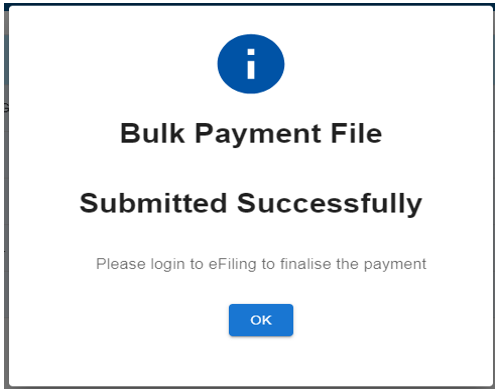
- There are a number of options available to make a payment to SARS. For more information on the payment options and the SARS payment rules, refer to GEN-ELEC-11-G01 – Guide to Bulk and Additional Payments on eFiling – External Guide and GEN-PAYM-01-G01 – SARS Payment Rules – External Guide
Trouble Shooting Tips for Successful Processing of Bulk Payments
Bulk payment limit:
- You cannot process more than 500 transactions per bulk payment on eFiling.
- If you exceed this, split the file into smaller batches before submitting.
ITA88 / PRN validation failures:
- ITA88 transactions with a PRN that ends with T00000000 may fail during payment if the employee master data is outdated.
- This usually happens where the employee ID type is incorrect or not updated with the latest ID format e.g.:
- 009 = Old SA ID
- 082 = New SA ID
- SARS eFiling validates the ID on the latest ID format, and the bulk payment fails if it doesn’t match.
How to resolve bulk payment failures:
- Break the bulk payment file into smaller batches and resubmit.
- Continue splitting until you identify the problem transaction.
- Exclude the failed transaction from the bulk file.
- Pay the excluded item separately via:
- eFiling → Additional Payments → Tax Payments
Pro Tip:
Use a “split‑in‑half” troubleshooting method to isolate the issue more quickly. This approach is faster than checking each item line by line.
Trouble Shooting Tips for Synchronisation Challenges
Ensure that the synchronisation steps outlined in Section (Synchronisation of the e@syFile™ Application) are followed. If you encounter any of the errors listed below during the synchronisation process, use the troubleshooting steps provided below to resolve the issue:
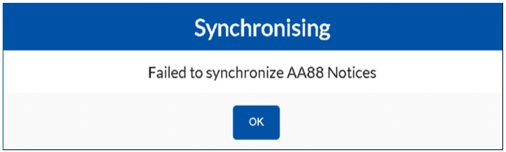
Error 1 description: Failed to synchronise AA88 Notices.
Trouble-shooting steps to resolve:
- Access the C drive and open the e@syFile folder.
- Select the e@syFileDB and click continue to proceed.
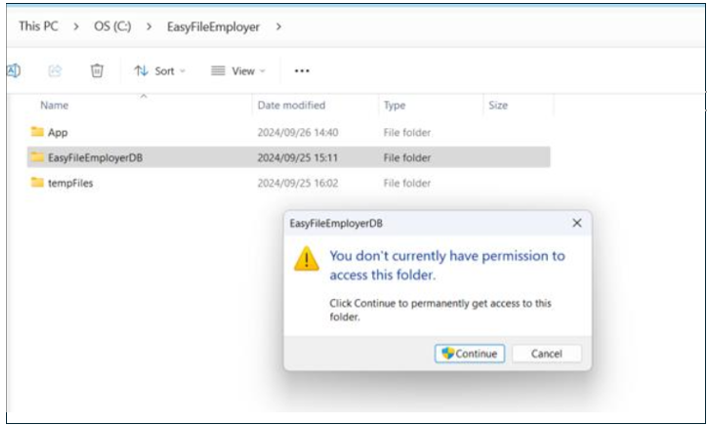
- If there is no response, right click the e@syFileDB and select properties from the dropdown.
- Select the Security Tab and Advanced.
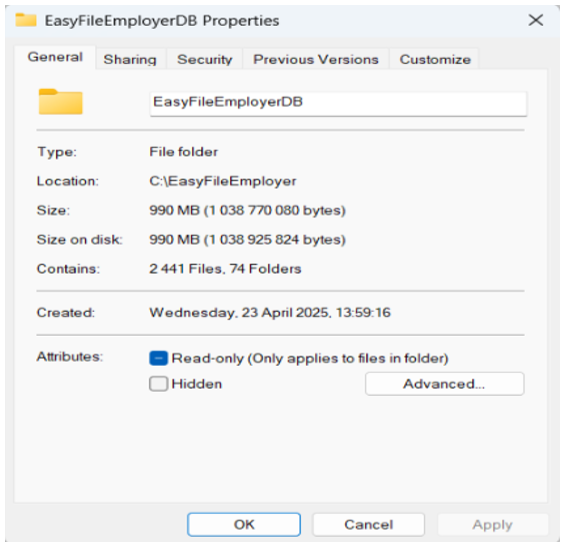
- If you are unable to access any of the options above to view the users and confirm that they have full permissions, please contact your IT department for assistance. Alternatively, check whether you can enable access by selecting the Enable inheritance tab at the bottom of the Advanced window. Apply the changes and close the window. Then refresh or restart the Thin Client.”
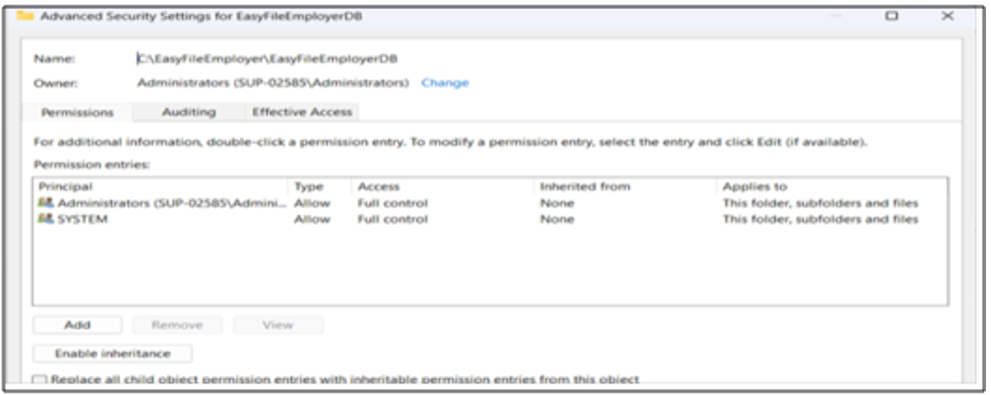
- Try to synchronise again to see if you will receive AA88 notices when you search in the Third-Party Appointment / Cancellations.
Error 2 description: The e@syFile application is unable to connect to online services when Zscaler is installed and enabled. This is caused by an external security application. Please consult your internal IT team for assistance.
This error results in the unsuccessful generation of the AA88, as e@syFile must establish a fully functional online connection to SARS systems. Even if e@syFile shows a green connection status, the actual synchronization may still fail.
- Affected System
- Application: e@syFile
- Impacted Functionality:
- Online connectivity
- AA88 generation
- Successful submission and processing
- Technical Description
- Zscaler intercepts and restricts the outbound traffic that e@syFile requires to establish secure connections with SARS servers. As a result:
- e@syFile cannot connect online
- Required authentication and data exchange processes fail
- The AA88 cannot be generated
- This behaviour indicates that e@syFile’s network requests are being blocked or inspected by Zscaler, which prevents successful communication with SARS endpoints.
- Zscaler intercepts and restricts the outbound traffic that e@syFile requires to establish secure connections with SARS servers. As a result:
- Root Cause (Identified)
- Zscaler security policies are blocking or interfering with e@syFile traffic, most likely due to:
- SSL/TLS inspection
- Application control policies
- Firewall or web filtering rules
- Zscaler security policies are blocking or interfering with e@syFile traffic, most likely due to:
- Recommended Action
- Review Zscaler policies that impact e@syFile network traffic.
- Configure exclusions/allow-listing for e@syFile and related SARS endpoints
- Disable SSL inspection for the affected application where applicable
- Verify online connectivity and confirm successful AA88 generation after making the changes.
- Conclusion
- The issue is infrastructure-related and requires Internal IT to update the Zscaler configuration. Without these adjustments, e@syFile will continue to fail when connecting online and will not generate the AA88 successfully
Definitions, acronyms and abbreviations
The definitions, acronyms and abbreviations can be accessed here – Glossary webpage.
Legal disclaimer: In the event of conflict or inconsistency between this webpage and the PDF version of the guide, the latter shall prevail.