
Summary
The purpose of this webpage is to provide guidelines for the administration of the Mineral and Petroleum Resources Royalty Act,28 of 2008 and the Mineral and Petroleum Resources Royalty (Administration) Act, 2008, and the submission of the Mineral Royalty Returns (MPR3) and Payments on eFiling.
The Mineral and Petroleum Resources Royalty (MPRR) was introduced on 1 March 2010 as a Self-Assessed Tax Type.
The MPRR eFiling return submission solution will be implemented in a phased approach, starting with the taxpayers with an April 2024 year of assessment. In practical terms, the MPRR taxpayer must submit the 1st Provisional MPR3 return for 2024 and continue submitting prospectively, for 2024 and the following years of assessment, via eFiling. SARS may advise the taxpayer differently during the transitional period.
- A taxpayer will be able to submit their 1st Provisional MPR3 return for 2024, via eFiling, when it is due, starting with the taxpayers with an April 2024 financial year-end (i.e. 1st Provisional MPR3 return for a taxpayer with an April 2024 year-end will be due by 31 October 2023). Subsequent years of assessment to follow on a month-to-month basis.
- The operationalisation of the MPR3 eFiling return submission process, will be rolled out in a phased approach starting in October 2023, targeting the taxpayers that are due to file their 1st Provisional MPR3 return in the month of October 2023 (i.e. April 2024 year-end, due in October 2023).
- SARS plans to roll out the eFiling submission of MPR3 returns to the next batch of taxpayers who are due to file their 1st Provisional MPR3 return in that specific month (as set out in the table below).
- In the second month of operationalisation (November 2023) SARS will roll out the eFiling submission of 1st Provisional MPR3 returns to entities with May 2024 year-ends and in the third month of Operationalisation (December 2023) SARS will roll out eFiling submission of MPR3 returns to entities with June 2024 year-ends.
- The MPR3 return submission cycle for the phased operationalisation approach is depicted in the below table.

- All prior period MPR3 returns (all returns for tax years with financial year-end before April 2024) must still be submitted in terms of the original process via the [email protected] email address. Payments on these returns must still be made via eFiling using the “Additional payment” option linked to the MINR (Mineral Royalty) tax type. These transactions must be processed using your Income Tax reference number. Refer to GEN-GEN-01-G01: Guide for Completion for Mineral and Petroleum Resources – External Guide.
- Legislative amendments have been gazetted, in December 2023, for the calculation of Mineral and Petroleum Resources Royalty (MPRR) in respect of the transfer of a refined mineral resource that is oil and gas. As specified by legislation, this change will take effect on 1 January 2024 and will apply to years of assessment commencing on or after that date.
- The MPR3 return on eFiling is issued in HTML5 format on the taxpayer’s eFiling profile. This new format enables taxpayers to access the form via multiple web browsers (e.g. Google Chrome, Edge, Firefox, Safari, and Opera), irrespective of the screen size, orientation, and resolution of their devices.
- Mandatory fields will be displayed with an asterisk (*) and highlighted in red if not completely captured. It remains the responsibility of the taxpayer to ensure the information provided to SARS is accurate, complete, and valid at the time of submission.
- Any queries related to the balance of your new MPRR account can be directed to [email protected] email address.
- To request, complete, submit and pay an MPR3 return you must register as an eFiler on www.sarsefiling.co.za. You can also search for valuable tutorials on www.sars.gov.za if you need help to “register for eFiling.
- For further assistance on eFiling registration, refer to GEN-ELEC-18-G01 – How to Register For eFiling and Manage Your User Profile – External Guide which is available on the SARS website www.sars.gov.za. This guide will also assist with (but is not limited to) the setup of the taxpayer’s profile to manage users/groups, manage tax types (i.e. activating the MPRR tax type on the taxpayer’s eFiling profile), and activate a registered representative.
- For the subscription to MPRR as a tax product, refer to GEN-REG-01-G04 – How to Complete the Registration Amendments and Verification Form RAV01 – External Guide which is available on the SARS website www.sars.gov.za.
Request for MPR3 Return
- Note: All prior period MPR3 returns (all returns for tax years with financial year-end before April 2024) must still be submitted in terms of the original process via the [email protected] email address. Payments on these returns must still be made via eFiling using the “Additional payment” option linked to the MINR (Mineral Royalty) tax type. These transactions must be processed using your Income Tax reference number. Refer to GEN-GEN-01-G01: Guide for Completion for Mineral and Petroleum Resources – External Guide. Refer to the table depicted in “Summary” of this webpage for the operationalisation approach.
- Access your eFiling profile. It is important to note that you should have successfully activated the “Mineral Royalties (MPR3)” tax type, refer to GEN-ELEC-18-G01 – How to Register For eFiling and Manage Your User Profile – External Guide. You can also search for valuable tutorials on www.sars.gov.za if you need help to “register for eFiling.
- Click on “Returns” on the top SARS menu bar.
- Click on the “Mineral and Petroleum Resources Royalty (MPR3)” on the left menu bar.
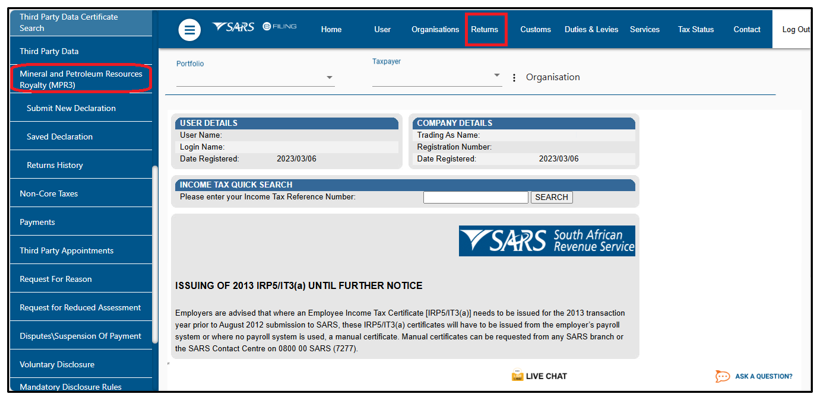
- Click on the” Submit New Declaration” and the screen will be displayed as follows:
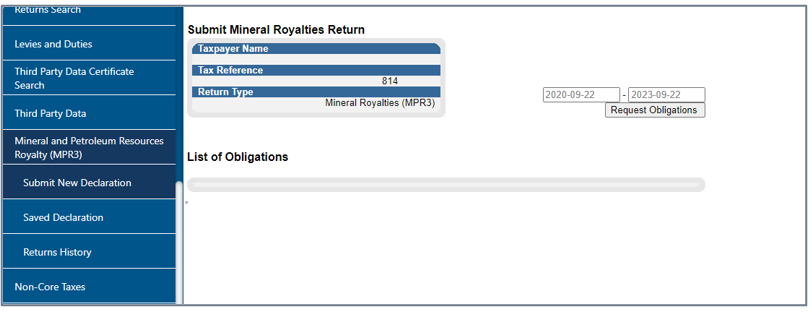
- The dates in the “Request Obligations” fields will default for all MPR3 returns, based on the following sequential rules:
- ‘From date’ is the current date minus 3 years, 2020-09-22.
- ‘To date’ is the current system date, e.g., 2023-09-22.
- Note: According to the phased operationalisation approach of the MPRR eFiling return submission solution, eFiling returns can only be requested and submitted prospectively, starting with taxpayers with an April 2024 (and subsequent) financial year-end. All prior period MPR3 returns will not be available to request via eFiling and must still be submitted in terms of the original process via the [email protected] email address.
- The taxpayer can amend the defaulted dates by selecting new dates in the ‘From date’ and ‘To date’ fields.
- MPR3 returns that have been submitted, or are not required via eFiling (e.g., all returns that are excluded from the phased operationalization approach of the MPRR eFiling return submission solution) will be excluded from the “List of Obligations”.
- Edit the dates as required and click on the “Request Obligations” button. All outstanding returns required during this period will be listed on the screen, and can be explained as follows:
- Every Tax Year of Assessment (YoA), referred to as the “Financial Year,” has four (4) returns associated with the “Period”:
- “First Half Tax Year CCYY” is the First (1st) Provisional MPR3 Return – This return is available from the first month of the YoA and is due six (6) months after the start of the YoA;
- “Second Half Tax Year CCYY” is the Second (2nd) Provisional MPR3 Return – This return is available from the start of the seventh(7th) month in the YoA and is due twelve (12) months after the start of the YoA (6 months after the 1st provisional return);
- “Tax year CCYY” the generic description for the optional Return of Excess/ RoE (“Filing obligation return of excess” as per the “Category” description) – This return is available from the thirteenth (13th ) month after the start of the YoA and allows the taxpayer to declare and make a top-up payment. This return is optional;
- “Tax year CCYY” is also the generic description for the Final MPR3 Return (“Filing obligation final return” as per the “Category” description”) – This return is due 12 months after the end of the YoA.
- Every Tax Year of Assessment (YoA), referred to as the “Financial Year,” has four (4) returns associated with the “Period”:
- The returns can reflect any of the following statuses (refer “Status” column):
- “Open” – the return is outstanding; the submission due date has not passed and can be filed. The taxpayer can select this return on eFiling and request a prepopulated return (based on the selection rules below).
- “Overdue” – the return is outstanding, the submission due date has passed, but the return can be filed. The taxpayer can select this return on eFiling and request a prepopulated return (based on the selection rules below).
- Note: Overdue filing and late and/or underpayment may result in interest and penalties. Refer to the Mineral and Petroleum Resources Royalty Act, 29 of 2008 and the Mineral and Petroleum Resources Royalty (Administration) Act, 2008.
- A return cannot be selected if the return for the preceding tax period within a specific tax year is “Overdue.” The taxpayer will not be allowed to request the 2nd Provisional MPR3 return for 2024, while the 1st Provisional return for 2024 is” Overdue”. The rule does not apply to the Return of Excess (RoE), due to it being optional.
- eFiling will display the outstanding returns in the “List of Obligations” with the “Open” and “Overdue” status;
- The order in which the obligations are displayed are from the most recent to the oldest, grouped per “Financial Year”, per tax period (1st Provisional, 2nd Provisional, RoE, and Final Return).
- You will be presented with a popup message if you request a return within a tax year that is not in chronological order (i.e., Progressive Filing – earlier outstanding and overdue returns are due before the more recent returns within a tax year).
- Click on the “OK” button and you will be taken back to the list of returns to select the correct period.
Requesting and pre-populating of MPR3 Return
- You must click on the return obligation from the list of obligations that will be displayed to you. Remember to request, complete, and submit the returns in a progressive order (oldest to most recent).
- Note: Do not request more than one return (within a tax year) at the same time and submit it afterwards – this will result in outdated pre-populated transactions and information on the subsequent returns. Always ensure that the pre-populated values on your return are accurate and complete before you complete the same. Otherwise, select “Refresh” to enable the updated pre-populated values.
- If you wish to review any historic transaction/s related to previously submitted eFiling returns, refer to the “Returns History” option.
- Check the radio button next to the selected return and click on the “Request Return” button. eFiling will initiate the return processing.
- A message will inform you that returns may not be filed out of sequence:
- “Please note that the declaration must be submitted in the correct order. If the declaration you are about to complete is out of sequence, the declaration will be rejected.”
- The “MPR3 Work Page” screen will display the hyperlink for “MPR3” in the “Return Type” Click on the “MPR3” hyperlink. The pre-populated return will be displayed.
- The “Refresh” button will be greyed out for 24 hours from the time of requesting the obligation.
- After 24 hours have passed since the issuing of the obligation, then the “Refresh” button will be re-activated for selection if you need to refresh the pre-populated data on the return and overwrite any saved data. Once the “Refresh” button is selected then the button will be grayed out/inactive again for 24 hours from the time of clicking the button.
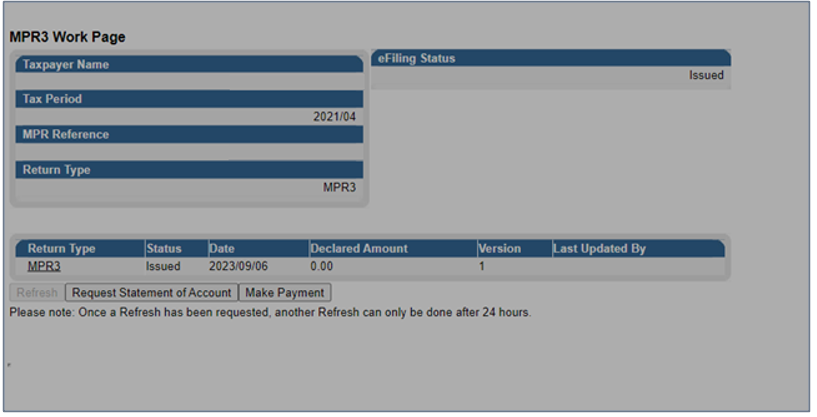
- The pre-populated MPR3 return will open, and you can capture and submit the obligation online, via eFiling. Always ensure that the pre-populated values on your return are accurate and complete before you complete the same. Otherwise, select “Refresh” to enable the updated pre-populated values.
- eFiling will pre-populate the Trading Name, Company Name, Tax Reference Number and Registration Number. The rest must be captured manually unless you have previously submitted an MPR3 return. In this case, eFiling can use some of the information from the previously submitted MPR3 return, for example, the Mineral Type, and Quantity and Financial Information.
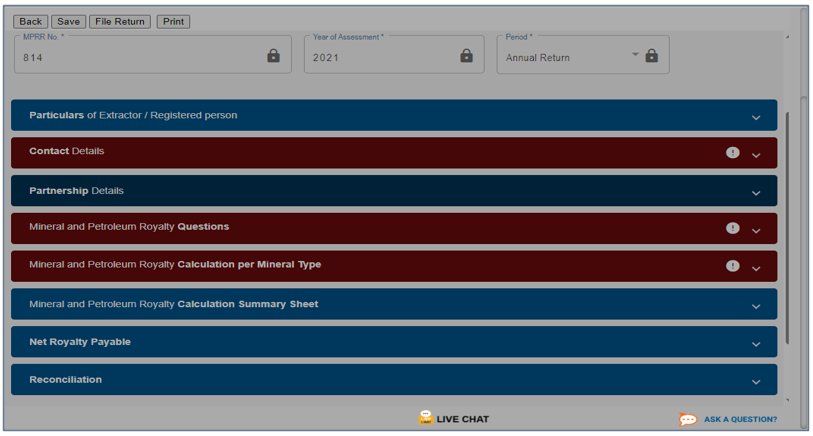
- The below screen with the various containers of the selected MPR3 return will be displayed, completed by the taxpayer, and submitted:
Completion of MPR3 Return
MPRR Reference Number, TAX Year and TAX Period
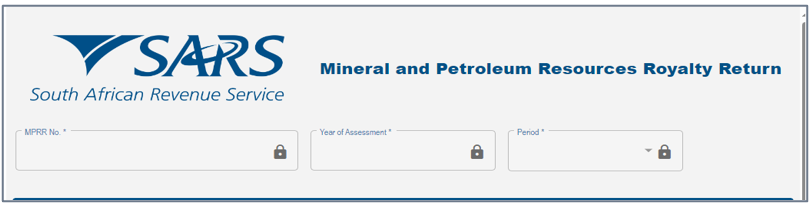
- The following information on the MPR3 return will be pre-populated and locked/greyed out. If the information provided is incorrect, you can only amend the fields by visiting your nearest Branch Office or following the Registration (RAV01) process, refer to GEN-REG-01-G04 – How to Complete the Registration Amendments and Verification Form RAV01 – External Guide:
- MPRR Number (Mineral and Petroleum Resources Royalty):
- This is the registration number that a business obtains from SARS when it registers for MPRR tax.
- A new MPRR tax reference number starting with “814….” has been introduced for existing and new MPRR subscriptions.
- Year of assessment:
- The taxpayer’s year of assessment (tax year) will be pre-populated and locked according to the selection made on the previous screen when opening the return.
- Period:
- The taxpayer’s tax period will be pre-populated and locked according to the selection made on the previous screen when opening the return.
- MPRR Number (Mineral and Petroleum Resources Royalty):
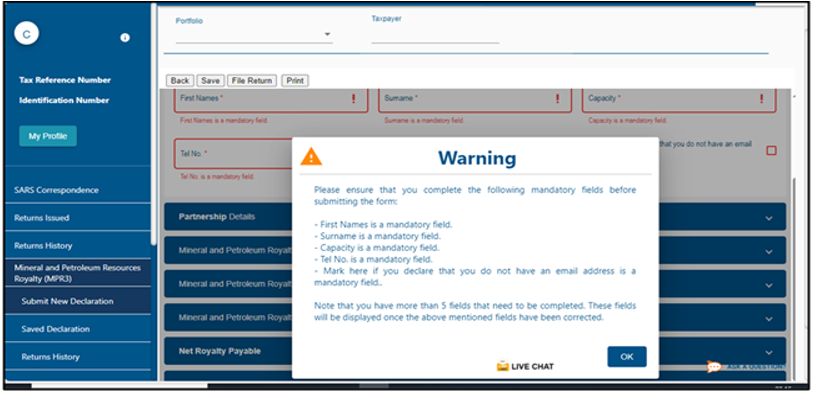
- The MPR3 return can be filed after all the mandatory fields are completed. A pop-up message will be displayed as per below screen below:
- “A list with the outstanding mandatory fields, followed by:
- Note that you have more than x fields that need to be completed. These fields will be displayed once the above-mentioned fields have been corrected.”
- “A list with the outstanding mandatory fields, followed by:
- Click on the “OK” button to correct/ complete the remaining mandatory fields.
Particulars of Extractor Extractor/Registered Person
Personal Details
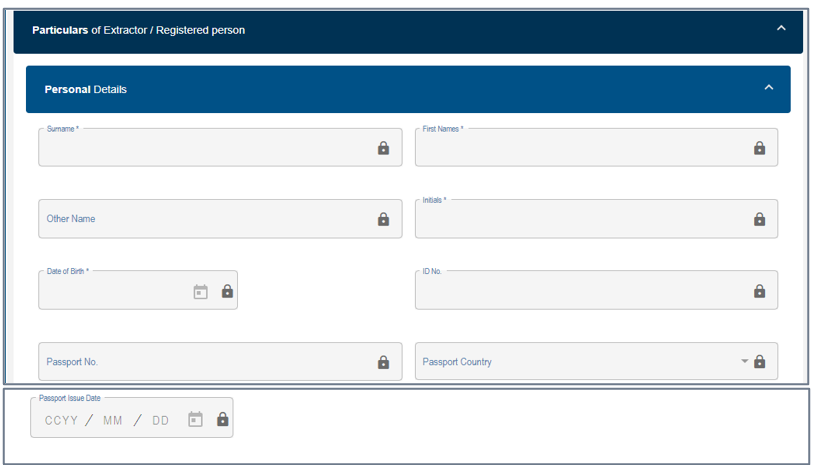
The following information on the MPR3 return will be pre-populated and locked/greyed out. If the information provided is incorrect, you can only amend the fields by visiting your nearest Branch Office or following the Registration (RAV01) process, refer to GEN-REG-01-G04 – How to Complete the Registration Amendments and Verification Form RAV01 – External Guide:
- Surname;
- This field is mandatory;
- First names;
- This field is mandatory;
- Other Name;
- This field is optional;
- Initials;
- This field is mandatory;
- Date of Birth (CCYYMMDD); e.g.19840623;
- ID No.;
- This is the Republic of South African identity number of the taxpayer.
- Passport No.;
- This number will only be completed if you do not have an identity number.
- Passport Country Code (South Africa = ZAF).
- This field will be completed with the associated passport code.
- Passport Issue Date (CCYYMMDD).
- This field will be pre-populated with the date issued e.g. 20231010.
Company/Trusts/Partnership and other Entities
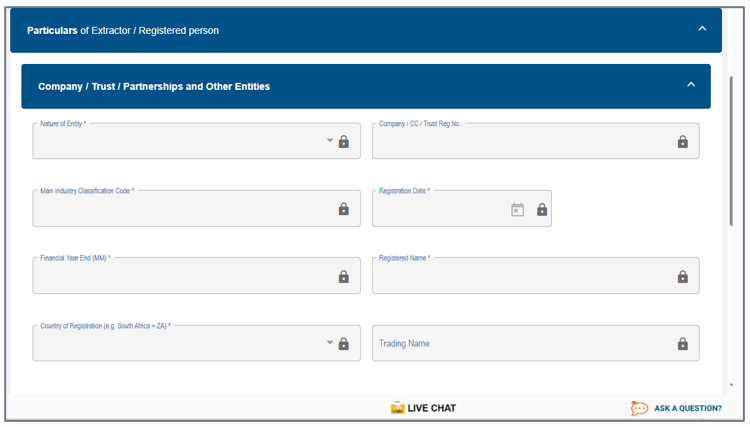
The following information on the MPR3 return will be pre-populated and locked/greyed out. If the information provided is incorrect, you can only amend the fields by visiting your nearest Branch Office or following the Registration (RAV01) process, refer to GEN-REG-01-G04 – How to Complete the Registration Amendments and Verification Form RAV01 – External Guide:
- Nature of Entity;
- This is the nature of the business the taxpayer is trading in, as a sole proprietor or a partner in a partnership or close corporation or company or co-operative.
- Company/CC/Trust Reg No;
- This is the registration number that a close corporation, co-operative, or company obtains when it registers with CIPC.
- Main Industry Classification Code;
- This is the code for a specific sector in the economy, e.g. manufacturing, from which the business’s main income is derived. The codes for the various sectors of the economy.
- Registration Date (CCYYMMDD);
- This is the date on which the business started; ensure that the CCYYMMDD format is used, e.g. 20020601 for a business that started trading on 01 June 2002.
- Financial Year end;
- This field will be pre-populated as year, month, and day (CCYYMMDD),e.g. 20220405
- Registered Name;
- This is the name that the business is legally registered under with the relevant authority, e.g. Companies and Intellectual Property Commission (CIPC).
- Country of Registration;
- This indicates the country that the business is registered from.
- Trading Name.
- This is the name under which the business trades or by which it is generally known to its customers.
Contact Details
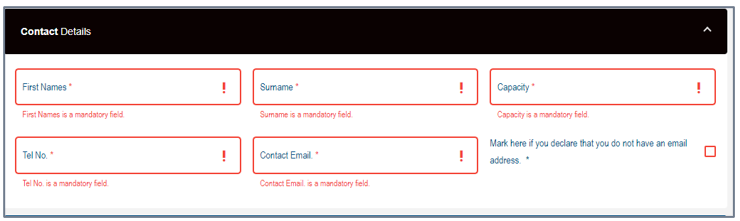
- For all types of entities, complete the following fields:
- First Names;
- This field is mandatory;
- Surname;
- This field is mandatory;
- Capacity;
- This field is mandatory;
- Tel No.;
- This field is mandatory;
- Contact Email.
- This field is conditional, either you complete the email address, if applicable, or tick box the field on the screen.
- Mark here if you declare that you do not have an email address;
- This field is conditional; if the email address is not applicable, Complete the field on the screen.
- First Names;
Partnership Details

- This section is only applicable if the entity consists of multiple partners (unincorporated body of persons). Check the relevant box to select the applicable “Type of Partnership”:
- “Individual” – select if the nature of the partners is sole proprietor, and complete the following fields per individual partner:
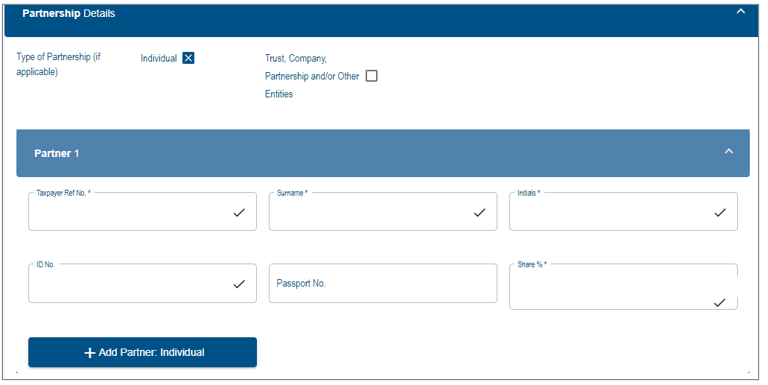
- Taxpayer Ref No.;
- This field is mandatory;
- Surname;
- This field is mandatory;
- Initials;
- This field is mandatory;
- ID No.;
- This field is conditional; if the person is a South African resident, an identity number must be completed;
- Passport No.;
- This field is conditional; if the identity number is not completed, then the passport number must be completed;
- Share (%).
- This field is mandatory;
- Taxpayer Ref No.;
- If you are required to add an additional partner, click on the “Add Partner – Individual” button. An additional container will be added to complete the additional partner information.
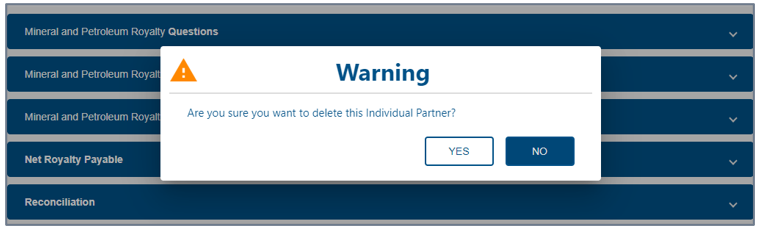
- If you are required to delete the additional individual partner container, then click on remove partner.

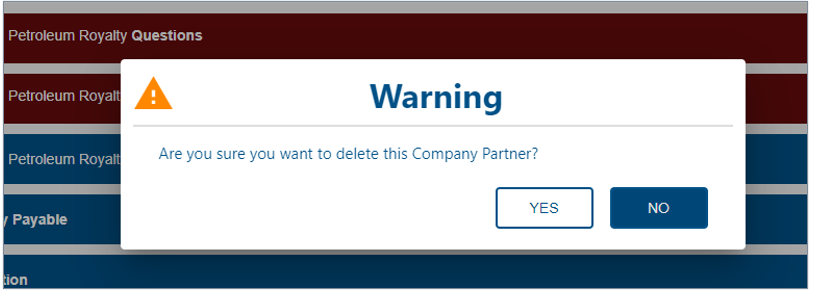
- A pop-up message will be displayed to you if you remove/delete a partner, click on “Yes” if you are deleting/removing a partner, or “No” if it was in error to remove/delete the partner.
- Select “Trust, Company, Partnership and/or Other Entities”, if applicable to the partners, and complete the following fields:
- Taxpayer Ref No.;
- This field is optional, complete if applicable;
- Company/CC/Trust Reg No.;
- This field is mandatory;
- Share (%);
- This field is mandatory;
- Registered Name.
- This field is mandatory;
- Taxpayer Ref No.;
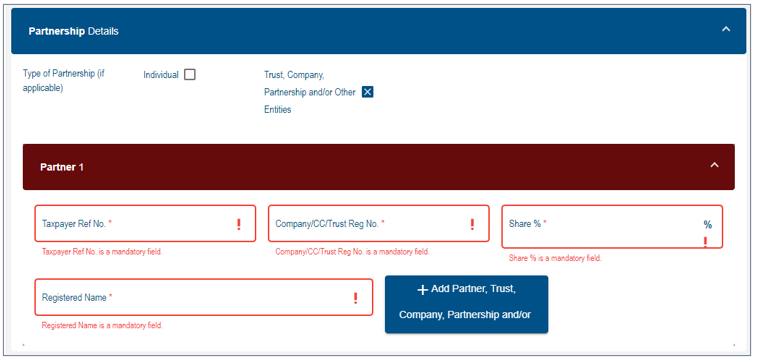
- Note: You have an option to select both “Individual” and “Trust, Company, Partnership and/or Other Entities”, if the partners are a combination of legal entity types.
- If you are required to add an additional partner, click on the “Add Partner – Trust, Company, Partnership and/or Other Entities” button, then an additional container will be added to complete the additional partner information.
- If you are required to delete the additional partner – Trust, Company, Partnership and/or Other Entities container, then click on “Remove partner”.

- A pop-up message will be displayed to you if you remove/delete a partner, click on “Yes” if you are deleting/removing a partner, or “No” if it was an error to remove/delete the partner.
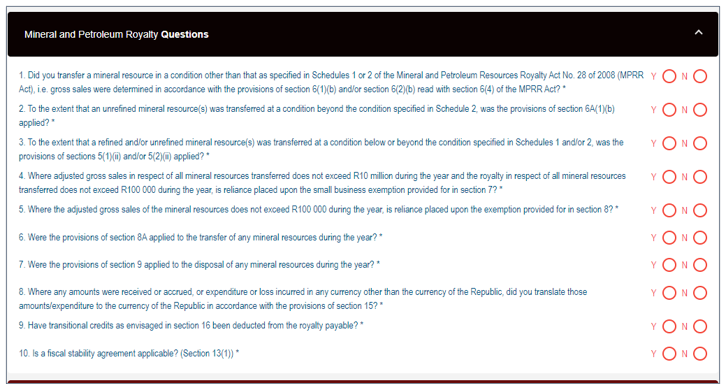
Mineral and Petroleum Royalty Questions
- Complete the following questions completely and accurately before you submit your return.
- Note: SARS will not be responsible for applying e.g. exemption rules, if the questionnaire is not completed and accurate.
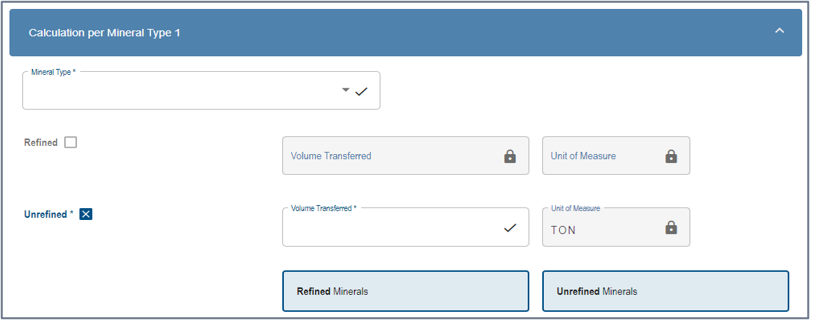
Mineral and Petroleum Royalty calculation per Mineral Type
- Select the applicable “Mineral Type” from the drop-down box and select “Refined” and/ or “Unrefined” depending on the type of mineral/s applicable to the MPR3 declaration. Complete the following fields for the Mineral and Petroleum Resources Royalty calculation.
- Volume transferred.
- Enter the volume of the mineral/s transferred using the unit of measure that has been prepopulated in the unit of measure field.
- Unit of measure
- Pre-populated according to the selected mineral type.
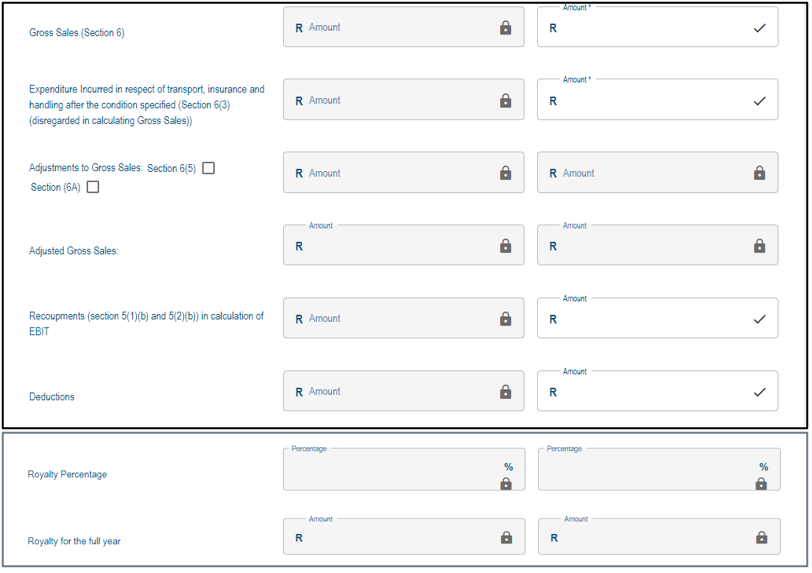
- Gross Sales (actual for the year in terms of Section 6)
- This is a mandatory field.
- A negative amount is not allowed.
- Expenditure incurred in respect of transport, insurance and handling after the condition specified in Section 6(3) (disregarded in calculating Gross Sales)
- The gross sales for refined minerals are determined after deducting any expenditure actually incurred in respect of, insurance and handling of a refined mineral resource after that mineral resource was refined to the condition specified in Schedule 1 for that mineral resource or any amount received or accrued to affect the disposal of that mineral resource.
- The gross sales for unrefined minerals are determined after deducting any expenditure actually incurred in respect of transport, insurance, and handling of an unrefined mineral resource after that mineral resource was brought to the condition specified in Schedule 2 for that mineral resource or any expenditure actually incurred in respect of transport, insurance, and handling to affect the disposal of that mineral resource, refer to Section 7- Annexure(Schedules 1 and 2).
- Adjustments to Gross Sales: Section 6(5) / Section 6(A)
- Adjustments to Gross Sales: Section 6(5) is only applicable to refined field.
- Adjustments to Gross Sales: Section 6(5) as well as Section (6A) is applicable to unrefined field;
- This is a mandatory field.
- A negative amount is allowed.
- Adjusted Gross Sales
- This is a system calculated field and is equal to “Gross sales (actual for the year in terms of section 6)” less “Expenditure incurred in respect of transport, insurance and handling after the condition specified (Section 6(3)” plus “Adjustments to Gross Sales: Section 6(5)/ Section (6A)”.
- Recoupments (section 5(1)(b) and 5(2)(b)) allowed in calculation of EBIT.
- This is a mandatory field.
- A negative amount is not allowed.
- Deductions
- This is a mandatory field.
- A negative amount is not allowed.
- EBIT
- This is a calculated field and is equal to “Adjusted Gross Sales” plus “Recoupments (section 5(1)(b) and 5(2)(b)) allowed in calculation of EBIT” less “Deductions”.
- This field can only be positive or zero (if negative then defaults to zero)
- Royalty rate percentage
- This is a calculated field.
- For Refined Minerals:
- Formula: Royalty Percentage = 0.5 + [ EBIT / (Adjusted Gross Sales x 12.5)] x 100
- The lowest percentage = 0.5
- The highest percentage = 5
- The royalty rate percentage calculation amendments only apply to the oil and gas mineral types, which can only be transferred in a refined form.
- The calculation amendments will only be applied for Years of Assessment (YoA) commencing on or after 1 January 2024. This equates to YoA ending December 2024 and onwards on the MPR3 return. For YoA prior to this date e.g., YoA November 2024 and prior, the calculation must remain as-is.
Calculation of Royalty Percentage for Oil and Gas in a refined form | |
YoA ending November 2024 and Prior | YoA commencing on or after 1 January 2024 |
Royalty Percentage = 0.5 + [EBIT / (Adjusted Gross Sales x 12.5)] x 100 The lowest percentage = 0.5 The highest percentage = 5 NOTE: This is the current calculation and must remain valid for YoA November 2024 and prior. | Royalty Percentage = 2 + [EBIT / (Adjusted Gross Sales x 12.5)] x 100 The lowest percentage = 2 The highest percentage = 5 NOTE: This is the amended calculation and must be used for YoA ending on or after December 2024. |
- For Unrefined Minerals:
- Formula: Royalty Percentage = 0.5 + [ EBIT / (Adjusted Gross Sales x 9)] x 100
- The lowest percentage = 0.5
- The highest percentage = 7
- Royalty for the full year
- This is a calculated field and is equal to “Adjusted Gross Sales” multiplied by “Royalty Percentage”.
- This field can only be positive or zero.
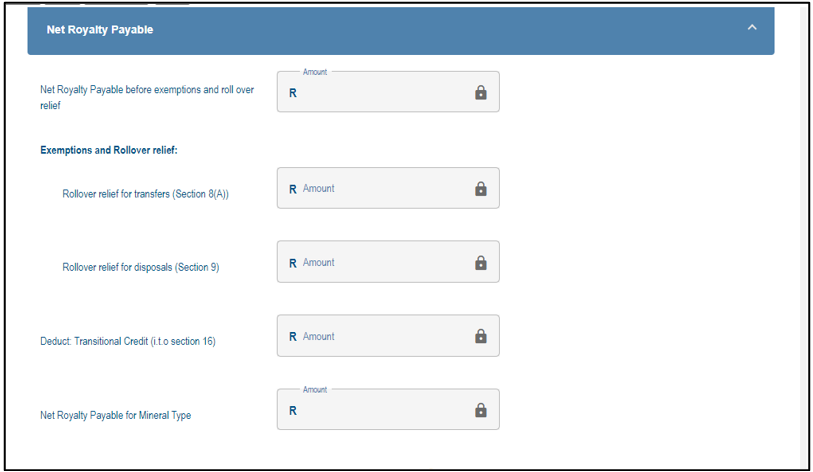
NET Royalty Payable
- Complete the following fields for refined and unrefined Minerals (as appropriate):
- Net Royalty payable before exemptions and rollover relief.
- This is a brought forward field from the calculation above.
- Exemption and Rollover relief (these fields are editable to capture if you answered yes to the relevant question on page 3):
- Rollover relief for transfers(Section 8(A)).
- Rollover relief for disposals(Section 9).
- Deduct: Transitional Credit (i.t.o. Section 16) (this field is editable to capture if you answered yes to the relevant question on page 17).
- This is a mandatory field.
- A negative amount is not allowed.
- This field cannot create a refund.
- Net royalties Payable for Mineral Type:
- This is a calculated field and is equal to Net Royalty payable before exemptions and rollover relief less Rollover relief less Transitional Credit (i.t.o. Section 16).
- Note: The Annual Return must be supported by a detailed calculation of Gross Sales and Earnings before Interest and Taxation (EBIT). SARS may request these supplementary documents at any time.
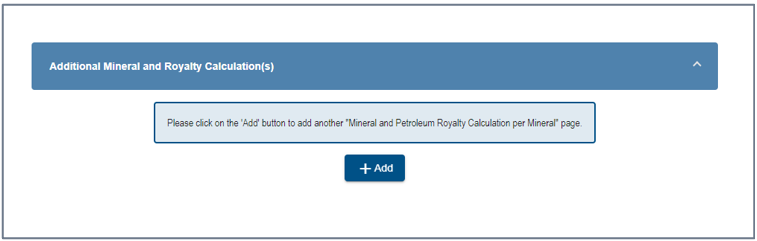
- Click on the “Add” button if you require adding an additional Mineral and Petroleum Royalty calculation per Mineral page. An additional container will be added for completion.
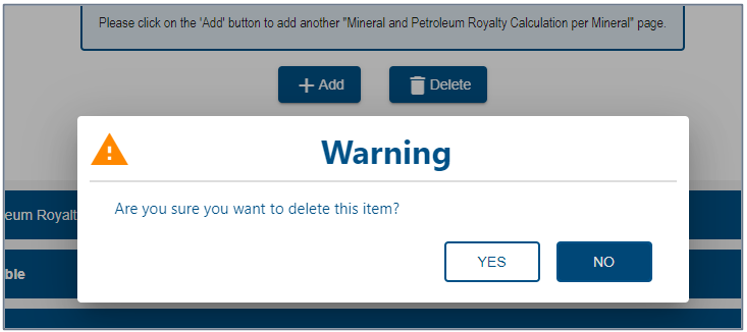
- If you require to delete/remove the Mineral and Petroleum Royalty calculation per Mineral page, click on the “Delete” button.

- A pop-up message will be displayed to you, click “Yes” if you want to delete the item or “No” if you do not want to delete the item.
Mineral and Petroleum Summary Sheet
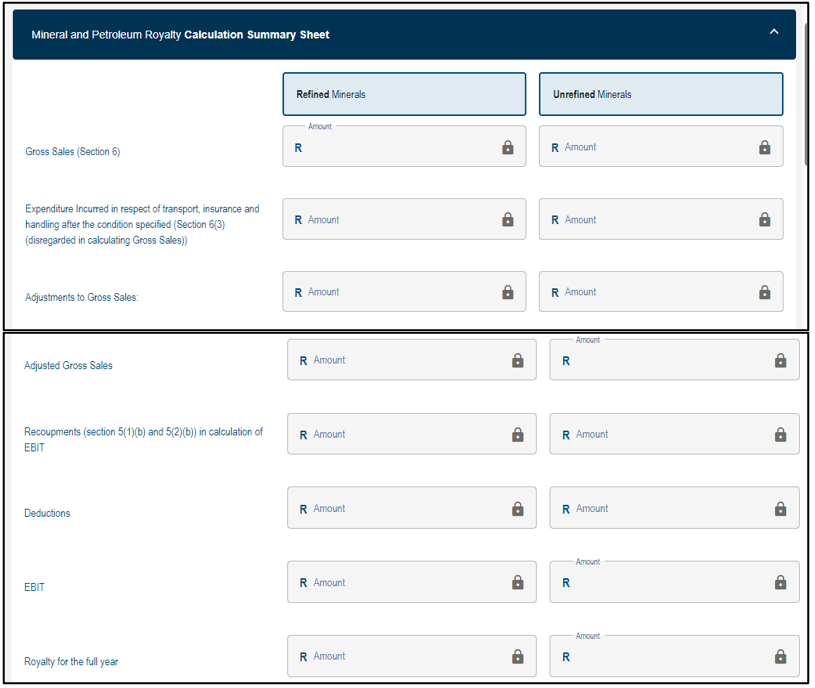
- This is a summary sheet, and no user entry is allowed.
- The figures displayed are an aggregation of the individual Mineral and Petroleum Royalty calculations per Mineral type pages completed above.
Net Royalty Payable
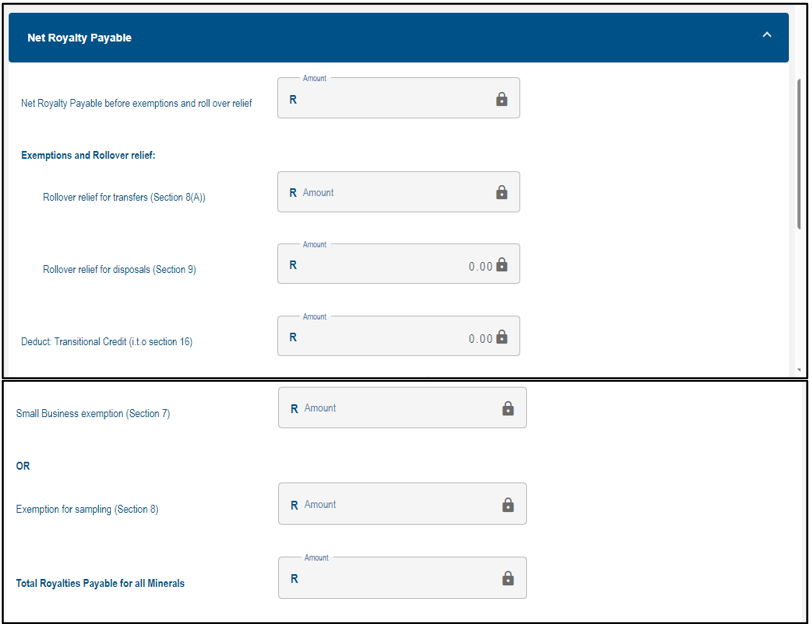
- Net Royalty Payable before exemptions and roll over relief.
- This is a brought forward field of the cumulative value of the calculated “Royalty for the full year” of the Refined and Unrefined mineral/s.
- Exemption and Rollover relief
- These fields are editable to capture if you answered “yes” to Questions 6 and 7 on the “Mineral and Petroleum Royalty Questions” wizard page.
- “Roll-over relief for transfers (Section 8(A))” will apply if you answered “yes” to Question 5 and 6. The fields will become active and optional for completion. It will remain read-only if “no” was selected on Question 5.
- “Roll-over relief for disposals (Section 9)” will apply if you answered “yes” to the Question 7. The fields will become active and optional for completion. It will remain read-only if “no” was selected on Question 7.
- Deduct: Transitional Credit (in terms of (i.t.o) Section 16)
- These fields will become active and optional for completion if you answered “yes” to Question 9 on the “Mineral and Petroleum Royalty Questions” wizard page. It will remain read-only if “no” was selected.
- This is a mandatory field.
- A negative amount is not allowed.
- This field cannot create a refund.
- Net Royalties Payable for Mineral Type
- This is a calculated field and is equal to “Net Royalty payable before deductions” less “Rollover relief for transfers (Section 8(A))” less “Rollover relief for disposals (Section 9)” less “Transitional Credit (i.o. section 16)”.
- Small Business exemption (Section 7)
- This field will be populated with the calculated amount of “Total Royalties Payable for all minerals” if your answered “yes” to Question 4 on the “Mineral and Petroleum Royalty Questions” wizard page.
- This will result in the field “Total Royalties Payable for all Minerals” being Zero.
- Note: Small business exemption provided for in Section 7 of the Mineral and Petroleum Resources Royalty Act, 28 of 2008 does not apply if the “Adjusted Gross Sales” in respect of all mineral resources transferred exceeds R10 000 000 and/or the “Net Royalty” exceeds R100 000 for the year.
- Exemption for sampling (Section 8)
- This field will be populated with the calculated amount of “Total Royalties Payable for all minerals” if your answered “yes” to Question 5 on the “Mineral and Petroleum Royalty Questions” wizard page.
- This will result in the field “Total Royalties Payable for all Minerals” being zero.
- Total Royalties Payable for all Minerals
- This is equal to “Net Royalty payable before exemptions and roll over relief” less “Rollover relief for transfers (Section 8(A)” less “Rollover relief for disposals (Section 9)” less “Transitional Credit (i.t.o. section 16)”.
- Note: The Annual Return must be supported by a detailed calculation of Gross Sales and Earnings before Interest and Taxation (EBIT). SARS may request these supplementary documents at any time.
Reconciliation
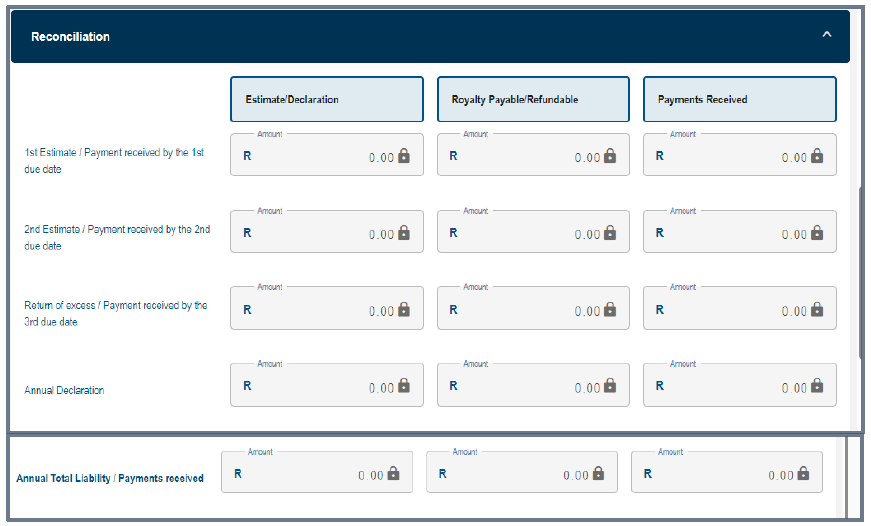
- The reconciliation on eFiling MPR3 return will summarise the current filing obligations in the applicable fields. Fields applicable to payments and earlier filings will be pre-populated in the relevant containers to complete the progressive view of the year of assessment.
- Note: Do not request more than one return (within a tax year) at the same time and submit afterwards – this will result in outdated pre-populated transactions and information on the subsequent returns. Always ensure that the pre-populated values on your return are accurate and complete before you complete same. Else, select “Refresh” to enable the updated pre-populated values.
- The taxpayer must ensure the declaration aligns with actual estimations and payments made per tax period.
- Estimation/Declaration
- 1st Estimate / Payment received by the 1st due date.
- The amount declared as per Estimate/Declaration that was submitted for the 1st Provisional period for that year of assessment.
- 2nd Estimate / Payment received by the 2nd due date.
- The amount declared as per Estimate/Declaration that was submitted for the 2nd Provisional period.
- Return of excess / Payment received by the 3rd due date.
- The amount declared as per Estimate/Declaration that was submitted for the RoE Provisional period.
- Annual Declaration
- Total Royalties due declared for the tax year.
- 1st Estimate / Payment received by the 1st due date.
- Royalty Payable / Refundable
- 1st Estimate / Payment received by the 1st due date.
- This amount will be calculated as 1st Provisional Return Royalties Due x 50%
- 2nd Estimate / Payment received by the 2nd due date.
- This amount will be calculated as 2nd Provisional Return Royalties Due less 1st Provisional Return Royalties Due
- Return of excess / Payment received by the 3rd due date.
- This amount will be calculated as RoE less 2nd Provisional Return Royalties Due less 1st Provisional Return Royalties Due
- Annual Declaration
- This amount will be calculated as Annual Declaration less RoE less 2nd Provisional Return Royalties Due less 1st Provisional Return Royalties Due
- 1st Estimate / Payment received by the 1st due date.
- Payments Received
- 1st Estimate / Payment received by the 1st due date.
- The actual payment amount/s that was received and processed by SARS for the 1st period royalty due.
- 2nd Estimate / Payment received by the 2nd due date.
- The actual payment amount/s that was received and processed by SARS for the 2nd period royalty due.
- Return of excess / Payment received by the 3rd due date.
- The actual payment amount/s that was received and processed by SARS for the optional RoE royalty due.
- Annual Declaration
- The actual payment amount/s that was received and processed by SARS for the Annual declaration’s (if any) royalty due.
- 1st Estimate / Payment received by the 1st due date.
Return Functionalities on eFilling and the MPR3 Work Page

- The return functionalities available on the return includes; “Back”, “Save”, “File Return”, and “Print”.
- “Back” will take you to the previous page.
- “Save” will save your return on eFiling. You must ensure that you click on the “Save” button to save all the changes that you have made every time your return is opened and edited.
- “File Return” will mark your return as Filed. You must click on the “File Return” button to submit the MPR3 obligation to SARS.
- “Print” will open your MPR3 return in a printable version.
- Once you have confirmed that the information is all completed on the return, and you are ready to submit to SARS, click on the “Disagree” or the “Agree”button.
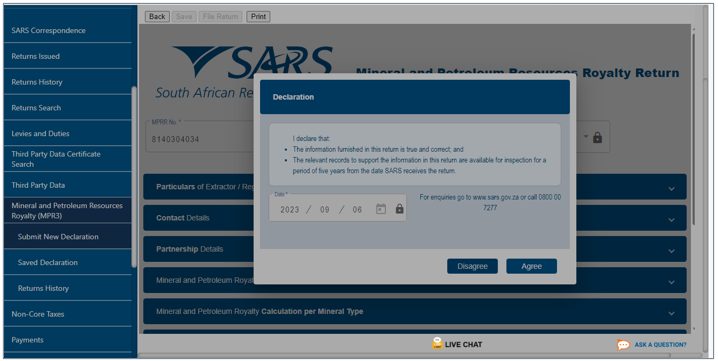
- If you click on the “Disagree” button, you will be redirected to the MPR3 return page to make the required updates.
- If you click on the “Agree” button, the following screen will be displayed. You can declare the validity, accuracy, and completeness of the MPR3 return and it will be submitted/ filed.
- Once you have declared on the MPR3 return, the following screen will be displayed with this note:
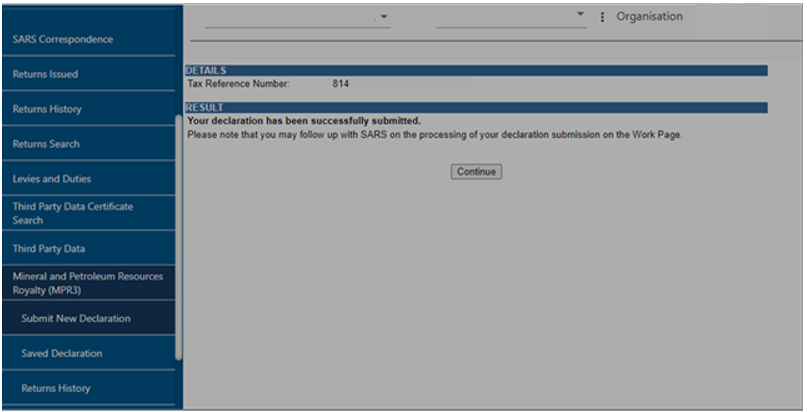
- Any returns that are filed out of sequence (e.g., a 1st Provisional MPR3 is filed when a 2nd Provisional MPR3 for the same tax year was already filed, will be rejected).
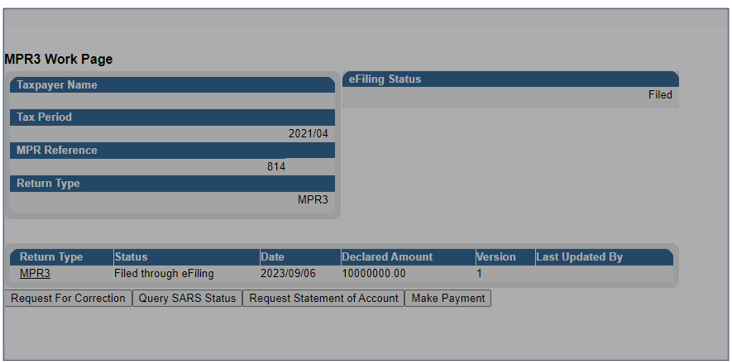
- The status of the MPR3 return will be displayed on the top right hand-side field of the MPR3 work page, refer screen-print below.
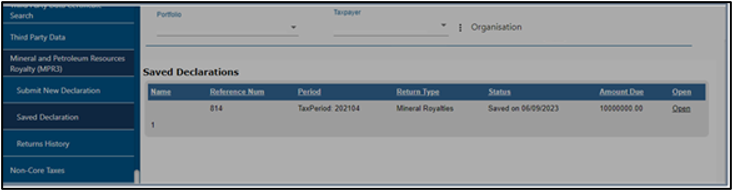
- Note: All saved obligations are saved on the eFiling database.
- The list of saved MPR3 returns will be displayed as follows.
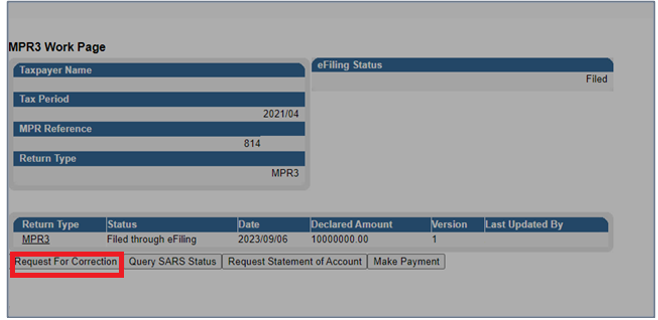
- You will be able to request for the correction of an MPR3 return via eFiling but will be limited to items with an “Active” status. You will be allowed to select the MPR3 return that requires correction and click on the “Request for Correction” (RFC) button as per the following screen:
- You can select the return you want to view by selecting the respective “MPR3” hyperlink and be redirected to a special eFiling work page that will contain the following information:
- The standard eFiling “MPR3 Work Page” header information.
- A section with the returns for the specific period. eFiling will extract from the history listing all the returns filed for the specific tax year/tax period and present it in a date-submitted order to the taxpayer.
- eFiling will supplement this list with returns in a saved status for the specific period where applicable.
- Note: A new version of an MPR3 (RFC) will be displayed with a “Saved” status until you decide to submit/file the updated MPR3.
- The return will then be displayed in the return window (as is the case with all MPR3 returns).
- Note: The usual eFiling return processing rules will apply with regards to the various eFiling version associated with the tax year, e.g. Version 1 for original MPR3 return submission, version 2 for the RFC submitted, version 3 for another RFC submitted.
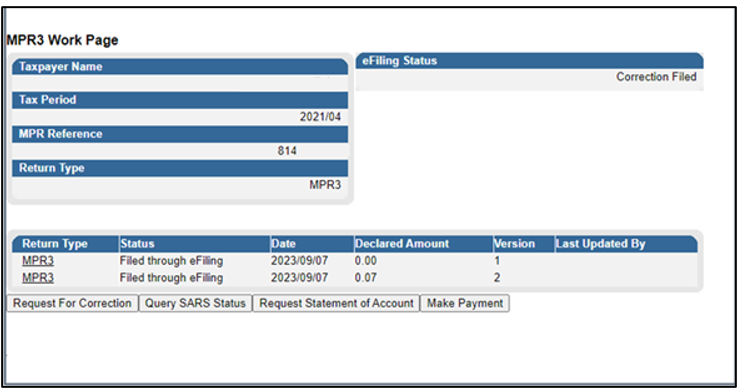
- eFiling will issue a prepopulated return (based on the latest transactions on the account) if a Request for Correction (RFC) request is submitted.
- Note: Do not request more than one return (within a tax year) at the same time and submit it afterwards – this will result in outdated pre-populated transactions and information on the subsequent returns. Always ensure that the pre-populated values on your return are accurate and complete before you complete the same. Otherwise, select “Refresh” to enable the updated pre-populated values.
- Once a corrected MPR3 has been submitted, no action can be taken on the previous version, as it will be replaced by the updated version.
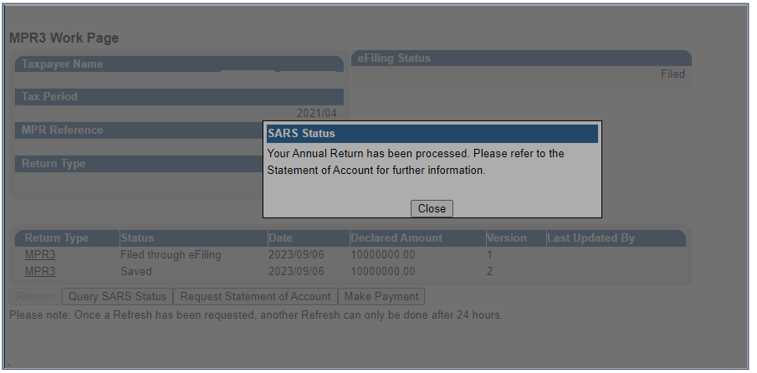
- The “Query SARS Status” button can be selected to query the latest status of the submission and will be applicable and available for filed MPR3 returns in the “Returns History” list. SARS will respond with a message as per the screen below.
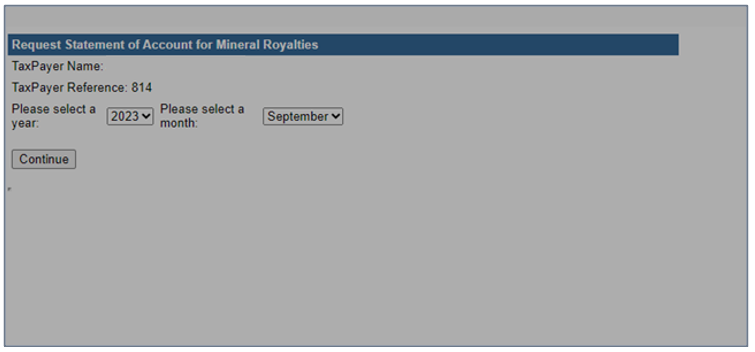
- The Statement of Account can be requested from the MPR3 Work Page, selecting the “Request Statement of Account” (SOA).
- A pop-up menu will request you to select the period of the SoA.
- If the selected SOA is available, you will be able to open it from the hyperlink displayed.Note that currently the monthly SoA is only generated at the end of each month and therefore will not show interim transactions.
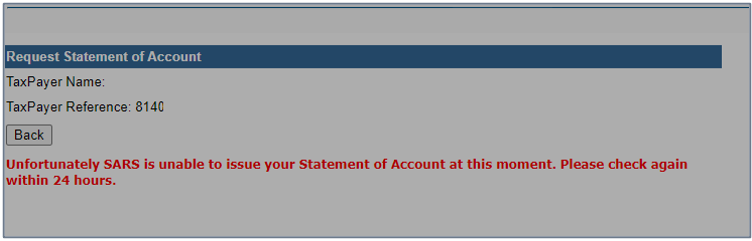
- If none is available a pop-up message will be displayed:
Payment Options Available to SARS client using eFilling
- Note: All prior period MPR3 returns (all returns for tax years with financial year-end before April 2024) must still be submitted in terms of the original process via the [email protected] email address. Payments on these returns must still be made via eFiling using the “Additional payment” option linked to the MINR (Mineral Royalty) tax type. These transactions must be processed using your Income Tax reference number. Refer to the table depicted in “Summary” of this document for the operationalisation approach.
- The Payment options for MPR3 returns that are filed via the new eFiling channel have been improved to ensure matching of the payment with its related return, interest, and penalties. To ensure the accurate processing of the payments and matching of the credit with the open outstanding debt, taxpayers must process their payments on these new eFiling MPR3 returns as follow:
- SCENARIO 1: “Make payment” (equal or less than the value due) on a specific, eFiling filed MPR3 return/s. This payment method specifically applies to MPR3 returns that were submitted/filed via eFiling, with an amount due to SARS.
- SCENARIO 2: Create an “Additional payment”, selecting the “Mineral Royalty (MINR)” option from the drop box for MPR3 returns that related to tax years with financial year-end before April 2024, and were submitted to SARS via the [email protected] email address. This payment method will apply to all MPR3 returns that were not filed via eFiling and not visible on the eFiling MPR3 Work Page.
- Note: Do not select the “Mineral Royalty (MPR3)” option form the “Additional payment” drop-down box unless SARS specifically advises you differently.
The following banks can be used to generate payment requests:
- ABSA
- Capitec
- Citibank
- FNB
- HSBC
- Nedbank
- Standard Bank
- Standard Chartered Bank
- HBZ
- Mercantile
- Al Baraka
- Investec
- Sasfin
For further assistance in terms of SARS Payment Rules, refer to GEN-PAYM-01-G01-South African Revenue Service Payment Rules – External guide which is available on the SARS website www.sars.gov.za.
If your banking details are not captured/ updated on your eFiling profile, you need to set-up the banking information. For you to set-up the banking information, the account name and banking product needs to be completed and saved. Refer to the SARS website www.sars.gov.za for the steps to follow. (Link to change bank details: eFiling Payments (Credit Push)
SCENARIO 1: Make a Payment on a MPR3 return that was filed via eFiling (April 2024 and prospective financial year-ends)
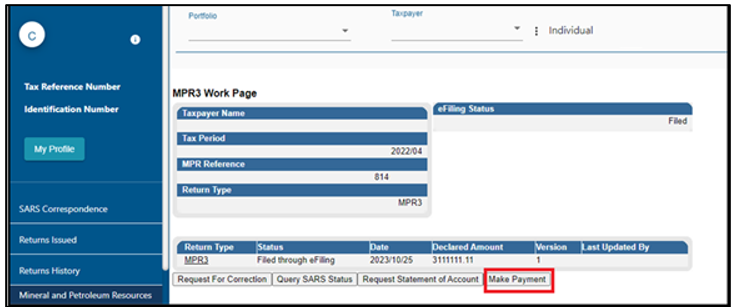
- On your MPR3 Work Page, select the return you wish to pay, and click on the “Make Payment” button to initiate the eFiling payment method.
- When a payment is made on the system it will generate the amount payable with interest and penalties included (where applicable). Where penalties and interest are applicable and added, the payable amount would therefore differ from the amount that was filed.
- A pop-up message will be displayed: “Please note that the payment amount must include interest and penalties where Royalty payable amounts where not settled on time and in full.”
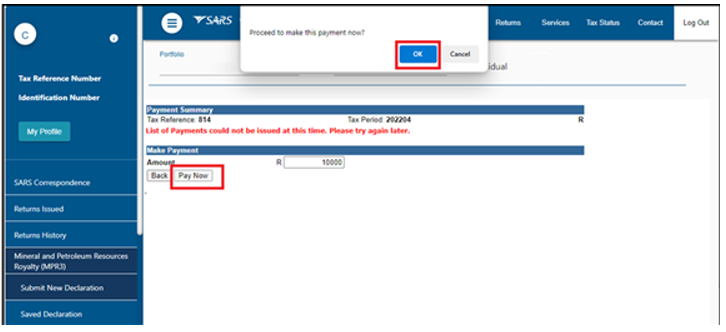
- The following screen will be displayed and capture the “Amount” you want to pay and click on the “Pay Now” Button.
- Click on the “OK” button to continue making the payment,
- Click on the “Cancel” button and you will be redirected to the Payment Summary Page.
- When you click on the “Pay now” button the following screen will be displayed:
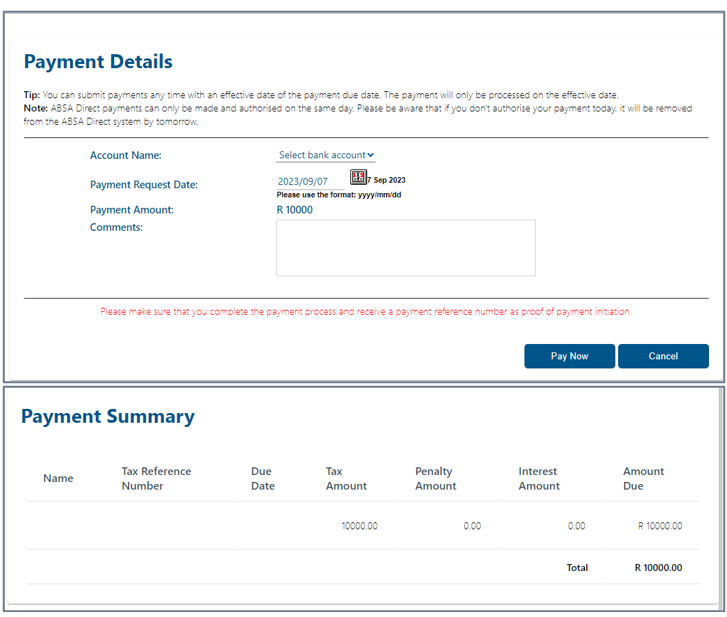
- Select the applicable bank account and click on “Pay Now”. The below “Note” will be displayed to sensitise the eFiler of the process to follow to approve and release the payment instruction on the taxpayer’s bank account.
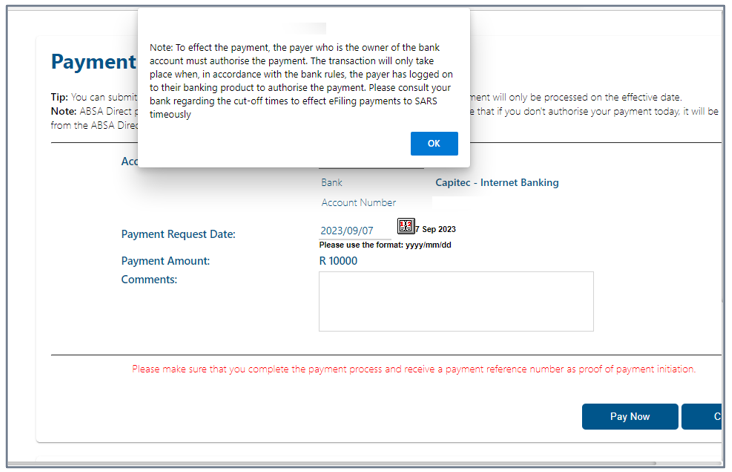
- Click the “OK” button to continue making payment and the following screen will be displayed.
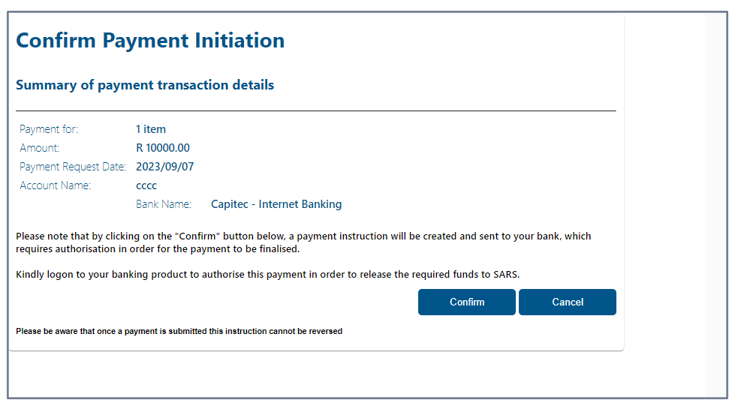
- Click on the “Confirm” button to make sure you agree with the payment amount and the instruction is sent to the taxpayer’s selected bank account for approval and release.
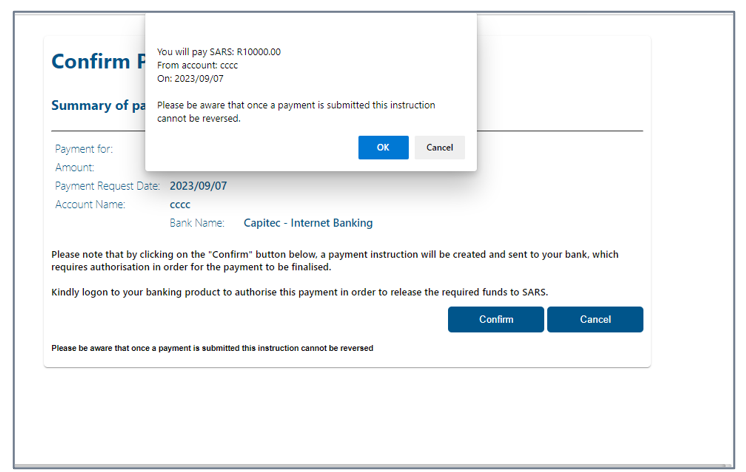
- Click the “OK” button to finalise the payment instruction.
- Note: Once the “OK” button is selected the payment instruction cannot be reversed.
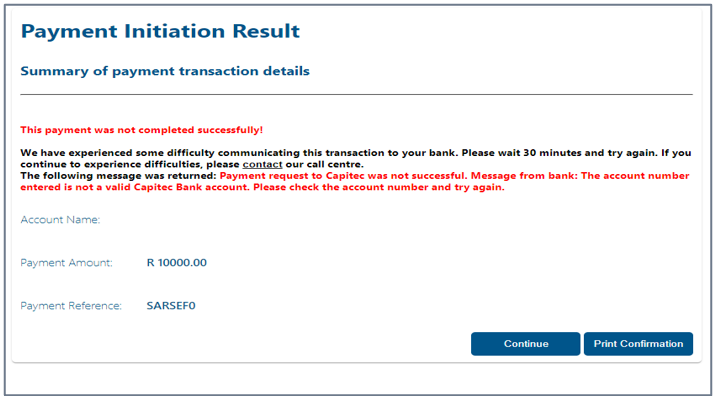
- eFiling will respond if the payment instruction is not completed successfully, supplemented with the proposed corrective actions.
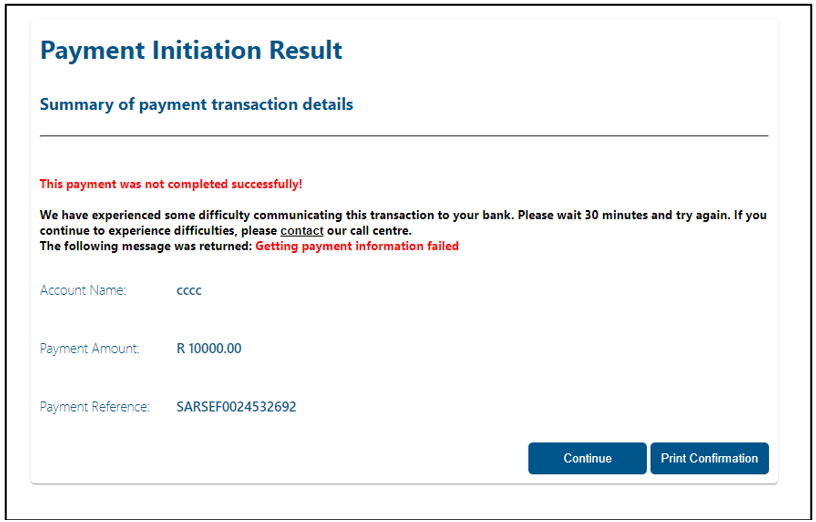
- If the payment instruction was successfully submitted to the taxpayer’s bank, the following screen will be presented:
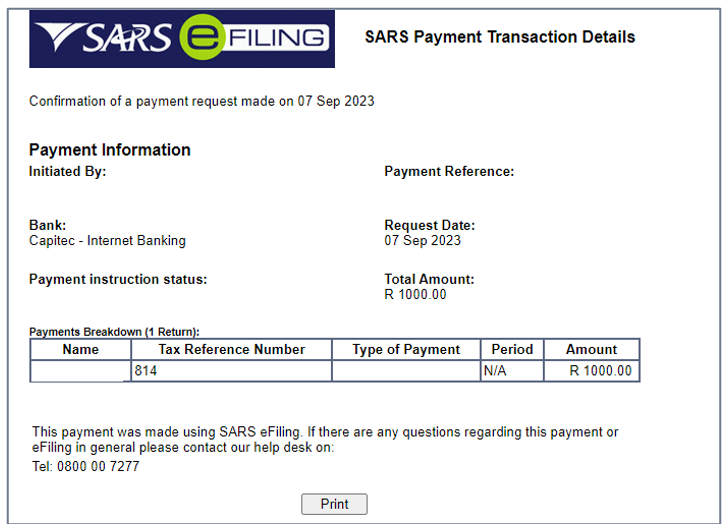
- When the payment request is processed and you need the confirmation, click on the “Print Confirmation” button and the screen will be displayed as follows:
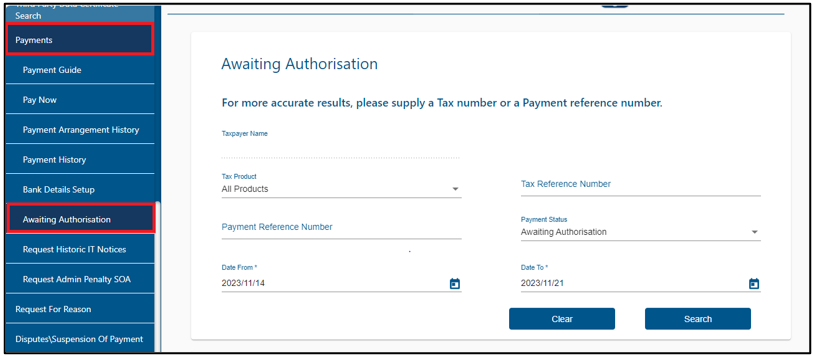
- The confirmed payment instruction will be assigned to the “Payments > Awaiting Authorisation” page (link on the left-hand side of the screen), and will be displayed on the below dashboard:
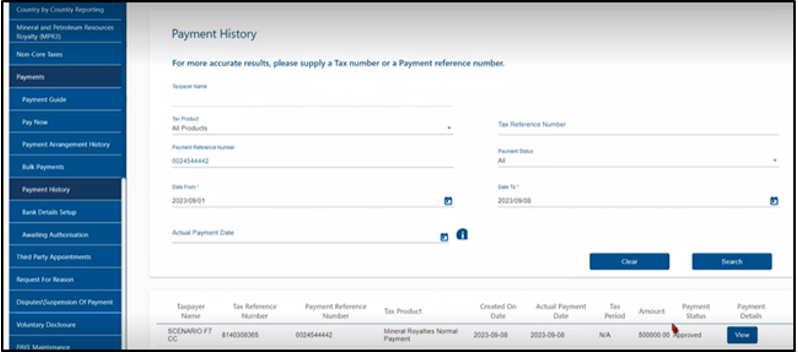
- Click the “Continue” button on the “Payment Initiation Result” page, you will be redirected to “Payments > Payment History” page (link on the left-hand side of the screen),” page, where the approved payments will be displayed on the dashboard.
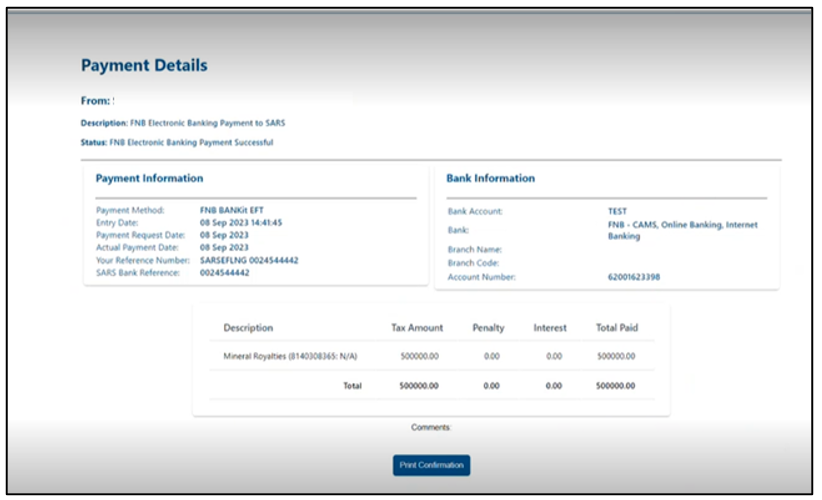
- Select “View” next to the approved payment, you will be able to view the “Payment Details” of the approved payment.
SCENARIO 2: Make a Payment on a MPR3 return that was not filed via eFiling (pre-April 2024 financial year-ends)
- This payment option will be selected for outstanding debt relating to MPR3 returns, penalty and interest for all tax years that had a financial year-end prior to April 2024. These returns will be submitted via the [email protected] email address. Refer to the “Summary” (Section 1 of this webpage) for an explanation of the phased Operationalisation approach.
- This is the same eFiling payment channel that has been utilised by the MPRR taxpayers to date.
- Click on the “Returns” on the top menu.
- Navigate to “Payments” menu item, on the left menu bar and select the “Pay Now” option.
- Select the “Create Additional Payment” sub-option to make payment on outstanding MPRR debt that does not reflect as a filed return on eFiling.
- Capture the payment details:
- Select “Mineral Royalties(MINR)” in the “Tax Type” drop-down box.
- Note: Do not select the “Mineral Royalties (MPR3)” option. This relates to returns filed via the eFiling channel. Refer to SCENARIO 2 above for the correct payment method to process a payment on a MPR3 return/s filed via eFiling.
- Complete the remaining fields.
- Note: Capture the taxpayer’s Income Tax Reference number in the “Tax Reference Number” field.
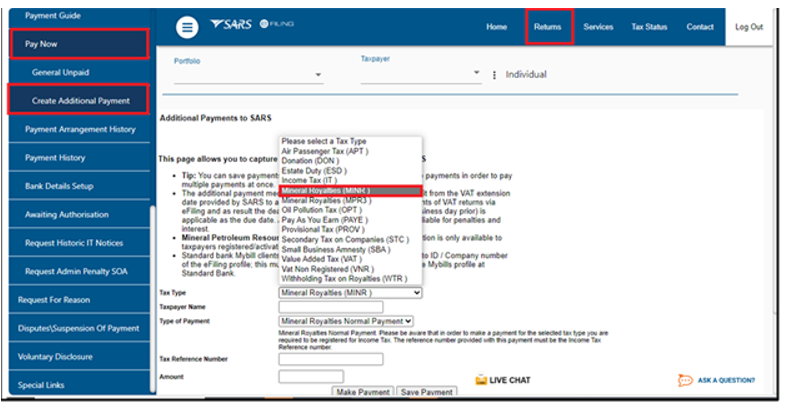
- When you have completed the information above, select “Make Payment” to make the payment immediately.
- Note: If you select “Save Payment” to make the payment at a later stage and can then be viewed under the “General Unpaid” sub-option on the menu on the left-hand side of the page. Refer to Step below for steps to find and pay all “Save Payment” transactions. It is advised to rather pay the amounts immediately and not select it to “Save”.
- When a payment made , the system will generate the amount payable with interest and penalties included (where applicable). Where penalties and interest are applicable and added, the payable amount would therefore differ from the amount that was filed.
- A pop-up message will be displayed: “Please note that the payment amount must include interest and penalties where Royalty payable amounts where not settled on time and in full.”
- If “Make Payment” is selected above, a pop-up message will be displayed to confirm the payment that you want to make. Click “OK” to continue. The below screen will be displayed.
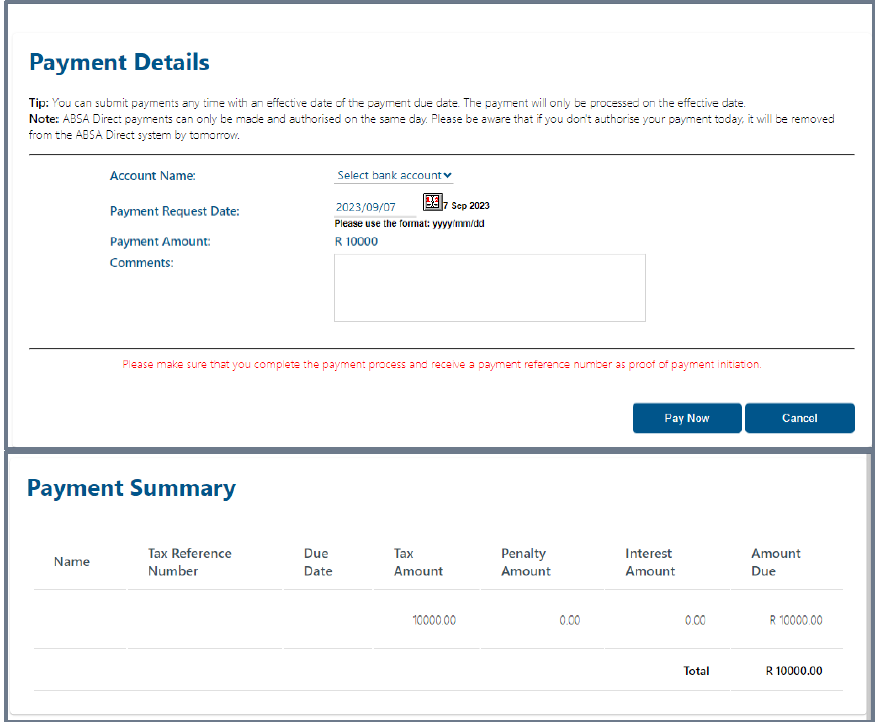
- Refer to Section above – SCENARIO 1 (above) step (d) to the end of the next steps to ensure the payment instruction is successfully sent to the taxpayer’s bank account, released and payment effected.
- For any MPRR “Additional Payment” transactions that were selected to “Save”, refer to the “General Unpaid” sub-option on the left-hand menu. It is advised to rather pay the amounts immediately and not “Save”.
- The below “Payments Outstanding” will be displayed with all saved payments if the “General Unpaid” sub-option is selected on the left-hand side of the menu.
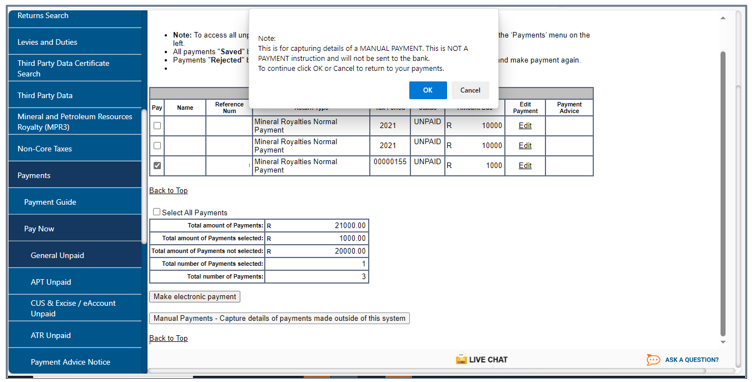
- Select the transaction/s that you would like to pay and click on “Make electronic payment”.
- Note: Do not select “Manual Payments – Capture details of payments made outside of this system”. This option relates to Cash, Debit order and Electronic Fund Transfer (EFT) payments, none of these payment options are available for MPRR. This option will also remove the outstanding transaction from the “General Unpaid” list, even though it has not yet been paid.
- If “Make electronic payment” is selected, the below screen will be displayed.
- Select the transaction/s that you would like to pay and click on “Make electronic payment”.
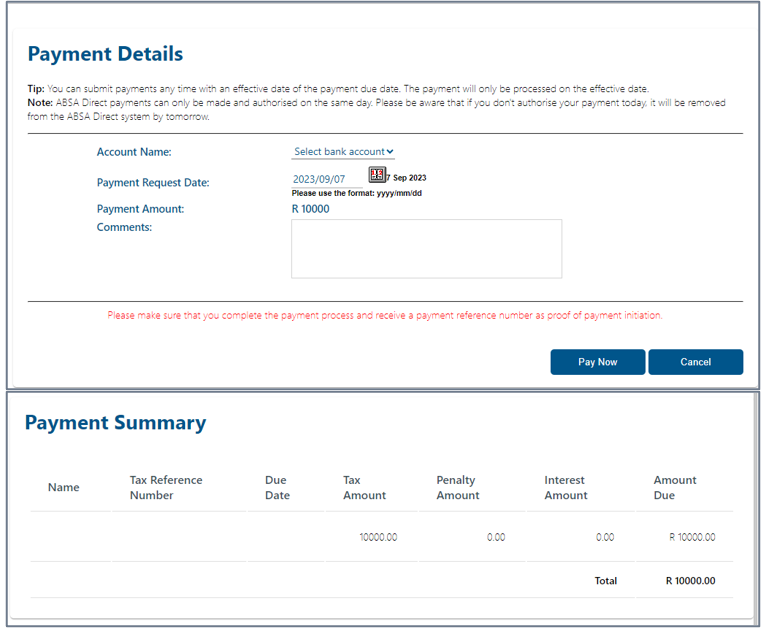
- Refer to SCENARIO 1 (above) step (d) to the end of the next steps to ensure the payment instruction is successfully sent to the taxpayer’s bank account, released and payment effected.
SARS Correspondence
- “MPRR” return type will be available to select from the drop-down list of “Return” in the main heading on the top of the eFiling page.
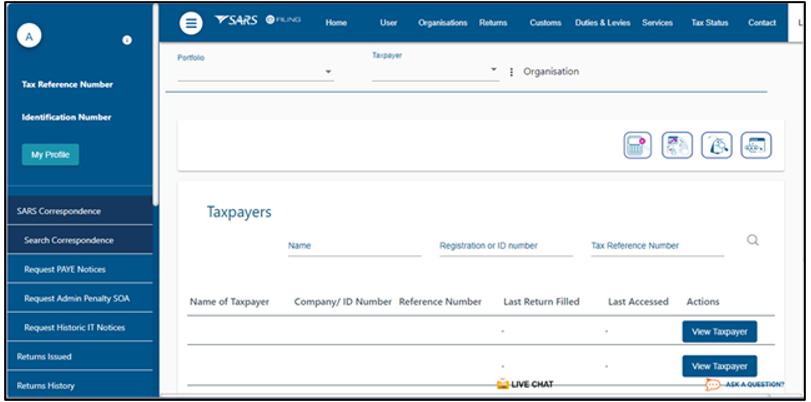
- When you click on “SARS Correspondence” and the sub-option “Search Correspondence” in the menu on the left-hand side of the page, a list of letters/ correspondence that were issued by SARS within the selected timeframe will be displayed:
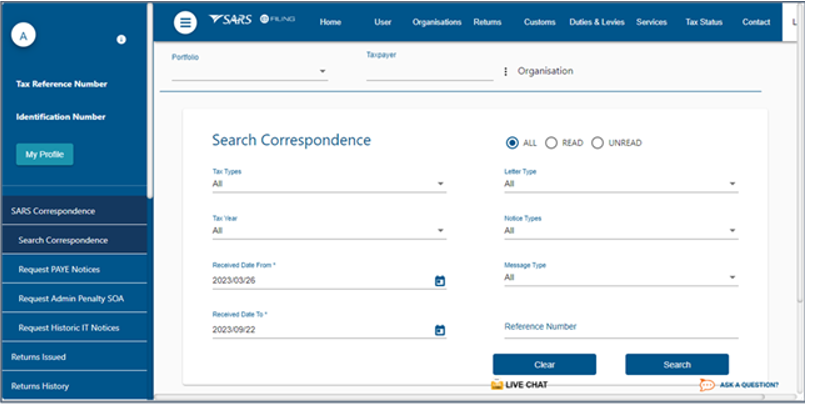
- To view a specific letter/ correspondence, you must select “View” next to the required letter/correspondence.
- The Penalty letter for understatement or Outstanding Returns letter will be issued within 30 business working days and the Final demand for outstanding returns within 21 business working days.
- The Notice of Assessments will be displayed under the SARS Correspondence menu on eFiling.
Definitions, acronyms and abbreviations
The definitions, acronyms and abbreviations can be accessed here – Glossary webpage.
Legal disclaimer: In the event of conflict or inconsistency between this webpage and the PDF version of the guide, the latter shall prevail.